
Self check-in kiosk for attendees
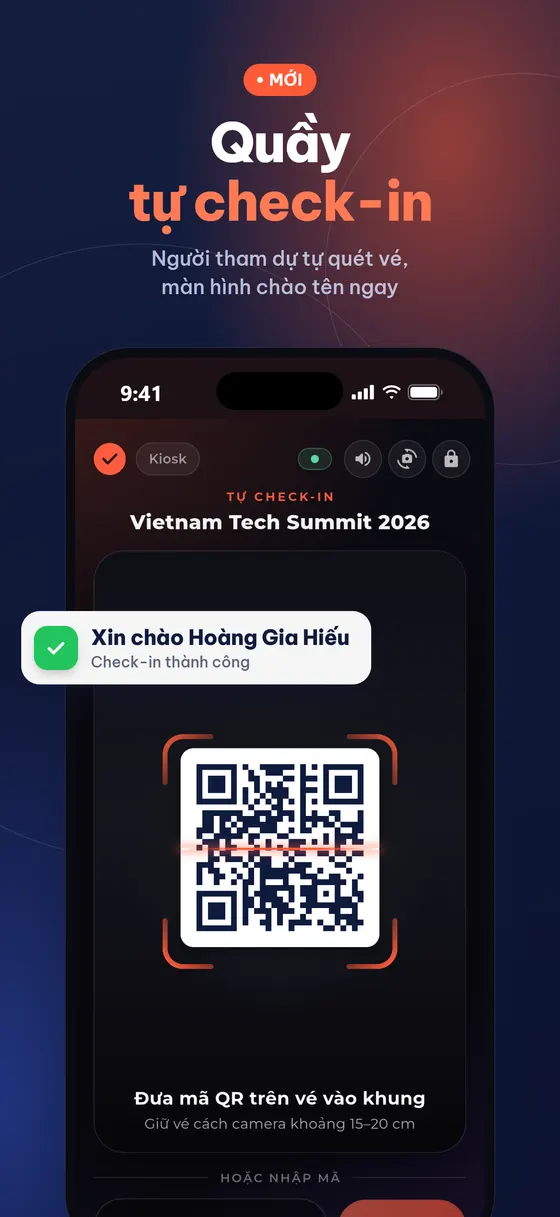
Put a tablet or phone at the reception desk so attendees can scan their own tickets, which shortens the queue and frees up your staff. Tickmi offers Kiosk mode in the app and a self check-in kiosk that runs in the browser.
On this page
Two ways to set up a kiosk
- Kiosk mode in the Tickmi Studio app: uses the device's camera to read QR codes, and attendees can also type their ticket code or phone number. The screen is locked and can only be exited with a PIN. It needs a staff account signed in to the app.
- Self check-in kiosk on the web: a link you open on a tablet, phone or computer; attendees type their 8-character ticket code or scan with a USB or Bluetooth QR/barcode reader. No Tickmi Studio sign-in is needed.
Choose the app when the reception desk has only a phone or tablet and you want to use its camera; choose the web link when you already have a computer with a barcode reader, or want to open the kiosk on several machines without signing in.
1. Turn on Kiosk mode in the app
You need to be signed in to the app first, see Check in with the Tickmi Studio app.
- Go to the More tab → Kiosk mode (self check-in).
- Choose the Ticket product that the kiosk will accept.
- Enter a Gate / counter name (optional), for example "Gate A", to tell check-ins apart by location.
- Choose Return to scanning after: 3, 5, 10 or 15 seconds.
- Turn on Use front camera if the device faces the attendees.
- Set a Kiosk exit PIN of 4 to 6 digits and enter it again to confirm. The PIN is kept only for this kiosk session.
- Click Start kiosk.
2. Lock the device into the kiosk
Android: Pin app
When you click Start kiosk, Android asks you to confirm Pin app. Accept it so attendees cannot get out to the home screen. This dialog is shown by Android, so it may follow your device's language.
iOS: Guided Access
- Go to Settings → Accessibility → Guided Access and turn the feature on.
- After entering the kiosk, triple-click the side button (or the Home button) to start the lock.
3. How attendees check themselves in
The kiosk screen guides them through three steps: Open your ticket (in the confirmation email or a saved ticket image), Hold the QR code in the frame (keep the ticket about 15 to 20 cm from the camera) or type the ticket code or phone number, and Get confirmed. When the check-in succeeds, the screen greets the attendee by name.
| Message on screen | What it means |
|---|---|
| Welcome! / Hello [name] | Check-in succeeded. |
| Already checked in | The ticket was used earlier; the attendee needs to see a staff member. |
| Invalid ticket | The ticket was not found or does not belong to this program. |
| Ticket cancelled | The ticket can no longer be used. |
| Not valid at this time | The ticket cannot be used right now (too early or past its validity period). |
The corner of the screen shows the number of check-ins on this device and a Turn sound on / Turn sound off button. When the network drops, the kiosk still accepts QR scans and shows Recorded offline, will sync automatically, as long as the device downloaded its offline data earlier (see Offline check-in); looking up by phone number needs a connection.
4. Exit the kiosk
Click Exit kiosk and enter the PIN you set. On Android, unpin the app the way your device does it; on iOS, triple-click the side button to end Guided Access.
5. The web self check-in kiosk
- On the Tickmi Studio web app, open the ticket product → the Check-in group → Check-in, sub-tab Settings.
- In the Manual check-in section, find the Public link — Self check-in kiosk block and turn on Enable public access.
- Choose the Guest language (Vietnamese or English), then copy the link or download the QR code.
- Open the link on the machine at the reception desk. Attendees scan the QR code on their ticket with a reader (hold the ticket about 10 to 15 cm from the reader) or type the 8-character Ticket code printed on the ticket and click Check-in.
The web kiosk does not use the machine's camera and does not accept the ticket number, so strangers cannot guess tickets by running through consecutive numbers. The screen shows Welcome [name]! on success, Ticket already used when the ticket has been checked in, and Invalid code when the code is typed wrong.
If the same link receives 300 wrong entries in a row, the kiosk shows Kiosk temporarily locked for 5 minutes to stop code guessing; the counter resets to 0 after a successful check-in. When the connection drops, check-ins are saved in the browser and show Saved — awaiting sync, with the number of pending check-ins. If you shared the link by mistake, click Rotate link (invalidate old link): the old link and QR code stop working immediately.
Want a label or badge printed the moment an attendee checks themselves in? See Auto-print at check-in. You can also combine it with the welcome screen to show the name of whoever just arrived.
6. Track check-ins from the kiosk
Every check-in from a kiosk appears in the Scan history tab on the web, with its own source so you know which desk is working:
- Tickmi Studio app · Kiosk mode: check-ins from Kiosk mode in the app; the scanner is the account signed in to the app.
- Self check-in kiosk · Attendee scan: attendees type the ticket code on the web kiosk link.
- Self check-in kiosk · Barcode reader: attendees scan their ticket with a reader plugged into the machine that has the kiosk link open.
Check-ins from the web kiosk link are not tied to any staff account. To learn how to filter and read figures by source, see Check-in stats by scan source. Learn more about Tickmi's check-in kiosk.
Frequently asked questions
What if I forget the kiosk exit PIN?
The PIN is kept only for the kiosk session and cannot be recovered in the app. Write it down when you set it and share it only with the staff in charge.
Does the web self check-in kiosk need a sign-in?
No. Anyone who opens the self check-in link can use it, so open the link only on the device placed at the reception desk. If the link leaks, click "Rotate link (invalidate old link)".
Can attendees enter the ticket number on the web kiosk?
No. The web kiosk accepts the 8-character alphanumeric Ticket code printed on the ticket, not the ticket number. The kiosk in the app also accepts a phone number when online.
Why does the web kiosk say Kiosk temporarily locked?
The kiosk link received 300 wrong codes in a row, so it is locked for 5 minutes to stop code guessing. After that it works normally again.
The Tickmi team is here to help on hotline 0349 632 920, or try Tickmi for free and follow along.