
Digital business cards for attendees who connect
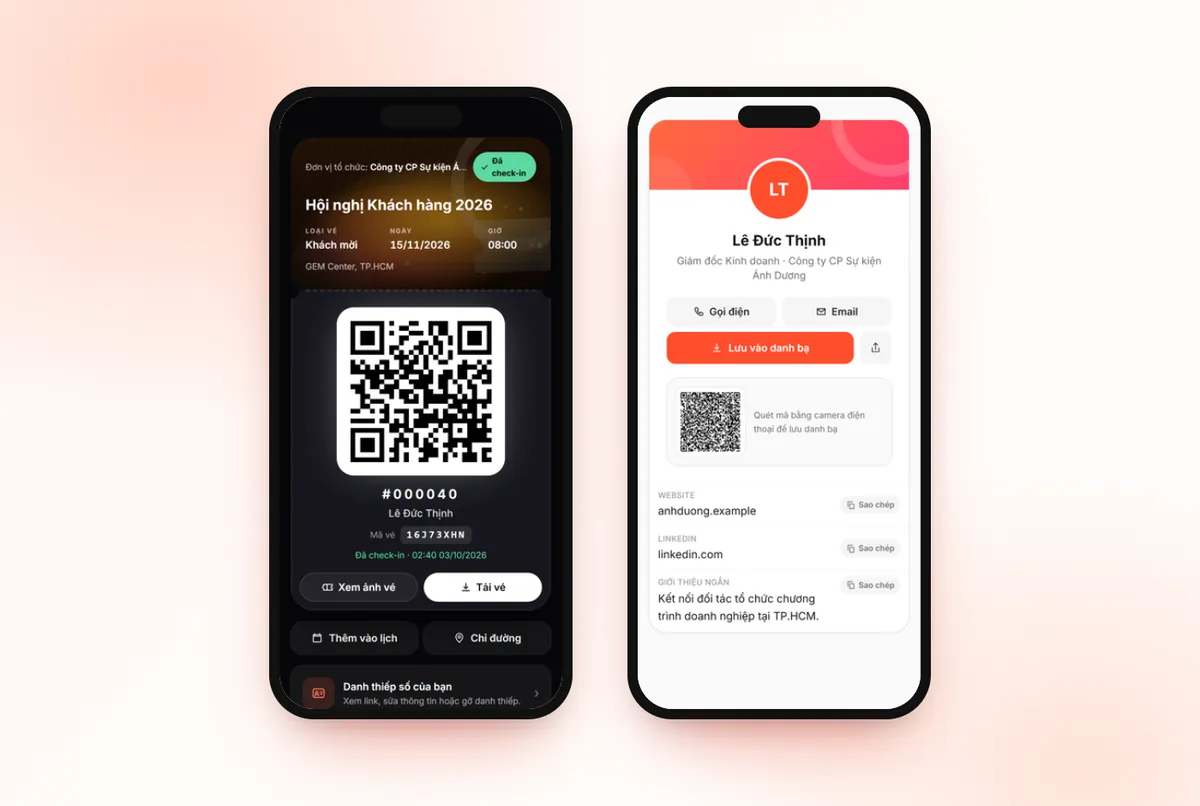
Digital business cards let attendees create a contact page with a link and QR code right from their ticket page, so others can scan it and save the contact in seconds.
On this page
Digital business cards live in the Interaction group of a ticket product. The organizer only turns the feature on; attendees enter their own details and decide which ones are public.
Organizer: turn on Digital business cards
- Open the ticket product and go to Interaction → Digital cards.
- Switch on Allow business cards.
- Pick the Card page colours: Tickmi orange, Dark, Ocean, Sunset or Minimal.
- Click Save changes.
The settings screen shows the number of public cards and total views. You only see counts, never the contents of attendees' cards. The How attendees use it panel sums up the three attendee steps: Open ticket page, Fill in & consent, Share the QR, with a preview of the card page in the colours you picked.
When the feature is off, an attendee who opens the card page sees Digital cards are not enabled for this ticket.
Send attendees to their ticket page
Attendees create their card from their ticket page. There are two ways in:
- In the ticket email template, add the Ticket button element (email designer → Elements) so each person gets a personal link. See Ticket emails and custom domain and Send QR tickets in bulk by email.
- Self-registered attendees land on their ticket page right after registering, see Create a registration page.
For details about the ticket page, see Personal ticket page.
Attendee: create a card
- Open the ticket page and click Create your digital business card.
- Read the terms (click Read terms) and tick the box agreeing to make the selected details public.
- Enter details in the Main info, Contact and Social & bio groups (click Add social links, bio to open that group).
- For each field, tap to switch between Public and Hidden.
- Click Agree & create card.
Fields attendees can fill in:
| Group | Fields |
|---|---|
| Main info | Display name, Job title, Company / organization |
| Contact | Phone, Email, Website |
| Social & bio | Zalo (phone number), LinkedIn, Facebook, Short bio |
Only details marked Public appear on the card. Hidden details stay saved so the attendee can edit them later.
Share and save to contacts
- After creating the card, the attendee gets a link and a QR code; they can click Copy link or Open card.
- Others scan the QR code with their phone camera to save the contact, or open the link and tap Save to contacts.
- The card page also has Call, Email, Website and Share buttons, depending on which details are public.
Card pages are kept out of search engines; only people with the link or the QR code can view them. If a card is opened too many times in a short period, the page temporarily shows Too many views, please try again in a few minutes.
Edit or remove a card
From the ticket page, attendees open Your digital business card to see the link, edit details and click Save changes. This screen also shows Your card is public with the view count. To withdraw consent, click Remove card (withdraw consent) and confirm with Remove card: the page turns off immediately, the old link and QR code stop working, and the card details are deleted. Attendees can create a new card later with a new link.
Tips to get more attendees using cards
- Remind attendees to create their card before the event, right in the ticket email that has the Ticket button.
- Put a reminder in the networking area or on screen so attendees open their ticket page and let each other scan their card QR codes.
- Choose a card page colour that matches your event branding so the pages look consistent.
Privacy
A card is public only when the attendee consents; the system records the time, terms version and IP address in line with Vietnam's Decree 13/2023 on personal data protection. If the organizer turns off Allow business cards, every card of that ticket product stops showing immediately.
Related
Frequently asked questions
Can the organizer see the details on attendees' cards?
No. The organizer only sees the number of public cards and the view count, never the contents.
Does the person receiving a card need an app to save it?
No. They scan the QR code with their phone camera, or open the link and tap Save to contacts.
Is attendee data lost if I turn off Digital business cards?
When you turn it off, every card of the ticket product stops showing immediately, but attendees do not lose the details they consented to share.
The Tickmi team is here to help on hotline 0349 632 920, or try Tickmi for free and follow along.