
Buy tickets on ticket.tickmi.com
ticket.tickmi.com is Tickmi's ticket shop. You pick tickets in a few steps, pay through VNPay (a Vietnamese payment gateway) and get your QR tickets on the page and by email, with no account needed. Tickets are issued by the organizer; Tickmi is the ticketing and payment platform.
On this page
1. Find tickets
There are two ways to reach a ticket page:
- From the organizer's link: links like ticket.tickmi.com/e/… shared on a website, social media or email. Some programs are sold only through a private link and don't appear on the home page.
- From the ticket.tickmi.com home page: browse the Featured, Happening in the next 7 days, Upcoming and By category blocks, or use the quick filters Today, This weekend and This month.
The Search tickets, experiences, venues… box searches by program name, venue and organizer name. On the Discover tickets page you can filter further by time and category, and click Clear filters to see everything again. Each card shows the lowest price and a status: On sale, Coming soon, Sold out or Ended.
2. Choose a ticket type and quantity
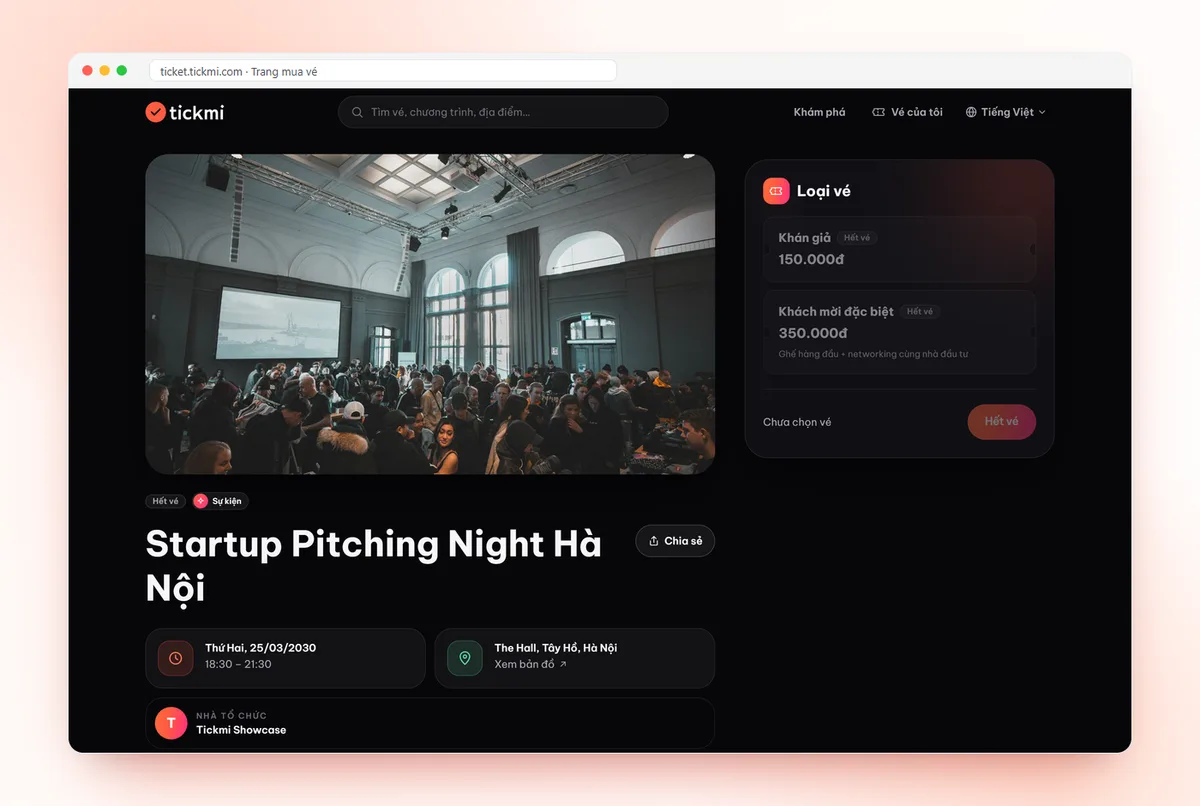
The detail page has a cover image, time, venue (with a View map button), Organizer, an About section and the list of Ticket types.
- Read each ticket type's description and use the plus and minus buttons to choose a quantity. Each type has a Max … per order limit and may show Sales end with its closing time.
- When a ticket type hasn't opened yet, the page shows Sale opens in with a countdown; when few remain, the page shows Almost gone.
- Click Get tickets. If the organizer lets buyers pay the fee, the price appears with a note that the service fee is shown at checkout.
Ask the organizer before you buy
Some pages have an Ask the organizer box in the left column. Type a question such as "What time do doors open?" or "Is there parking?" and click Ask. The assistant answers instantly from the details the organizer provided. Answers are written by an AI assistant, so they may be incomplete; for questions with no information, the assistant suggests contacting the organizer directly. This box only appears when the organizer has turned on the assistant for that ticket product.
When you have to enter the waiting room
For high-demand sales, the button changes to Enter waiting room. You see Your position, People ahead and Estimated wait. If you join before the sale starts, everyone's order in the waiting room is drawn at random exactly at the opening time, so joining early or reloading the page gives no advantage. Keep the page open; when it's your turn the page moves on automatically and you have 15 minutes to complete your order. Leaving the page for too long (over 90 seconds) can cost you your turn.
3. Enter your details and hold tickets
The Checkout page has three steps: Tickets, Details and Confirm.
- Under Buyer details, enter your Full name, Email and Phone number. Check your email carefully, because your tickets are sent there.
- If the organizer requires it, fill in Attendee details for each ticket; click Use buyer details if the ticket is yours. Each ticket is sent to the matching attendee's email.
- In the Confirm step, review the buyer, the tickets, the Service fee (if any) and the Total, then click Pay.
The moment you click, Tickmi holds your tickets for 10 minutes: the page shows Your tickets are on hold! with the order code and Hold time left. Your buyer details are saved on your device so next time is faster. For free tickets, the button is Get tickets and the tickets are sent right away, with no payment.
4. Pay with VNPay
You are redirected to the VNPay gateway to pay by ATM card, Visa/Mastercard or by scanning a bank QR code. Tickmi doesn't store card details; card data is entered and processed on VNPay's page. After paying, you return to the order page:
| Order page says | What it means |
|---|---|
| Payment successful | Your e-tickets appear right below and are sent by email. |
| Awaiting payment | No result received yet. If you just paid, the status updates on its own after a moment; if not, click Pay again before the hold expires, or Cancel order to release the tickets. |
| Payment failed | The transaction didn't complete and you haven't been charged. Order again if you still want to buy. |
| Order expired | The hold time ran out and the tickets were released for sale. |
| Refund required | Your payment arrived after tickets sold out. Tickmi will contact you to refund it. |
5. Receive and use your tickets
In the Your tickets section of the order page, each ticket has a QR code and a Ticket image (click to switch between them), the ticket type, date and time. For orders with several tickets, swipe sideways to see each one. Click Download to save the ticket file, or Open ticket file to view it. If the page says Issuing your tickets…, wait a few minutes; tickets are also sent by email. At the venue, show the QR code (from the page, the email or the saved image) to staff to scan, or scan it yourself at a kiosk if available. A used ticket shows the Checked in label. Learn more about the personal ticket page.
6. Find your tickets again in My tickets
You don't need an account. Open My tickets on ticket.tickmi.com:
- Orders made on the device you're using appear automatically, split into Upcoming and Past. Click Hide from this device if you don't want an order to show on that device; the order and tickets stay valid.
- To see tickets bought on another device or tickets you were invited to, under See all tickets by email, enter your email, click Send code, enter the 6-digit Verification code you receive by email and click Verify. Invited tickets show the Invited ticket label.
- When you finish on a shared computer, click Sign out.
You can also reopen an order at any time from your order confirmation email.
Need to cancel a ticket and get your money back? See ticket refund requests. When you order, you agree to Tickmi's Ticket purchase terms and Service termination & refund policy, linked in the footer of ticket.tickmi.com.
An organizer who wants to sell tickets this way? See selling tickets online with Tickmi.
Frequently asked questions
What if I don't receive the ticket email?
Check your Spam/Promotions folder. If it's still missing, open My tickets on ticket.tickmi.com, enter the email you used to buy and the 6-digit verification code to view and download your tickets.
I was charged but my order still says Awaiting payment. What now?
Wait a few minutes; the status updates automatically once Tickmi receives the result from VNPay. If the order changes to Refund required, Tickmi will contact you to refund the full amount you paid.
Do I need an account to buy tickets?
No. You only need your name, email and phone number. To view tickets again, use your email and a 6-digit verification code in My tickets.
How long are tickets held while I pay?
10 minutes from the moment you click Pay. After that the order expires and the tickets are released for others to buy.
The Tickmi team is here to help on hotline 0349 632 920, or try Tickmi for free and follow along.