
Run a live lucky draw for your attendees
The Lucky draw feature lets you draw prizes straight from your ticket product's attendee list, present them on a big screen and keep a full history of every winner.
On this page
- Start from the free lucky wheel
- Premium lucky draw on tickmi.com
- Recovery link: reopen on another device
- Move to Tickmi Studio: keep your benefits and get credit
- Step 1: Create prizes
- Step 2: Choose who can win
- Exclusion list
- Pre-assign winners
- Step 3: Choose what shows while drawing
- Step 4: Look, sound and branding
- Step 5: Edit the draw screen layout
- Step 6: Present and draw live
- Step 7: Review winner history
- Related
Lucky draw sits in the Interaction group of your ticket product. It has two tabs, Setup and History, plus the Start live draw and Edit layout buttons. Winners are picked from your own attendee list, so there is nothing to retype and no raffle tickets to prepare. For an overview, see the lucky draw page.
Start from the free lucky wheel
If you already have a list on the free lucky wheel, open Settings and click Draw in Tickmi Studio. Your list (even if it has more than 100 people), prize names, stage color and draw style are carried over to Studio. If you don't have an account yet, sign up and you land right on the lucky draw you just created.
The draw opens under Lucky draw at the top of the menu, with the draw list and a Draw now button:
- Add people: paste from Excel (name, team) or click Import Excel file (column A is the name, column B is the team). You can edit or remove each person, or use Clear all, right in the list.
- Approve list: newly added people are marked Not approved. Click Approve list; the confirmation box shows how many people count against your account or plan and how much room is left. You can't click Draw now until everyone is approved.
- Buy a lucky draw package: a new account can draw 100 people for free. For larger lists, buy a package for 300, 500, 1,000 or 3,000 people. The line under the title always shows how many more people you can draw, with a button to buy more.
- Customize the draw: prizes, look, exclusion list and winner history, as in the steps below.
Premium lucky draw on tickmi.com
On the lucky wheel, the free version draws up to 100 people. If you need more but don't want to open an account yet, buy Premium right in Settings: it is a one-off payment through VNPAY (a Vietnamese payment gateway), with no account needed. The price is shown on the Buy Premium button and comes from the system, so it isn't listed here.
- Enter your list in Settings. Once it goes over 100 people, the limit notice includes a link to buy Premium.
- Click Buy Premium and pay on the VNPAY page. When you return, you see Confirming payment… and then Premium is on.
- Your full list is reloaded and you can draw up to the plan's maximum (1,000 people).
Premium includes:
- Drawing up to 1,000 people.
- Your brand: Logo, Background and Your draw music.
- Your list, logo, background, music and winner history are stored on our server and saved automatically after each edit (the line Saved on the server at …).
Your custom music (MP3, M4A or OGG, max 10 MB) is stored on the server together with the list, so opening the recovery link on another device brings your music back too. Logo and background are compressed so they can be saved with the list.
Premium doesn't include multiple preset prizes, an exclusion list, check-in draws or Excel export; those are in Tickmi Studio, covered in the steps below. Click Compare Premium and Tickmi Studio in Settings to see them line by line.
Recovery link: reopen on another device
Premium is tied to the browser where you bought it. To keep using it on another device, or after clearing your browser data, click Copy recovery link in the Premium block and save the link. Open it (it looks like tickmi.com/lucky-draw#premium=…) on any device to get your list and Premium back.
Anyone with the recovery link can use the plan and edit the list. Keep it private and don't post it in a public chat group. The part after the # is not sent to our server when you open the page.
Move to Tickmi Studio: keep your benefits and get credit
Click Draw in Tickmi Studio to carry the list, prize names, stage color, logo and background over to a lucky draw in Studio. With Premium:
- The new draw keeps the number of people you bought (up to 1,000), so entering the list does not use your organization's ticket issuance quota.
- When you buy a lucky draw package for that draw, what you paid for Premium is deducted from the package price (the checkout screen shows the deduction). The Studio package must be larger than the number of people you bought, and the credit applies only once.
- Once you buy a Studio package, this credit ends, because the Studio package replaces Premium.
Step 1: Create prizes
- Go to Interaction → Lucky draw → Setup tab.
- In the Prizes section, click Add prize.
- Enter the Prize name, Quantity and Winners per draw (up to 50 people).
- Click Save. Repeat for the other prizes.
Each prize shows how many are left, for example 3/5 left, and how many winners each draw picks. Once a prize has been partly awarded, its quantity can't be set lower than the number already awarded. Create prizes in the order you plan to draw them, from consolation prizes to the grand prize, so the host can follow along easily.
Step 2: Choose who can win
In the Participants section, Who can win sets which attendees are eligible:
| Option | Meaning |
|---|---|
| Checked in | Only people who have checked in, good for drawing on site |
| Has a ticket | Attendees who have been issued a ticket, even if the ticket email hasn't been sent |
Cancelled tickets are not counted in either option.
Exclusion list
Open the Exclusion list section to rule out people who must not win, such as organizers, staff or guests of honor. People on this list never win, are not shown on the draw screen and are not counted among those still in the running. The list applies to every prize. There are four ways to add people:
- Person: search by name, email or phone number and pick the person to exclude.
- Ticket type: exclude everyone holding a ticket of the chosen type, for example Staff tickets.
- By field: choose an info field and enter a value, for example Team is Organizers. Matching is not case-sensitive.
- Paste list: one email, phone number, ticket code or ticket number per line; you can paste straight from Excel. Lines that match no attendee stay in the box so you can check them.
Ticket-type and field rules automatically apply to attendees added later too. You can't exclude someone who is on the pre-assigned winners list, and vice versa; remove them from one list first. Click the trash icon to remove a single entry, or Clear all to let everyone back into the draw.
Pre-assign winners
If you need it, turn on Advanced: pre-assign winners and choose a mode:
- Fully random: every draw picks randomly from the eligible attendees.
- Shared assignment list: one ordered list; whichever prize you draw, the next person on the list wins first, and only once the list runs out does the draw become random.
- Per-prize assignment list: each prize has its own list; if it runs short, the rest of that prize is drawn at random.
Search attendees by name or email to add them to the list, put them in order and click Save order. Pre-assigned attendees are always counted, even if they fall outside the Who can win choice above.
Step 3: Choose what shows while drawing
The Shown while drawing section lets you choose up to 2 fields to display next to the name when a winner is announced, for example Ticket No., Ticket code or another attendee field such as company or team. Avoid showing full emails or phone numbers on a public screen. The ticket number helps winners quickly match their ticket on their phone when they come up to collect the prize.
Step 4: Look, sound and branding
- Draw screen look: choose one of the themes Sapphire Night, Ruby Gold, Violet Pulse or Emerald Aurora. The look is shared by every prize in the ticket product.
- Draw style: Roller or Wheel. The wheel spins one winner after another, up to 10 per round; with a long list it shows up to 20 random names, but winners are still drawn from the whole list. Prizes with more than 10 winners per round use the roller.
- Draw sound: choose a built-in sound (Ticking pointer (follows the spin), Northern Lottery, Wheel of Fortune, Lucky Wheel, Epic, Playful, Upbeat), click Preview, or upload your own audio file; choose No sound if you don't need one.
- Draw duration (seconds): how long the spinning effect runs before the announcement.
- Branding: upload a Logo and a Background image, set the Main title text (leave it empty to use "PRIZE DRAW") or turn on Hide the logo and title text.
Click Save settings when you're done.
Step 5: Edit the draw screen layout
Click Edit layout to open a dedicated editing page with sample data. Drag and drop to arrange the title, the results panel, the draw area and the control buttons; drag the top edge of the results panel to resize it. The layout saves automatically and the live draw screen looks exactly the same. The live draw screen has no drag handles, so your audience sees a clean display.
Step 6: Present and draw live
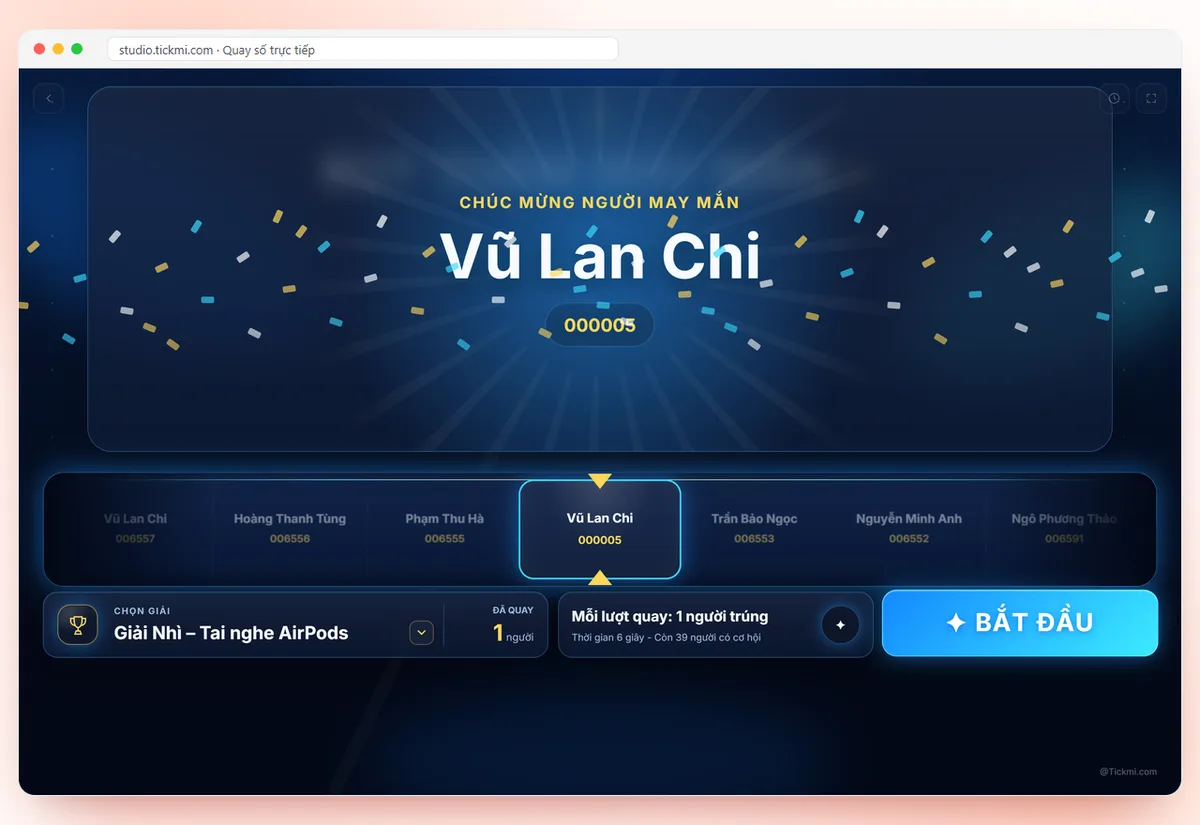
- On the computer connected to the projector or LED screen, sign in to Tickmi Studio, click Start live draw, then click Fullscreen.
- In the SELECT PRIZE area, choose the prize to draw; the screen shows the winners per draw, the draw duration and how many people still have a chance.
- Click START. After the spinning effect, the screen announces the winner along with the fields you chose.
- The RECENT area lists the latest draws; open RECENT DRAWS to see the full list.
If no eligible attendees are left, the screen shows No eligible guests left to draw so you can adjust who can win or the number of prizes.
Step 7: Review winner history
The History tab records every draw: Prize, Winning guest, Selection method (Random, Shared list or Per-prize assignment) and Time. The history screen has an export option to download the winner list, handy for handing out gifts and for checking afterward.
Before the real draw, run a test and then click Delete entire history: prize counts and eligible attendees are restored automatically. Deleting a single draw also restores one slot for that prize and makes the attendee eligible again. Deleting can't be undone.
Related
- Manage attendees
- Lucky wheel on tickmi.com
- Check in with the Tickmi Studio app
- Welcome screen
- Quizzes and leaderboards
Frequently asked questions
Can one person win more than one prize?
Someone who has already won is no longer among the eligible attendees for later draws. If you delete that win in History, they become eligible again.
How many people can one draw pick?
You set Winners per draw for each prize, up to 50 people per draw. The Wheel style draws up to 10 people per round; prizes with more winners are shown in the roller style.
Do test draws affect the prize counts?
Yes, but you can click Delete entire history in the History tab to restore prize counts and eligible attendees.
Do I need an account to buy Premium lucky draw? What if I lose the link?
No account is needed; it is a one-off payment through VNPAY. Click Copy recovery link and save it; open that link on another device to get your list and Premium back.
How many people can Premium draw, and how is it different from Studio?
Up to 1,000 people, with your own logo, background and music. Premium doesn't include multiple preset prizes, an exclusion list, check-in draws or Excel export; those are in Tickmi Studio.
If I bought Premium and then move to Studio, do I get credit?
Yes. Your benefits are kept and what you paid is deducted when you buy a lucky draw package in Studio, as long as that package is larger than the number of people you bought.
Does the projector computer need to sign in to Tickmi Studio?
Yes. The live draw screen opens from Tickmi Studio, so the computer connected to the projector must be signed in with an account that has access to the ticket product.
The Tickmi team is here to help on hotline 0349 632 920, or try Tickmi for free and follow along.