
Generate QR codes, download and print tickets in bulk
Whenever an attendee is approved or buys a ticket, Tickmi Studio automatically creates a QR code and a ticket file. You can download everything as a zip with the file names you want, print in bulk or re-issue tickets after changing the design.
On this page
1. How tickets are created automatically
Tickets are created when you approve an attendee (added by hand, imported from Excel or self-registered) and when an order is paid successfully. For each ticket, the system does the following in order:
- Creates a unique QR code for the ticket, in the QR style you chose in the ticket template.
- Issues the ticket file from the ticket type's template, in the Issued ticket file format (Image, PDF or HTML).
- Sends email and/or Zalo if the ticket type has automatic sending turned on.
Each ticket has a Ticket No. (a number that increases within the ticket product) and an 8-character alphanumeric Ticket code, used to check in when the QR cannot be scanned. If you do not have a ticket template yet, see ticket design and template library.
2. Track progress in the Tickets tab
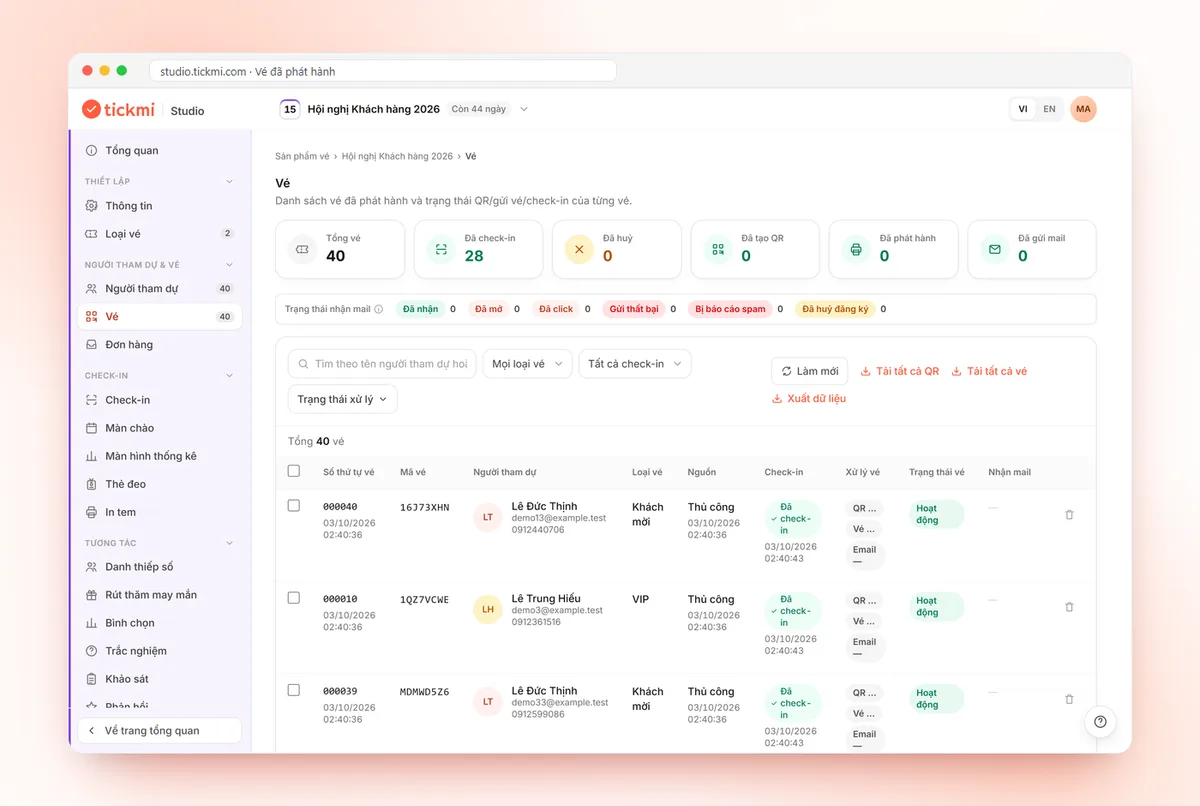
Open the ticket product → Attendees & tickets → Tickets. The row of stat cards shows Total tickets, QR generated, Issued, Cancelled, Mail sent, Sent via Zalo, Confirmed attendance and Checked in.
The filter bar has a search box (Search by name, phone, email, ticket code or other info...), a ticket type filter, a check-in filter, an attendance confirmation filter and a More filters button. Under More filters you can filter by Ticket status, QR code, Ticket issuance, Mail, Zalo (each has an error option, for example Ticket file generation failed), Mail delivery status, and Filter time by issued date, check-in date, email sent date or Zalo sent date.
The Excel file exported from the Tickets tab and the QR and ticket zip files all follow every filter currently selected. The Excel file also has a Wishes column when attendees send wishes on the invite page.
The ticket table has the columns Ticket No., Ticket code, attendee, ticket type and processing status. On each row, click View and download QR code, View and download ticket file or Open e-ticket to open that person's ticket page. The History group also has QR generation and Ticket issuance so you can look up each processing run.
3. Download all QR codes or ticket files (zip)
- In the Tickets tab, open the Download menu at the right end of the filter bar and choose Download all QR or Download all tickets. The scope follows the search, ticket type, check-in and status filters currently selected. If you only need some tickets, tick them and use Download QR / Download tickets on the action bar.
- The Download QR — file naming dialog (or Download tickets — file naming) appears. Choose how each file inside the zip is named (see the table below).
- Click Download. The Download zip file box shows Preparing progress by file count and percentage; when it is done, your browser downloads the file automatically. The download link is valid for 2 hours; click Download again if needed.
| Naming option | Example file name |
|---|---|
| System name | Keeps the file name generated by the system |
| Attendee name | John Smith |
| Ticket No. | 000123 |
| Ticket No. + Name | 000123_John Smith |
| Custom | Combine Ticket No., Ticket Code, Full name, Email, Phone and Ticket type yourself using Order and Separator |
The Remove Vietnamese accents (for older devices/software) option helps with older machines or software; the Preview box shows a sample file name. If 2 files share a name, the system automatically appends the ticket number. Your choice is saved for that ticket product and reused next time, which is handy when sending files to a print shop or importing them into another system.
Also in the Download menu, Export data downloads an Excel file of the tickets matching your filters, including the Ticket code and attendance confirmation columns.
4. Print tickets in bulk
- Tick the tickets you want to print in the Tickets tab.
- Click Print tickets.
- Choose the Ticket printer and Paper: Ticket size (one ticket per page at the designed size) or A4 paper (one ticket per A4 page, rotated to landscape for wide tickets).
- Click Print (number) tickets. If the computer has the Tickmi Print app installed and connected, the button becomes Print (number) tickets directly and the print job goes straight to the printer without the browser's print dialog.
Tickets whose file has not been generated yet, or whose file is a PDF, are skipped when printing, and the dialog tells you in advance how many tickets will be skipped. For bulk printing, choose the Image format for the ticket type.
When the ticket product has badges configured, the action bar also shows Print badges. See print labels and badges and the badge printing solution.
5. Re-issue tickets after editing the template
After you edit the ticket template, change an attendee's details or a file failed, you rebuild the tickets:
- Tick the tickets to redo (only for tickets whose file was issued successfully).
- Click Re-issue tickets.
- The Regenerate selected tickets box reminds you that each rebuilt ticket uses 1 ticket issuance quota (except paid sold tickets) and does not resend email automatically. Click Regenerate.
The QR image and ticket file are rebuilt from the latest design; the QR code content, Ticket No. and Ticket code stay the same, so tickets attendees already saved can still be scanned. If you need to resend the message, select the tickets and use Resend email (or Resend Zalo); each ticket has a limit on resends. See send QR tickets in bulk by email.
6. Other bulk actions
- Mark as checked in / Mark as not checked in for the selected tickets; marking as not checked in clears the current check-in status.
- Cancel tickets so the tickets can no longer be scanned at check-in, or Undo cancel to restore them. When cancelling you can email the attendees, see the section below.
- Delete selected; these tickets can no longer be scanned.
Cancel tickets and send a notice email
- In the Tickets tab, select the tickets to cancel and click Cancel tickets. The Cancel selected tickets dialog appears.
- To notify by email, tick Email the guests about the cancellation. This box is unticked by default. Studio tells you how many people it will send to, for example "Sends to 8 of 10 tickets with a delivery email"; people without an email do not get the notice.
- Choose the email content: Tickmi default template (automatically uses the ticket or invitation version depending on the product type; choose Vietnamese or English as the language), or My mail templates and then pick a template in the Mail template field. Click Preview the email to see the subject and content before sending.
- Click Cancel tickets. Studio reports "Cancelled N tickets, M notice emails queued".
When you use your own email template, pick one without the ticket QR code, because a cancelled ticket can no longer be used. Tickets from a refunded order do not get an extra cancellation email. If you have already told attendees another way, simply leave the email box unticked.
Every cancel, delete or check-in status change has a confirmation step. Once your tickets are ready, move on to check in with the Tickmi Studio app.
Frequently asked questions
Why can't some tickets be printed?
Tickets whose file has not been generated yet, or whose file is a PDF, are skipped when printing. Wait until the tickets are issued, or change the ticket file format to Image and re-issue them.
Can I name the files in the zip after the attendee's name?
Yes. The file naming dialog offers Attendee name, Ticket No., Ticket No. + Name or Custom; your choice is saved for that ticket product's next download.
Does re-issuing a ticket change its QR code?
No. Only the QR image and ticket file are rebuilt from the new design; the QR code content, Ticket No. and Ticket code stay the same. Each re-issued ticket uses 1 ticket issuance quota and does not resend email automatically.
Will the zip download hang on a large ticket product?
The zip file is prepared in the background and the Download zip file box shows the percentage progress. Do not close the page while it is preparing; when it finishes, your browser downloads it automatically and the link is valid for 2 hours.
The Tickmi team is here to help on hotline 0349 632 920, or try Tickmi for free and follow along.