
Revenue, settlements and refunds
The Tickets & revenue menu group in Tickmi Studio helps you track ticket sales revenue, get paid in settlement periods and approve buyers' refund requests.
On this page
1. View ticket sales revenue
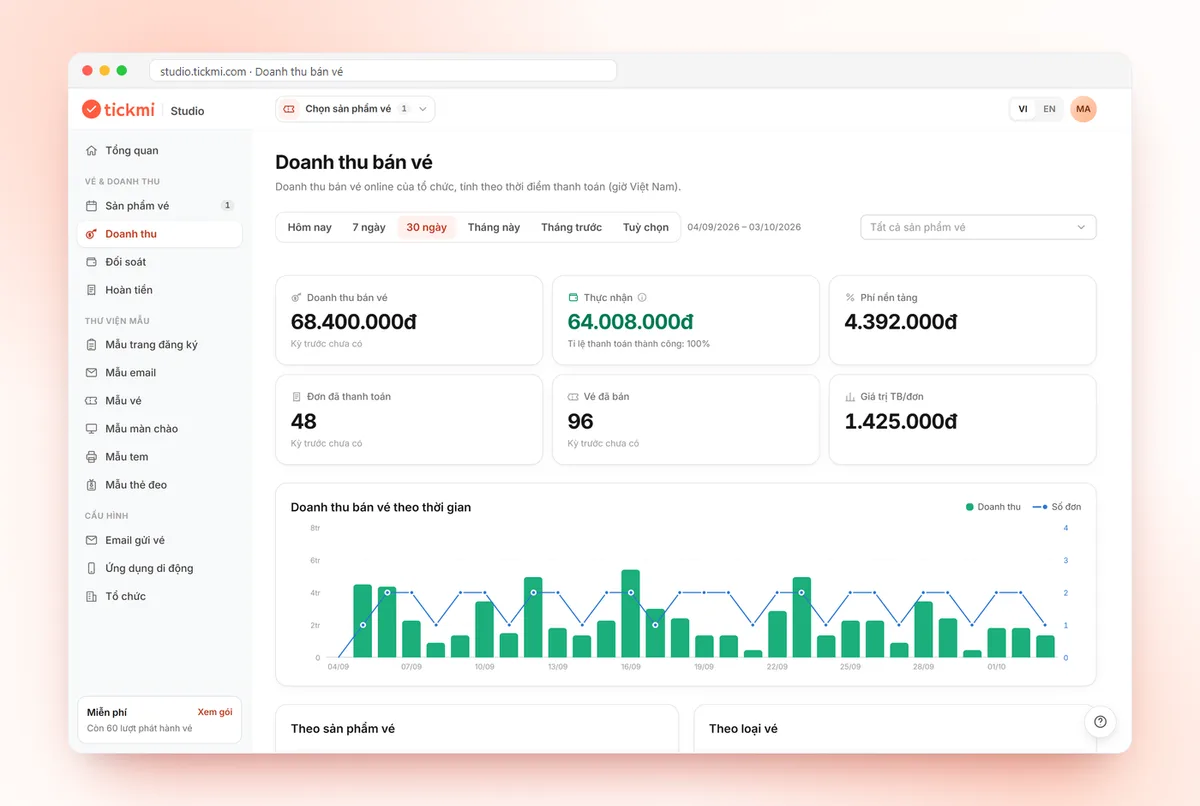
Go to the Revenue menu (in the Tickets & revenue group). The Ticket sales revenue page is calculated by payment time, in Vietnam time. Members with the check-in staff role do not see the Revenue, Settlements and Refunds menus.
- Pick a time range: Today, 7 days, 30 days, This month, Last month or Custom.
- Filter by one ticket product or All ticket products.
- Read the metrics: Ticket sales revenue, Net, Platform fee, Paid orders, Tickets sold, Avg. order value, each compared with the previous period.
Net is the ticket revenue minus the Tickmi platform fee; ticket products set to Buyer pays the fee are not charged. Below that you will find the Ticket sales over time chart, the By ticket product table, the By ticket type table (Sold / capacity) and the Orders list. You can search orders by order code, name, email or phone number, filter by status and use Export Excel.
The page automatically warns you about two cases: Refund required orders (the buyer paid after the hold expired and the tickets were sold out; Tickmi will contact you to handle it) and orders that were paid but failed to issue tickets (the system retries automatically). Click View orders to see the list.
Inside each ticket product, the Ticket sales revenue card under Overview and the Attendees & tickets → Orders section give you a quick look at that product's own figures (last 30 days), with a View full report button. Open an order to see the buyer, transaction code, bank, ticket details, fees and the list of attendees on that order.
2. Set up your payout account
Tickmi transfers your ticket revenue (after the platform fee) to your account in each settlement period. Tickmi cannot send a settlement until a payout account is set up; it is also a requirement for listing publicly on ticket.tickmi.com.
- Go to the Settlements menu.
- In the Payout account section, click Add account (or Edit).
- Enter the account details: Bank, Account number, Account holder name; Branch is optional.
- Enter the seller details: Seller name (organization or full name), Address, Contact phone, Contact email. Also enter the Tax code (organizations / companies) if you sell as an organization, or the National ID number (individuals) if you are an individual; at least one of the two is required.
- Enter your Login password (confirmation) and click Save.
- The first time you save, the Agree to ticket sales terms dialog appears. Read the Ticket Sales Policy for Organizers and the Operating Rules, tick the agreement box and click Agree and continue. Your agreement is stored as an electronic contract between your organization and Tickmi; when the documents are updated, Studio asks again.
If an account was set up earlier but is missing seller details or has not accepted the current terms, the Payout account section shows a yellow notice with a Review and agree or Edit button so you can complete it. You must complete this to keep selling tickets online and receive settlements.
Only the organization owner can edit the payout account, and every time it is saved Tickmi emails the owner. Tickmi transfers money to the account on file at the time the settlement is sent. See also members and permissions.
3. Settlement cycle
The Settlement cycle section shows which cycle your organization uses: one time, a number of days after the event ends; weekly; or monthly, along with the number of waiting days before closing. A recurring cycle lets you get paid in batches while sales are still open. To change the cycle or the waiting days, contact Tickmi. The Read the ticket sales policy link opens the full settlement rules.
When a period is due, the system creates a settlement period with the orders paid in that period, the ticket amount, the platform fee and the net amount of each order. Tickmi pays out only when every order in the period has issued its tickets successfully and all related refund requests have been handled.
4. Confirm or dispute a settlement period
The Settlement periods table lists Code, Ticket product, Orders / Tickets, Ticket amount, Tickmi fee, You receive and Status. The last period of a ticket product is labeled Final.
- Open a period with the status Awaiting your confirmation (the Settlements menu shows the number of periods waiting).
- Check the details: ticket amount, buyer-paid service fee (if any), platform fee, fees retained on refunded orders, Adjustment, You receive and the list of Orders in this period. Click Export Excel to cross-check.
- If everything is correct, click Confirm figures are correct; Tickmi will transfer exactly the amount shown.
- If something is wrong, click Report a discrepancy, describe the order or amount that does not match and click Send feedback.
| Status | Meaning |
|---|---|
| Awaiting your confirmation | A new period that you need to review. |
| Confirmed, awaiting transfer | Tickmi is sending the money. |
| Reviewing your feedback | You reported a discrepancy and Tickmi is checking it. |
| Transferred | Shows the transfer time and transaction code. |
If the fees retained on refunded orders exceed that period's revenue, the period shows Amount you owe Tickmi; after you confirm, Tickmi sends you the transfer details. After payout, the Service fee invoice section in the period details shows the invoice number, date and a Download invoice button.
5. Handle refund requests
Buyers submit a Request refund for a whole order from the order page on ticket.tickmi.com (see the guide for buyers). The organization owner is notified by email. You handle requests in the Refunds menu:
- Open the Awaiting you tab.
- Review the order, the buyer, the reason and the Refund amount.
- Click Approve to have Tickmi issue the refund, or Reject, enter a reason (sent to the buyer) and click Send rejection.
The other tabs are Awaiting Tickmi, Refunded, Rejected and All. You can also start a refund yourself: open the order details, click Request refund in the Refunds section, enter a reason and click Submit request. Once Tickmi refunds the money, the order's tickets are cancelled and can no longer be checked in, and the seats are released for resale; the platform fee for the order is not refunded (unless the error is on Tickmi's side).
Orders already paid out to you
If the order's money is already in a Transferred period, Tickmi no longer holds it and cannot refund it; the Approve button is replaced by Refunded directly. When you agree to refund, transfer the money to the buyer yourself, click Refunded directly, note how you refunded it (for example the bank transfer code) and click Confirm refunded. The order's tickets are cancelled, the seats are released and the buyer receives an email notification. This action cannot be undone.
Haven't turned on ticket sales yet? See sell tickets online and bán vé online với Tickmi.
Frequently asked questions
How long until I receive my ticket sales money?
It follows your organization's settlement cycle shown in the Settlements menu. After you click Confirm figures are correct, Tickmi transfers the money to the payout account you set up.
Who can edit the payout account?
Only the organization owner, and your login password is required each time you save. Tickmi emails the owner after every change.
Is the platform fee refunded when an order is refunded?
No, unless the error is on Tickmi's side. The fee of a refunded order is retained and shown as a separate line in the settlement period.
What if a buyer requests a refund after I have already been paid?
The request still goes to the Awaiting you tab. You can reject it with a reason, or transfer the money to the buyer yourself and click Refunded directly to cancel the order's tickets.
The Tickmi team is here to help on hotline 0349 632 920, or try Tickmi for free and follow along.