
Voting, quizzes, surveys and feedback from attendees
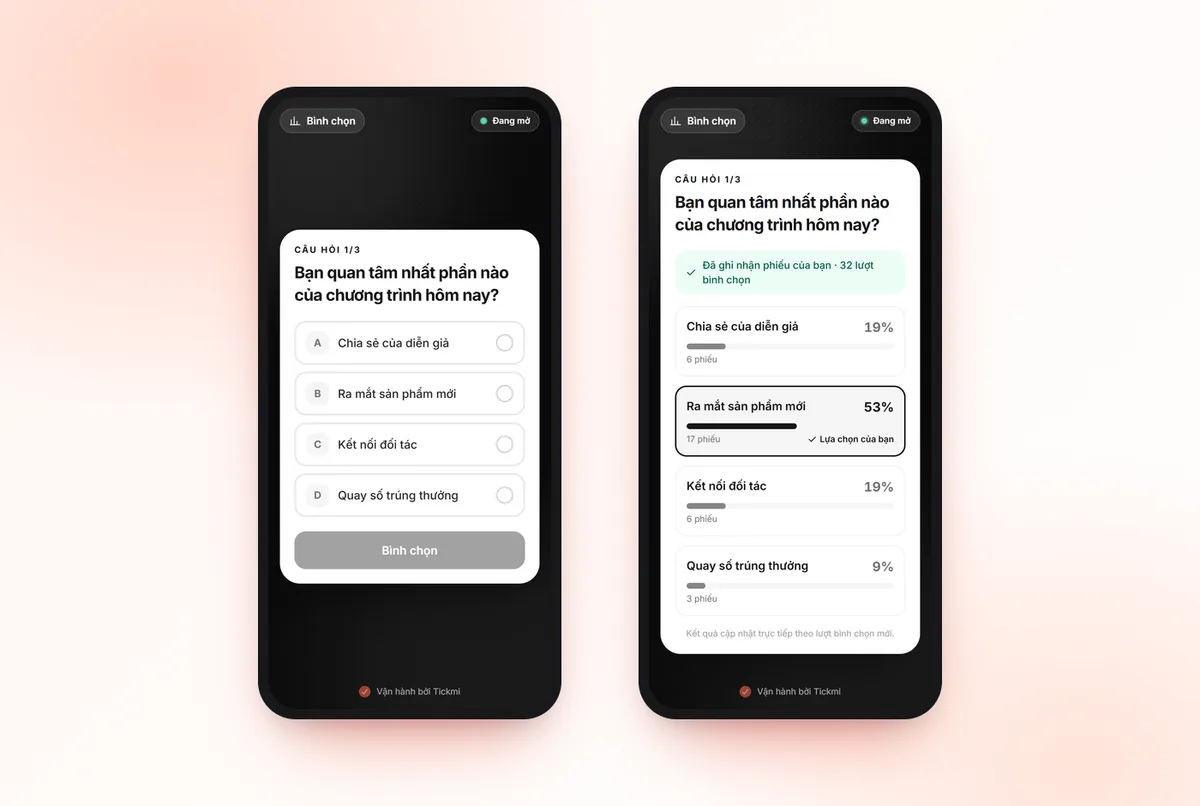
Four interactive tools let attendees join right on their phones through a link or QR code, while you follow the results in Tickmi Studio.
On this page
- Share the link and QR code with attendees
- Live voting
- Polls and registration forms on tickmi.com
- Premium: one-time purchase, no account needed
- Set a logo, background and schedule
- Move to Tickmi Studio and keep your benefits
- Buy a voting package in Studio
- Quizzes and the leaderboard
- Surveys
- Feedback and ratings
- Clean up test data
- Related
The Interaction group of a ticket product has four items: Voting, Quiz, Survey and Feedback. Each has a Settings tab and a Results tab, and they all share the same way of sharing a link or QR code. Attendees do not need to install an app: they open the link or scan the QR code with their phone camera and join right in the browser.
The questions and options for Voting, Quiz and Survey are written in a rich text editor: bold, italic, font size, lists, tables, links and images. For example, you can add a photo of each performance or each product to a voting option.
Share the link and QR code with attendees
Each item has a Public link card. The steps are the same everywhere:
- Turn on Enable public access. The card switches to On.
- Choose the Guest language (Vietnamese or English).
- Copy the link or download the QR code to print on a standee or put in an email. Click Show on big screen to open a full-screen QR display in a new tab that you can move to a projector or TV for attendees to scan.
- In the Attendee page section, choose the Theme, Background image, Authenticate by and Who can access.
By default Authenticate by is None: anyone with the link can join. To restrict access, choose Email or Phone, then under Who can access choose Has a ticket or Checked in. Attendees enter an email or phone number that matches your attendee list; the system only matches it and does not send a verification code. People who are not on the list see a not-found message. The Rotate link (invalidate old link) button disables the old link and QR code when needed.
Live voting
- Go to Voting → Add question, then enter the question and at least 2 options (click Add option for more).
- To let attendees pick more than one answer to a question, turn on Allow multiple answers and set Maximum options per person. That question shows an Up to [n] label in the list.
- Set the Voting time limit in seconds, or leave it blank for no limit.
- A new question is opened right away. The Status column has a switch to open or close each question (Open / Closed), which suits hosting a program section by section. A closed question stops accepting votes.
Attendees vote on all open questions in one go on their phone; they can submit the ones they picked first and vote on the rest later. A newly opened question appears on the phone by itself without reloading the page. If the link is on but no question is open, Studio warns you with No question is open, because attendees only see "Waiting for the next question".
The Results tab shows Live results and the total number of votes. For multiple-answer questions, the percentage of each answer is the number of people who picked it divided by the number of people who voted on the question, so the total can exceed 100%. Click Export results to download a file.
Polls and registration forms on tickmi.com
No account needed: create a poll or a registration form on tickmi.com and get a link and QR code for participants plus a separate management link. The management page shows the results or the list, opens and closes responses, and downloads Excel. From 11:00 PM on Nov 7, 2026 (Vietnam time), each new poll or form accepts up to 100 people; polls and forms created before then keep the old limits (300 voters, 200 sign-ups).
The management link is the key: anyone with it can view and edit. Save it and do not send it to participants.
For details on registration forms, see Online registration forms.
Premium: one-time purchase, no account needed
When you hit the limit, the You reached the current limit dialog appears; you can also click Upgrade in the Premium block at any time. The price is shown right on the button (it comes from the system, so it is not written here). You pay once through VNPAY, a Vietnamese payment gateway. The page confirms by itself (Confirming payment…) and then shows Upgrade complete; if the payment does not go through, you are not charged and can try again.
Premium for polls:
- Unlimited number of votes.
- Up to 30 options (10 in the standard version).
- Your own logo and background image.
- Scheduled opening and closing of the poll.
- Kept for 12 months instead of 30 days.
- Excel download of the results right on the management page.
- Unlimited number of sign-ups.
- Up to 30 fields (10 in the standard version).
- Your own logo and background image.
- Scheduled opening and closing of the form.
- Kept for 12 months instead of 30 days.
- Excel download of the list right on the management page.
Set a logo, background and schedule
- Open the management link and find the Brand and schedule block (available only after upgrading).
- Click Choose image for the Logo and Background image (JPG or PNG); click Remove image to take one off.
- Set Opens at and Closes at. The closing time must be after the opening time. Outside that window, participants see a message that it has not opened yet or has ended.
- Click Save changes.
Move to Tickmi Studio and keep your benefits
Need QR tickets, check-in, many questions or a branded registration page? Move to Tickmi Studio from the management page: your data, link and QR code stay the same. For a tool that already has Premium, the benefits you bought (unlimited people, logo, background, schedule) carry over unchanged in Studio. Excel download on the management page is a Premium benefit; the standard version downloads Excel through your Tickmi account.
Buy a voting package in Studio
A poll that has moved into Studio still accepts up to 100 people (polls created before 11:00 PM on Nov 7, 2026 keep the old limit). The Voting tab shows a [n]/[limit] people have voted bar with a Buy a voting package button:
- Click Buy a voting package and choose one of three packages: voting for 500 people, voting for 2,000 people or unlimited voting. The price is shown right in the package dialog.
- Pay through VNPAY. The package activates immediately and Studio brings you back to the same voting screen.
- Need more people? Click Buy another voting package: the numbers add up.
A package applies only to that poll. A poll that already has Premium on tickmi.com keeps unlimited voters when it moves to Studio, so you do not need to buy a voting package. Organizations that already have a ticket issuance quota plan have no limit on voters.
The voting package is only for the Voting feature: it does not include ticket issuance quota and is not a Studio plan. See plans per feature.
Quizzes and the leaderboard
- Go to Quiz → Add question, enter the options and select the round button next to the correct answer.
- Set the Total time to complete the quiz (seconds). The clock starts when the attendee clicks Start; when time runs out, the quiz is submitted automatically.
- In the Answer review section, decide whether attendees can review the questions they answered and see which ones were right or wrong after submitting.
- The Results tab has a Leaderboard with scores and submission times; click Detail to see each answer.
- Use Export leaderboard or Export questions to download the data.
The leaderboard is handy for rewarding the best answerers, and you can combine it with the live lucky draw.
Surveys
- Go to Survey → Add question. Each question has several options and attendees choose 1 answer.
- Turn on Allow guests to add a written comment if you want open-ended input for that question.
- The Results tab has a Results summary for each question, the number of written comments and Detailed results.
- Click Export results or Export questions to download a file.
On their phone, attendees see how many questions they have answered; missing ones are highlighted before they submit.
Feedback and ratings
The Feedback item collects ratings and comments after the program. Attendees tap 1 to 5 stars and can write more about their experience. The Results tab shows the Average rating, Total feedback and the list of feedback.
You can also send a Thank-you email for checked-in guests: click Choose template, pick an email template, then click Send thank-you email and confirm. The email goes to attendees who have checked in and have an email address; their name and the program details are filled in for each person. It cannot be undone once you click send. To learn how to create templates, see Email design.
Clean up test data
Each item has a delete button (Delete all votes, Delete all responses or Delete all entries) to remove trial data before real use. This deletes permanently and cannot be undone.
Related
Frequently asked questions
Do attendees need to install an app to vote or take a quiz?
No. Attendees open the link or scan the QR code with their phone and join right in the browser.
Can I let only checked-in attendees take part in a survey?
Yes. In the Attendee page section, choose Email or Phone as the authentication method and the Checked in group.
Can a voting question allow more than one answer?
Yes. When you add or edit the question, turn on Allow multiple answers and set Maximum options per person. The percentage of each answer is calculated from the number of people who voted on the question.
How many responses can a poll or form on tickmi.com receive?
Polls and forms created from 11:00 PM on Nov 7, 2026 (Vietnam time) accept up to 100 people; earlier ones keep the old limits (300 voters, 200 sign-ups). For unlimited responses, upgrade to Premium on the management page, or move to Tickmi Studio and buy a voting package.
What does Premium for polls and forms include, and how do I buy it?
Unlimited responses, up to 30 options or fields, your own logo and background image, a scheduled open and close, 12 months of storage and Excel download on the management page. Pay once through VNPAY, no account needed; the price is shown on the Upgrade button.
If I upgrade a poll and then move to Tickmi Studio, do I lose my benefits or money?
No. A Premium poll stays unlimited when it moves to Studio, with nothing extra to pay.
What if a poll in Studio goes over 100 people?
Click Buy a voting package on the Voting tab and choose the 500-people, 2,000-people or unlimited package; after paying with VNPAY the package activates immediately, and buying more adds to the numbers. This package does not include ticket issuance quota.
What data can I export?
Voting and Survey have Export results; Quiz has Export leaderboard and Export questions; Survey also has Export questions.
The Tickmi team is here to help on hotline 0349 632 920, or try Tickmi for free and follow along.