
Knowledge
How to increase engagement with attendees: 7 easy ideas
The most effective way to increase attendee engagement is to give them one small thing to do on their phone at the right moment: vote, answer a quiz, leave a rating, see their name on screen. With Tickmi, attendees join just by scanning a QR code, with no app to install, and you see results right away in Tickmi Studio. Here are 7 ideas, how to run each one and how to measure it.
Why do attendees engage so little?
Attendees usually engage little because they have no reason or no easy way to take part, not because they are indifferent. A program with only a speaker talking and an audience listening loses attention after a few dozen minutes. Asking "does anyone have a question?" in a hall of 300 people usually gets only silence.
Good engagement has three things in common: it takes less than a minute to join, attendees see the result immediately, and there is a reason to do it (curiosity, competition, a prize). The seven ideas below all meet those three points.
1. Greet them by name at check-in
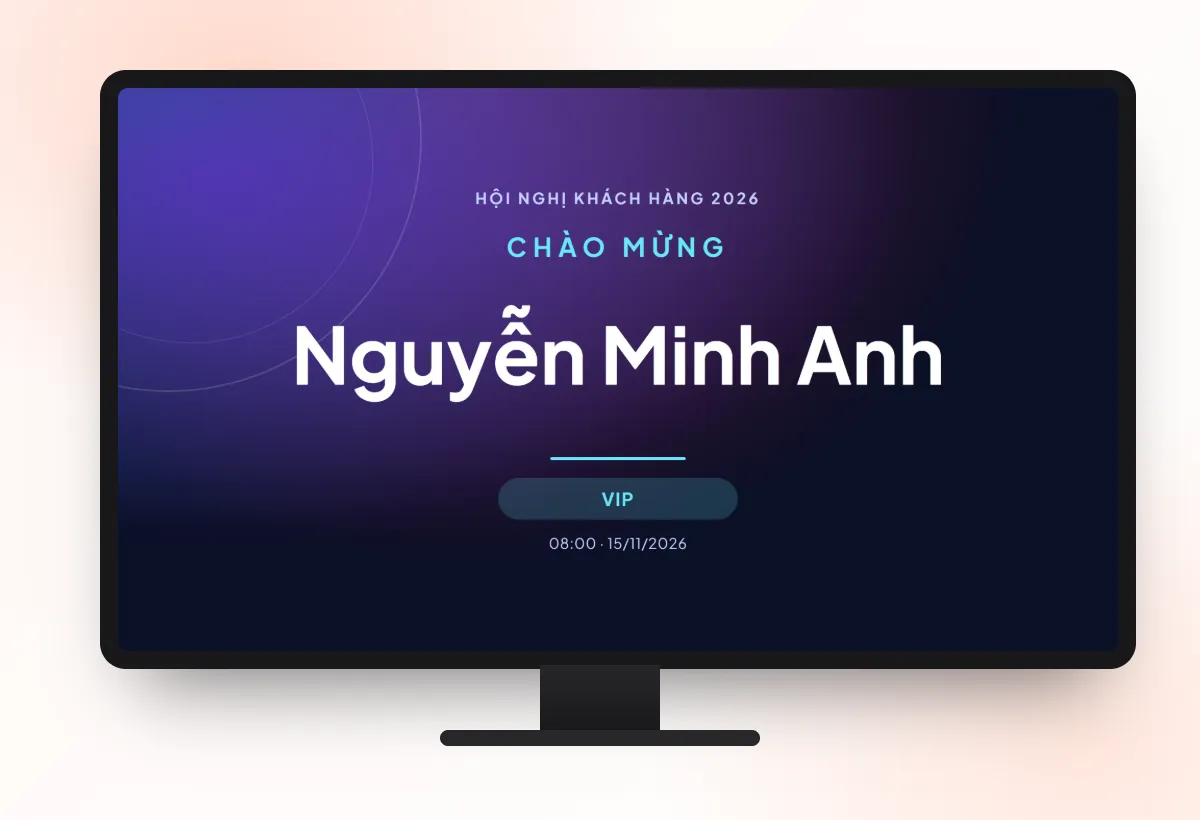
A welcome screen that shows the name of the person who just checked in creates a feeling of being personally welcomed right at the door. Later arrivals also look forward to seeing their own name appear.
In Tickmi, the welcome screen sits in the Check-in group of the ticket product. You choose a template that fits your screen size, write a greeting with the {{name}} variable, for example "Welcome {{name}} to the program!", and turn on the Just checked in list at the bottom of the screen. For busy desks, set the Display time per person to about 3-5 seconds so the screen doesn't build up a queue. Place the screen where everyone walks past, not behind the desk. See the guide to creating a welcome screen.
2. Live polls at the start of each section
A short poll at the start of each section helps the speaker understand the audience, and the audience sees their opinion on screen. For example: "What is your biggest challenge with recruitment?" with 4 options.
In Tickmi, you prepare the questions in advance in the Polls section, then use the switch in the Status column to open or close each question according to your script (Open / Closed). A question you just opened appears on attendees' phones automatically, with no page reload. Click Show on big screen to display the QR code, and open the Results tab to show the Live results. If you need a multiple-answer question, turn on Allow multiple answers.
3. Quizzes with a leaderboard
A quiz with a leaderboard creates a competitive atmosphere, especially when there is a prize for the leader. Quizzes suit internal training, customer conferences and year-end parties.
In the Quizzes section, you enter the questions, mark the correct answers and set the Quiz time limit (seconds). The clock starts when the attendee presses Start, and the answers are submitted automatically when time runs out. The Results tab has a Leaderboard with scores and submission times. To give less confident players a chance too, add a lucky draw round. Question ideas are in the article quiz minigames for conferences.
4. Lucky draw on the checked-in list
A draw run on the list of people who have checked in keeps attendees until the end, because only people who are present have a chance to win. It is the simplest way to reduce early departures.
In Tickmi, when choosing who takes part in the draw, select the Checked in group. Show the draw screen on the big screen and announce the rules before drawing so everyone sees it is transparent. The winning history is saved. See the live lucky draw guide and the article fair random drawing.
5. A short survey right at the end
Run the survey on the spot, while attendees are still sitting in the hall, instead of waiting a few days. Keep it to 3-5 questions, with one choice per question.
In the Surveys section, you add questions and turn on Let attendees add comments in text for questions that need open feedback. The Feedback section collects 1-5 star ratings with comments, and the Results tab shows the Average rating and Total responses. Show the survey QR code on screen for the last 2-3 minutes, and have the MC remind people once. Sample questions are in the article post-seminar survey templates.
6. Restrict participation to the right people
For a quiz with prizes or an important poll, only let people who hold a ticket or have checked in take part. Otherwise a link shared outside will distort the results.
In the attendee Page section, choose Verify by Email or Phone number, then under Who can access choose Has a ticket or Checked in. Attendees enter the email or phone number that matches the list. Note: the system only matches the details and does not send a verification code. The Change code (revoke old link) button disables the old link and QR when needed.
7. A personalized thank-you email
A thank-you email is the last touchpoint with attendees, and a good place to invite them back next time. An email sent only to the people who actually came means more than one sent to the whole list.
In Tickmi, the Feedback section has Thank-you email for checked-in attendees: click Choose email template, pick an email template, then click Send thank-you email. The full name and program details are filled in automatically for each person. Emails cannot be recalled once sent, so read the template carefully first. Content suggestions are in the article thank-you emails and post-event surveys.
Which metrics measure engagement?
Measure engagement as a rate against the number of people who checked in, not against the number who registered. People who didn't come can't engage.
| Metric | How to calculate | Where to find it in Tickmi |
|---|---|---|
| Poll participation rate | Number of voters ÷ number checked in | Results tab of Polls |
| Quiz completion rate | Number of submissions ÷ number checked in | Leaderboard of Quizzes |
| Survey response rate | Number of responses ÷ number checked in | Results tab of Surveys |
| Rating score | Average number of stars | Average rating in Feedback |
Example: 400 people checked in and 260 voted on the first question, so the rate is 65%. Record these rates to compare with your next event.
Common mistakes when running engagement activities
- Too many activities. Constant interaction interrupts the main content. One activity per section is about right.
- Not doing a test run. Run a test with a few people, then click Delete all entries to clear the test data before the real session. This action is permanent.
- Opening the link without opening any question. Attendees will only see "Waiting for the next question".
- Showing the QR code too briefly. Keep the code on screen long enough, and have the MC read out the instructions.
- No script for the MC. See the article interactive MC scripts.
All the tools above are built into Tickmi, and attendees take part from their phones with no app to install. For an overview, see the attendee engagement page and the guide to polls, quizzes, surveys and feedback.
About Tickmi
Tickmi is a ticketing and attendee experience platform (Ticketing & Participant Experience Platform). On one unified attendee dataset, Tickmi connects the whole journey: issuing invitation, registration and paid tickets, sending branded QR tickets, check-in by app, kiosk or scanner — even offline — then the welcome screen, lucky draw, voting, quizzes and surveys. Tickmi is trusted by organisations such as Viettel, VNPT, MobiFone, FPT and CMC. Learn about Tickmi or try it free.
Frequently asked questions
Do attendees need to install an app to take part?
No. They scan the QR code or open the link in their phone browser to join polls, quizzes, surveys and feedback on Tickmi.
How many engagement activities should one program use?
There is no fixed number. For example, many programs use one short activity per content section; too many will interrupt the main content.
How can I let only people who are present join a quiz with prizes?
In the attendee Page section, set Verify by to Email or Phone number and Who can access to Checked in. The system matches against the attendee list and does not send a verification code.
Can I show poll results on the big screen?
Yes. Click Show on big screen to display the QR code, and open the Results tab of Polls to show the Live results on the projector.
Can I download quiz and survey results?
Yes. Polls and Surveys have Export results; Quizzes have Export leaderboard and Export questions.
Can the lucky draw exclude people who did not come?
Yes. When choosing who takes part in the draw, select the Checked in group to draw only among people who have checked in.
Issue QR tickets, send emails, check in and engage attendees on one platform.