
Knowledge
In-person and online seminars: managing two groups of attendees on one list
A hybrid seminar has two groups of attendees with two different journeys: people at the hall need a ticket to pass the gate, while remote viewers need a link and a reason to stay until the end. This article shows how to organize tickets, check-in and interaction for both groups, and is clear about which parts need a separate live-streaming tool.
What does a hybrid seminar involve?
A hybrid seminar (in-person plus online) is an event held at a real venue and simultaneously streamed to remote attendees. The work splits into three layers: for a paid seminar, you can open event ticket sales for each attendance format on Tickmi.
- Broadcast: cameras, audio, a live-streaming platform such as an online meeting room or a livestream channel. This needs a technical team or a separate provider.
- List and tickets: who registered, who comes to the hall, who watches remotely, who receives the link.
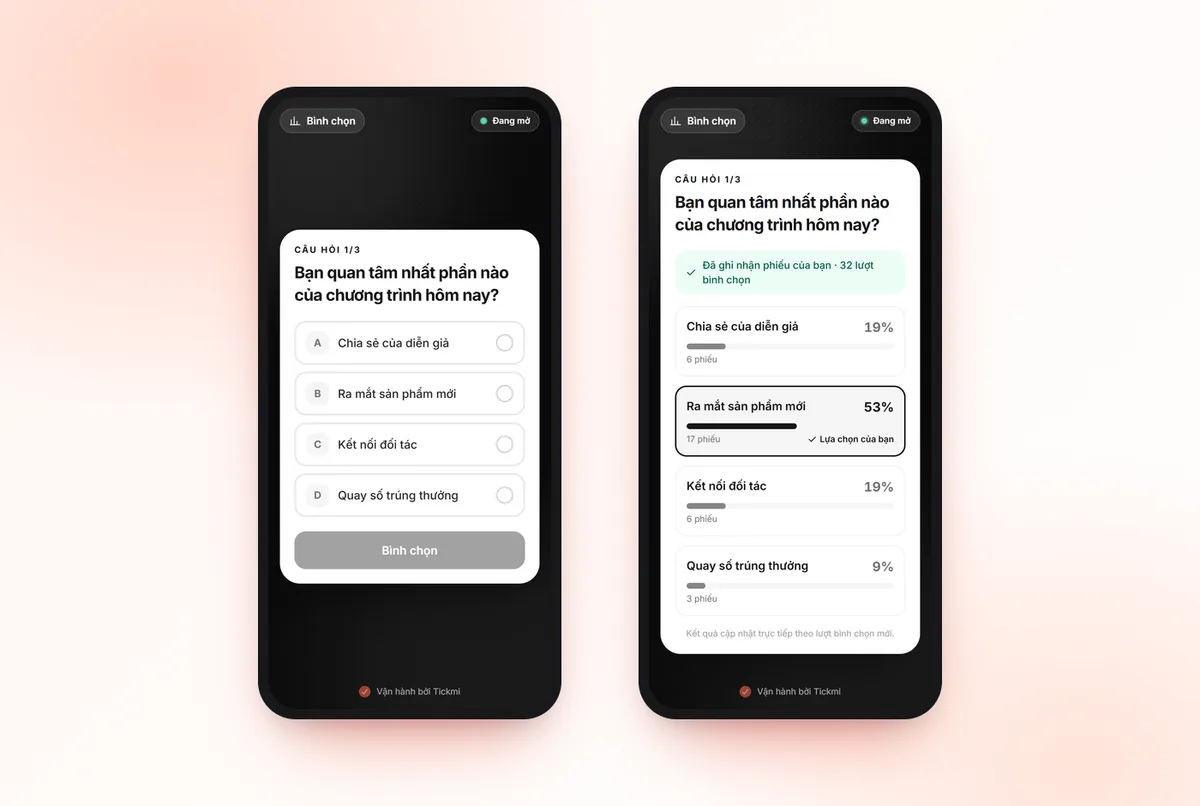
- Interaction: questions, polls, quizzes and surveys that both groups can join.
Tickmi does not stream live. Tickmi handles the second and third layers: one shared attendee list, QR tickets for people coming to the hall, a separate email for remote viewers, and interaction tools that run on phones.
Split two ticket types: on site and online
The most important step is to create two ticket types in the same ticket product. Each attendee is tied to a ticket type, so everything downstream can be split by group.
| On-site ticket | Online ticket | |
|---|---|---|
| Quantity | Equal to the hall capacity | According to the streaming platform's limit |
| Email sent | QR ticket, venue, guest reception time, parking | Viewing link, start time, how to join Q&A |
| On the day | Scan the QR at the gate | Open the link, no check-in needed |
| Interaction | Scan the QR on the hall screen | Click the link in the email or on the stream frame |
On the registration page, attendees choose their own ticket type in the Choose ticket type section. If seats in the hall are limited, turn off auto-approval for the on-site ticket type so you can screen before issuing tickets; the online ticket type can stay auto-approved. For configuration, see the guide to creating a registration page.
Sending the viewing link to online attendees
Each ticket type has its own email template and email subject. For the online ticket type:
- Create a separate email template in Template library → Email templates.
- Use the Button block to put the live viewing link in a prominent place, with the start time and time zone if some viewers are overseas.
- State clearly how to ask questions and join polls while watching.
- Assign this template to the online ticket type and set a subject such as "Online attendance link for [Seminar name]".
How to use the email editor is in the guide to designing ticket emails. Online viewers still receive an electronic ticket like everyone else. You can design this type's ticket more simply, emphasizing the viewing link instead of the QR code.
Note: the live link is in the email, so it can be forwarded. If the content must be confidential, use a streaming platform with login or a room password, and send the password in the email.
On-site check-in and the numbers to keep separate
People coming to the hall check in with a QR ticket like any other event. Two notes specific to hybrid seminars:
- Online tickets also have a QR code, so someone who registered online but comes to the hall can still be scanned. Turn on the ticket type display in Information shown when scanning a ticket so staff can recognize it, and decide in advance how to handle it: let them in if there is room, or invite them to a secondary area.
- Check-in counts only reflect people at the hall. The number of online viewers comes from the streaming platform's report.
After the event, filter the attendee list by ticket type to see how many of the on-site group showed up compared with registrations. For preparing the reception desk, see the article tickets and check-in for scientific conferences.
Interaction for both groups: polls, quizzes, lucky draws
Tickmi's polls, quizzes and surveys run in the phone browser via a link or QR code. This helps hybrid seminars: people in the hall scan the QR on the screen, remote people click the link, and results come together in one place.
Choose the right group in Who can access:
| Option | Who can join | Use when |
|---|---|---|
| Default, anyone with the link | Anyone | Quick questions where you do not need to know who answers |
| Verified, group Has a ticket | Ticket holders, both on site and online | Quizzes with prizes, surveys that must be tied to attendees |
| Verified, group Checked in | Only people who have entered the hall | Activities only for those present |
A common mistake is choosing "Checked in" out of habit, which blocks all remote viewers. Detailed settings are in the guide to polls, quizzes, surveys and feedback.
For lucky draw, the Who can be drawn section has three options: Checked in, Has a ticket, Everyone. If the prize is collected on site, choose Checked in. If you want remote viewers to have a chance too, choose Has a ticket and announce in advance how prizes will be delivered to remote winners.
After the event: thank-you email and survey
Tickmi's thank-you email feature only sends to attendees who have checked in. Online viewers do not check in, so they are not on that list. Prepare a separate thank-you email for the online group with a survey link and the recording, sent through the email channel you already use.
The survey should include a question "How did you attend?" to compare satisfaction between the two groups. Suggested questions are in the article post-seminar survey template.
Hybrid seminar checklist
- Two ticket types, separate quantities, separate email templates.
- Viewing link and room password (if any) tested on phone and computer.
- The hall screen shows the interaction QR; the online stream frame shows the same link.
- The "Who can access" setting of each activity matches the group you want.
- The lucky draw rules state clearly whether remote people can take part.
- One person assigned to read questions from online viewers so the MC does not miss any.
- A separate thank-you email for the online group is ready.
For on-site reception, from QR tickets to entry statistics, see the event check-in software solution; for interactive activities, see attendee engagement.
About Tickmi
Tickmi is a ticketing and participant experience platform. On a single, unified set of attendee data, Tickmi connects the whole journey: issuing invitation, registration and paid tickets, sending branded QR tickets, checking in with an app, kiosk or scanner (even offline), and then moving on to the welcome screen, lucky draw, polls, quizzes and surveys. Tickmi is trusted by organizations such as Viettel, VNPT, MobiFone, FPT and CMC. Learn about Tickmi or try it free.
Frequently asked questions
Does Tickmi livestream the seminar?
No. You use a separate streaming platform or online meeting room. Tickmi manages the registration list, sends tickets and viewing links by email, on-site check-in and interactive activities for both groups.
Do online viewers need to check in?
Not required. They only need to open the viewing link. Because they do not check in, when letting them join verified polls or quizzes, choose the Has a ticket group instead of Checked in.
How do I send different emails to people at the hall and remote viewers?
Create two ticket types in the same ticket product and assign each its own email template and subject. The on-site ticket email has the QR ticket and directions, and the online ticket email has the viewing link.
Can remote viewers join the lucky draw?
Yes, if in Who can be drawn you choose Has a ticket or Everyone. Announce in the rules in advance how prizes are delivered to remote winners.
How do I know how many people watched online?
The viewer count comes from the streaming platform report. Tickmi gives you the number of registrants per ticket type and the on-site check-in count.
Issue QR tickets, send emails, check in and engage attendees on one platform.