
Knowledge
Making an invitation with a QR code: pick the right code, the right channel, and scan without queues
Adding a QR code to an invitation sounds simple, but the important question is what the code is for: letting the recipient register, or checking tickets at the gate? This guide helps you choose the right type of QR code, build the invitation step by step, pick a sending channel and prepare to scan at the gate.
Three kinds of QR codes commonly found on invitations
Before designing, decide which kind of QR code your invitation uses. Each kind has its own method and limits.
| Shared QR | Self-made individual QR | System-generated QR ticket | |
|---|---|---|---|
| What the code contains | The same link for everyone (registration page, map, programme) | An individual number or link for each person, set by you | An individual ticket code generated by the system, tied to the attendee |
| Used for | Inviting registration, viewing information | Lookup, manual marking | Ticket checking and check-in at the gate |
| Know who has arrived | No | Only if you record it yourself | Yes, recorded the moment it is scanned |
| Prevents reuse and sharing | No | No | Yes: reports ticket already checked in, ticket cancelled |
| Tool | Any QR generator | A bulk QR generator from Excel | A ticketing platform, such as Tickmi Studio |
If the invitation only needs to lead the recipient to a registration page, a shared QR is enough (see QR code for event registration). If you need to know exactly who has come and do not want one code used many times, use individual QR tickets.
When an individual QR invitation is worth it
- The guest list is final, for example a customer conference, an anniversary ceremony or an internal gala: one invitation per person, one code per invitation.
- You control entry: VIP areas, limited seats by table, guests who need a private welcome.
- You need post-event data: who came, when, and which guest groups were most often absent.
Conversely, for an event open to the public, printing a shared QR on a poster and letting interested people register themselves is usually more sensible. After registering, each person still receives their own QR ticket.
How to make an invitation with an individual QR code, step by step
Hypothetical example: a company invites 300 customers to a year-end conference, with two guest groups, VIP and guests.
- Prepare the list. The Excel file needs at least name and email columns; add organisation, job title and table number if you want them printed on the invitation. Check for misspelled emails and duplicates before importing.
- Create the ticket product and ticket types. In Tickmi Studio, each guest group is a ticket type (VIP, Guest). Each ticket type has its own ticket template and email template.
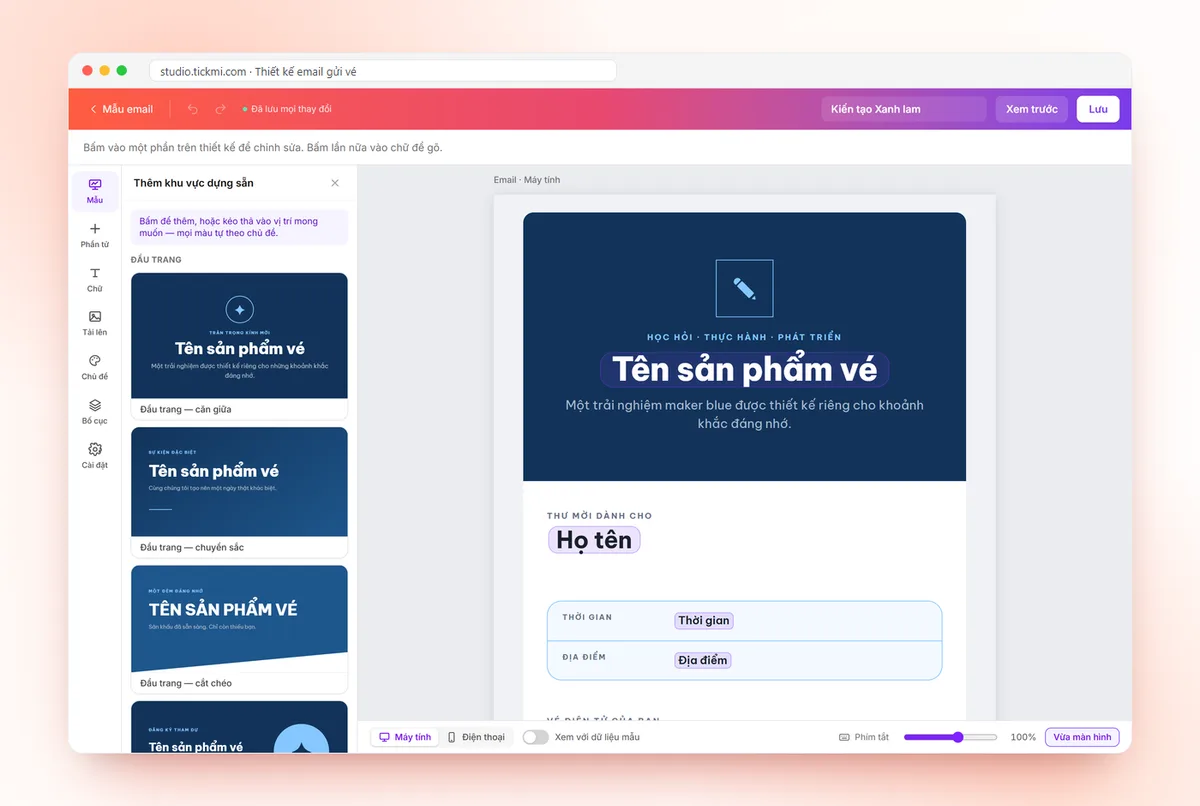
- Design the invitation ticket. Pick a template from the library and change the colours, logo and text. Name, ticket type and QR code are filled in automatically for each person.
- Design the invitation email. The email template decides whether the ticket appears directly in the message body. Turn on Attach the ticket file to the email if you want recipients to have a ticket file to download.
- Import the list. People imported from Excel are in Pending approval status. When you Approve, the system issues a QR ticket for each person.
- Send a test to yourself first. Add your own email to the list, approve it, check the message on both computer and phone, and only then approve everyone.
The detailed steps are in the guide to sending QR tickets in bulk by email. New accounts get 100 free ticket issuance quota; see the pricing page.
QR invitation content: lines you must not leave out
- An invitation with the recipient's name: "We respectfully invite Mr. Nguyen Van A" creates the feeling of a personal invitation.
- Time and place, with the welcome time if it differs from the start time.
- One line explaining how to use the code: "Please present this QR code at the reception desk."
- The ticket code as text so staff can enter it by hand when scanning fails.
- A contact point for changing attendees or reporting an absence.
With Tickmi, the email can include a View my ticket button leading to a personal ticket page. On this page, attendees open a large QR code, download the ticket, and tap Add to calendar and Directions (see the personal ticket page). Wording suggestions for the body of the message are in event invitation email templates.
Which channel to send a QR invitation through
| Channel | Suitable when | Notes |
|---|---|---|
| Most corporate guests, seminars | Send from the organisation's email to reduce spam filtering; track delivery status for each person | |
| Paper invitation with a printed QR code | Older guests, important guests who should receive it by hand | Each sheet prints a different code, delivered to the right person; test-print and test-scan first |
| Sending the ticket file by message yourself | A few guests who do not use email | Download that person's ticket file and send it; easy to mix up people at large volumes |
For paper invitations, in the Tickets tab you can tick tickets and click Print tickets (exact ticket size or A4 paper), or Download all QR to send to the print shop. Tickets in PDF format are skipped in bulk printing, so choose Image format for ticket types you need to print. On messages landing in spam, see keeping ticket emails out of spam.
Scanning the QR code on the invitation at the gate
- Use an app that scans even without internet. Hotel lobbies and basement halls often have weak signal.
- Prepare a fallback for guests who forgot their invitation: search by name or enter the 8-character ticket code.
- Separate lanes by ticket type when there are VIP guests to welcome separately.
- Remind guests to raise their screen brightness in the reminder email before the event day.
A shared QR code (a registration link) cannot be used for ticket checking: scanning only opens a web page and does not tell you whether the person was invited.
Common mistakes when making invitations with a QR code
- Using one shared QR code for every guest and then wanting to count arrivals. You cannot know who has come in.
- Making individual QR codes with a free tool that has no scanning software. The code scans out as just a string of text, and staff still have to search the list.
- QR code too small or too close to the edge on a paper invitation, so devices struggle to read it.
- Editing the design after sending and forgetting to reissue and resend to people who already received it.
- Not sending a test, only finding out the ticket image does not show on phones when guests complain.
If you only need QR code images from an existing list (badges, vouchers, labels), use the bulk QR code generator: it runs in the browser with no sign-up. When each code needs to be an invitation ticket that scans at the gate, see Tickmi's QR invitation ticket solution.
If you are looking for a tidy way to send invitations, also see Tickmi's online invitations and e-invitations page: choose a template, send it to guests and track who confirms attendance.
About Tickmi
Tickmi is a ticketing and attendee experience platform (Ticketing & Participant Experience Platform). On one unified attendee dataset, Tickmi connects the whole journey: issuing invitation, registration and paid tickets, sending branded QR tickets, check-in by app, kiosk or scanner — even offline — then the welcome screen, lucky draw, voting, quizzes and surveys. Tickmi is trusted by organisations such as Viettel, VNPT, MobiFone, FPT and CMC. Learn about Tickmi or try it free.
Frequently asked questions
How is an invitation with a QR code different from a QR invitation ticket?
An invitation can contain a shared QR leading to a registration page or programme information. A QR invitation ticket is an individual code for each person, used to check tickets and record check-in at the gate.
Can I make a QR code for each guest myself using Excel?
Yes. Tickmi's bulk QR code generator creates QR images from a list with no sign-up. However, self-made codes do not record check-in automatically; to know who has come, you need QR tickets on a ticketing platform.
Can a guest who forgot their invitation still get in?
Yes, if staff have the list in the app: search by name or enter the 8-character ticket code (printed on the invitation or shown on the personal ticket page). It helps to have a separate support desk for this case.
Does a QR invitation sent by email need an attached file?
Not necessarily. The ticket can appear directly in the email body; attaching the ticket file as well lets recipients save or print it. Tickets in PDF format are always sent as attachments.
Does making an invitation with a QR code on Tickmi cost anything?
New accounts get 100 free ticket issuance quota to try. Invitations that do not sell tickets suit the event package (chosen by maximum number of attendees, paid once for 1 ticket product), or use the quota package (pay per ticket issuance); see the Tickmi pricing page for details.
Issue QR tickets, send emails, check in and engage attendees on one platform.