
Knowledge
Quiz minigame ideas for conferences and company parties
A good quiz minigame makes the whole hall sit up straight; a bad one forces the MC to put out fires. The difference usually is not great questions but whether the format fits the tool and the time you have. Here are 7 quiz formats, their rules and where to be careful.
Before choosing an idea: what kind of quiz is yours?
There are two very different kinds of quiz, and many minigames fail because they mix them up:
- Take-the-quiz (self-paced). Each person scans a code, receives the whole question set, completes it within a time limit and submits. The system scores and ranks. The MC does not need to read each question.
- Live quiz (the MC leads question by question). The MC reads one question, the whole room answers at once, the answer is revealed, then the next question. The atmosphere is livelier but it needs a strong MC and a tool that runs in sync.
Tickmi's quiz tool is the first kind: attendees complete the whole quiz on their phones, a timer counts the total time, and the quiz is submitted automatically when time runs out. For a "one question at a time" pace on stage, you combine it with the Voting section, where each question opens or closes independently on the MC's cue, but voting does not score automatically. Knowing this from the start helps you choose the right idea below.
7 quiz minigame ideas
1. A 5-minute knowledge quiz (take-the-quiz, with a leaderboard)
How to play: show the QR code, and everyone answers 8–10 multiple-choice questions in about 5 minutes. Scoring: one point per correct answer; for ties, whoever submitted earlier ranks higher. Good for: conference breaks, internal training, reviewing the session that just ended.
2. "How well do you know the company" (internal knowledge)
Questions about company history, products and culture. Easy to make, fun, and newcomers learn something too. Mix in easy questions so everyone scores, and add a few hard ones to separate the rankings.
3. True or false
Each question has only two options: True and False. It is fast, which suits very little time or a big audience. The quiz tool requires at least two options per question, so this format works.
4. Live guessing with voting
How to play: the MC reads the question, opens that question in the Voting section, the audience chooses on their phones, the MC closes the question, shows the results and then reveals the correct answer. Note: there is no automatic scoreboard. Good for fun questions, number-guessing questions, or to "open" a discussion session.
5. Team battles by department or by table
Divide teams in advance (by department, by banquet table). After the quiz ends, download the leaderboard and add up scores by team. Matching teams and totaling is manual, so use it when there are few teams (3–8) and someone is in charge.
6. An opening quiz for early arrivals
Attendees who have just checked in take a short 3–4 question quiz about the event's theme while waiting for the start. It fills the gap and warms up the room before anyone goes on stage.
7. A quiz for points to win prizes
A ranked quiz where the MC announces the top 3 or top 5 on the leaderboard and hands out prizes. You can add a lucky draw round so people outside the top still have a chance; see lucky draw.
A format not yet suited to this tool: elimination (a wrong answer knocks you out) needs a system synchronized question by question, so consider having the MC run it manually on stage, or a tool built for game shows.
Designing the question set
| Element | Suggestion | Why |
|---|---|---|
| Number of questions | 5–10 questions for a mid-program minigame | People lose focus if it takes too long |
| Difficulty | About half easy, two or three hard, one fun "trick" question | Everyone scores but rankings still separate |
| Number of options | 3–4 options per question | Clear enough, not cluttered on a small screen |
| Question length | One line, avoid long questions with two or three clauses | Read on a phone with a clock running |
| Total time | About 20–40 seconds per question, then add up | Enough to read and choose, not enough to Google it |
The figures above are suggestions for you to adjust to your audience. Ask two colleagues to try it first to measure real timing and catch ambiguous questions.
Rules to announce before starting
- Each person submits one attempt and must answer all the questions before it can be sent. Without verification, attempts are recorded by browser, so say clearly "do not retry from another device".
- The clock runs from the moment you press Start. You can go back and change answers before submitting; when time runs out the quiz is submitted automatically.
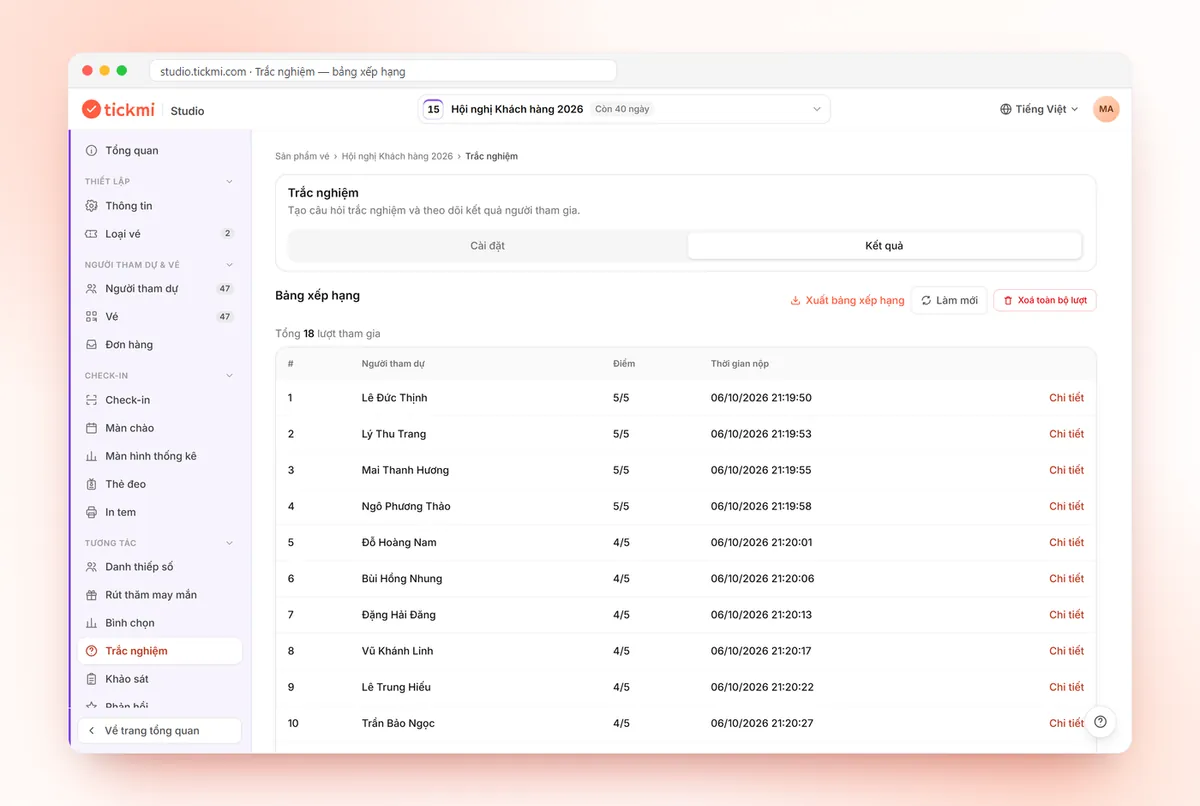
- Ranking is by number of correct answers; for ties, whoever submitted earlier ranks higher.
- How many places get prizes, where to collect them, and how long they have to claim them.
- Whether answers can be reviewed. You can choose Review answers and show right/wrong for each question. If you want to keep answers secret for latecomers, turn this off.
Want to limit who can play? By default anyone with the link can enter, and "one attempt per person" relies only on the browser being used, so anyone who switches browser or device can try again. If the prizes are valuable, turn on verification. In the Participant pages section, choose verification by email or phone number and the Has a ticket or Checked in group so only real attendees can play, exactly one attempt each. For how to create each question and share the link, see the voting, quiz, survey guide.
A sample script for a 10-minute minigame
- Minute 0–1: the MC introduces the rules and prizes, and shows the QR code with a countdown timer.
- Minute 1–2: the audience scans the code and presses Start. Staff walk around helping anyone who cannot get in.
- Minute 2–7: the audience takes the quiz. The MC keeps the atmosphere up with a short act or time reminders.
- Minute 7–8: close submissions and open the leaderboard.
- Minute 8–10: announce the top places, ask the winner a few quick questions, hand out prizes.
For more tips for the whole program, see the article how to increase attendee engagement.
Common mistakes
- Not testing the venue network. Hundreds of phones joining at once on flaky wifi will freeze the whole room. Prepare a network plan and remind attendees to use 4G if needed.
- Showing the QR code too briefly. Keep it on screen for the entire entry period, with a short link for people sitting far away to type.
- A question with two correct answers. It causes arguments right on stage. Have someone else review each question.
- Forgetting to clear test data. Use the Delete all entries button to remove test attempts before the real run (it cannot be undone).
- Promising a big prize before thinking about verification. Tie the quiz to people who have checked in and export the leaderboard to check when handing out prizes.
An overview of the interaction tools (voting, quiz, survey, welcome) is on the attendee engagement page.
About Tickmi
Tickmi is a ticketing and participant experience platform. On a single, unified set of attendee data, Tickmi connects the whole journey: issuing invitation, registration and paid tickets, sending branded QR tickets, checking in with an app, kiosk or scanner (even offline), and then moving on to the welcome screen, lucky draw, polls, quizzes and surveys. Tickmi is trusted by organizations such as Viettel, VNPT, MobiFone, FPT and CMC. Learn about Tickmi or try it free.
Frequently asked questions
Do attendees need to install an app to play the quiz?
No. They scan the QR code or open the link on their phone and take the quiz right in the browser.
Does the Tickmi quiz run question by question in sync for the whole room like a game show?
No. Tickmi's quiz is the kind where each person completes the whole quiz within a time limit and submits. For a question-by-question pace on stage, you can use the Voting section, opening and closing each question on the MC's cue, but that section does not score automatically.
How does the quiz leaderboard rank two people with the same score?
The score is the number of correct answers. For two people with the same score, whoever submitted earlier ranks higher.
Can I export quiz results to hand out prizes?
Yes. In the Results tab of the Quiz, use Export leaderboard to download the list, and Export questions if you need to save the question set.
Issue QR tickets, send emails, check in and engage attendees on one platform.