
Knowledge
Job fairs and admissions fairs: registration and check-in when people come and go all day
A job fair or admissions fair differs from a conference in one way: attendees do not arrive all at once and then sit still. They come and go throughout the day, and many have not registered in advance. This article covers how to group attendees, welcome walk-ins, set up check-in points, and capture data that is useful to schools and employers after the fair.
How a job fair differs from a conference
- Large numbers, arriving in a trickle. There are peaks at opening and after class hours, but people flow in and out all day.
- Many people do not register in advance. Friends invite each other, and people walk in after seeing a banner.
- The two sides have different needs. Students, applicants and parents want to get in fast. Employers, faculties and partner schools need information about visitors for recruiting or advising.
- The reception team is often volunteers. You need a simple process that can be learned in a few minutes.
So the goals are: visitors do not queue long, walk-ins still get into the system, and at the end of the day you have real numbers instead of estimates.
Split ticket types by attendee group
In Tickmi Studio, each group should be a ticket type within the same ticket product. A suggestion for a job fair:
| Ticket type | How to issue | Note |
|---|---|---|
| Students, job seekers | Open registration, auto-approve | The largest group, needs to get in fast |
| Employer representatives | Import the list from Excel | Tickets sent in advance, arrive early to set up booths |
| Guests, lecturers | Add manually or import from Excel | May need a separate entrance |
| Volunteers | Import the list | Lets you count staff present on the day |
For an admissions fair, change these to "Students", "Parents" and "High school registering a group". If parents often come with their children, set Maximum tickets per registration to 2 or 3 so one person can register for the whole family.
Splitting ticket types from the start lets the statistics screen show check-in progress by group, and after the fair you can filter the list by ticket type without reclassifying anyone.
What a job fair registration form should ask
Asking too much makes people abandon the form; asking too little leaves employers with nothing to use. Besides full name, email and phone number, pick 2 to 3 custom fields that are truly needed:
- Job fair: school, major, year of study (or graduation year), position of interest.
- Admissions fair: current school, grade, intended major, area.
Custom information fields are created at the organization level, and each ticket product turns on the fields it needs, so you do not have to recreate them next year. If you plan to share the list with employers, say so clearly on the form and have registrants agree first. More suggestions are in what a registration form should ask.
Build this form with Tickmi's event registration form; approved registrants receive a QR ticket by email to check in at the gate.
Welcoming walk-ins without a paper sign-up desk
Instead of having a desk where names of unregistered visitors are written by hand, print a QR code that leads to the registration page and post it at the gate and at the end of the queue. Visitors scan it with their phone and fill in a short form. If auto-approve is on, after registering they are taken straight to a ticket page with a QR code, which they show to a volunteer to be scanned and admitted. Poster design and placement are covered in QR codes for attendee registration.
Note: Tickmi does not close registration automatically when the quota is reached, and there is no waiting list. If the venue has a capacity limit, watch the statistics screen and turn off Allow registration when needed.
Setting up check-in points for a crowded fair
- Phone scanning lanes. Add volunteers to the organization with the Check-in staff role: they can only scan tickets and cannot view or edit other data. Each person uses one phone with the Tickmi Studio app installed.
- Self check-in station. Set a tablet or computer to Self check-in station mode so people who already have tickets can scan themselves, easing the load on staffed lanes. See the self check-in kiosk guide.
- Support desk. A computer that searches by name, phone number or email for people who forgot their ticket, or add a barcode reader if many people bring printed tickets.
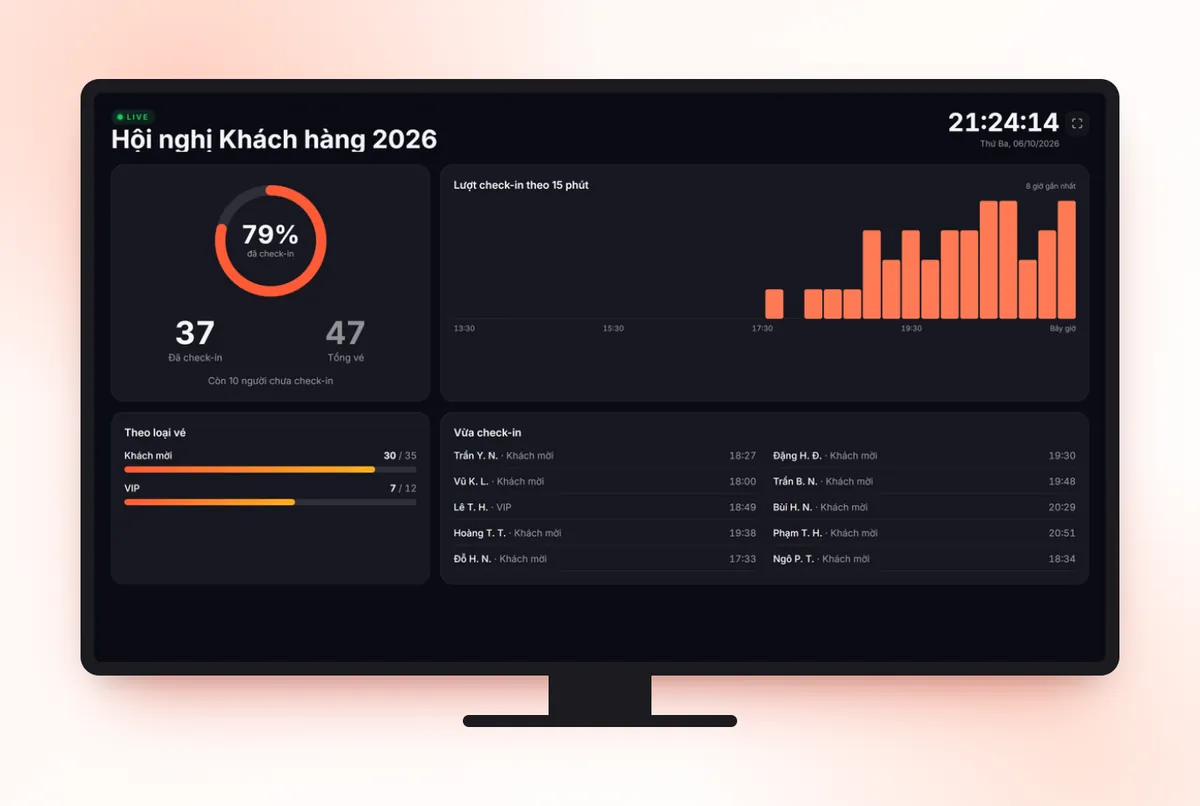
In the control room, open the Check-in statistics screen on a TV: arrival rate, check-ins per 15 minutes chart and progress by ticket type. When you see the bars rise at class dismissal, you know to send more people to the gate. If mobile signal is weak because of the crowd, download offline data to the app before doors open. How many lanes and how many people you need is worked out in setting up check-in lanes.
Connecting at booths and activities during the day
To know who visited which booth, give each employer a Check-in staff account and set Check-ins per ticket to more than 1. The booth scans the QR ticket of each visitor; the Scan history records who scanned, and can be filtered by account so you export the right list for each employer. A step-by-step approach is in how to organize a study abroad fair.
To let students and employers exchange information quickly, you can turn on Digital business cards for the ticket product. Attendees create a card from their ticket page, choose which information is public, and show the QR code for recruiters to scan and save to their contacts. See how to enable it in the digital business card guide.
If you hold a lucky draw at the end of the session to keep people there, set the audience to people who have checked in so that only those actually present can be drawn.
How to split scanning accounts by booth and by session is on the job fair and exhibition check-in page.
After the fair: data for schools and employers
- The Owner or an Admin uses Export data to download the list with check-in status, then filters by ticket type or major.
- Your report should separate: pre-registrations, on-site registrations, number arrived per group, and peak hours.
- Share with employers only the fields that registrants have agreed to. See also protecting attendee data.
Common mistakes
- One ticket type for everyone. At the end of the day you cannot separate students from employers and have to count by hand.
- A paper sign-up desk for walk-ins. The queue builds up and the data never reaches the system.
- Volunteers sharing one account. You cannot tell who scanned what. Add each person to the organization with the Check-in staff role.
- Not rehearsing the process. Have volunteers scan a few tickets before doors open, then set those tickets back to not checked in.
See how Tickmi handles registration, QR tickets and gate scanning together in the QR code check-in solution.
About Tickmi
Tickmi is a ticketing and participant experience platform. On a single, unified set of attendee data, Tickmi connects the whole journey: issuing invitation, registration and paid tickets, sending branded QR tickets, checking in with an app, kiosk or scanner (even offline), and then moving on to the welcome screen, lucky draw, polls, quizzes and surveys. Tickmi is trusted by organizations such as Viettel, VNPT, MobiFone, FPT and CMC. Learn about Tickmi or try it free.
Frequently asked questions
Can people who did not register in advance get into the fair?
Yes. Print a QR code that leads to the registration page at the gate. If auto-approve is on, registrants are taken straight to a ticket page with a QR code to scan at the door.
Can volunteers see attendee data?
If they are added to the organization with the Check-in staff role, they can only scan tickets and cannot view or edit other data. The information shown on scan is chosen by the organizers, and sensitive fields can be hidden.
Does Tickmi record which booth an attendee visited?
Yes, if each booth uses its own staff scanning account and the ticket type has Check-ins per ticket set to more than 1. Scan history records who scanned, can be filtered by booth and exported to Excel.
Can a parent register for their child as well?
Yes. Set Maximum tickets per registration to 2 or 3 in the ticket type that is open for registration, and one person can register several tickets in one go.
How do I monitor attendance during the day?
Open the Check-in statistics screen on a TV or computer: it shows the check-in rate, a 15-minute chart and progress by ticket type, refreshing about every 5 seconds.
Issue QR tickets, send emails, check in and engage attendees on one platform.