
Knowledge
An MC script weaving in lucky draw, voting and quiz minute by minute
Voting, quizzes and lucky draws only work when the MC sets the pace well. Get the pace wrong and the audience buries their heads in their phones and forgets the main content. This article offers a sample script for a 90-minute event, with lines to say and how to handle incidents in the middle of the stage.
Pacing principle: interaction serves the content, it does not replace it
Before the script, these three principles keep the interactive parts from turning into "games that interrupt":
- One purpose per activity. Voting lets the audience give opinions, a quiz reviews what they just heard, a lucky draw keeps people in the room. Tell the audience that purpose plainly.
- Space them 20 to 30 minutes apart. Any closer and the content gets chopped up; any further and the audience cools down. See also the article how to increase attendee engagement.
- One person drives each segment. The MC handles the lines and the audience, a technician handles the machine. The MC does not talk and click at the same time.
Roles and preparation: what must be done before doors open
| Role | What to do |
|---|---|
| MC | Know the opening and closing lines of each segment, know the prize rules, know the time of each segment |
| Technician | Operate Tickmi Studio on the machine connected to the projector, open and close questions on cue, press the draw button |
| Organizers | Hold the prizes, confirm winners, staff the support desk for people who cannot open the link |
On the system side, do this before the event day: create the voting questions, the quiz set and the lucky draw prizes; run through everything, then use Delete all entries (for voting and quizzes) and Delete all test draws (for the lucky draw) so real data starts from zero. Check that each voting question is Open or Closed so a question whose turn has not come does not receive votes early. Detailed setup is in the voting, quiz, survey guide and live lucky draw.
A sample 90-minute script, minute by minute
| Minute | Content | Interaction | Technician |
|---|---|---|---|
| -30 to 0 | Reception, check-in | Welcome screen shows the name of whoever just arrived | Turn on the Welcome screen, open the check-in statistics screen |
| 0 to 5 | Opening, program introduction | MC explains the rules for the whole session, shows the QR | Show the voting QR |
| 5 to 8 | Icebreaker | Voting question 1, short time | Open question 1, show live results, close the question |
| 8 to 35 | Content session 1 | No interaction | Check the prizes and the people eligible for the draw, charge the devices |
| 35 to 42 | Session 1 recap | Short quiz, show the QR | Show the quiz QR, watch the time limit (Duration) |
| 42 to 45 | Announce the top scorers | Leaderboard | Open the quiz's Results tab |
| 45 to 70 | Content session 2 | One voting question mid-session | Open and close question 2 |
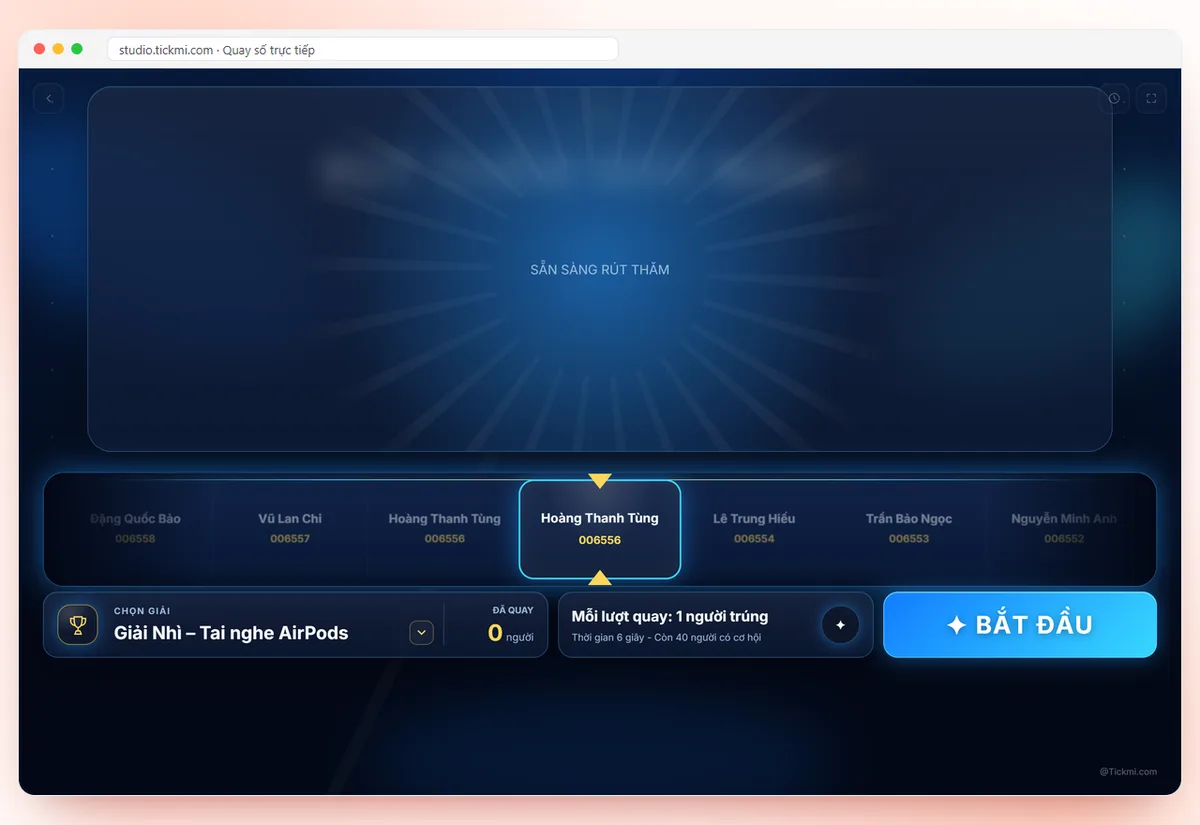
| 70 to 80 | Break, networking | Lucky draw for small prizes | Draw live, choose the prize, START |
| 80 to 90 | Wrap-up, grand prize, thank you | Lucky draw for the special prize, survey QR | Draw the grand prize, show the feedback QR |
This schedule has about 4 activities in 90 minutes, right on the pace of one activity every 20 to 30 minutes. For a shorter event, drop the mid-session quiz; for a longer one, add a quick survey at the break.
Sample lines for each segment
The lines below are a suggested frame; change the names and tone to suit your event. The opening line assumes the Eligible participants setting is on the Checked in group.
Opening, explaining the rules
"Today there will be a few moments when you will need your phones. There is no app to install, just scan the QR code on the screen. At the end of the program there is a prize draw, and only those who have checked in are on the draw list."
Icebreaker voting
"Before we get into the content, I want to know what this room cares about. Everyone, please scan the code. You have [number of seconds] to choose. Then we will look at the results together."
When closing the question: "Time is up. Thank you all, and here is the result. Many of you chose [answer], so today we will dig deeper into this part."
Recap quiz
"Now it is time to see how much you took in. There are [number] questions, you have [number] minutes, and once you submit your name will be on the leaderboard. The top three will get a small gift from the organizers."
When announcing: "The top 3 are [name] with [score]. If there is a tie, we go by who submitted earlier, based on the submission time on the board."
Lucky draw
"This prize has [number] spots, for those who have checked in. The whole room can see the draw screen. Get ready: 3, 2, 1."
When announcing: "Congratulations [name] (ticket code [code], if you chose to show it on this screen). Please come up to collect your prize." Details on rules and what to do when a winner is absent are in the article transparent lucky draws; a script just for the draw segment is in lucky wheel for company parties.
Handling incidents in the middle of the stage
| Incident | MC line | How to handle it |
|---|---|---|
| Many people cannot open the link because of a weak network | "If you have not gotten in yet, just raise your hand and the organizers will help right away" | Organizer staff go help; extend by a few seconds or let them take part in the next round |
| The link is shared with people outside the room | "This part is only for people who are here today" | Turn on Email or Phone number verification for the Checked in group; if the link has leaked, use Change code to invalidate the old link |
| A voting question opened or closed by mistake | "The tech team is adjusting a little, let's move on to the next question" | Put that question back in the right Open or Closed state; do not leave the audience waiting in silence |
| Two people tie on a quiz score | "We go by who submitted earlier" | The leaderboard shows both score and submission time; announce the tie-break method in advance |
| The draw picks someone who has left the room | "[name], please come up, we will wait 30 seconds" | Follow the rules you announced. To redraw that spot, delete the win in the History tab so the prize spot is restored |
| The projector or laptop is flaky | "Let's take a breath, I will tell one more story" | Have a second laptop already signed in; the MC has a backup story ready |
Checklist for the MC and the technician
- Both have rehearsed the script once, from opening a question to announcing the result.
- Test data is deleted, and the prizes and draw list are correct.
- Each activity has a timekeeper and someone in charge of prizes.
- The displayed screen is readable from the back row; it does not show winners' phone numbers or emails.
- There is a printed script and the technician's phone number.
- The lobby welcome screen and the organizers' statistics screen have been on since before doors open. See the welcome screen guide.
An overview of the interaction tools, including voting, quizzes, surveys, lucky draw and the welcome screen, is in Tickmi's attendee engagement solution; for the lucky draw in particular, see lucky draw.
About Tickmi
Tickmi is a ticketing and participant experience platform. On a single, unified set of attendee data, Tickmi connects the whole journey: issuing invitation, registration and paid tickets, sending branded QR tickets, checking in with an app, kiosk or scanner (even offline), and then moving on to the welcome screen, lucky draw, polls, quizzes and surveys. Tickmi is trusted by organizations such as Viettel, VNPT, MobiFone, FPT and CMC. Learn about Tickmi or try it free.
Frequently asked questions
How many interactive activities should I include in a 90-minute event?
About 3 to 4 is right, which is one activity every 20 to 30 minutes. More tends to chop up the main content; fewer makes it hard to hold the audience's attention.
Who should operate the machine while the MC is hosting on stage?
A separate technician, following the script's cue sheet. The MC focuses only on the lines and engaging the audience, and does not talk and click on the computer at the same time.
How can I make sure only people who are present can vote or take the quiz?
In Tickmi Studio, in the participant Pages section, choose verification by Email or Phone number and the Checked in group. If the link has been shared outside, use the Change code button to invalidate the old link and QR code.
How are quizzes ranked when scores tie?
The Tickmi Studio leaderboard shows each person's score and submission time, so when scores tie you have the data to decide who submitted earlier, as long as the rules are announced beforehand. You can export the leaderboard to check when handing out prizes.
Issue QR tickets, send emails, check in and engage attendees on one platform.