
Knowledge
What should an attendee registration form ask?
An attendee registration form should only ask for what you are sure to use: full name, email to receive the ticket, phone number for lookup, plus 1-3 fields specific to the event. Every extra field makes the form longer and makes you hold more personal data than you need. This article helps you choose fields and shows how to use that data for tickets, badges and check-in on Tickmi.
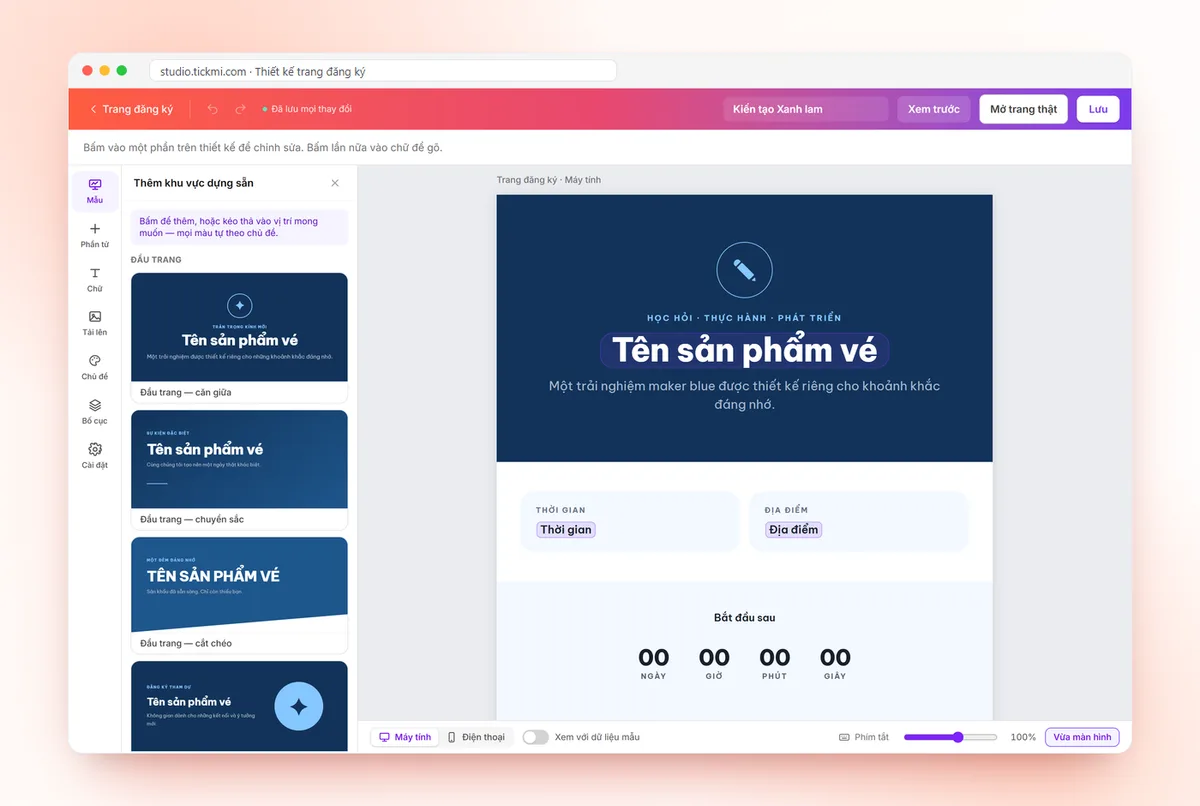
Principle: only ask for what you will use
A field should only be on the form when you can answer the question "what is this information used for". Printing on the badge, splitting into groups and preparing meals are valid reasons. "Just to know" is not.
A quick method: write down every field you plan to ask, and next to each write what it will be used for. Cross out any field whose use column is empty. For example: a form that started with 11 fields was down to 5 after filtering. A shorter form means people registering on their phones finish faster.
The three required fields on every registration form
Full name, email and phone number are the three fields almost every form needs. Each one is tied to a specific purpose:
- Full name: printed on the ticket, badge and welcome screen. On Tickmi, Full name is always shown and always required.
- Email: where the QR ticket is delivered. A wrong email means the attendee has no ticket. Tickmi's registration page suggests a correction when the registrant mistypes a domain, for example "gamil.com".
- Phone number: quick lookup at the desk when an attendee can't find their ticket.
Fields worth adding, depending on the event
Extra fields should only be chosen from what will be printed on the ticket, on the badge or used for logistics. The table below suggests commonly used fields and the matching field type on Tickmi.
| Field | Used for | Suggested field type |
|---|---|---|
| Company / organization | Printing badges, statistics on attendee mix | Free text |
| Job title | Printing badges, grouping for networking | Free text |
| Portrait photo | Badges with a photo for areas needing verification | Image |
| Area of interest | Preparing materials, assigning tables | Choice list |
| Special needs (vegetarian, mobility support) | Preparing logistics | Choice list |
| Employee ID, member ID | Matching against internal lists | Text, with the "Numbers only" rule |
Use a choice list instead of a free-text box whenever you can. Consistent data is easier to filter and print. The full set of fields for each type of event is in the article on event registration form templates.
Fields to drop or ask later
Sensitive information and long questions should be left off the registration form. They make the form heavy and are rarely used.
- Home address, date of birth, national ID number: sensitive and rarely needed. Only ask when there is a clear reason, for example an area that requires identity registration.
- Long survey questions: save them for the post-event survey.
- Retyping the email a second time: annoying on a phone. The email correction suggestion already solves most typing mistakes.
- "Might use later" fields: if you don't yet know what you'd use it for, don't ask.
What steps build a registration form on Tickmi?
A registration form on Tickmi is a block in the registration page, where you turn each field on or off. The steps:
- Create custom fields (if needed) in Attendee information fields, choosing the Data type: Free text, Choice list or Image. Fields are shared across the whole organization, so next time you only need to turn them on again.
- For text fields, choose What will registrants enter? (Any text, Numbers only, Phone number, Email) so the form validates before submitting.
- In the registration page designer, open the Attendee information to fill in block. Turn on Show for the fields you need, tick Required if it can't be left blank, and arrange the order.
- Add a block of text right next to the form stating the purpose of data use. Tickmi's form does not yet have a separate consent checkbox.
- Open the page on a phone and register once yourself before sending the link.
Details are in choosing fields on the registration form and creating custom fields.
See the overview of Tickmi's event registration form: a branded page, registrant approval and automatic QR ticket sending.
Automatic or manual approval?
Automatic approval suits events open to everyone; manual approval suits events that need screening. When Auto-approve registrations is on, registrants receive their ticket immediately. When it is off, registrants stay in Pending approval status with the source Self-registered, and you approve each person or click Approve selected or Approve all. If you approve manually, the form should include fields that help you decide, for example company or member ID.
Protecting registrant data
The less personal data you collect, the lower the risk. At check-in, staff don't need to see full emails or phone numbers. On Tickmi, the Check-in tab has a Hide sensitive data option so only part of the information shows when a ticket is scanned. See also protecting attendee data.
Reusing registration data for tickets, badges and check-in
Good registration data flows into every step after the form. Name and ticket type go on the QR ticket. Company, job title and photo go on the badge. Full name goes on the welcome screen. Custom fields are inserted into ticket templates as merge information, see inserting attendee information. So agree on how things are written right from the form, for example let people pick the company name from a list instead of typing freely.
Common mistakes when building a registration form
- Requiring too many fields. Only the three core fields and the fields truly needed should be required.
- Free-text boxes for data you need to filter. "ABC Co.", "ABC JSC" and "abc" are three different values when printing badges.
- Asking and then not using it. Extra data is still personal data you have to keep safe.
- Not testing on a phone. Most people fill in the form on their phones.
See the overview on the online registration page. If you are using Google Forms, read Google Form + Excel or a ticketing platform.
About Tickmi
Tickmi is a ticketing and attendee experience platform (Ticketing & Participant Experience Platform). On a single, unified set of attendee data, Tickmi connects the whole journey: issuing invitation, registration and paid tickets, sending branded QR tickets, checking in with the app, kiosk or scanner (even when the network is down), and then welcome screens, lucky draws, voting, quizzes and surveys. Tickmi is trusted by organizations such as Viettel, VNPT, MobiFone, FPT and CMC. Learn about Tickmi or try it free.
Frequently asked questions
How many fields should a registration form have?
The fewer the better: 3 core fields (full name, email, phone number) plus 1-3 fields the event genuinely needs.
Should the phone number be required?
Yes, because it is the fastest way to look someone up at the desk when an attendee forgets or can't open their ticket.
How do I print registration information on a badge?
Create a custom field, turn it on in the registration form, then insert it into the badge template as merge information.
What if a registrant mistypes their email?
Tickmi's registration page suggests "Did you mean...?" when a domain looks mistyped, and won't let the form be submitted if the domain doesn't accept mail. A bad email can still be corrected later in the attendee list.
Does Tickmi's registration form have a consent checkbox?
Not a separate checkbox. You put a statement of the data-use purpose in a block of text right next to the form in the registration page designer.
Do I need to recreate fields for each event?
No. Custom fields are shared across the whole organization; each ticket product only needs to turn on the fields it uses.
Issue QR tickets, send emails, check in and engage attendees on one platform.