
Knowledge
How to protect attendee data at every stage, from registration to after the event
Protecting attendee data means collecting as little as possible, showing it only to the right people, masking details on screen and deleting it once it has served its purpose. On Tickmi, you can do most of this with member permissions, hiding sensitive data when scanning and limiting who can export files. This article walks through each stage with a checklist; it is operational guidance, not legal advice.
What does protecting attendee data involve?
Protecting attendee data involves five things: asking only for the information you need, stating the purpose clearly, limiting who can access it, masking details in crowded places and handling the data after the event. Each stage of an event carries its own risk:
| Stage | Common risk | What to do |
|---|---|---|
| Registration | Asking for unnecessary date of birth, ID numbers, home address | Keep only the fields someone will actually use on the day |
| Sending tickets | Sending the wrong list file, CC exposing everyone's email | Send an individual ticket to each person from the system |
| Check-in | Temporary staff see full phone numbers and emails | Set permissions to scan-only, mask part of the data |
| Public screens | Full names and phone numbers shown in front of a crowd | Show only names and non-sensitive information |
| After the event | Excel files left in chat groups and personal email | Limit who can export, delete data no longer needed |
In Vietnam, Decree 13/2023/ND-CP is the personal data protection regulation that many organizations refer to. Your organization's specific obligations depend on the type of data and how it is processed, so consult your legal team or a lawyer before finalizing your process.
What should a registration form ask so it doesn't collect too much?
A registration form should only ask for what the organizers truly use on the day of the event or to send tickets. The core is usually full name, email and phone number; every extra field must be able to answer the question "who uses it, and for what".
- Drop the "just in case" fields. Full date of birth, home address and ID numbers should only be asked for when there is a specific reason, for example when a race's insurer requires them.
- State the purpose right next to the submit button. One short sentence: which organization collects the data, that it is used to send tickets, to contact and welcome attendees, and where to get in touch to correct or delete it. Marketing purposes should be asked separately.
On Tickmi, forms do not yet have a separate consent checkbox, so the purpose notice is set as a block of text next to the form in the registration page designer. Suggested field sets for each type of event are in the article on event registration form templates, and the principles for choosing fields are in what a registration form should ask.
Who on the team should be able to view the attendee list?
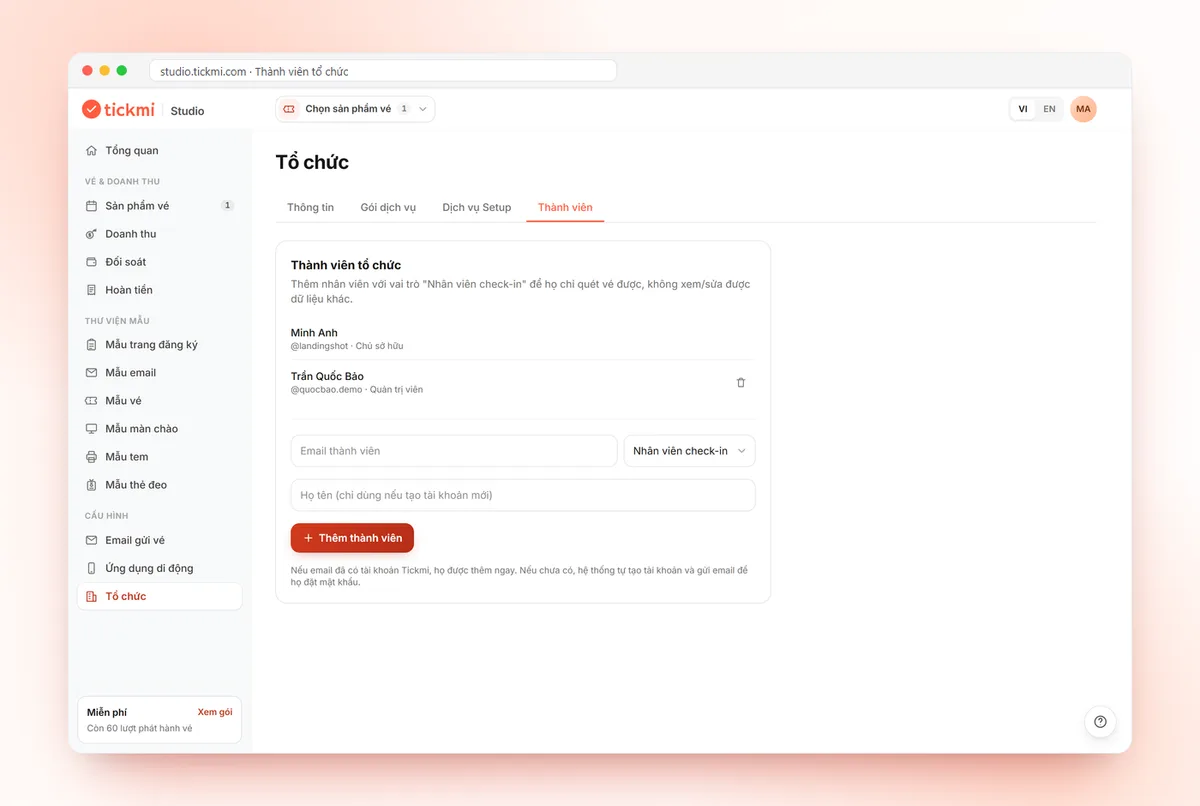
Only the people who manage the event should view and export the full attendee list; the reception team only needs to scan tickets. Tickmi splits organization members into three roles to keep these two groups apart:
| Role on Tickmi | What they can do | Best assigned to |
|---|---|---|
| Owner | Full rights, cannot be removed from the organization | The person with primary responsibility |
| Admin | Manage ticket products, attendees and members; export data | One or two coordinators |
| Check-in staff | Only scan tickets in the app; cannot sign in to the Studio web | The reception team, temporary staff |
The Export data button on the Attendees page is only available to the Owner and Admins. When a temporary staff member finishes their work, remove them from the Members tab; a removed person loses access immediately. The steps for inviting and removing members are in the guide to managing members and permissions.
How do you stop check-in staff from seeing full phone numbers and emails?
You choose which fields appear on the scan result screen and turn on partial masking for sensitive fields. Staff can still confirm the right person, but cannot read the full phone number or email.
- On the Tickmi Studio web, open the ticket product and choose the Check-in tab.
- In the Information shown when scanning tickets list, tick Show for the fields you really need, for example full name and ticket type.
- For phone number, email or sensitive custom fields, also turn on Hide sensitive data.
- Click Save configuration, then scan a test ticket in the app to see the result screen.
Details are in the guide to configuring the information shown when scanning.
What should the welcome screen, stats and lucky draw display?
Public screens should only show names and non-sensitive information such as ticket type or organization. Full emails and phone numbers never need to appear on a projector.
- Welcome screen: only choose full name and the fields that are necessary in the displayed attendee information section.
- Check-in stats screen: the name field in the "Just checked in" list has an Abbreviate option, suitable for screens placed in public areas.
- Lucky draw: in the Information shown when drawing section, use the ticket sequence number or ticket code instead of email or phone number.
The welcome screen and stats screen links open without signing in. If a link is leaked, use Change code or Change link to invalidate the old link.
After the event, should you keep or delete attendee data?
Keep data only as long as needed for the stated purpose, then delete what is no longer used. The specific retention period is your organization's decision, so agree on it with your legal team in advance.
- Delete test attendees with Delete selected. Tickmi always asks for confirmation and the action cannot be undone, so check carefully before clicking.
- Recall exported Excel files: remove them from chat groups, personal email and shared drives without access controls.
With digital business cards, the attendees themselves decide which fields are public and can click Remove card to withdraw consent at any time; see the digital business card guide.
Attendee data protection checklist
- Every field in the form has a clear user and purpose.
- The purpose notice sits right next to the submit button; marketing purposes are asked separately.
- The reception team uses the Check-in staff role, not a shared admin account.
- Phone numbers and emails have Hide sensitive data turned on in the scan result screen.
- The welcome screen, stats screen and lucky draw screen do not show emails or phone numbers.
- Only one or two people can export data; exported files are not sent through personal chats.
- After the event: delete test data, recall files, remove temporary members.
Common mistakes when handling attendee data
- Using one shared admin account for the whole team. Anyone can export the list and no one knows who did what.
- Sending the list file to a sponsor when attendees only agreed to receive tickets. Sharing with a third party is a different purpose and needs separate consent.
- Posting a paper list at the desk with full phone numbers. Use lookup in the app instead of a paper list.
- Projecting the entire admin screen while looking up a prize winner.
An overview of how Tickmi manages lists, statuses and permissions is on the guest management software page.
About Tickmi
Tickmi is a ticketing and attendee experience platform (Ticketing & Participant Experience Platform). On a single, unified set of attendee data, Tickmi connects the whole journey: issuing invitation, registration and paid tickets, sending branded QR tickets, checking in with the app, kiosk or scanner (even when the network is down), and then welcome screens, lucky draws, voting, quizzes and surveys. Tickmi is trusted by organizations such as Viettel, VNPT, MobiFone, FPT and CMC. Learn about Tickmi or try it free.
Frequently asked questions
Do check-in staff need to see attendees' full phone numbers?
Usually not. On Tickmi, you choose which fields appear when scanning and turn on Hide sensitive data so phone numbers and emails are only partly shown, enough to confirm the right person.
Who can export the attendee list to Excel on Tickmi?
Only the organization's Owner and Admins. Check-in staff can only scan tickets in the app and cannot sign in to the Tickmi Studio web.
Does a registration form need a data processing consent statement?
It should include one sentence stating which organization collects the data, what it is used for and where to get in touch, placed next to the submit button. Your legal team should approve the exact wording.
How long after the event should attendee data be deleted?
There is no single figure for every event. Keep data for as long as needed for the stated purpose and agree on a specific period with your organization's legal team.
Is this article legal advice?
No. This is practical operational guidance. For obligations under Decree 13/2023/ND-CP or related regulations, ask your legal team or a lawyer.
Issue QR tickets, send emails, check in and engage attendees on one platform.