
Knowledge
The shareholder meeting check-in process with QR codes, from the list to the reception desk
A shareholder meeting is different from an ordinary conference: the people entering must be exactly those on the list or their authorized proxies, and the organizers need to know precisely who is present and when. This article describes how to set up a lean, low-error reception desk, and which tasks must still be done by hand. This is a general operations guide, not legal advice.
How is a shareholder meeting different from an ordinary check-in?
At an ordinary conference, anyone with a ticket goes in. At a shareholder meeting, the reception desk has to do three things at once: identify the right person, record the arrival time and hand out the right documents and badge to each person. There are also two points that often slow the queue: The shareholder list, QR codes and check-in can be managed in Tickmi's event management software.
- Some people come on behalf of a shareholder, and the papers they carry need to be checked by an authorized person of the company.
- The responsible team needs the number of people present almost in real time.
Note: attendance conditions, the form of proxy authorization and how the attendance ratio is calculated are determined by the company charter and current law. This article does not discuss those matters; ask the company secretary or the legal department. The sections below only cover how to organize the reception and use the tools.
Step 1: prepare the shareholder list
The list finalized by the company is the source of every QR code, so be thorough at this step. With Tickmi Studio, you import from an Excel file or Google Sheet using the template file. The recommended columns:
| Information | Used for | Brought into Tickmi via |
|---|---|---|
| Full name | Matching when scanning | Full name column |
| Email, phone number | Sending tickets, contact when needed | Email, Phone number columns |
| Shareholder code | Quick lookup when a shareholder forgets the ticket | Custom field, free text type |
| Number of shares | Compiling figures after check-in | Custom field |
| Form of attendance (in person, proxy) | Routing at the reception desk | Custom field, dropdown list type |
| Attendee group | Telling apart shareholders, proxies, guests and the executive board | Ticket type column (and Quantity if needed) |
Create custom fields with the Fields button on the Attendees page; after that the template file will include the matching columns. For any row with errors, the system lets you download an error file to fix and import again. See details in the attendee management guide. Remove duplicates by shareholder code before importing.
Step 2: send QR invitation tickets before the meeting day
Each shareholder receives a personal QR code and an 8-character ticket code by email. The invitation should state: reception opening time, location, the papers to bring (as required by the company) and a reminder to open the ticket on the phone in advance. The personal ticket page has Add to calendar and Directions buttons if you have set the time and location.
Shareholders who do not use email can have tickets downloaded in bulk, printed on paper and handed out directly; QR codes printed on paper scan normally.
Step 3: set up the reception desk in three stages
- Stage 1, scan the ticket. Staff use the Tickmi Studio app (Scan tab) or a barcode reader plugged into a computer. The result screen shows the name, ticket type and the fields you allow to be shown, for example Shareholder code. Configure it in the Check-in tab under Information shown when scanning tickets; for phone numbers and email, turn on Hide sensitive data so staff see only part of it.
- Stage 2, match identification. Staff compare the name and code on screen against ID documents per company rules. Tickmi does not read or verify documents; this is a human step. The scan screen just saves them from flipping through a paper list.
- Stage 3, hand out documents and badge. Hand them out only after the first two stages are complete, so people who have not been confirmed do not hold documents.
A result of Already used with an earlier check-in time means this code has already been scanned. Invite that person to a separate handling desk instead of refusing them right at the queue. For details on the messages see check-in with the Tickmi Studio app and web check-in and barcode scanners.
Common situations at the reception desk and how to handle them
| Situation | Suggested handling |
|---|---|
| Shareholder has a valid ticket | Scan, match ID, hand out documents |
| Forgot the ticket or phone battery is dead | Enter the Ticket code or Ticket sequence number in the app; or search by name in the attendee list and click Mark as checked in |
| The name is on the list but the person arriving is a proxy | Send to the proxy desk. The person in charge checks papers per company rules; only if valid is it recorded. How to record it is the company's decision, for example adding an attendee with the ticket type "Proxy" and entering the principal's name and proxy document number in the Notes field |
| Name not on the list | Do not check in at the regular desk; pass to the authorized person in charge to handle |
| Ticket shows Already used | See the earlier scan time and move to a separate handling desk |
| Weak signal in the hall | Click Download offline data in the app before entering; scans sync automatically when the network is back |
Tickmi does not store or verify proxy documents. If you need to record a reference number or note, use the Notes field or a custom field, while the original proxy document is still kept by the company's authorized department under its own procedure.
Voting cards and meeting documents
Voting cards, ballots and meeting documents are usually prepared by the meeting organizing team under their own rules. Arrange them into sets in advance and hand them out only after the shareholder has been confirmed. If you want name badges showing name and attendee group, Tickmi can print badges from the list, and custom fields such as Shareholder code can be placed on the badge. Tickmi does not handle voting or vote counting; that belongs to the meeting's own procedure.
Tracking who is present: Tickmi counts by ticket, not by shares
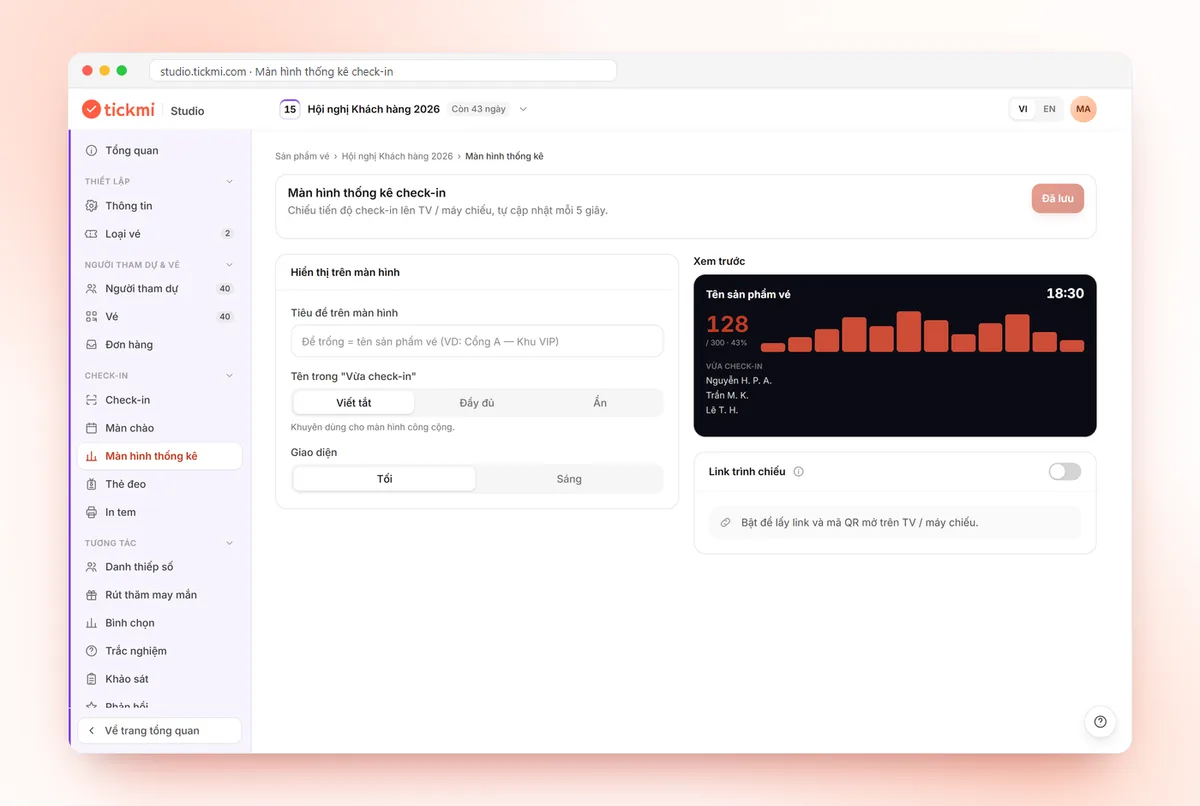
The check-in statistics screen shows the arrival rate out of total tickets, a chart per 15 minutes, progress by ticket type and a list of people who just checked in, updated every 5 seconds. See the check-in statistics screen guide.
Key point: these numbers count by ticket, that is, by person. To compile by number of shares, the Owner or Administrator clicks Export data in the attendee list; the Excel file has a Check-in column and the custom fields (for example Number of shares), which you add up in a spreadsheet. The official figures announced at the meeting are still confirmed by the company's attendance verification department. Test scans are recorded as real scans, so after testing, select that ticket and click Mark as not checked in before doors open.
Checklist before meeting day
- The list has been approved by an authorized person of the company, deduplicated, imported and tickets sent.
- It has been agreed in writing who handles proxies and who handles people not on the list.
- Scanning devices are logged in, camera permission is granted, Download offline data has been clicked, and backup chargers are ready.
- Information shown when scanning is configured: enough to match, with no excess sensitive information. See protecting attendees' personal data.
- A few real tickets have been test-scanned, then returned to not checked in.
- Enough lanes and staff for the peak hour: see how to calculate check-in lanes and staff and the check-in desk checklist.
The full solution for the reception stage is on the check-in software page.
About Tickmi
Tickmi is a ticketing and attendee experience platform (Ticketing & Participant Experience Platform). On a single, unified set of attendee data, Tickmi connects the whole journey: issuing invitation, registration and paid tickets, sending branded QR tickets, checking in with the app, kiosk or scanner, even when the network is down, then the welcome screen, lucky draw, voting, quizzes and surveys. Tickmi is trusted by organizations such as Viettel, VNPT, MobiFone, FPT and CMC. Learn about Tickmi or try it free.
Frequently asked questions
Does Tickmi automatically calculate the share ratio present?
No. Tickmi's check-in statistics count by ticket. You export the list to Excel, which includes a Check-in column and custom fields such as Number of shares, then add them up in a spreadsheet. The official figures are still confirmed by the company's authorized department.
Does Tickmi verify proxy documents?
No. Checking proxy documents and ID is a manual step for staff under company rules. Tickmi helps with quick list lookup, recording the arrival time and storing notes on the attendee.
What if a shareholder has no email or forgot the ticket?
Download tickets in bulk to print and hand out on paper, or search by name in the attendee list and click Mark as checked in. If the shareholder can read out the 8-character Ticket code, staff enter that code in the app.
Can check-in work if the hall has weak phone signal?
Yes. Click Download offline data in the Tickmi Studio app while you still have a connection; scans are stored on the device and sync automatically when the network is back.
Issue QR tickets, send emails, check in and engage attendees on one platform.