
Knowledge
Should you send tickets by Gmail or use a ticket delivery system?
Sending tickets by Gmail is enough when your list is only a few dozen people, the tickets are identical and you do not need to scan codes at the door. When each person needs a personal QR ticket, the list reaches hundreds and you must know who has not received a ticket, a ticket delivery system like Tickmi saves time and reduces errors. This article compares the two approaches on concrete criteria so you can choose correctly.
How many people can a personal Gmail send tickets to per day?
Gmail has sending limits; exceed them and the account is temporarily blocked from sending mail. According to Google's Gmail help page, you can hit the limit when sending one message to more than 500 recipients, or sending more than 500 messages in a day. Gmail then reports that the limit has been reached, and you usually have to wait 1 to 24 hours before sending again.
Google Workspace accounts (company email using Gmail) have their own quotas, see the Google Workspace sending limits page. Beyond the numbers, there is a risk that is harder to measure: sending the same content to many people in a short time can lower your messages' standing with spam filters.
When is sending tickets by Gmail enough?
Gmail is a reasonable choice when sending tickets is really just sending a notification. Specifically:
- A small list, for example under 50 people, and you know each person.
- Tickets do not need to be personal: one shared invitation, entry by a paper list.
- No scanning codes at the door, and no need to know exactly who came.
- Sending only once, with no resending or ticket changes.
If your event fits entirely within the four points above, Gmail with BCC or a mail merge is enough, with no extra tool needed.
Comparing Gmail and a ticket delivery system by criteria
The biggest difference lies in personal tickets and tracking after sending, not just in the number of messages.
| Criterion | Gmail / Outlook | Ticket delivery system (e.g. Tickmi) |
|---|---|---|
| Number of recipients | Daily limit; exceed it and you are temporarily blocked | Sends to the whole list; if you use your own SMTP, that server's limits still apply |
| Personal ticket per person | You must create a QR code and attach it by hand to each message | Automatically creates a personal QR code and 8-character ticket code for each person |
| Personalization | Mail merge via add-ons, columns easily misalign | Name, ticket type and ticket image auto-fill into the email template |
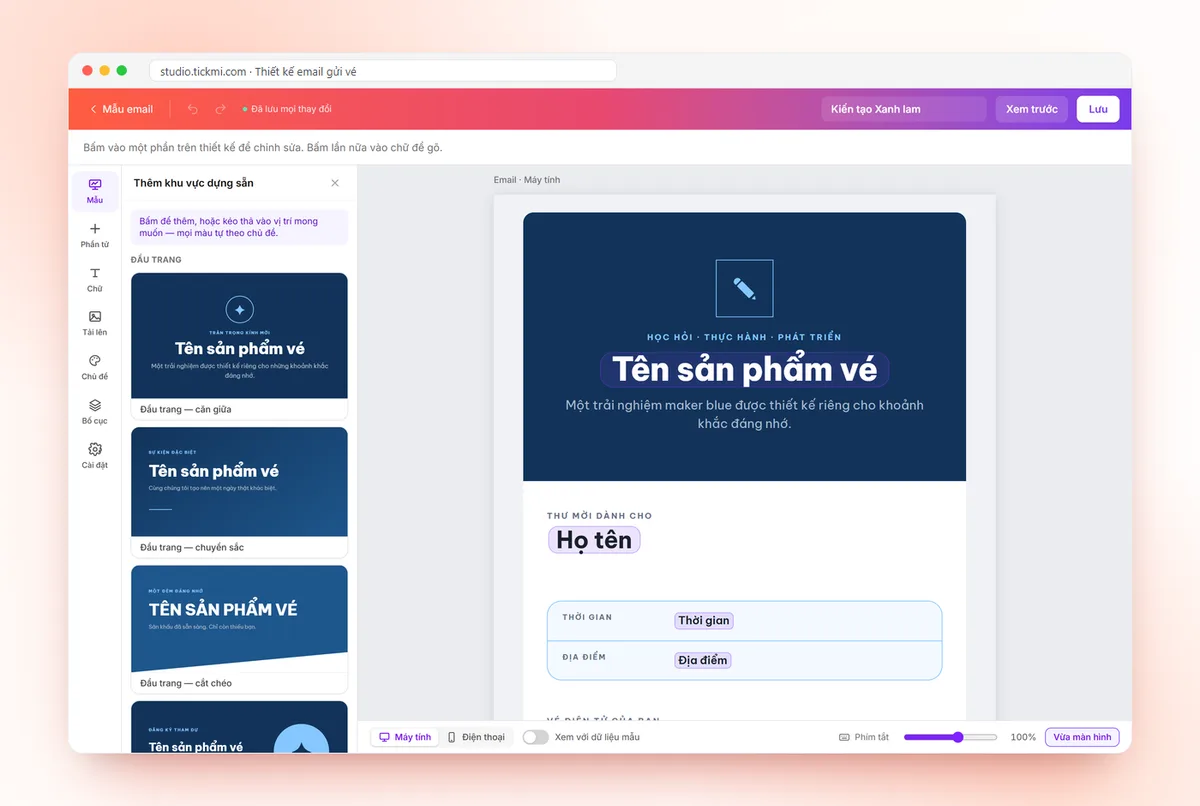
| Email design | Text, images inserted by hand | Drag-and-drop email template, preview on computer and phone |
| Knowing who failed | Read each bounce message | Send status per ticket, failed tickets marked Send failed |
| Resending | Find the old message, send by hand | Edit the email, select the ticket, click Resend email |
| Check-in at the door | None, you have to check a list | Scan the QR code with the app, flagging used or cancelled tickets |
| Initial setup | Almost none | Create a ticket product, ticket types, ticket template and email template |
The last row is where Gmail wins: no new tool to learn. For events that repeat, this setup effort is paid only once because ticket and email templates can be reused.
Can I use my company email inside a ticket delivery system?
Yes. A ticket delivery system does not make you give up your familiar email address. On Tickmi, the Ticket email menu lets you enter the organization's SMTP server, click Send test, then Activate; recipients see an address like ve@congty.vn. If not configured, tickets go out from the system's default address.
An important note: if you set a Gmail or Google Workspace account itself as the SMTP, that account's sending limits still apply. For a large list, use a mail server with a suitable quota, or let the system send from the default address. With Gmail, the SMTP password field needs an App password, not the login password. Details are in the guide to email design and custom-domain email.
If you still send tickets by Gmail, how do you keep errors low?
Sending by Gmail is still fine if you split into batches and keep the list clean. Steps to follow:
- Clean the list: remove duplicate emails and fix badly formatted emails before sending.
- Do not put the whole list in the To field. Use BCC or a mail merge add-on so you do not expose other people's emails.
- Name ticket files after each person if you attach individual tickets, to avoid sending the wrong one.
- Send in batches rather than all at once, and check bounce messages after each batch.
- Record who has been sent in a spreadsheet so you know who needs a resend.
What are the steps to send tickets with Tickmi?
On Tickmi, bulk ticket sending goes through five steps and each person receives their own QR ticket:
- Create a ticket product and ticket types.
- Choose a ticket template and email template; you can turn on Attach ticket file to email.
- Click Import attendees and upload an Excel file using the template.
- Issue tickets; the system sends emails automatically if the ticket type has email sending turned on.
- See send status in the Tickets tab. Tickets that fail to send are retried automatically up to 5 times; if they still fail, fix the email and click Resend email.
A step-by-step illustrated guide is at how to send bulk QR tickets by email. If attendees use Zalo more than email, see sending invitation tickets via Zalo (ZNS). You can try it with 100 free ticket issuance quota.
Common mistakes when sending tickets in bulk
- Sending in a rush from a personal Gmail and getting blocked midway. Half the list receives tickets, the other half must wait, and it is hard to know which person the sending stopped at.
- Exposing the recipient list by putting everyone in the To or CC field.
- Setting Gmail as the SMTP for a large list and forgetting that account's limits.
- ALL-CAPS subject lines with many special characters make messages likely to land in spam. See also sending ticket emails without landing in spam.
- Not checking before the event day. If attendees report they have not received tickets right at the door, it is already too late.
Checklist for choosing how to send tickets
- List over about a hundred people? Lean toward a ticket delivery system.
- Need to scan codes at the door or count who came? You need personal QR tickets, so use a system.
- Several ticket types (VIP, guests, press)? A system helps send the right template to each type.
- Only sending one general notice to a small group? Gmail is enough.
The solution overview is at QR invitation tickets.
About Tickmi
Tickmi is a ticketing and attendee experience platform (Ticketing & Participant Experience Platform). On a single, unified set of attendee data, Tickmi connects the whole journey: issuing invitation, registration and paid tickets, sending branded QR tickets, checking in with the app, kiosk or scanner, even when the network is down, then the welcome screen, lucky draw, voting, quizzes and surveys. Tickmi is trusted by organizations such as Viettel, VNPT, MobiFone, FPT and CMC. Learn about Tickmi or try it free.
Frequently asked questions
How many emails can a personal Gmail send per day?
According to Google's Gmail help page, you can hit the limit when sending one message to more than 500 recipients or more than 500 messages in a day, and you usually have to wait 1 to 24 hours to send again. Google Workspace has its own quotas.
Does a list of about 30 people need a ticket delivery system?
Not necessarily. If you do not need personal QR tickets and do not scan codes at the door, sending by Gmail with BCC is enough. If you need a personal code per person for check-in, a system is still more convenient even for a small list.
Can I use my company email to send tickets through Tickmi?
Yes. Enter the organization's SMTP in the Ticket email menu, send a test, then activate; tickets will go out from your address. If the SMTP is a Gmail account, Gmail's sending limits still apply.
What should I do if an attendee says they did not receive the ticket?
Check that ticket's send status in the Tickets tab. Failed sends are usually caused by a wrong email: fix the attendee's email, select the ticket and click Resend email.
Can sending tickets by Gmail create a personal QR code for each person?
Gmail does not create QR codes. You have to generate codes with another tool and attach them to each message, and you still need a way to scan and match codes at the door.
Issue QR tickets, send emails, check in and engage attendees on one platform.