
Knowledge
How to take team building attendance team by team with QR codes
At a team building trip or union congress, organizers do not just ask "how many people are here", but "which team is missing whom". Calling out each team on the bus is slow, and paper lists by team go out of sync when someone switches teams at the last minute. Below are three ways to split teams, how to run the desk and how to get a report per team.
First: what do you need attendance for?
Answer this before choosing a tool, because it decides how you split teams:
- Knowing who is present to count meals, buses and gifts: you only need a total number and a list of absentees.
- Knowing which team is complete to start a game or hand out slogans: you need numbers split by team, updated continuously.
- Scoring attendance or team competition: you need an accurate list, saved after the event.
For a group under 30 people who know each other, team leaders ticking a shared spreadsheet is enough and you do not need QR codes. From a few dozen people up, or when teams arrive at different times at several points, a personal QR code per person gives faster numbers and makes it harder to check in for someone else. The article Google Form, Excel or a ticketing platform analyzes when manual tools are still a reasonable choice. Team lists, attendance and reports for the team building trip can be tracked with Tickmi's event management tool.
Three ways to split teams for team building attendance
| Method | How to do it in Tickmi Studio | What you get | Limitations |
|---|---|---|---|
| 1. One ticket type per team | Create ticket types "Team 1", "Team 2"... (or by team name). In the import Excel file, fill the Ticket type column with the team name | The check-in stats screen has a By ticket type progress bar, so each team gets its own bar. Filter the list by team with the All ticket types box | Only suitable for a moderate number of teams (a few to a few dozen). Last-minute team changes require editing the ticket type |
| 2. Team as an info field | Create a custom field "Team" of type Choice list; the template file automatically adds a matching column with a drop-down list | Shows the team name on the scan result screen and on the badge. The exported file has a Team column to filter and count in Excel | Progress bars on the stats screen are not split by this field; per-team reports are done in Excel |
| 3. Color badges or wristbands by team | Combine with method 1 or 2: print the team name and background color on the badge, or hand out shirts or wristbands in the same color | You can tell the team from a distance, without scanning to group people | A visual aid only, not a substitute for data |
Suggested choice: few teams and live tracking needed, use method 1; many teams, or teams that change, use method 2; method 3 should almost always be combined. With method 1, remember to set the Ticket quantity of each ticket type enough for that team. Note: the attendee list can be filtered by ticket type, status, source and the search box, but not by custom info fields; with method 2, export to Excel to filter by team.
Preparing the list by team
- Get the list from HR or the union, one person per row, with an employee ID or email to filter duplicates. Duplicate rows create two tickets and skew the report.
- Add the team column, drawn or assigned in advance by the organizers. Finalize at least 2-3 days before the trip so tickets can be sent in time.
- Go to Attendees → Import attendees → Download template, paste in the data and upload. Rows with errors (for example, a team name that does not match a ticket type) are reported along with Download error file so you can fix them. See managing attendees.
- Send tickets by company email; people who do not use email can receive a printed ticket or be given the 8-character ticket code. See QR invitation tickets.
Running the attendance desk on the day
Team building usually gathers at one point before boarding buses, so there are two natural attendance checkpoints: before boarding and at the venue. A neat layout:
- Split lanes by team or group of teams with color boards, one staff member per lane opening the Tickmi Studio app on the Scan tab. Details in check-in with the Tickmi Studio app.
- On the Check-in tab of the ticket product, tick Show for the Team field so staff can read the team name on the result screen and direct that person to the right bus and group.
- Forgot the ticket: enter the 8-character Ticket code or search by name, then Mark as checked in. Last-minute team change: with method 2, edit the Team field in the attendee's information before scanning.
- Outdoor or mountain/sea venues with weak signal: tap Download offline data while you still have a connection. See check-in when the network is down.
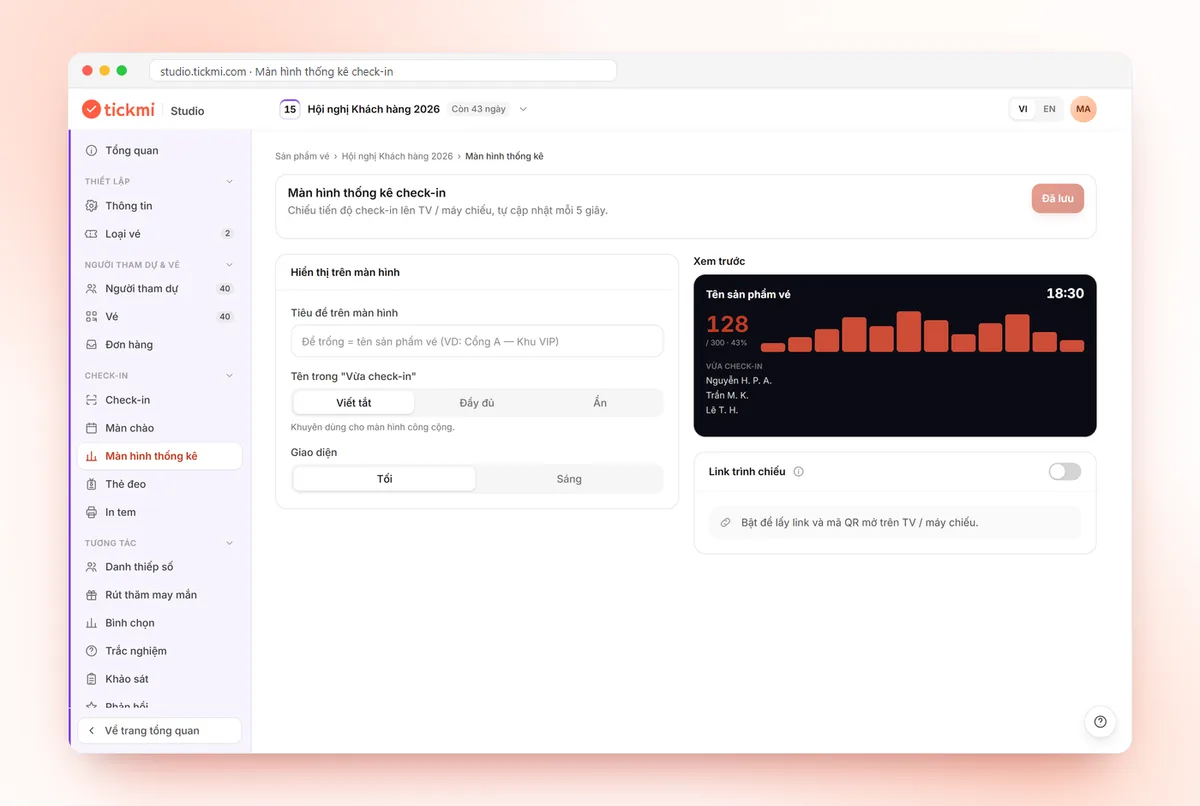
- Show the check-in stats screen for the trip leader or coordinator to follow. With method 1, the By ticket type bars show which team is still missing people.
If you need to take attendance several times during the trip (boarding, arrival, dinner), see how to organize multi-entry tickets in attendance with QR codes: one ticket scanned several times gives the number of scans, while if you need to know each milestone clearly, make each milestone a separate ticket product.
Per-team report after the event
- Click Export data on the Attendees page (Owner and Administrators only). The file includes Ticket type, the Check-in column (Not checked in or Checked in) and fields such as Team and Organization.
- In Excel, create a PivotTable by Team, counting by Check-in status; you immediately get the present and absent numbers for each team.
- Send team leaders the list of absentees, and send the executive committee the summary table. Keep the file if attendance relates to competition or benefits.
Common mistakes when taking attendance by team
- Splitting teams after sending tickets. If you must change teams in bulk, you have to edit each person again; finalize teams before distributing tickets.
- One staff member scanning for a hundred people at one bus door. Split lanes by group of teams. See how to calculate staff and check-in lanes.
- Test-scanning with a real ticket and forgetting to undo it. Use Mark as not checked in to restore the status.
- A shared code posted on the bus. A shared QR code can be photographed by anyone; it does not distinguish people and does not flag duplicates.
For the full reception solution, see QR code check-in.
About Tickmi
Tickmi is a ticketing and participant experience platform. On a single, unified set of attendee data, Tickmi connects the whole journey: issuing invitation, registration and paid tickets, sending branded QR tickets, checking in with an app, kiosk or scanner (even offline), and then moving on to the welcome screen, lucky draw, polls, quizzes and surveys. Tickmi is trusted by organizations such as Viettel, VNPT, MobiFone, FPT and CMC. Learn about Tickmi or try it free.
Frequently asked questions
Does attendance by team on Tickmi separate the numbers for each team?
Yes if each team is a ticket type: the check-in stats screen shows a By ticket type progress bar. If the team is a custom info field, you export to Excel and summarize by the Team column.
How do I handle someone who changes teams at the last minute?
If the team is an info field, just edit the Team field in the attendee information, which is very quick. If the team is a ticket type it is harder to change, so use an info field when teams change often. If you scanned by mistake, use Mark as not checked in.
Can I take attendance at a team building site with weak signal?
Yes, if staff tap Download offline data in the app while they still have a connection. Scans are stored on the device and sync automatically when the connection returns.
Do I need to hand out a printed ticket to everyone?
Not required. Tickets are sent by email and shown on the personal ticket page. People without a phone can receive a printed ticket or read out the 8-character ticket code for staff to type in.
Issue QR tickets, send emails, check in and engage attendees on one platform.