
Knowledge
Using a registration QR code on posters, invitations and social media
A QR code printed on a poster is only useful when people can scan it, land on the right registration page and you know which poster brought them. This article goes from getting the code, printing it at the right size and placing it well, to measuring how many registrants each channel brings in, along with mistakes you only discover after printing, when it is too late.
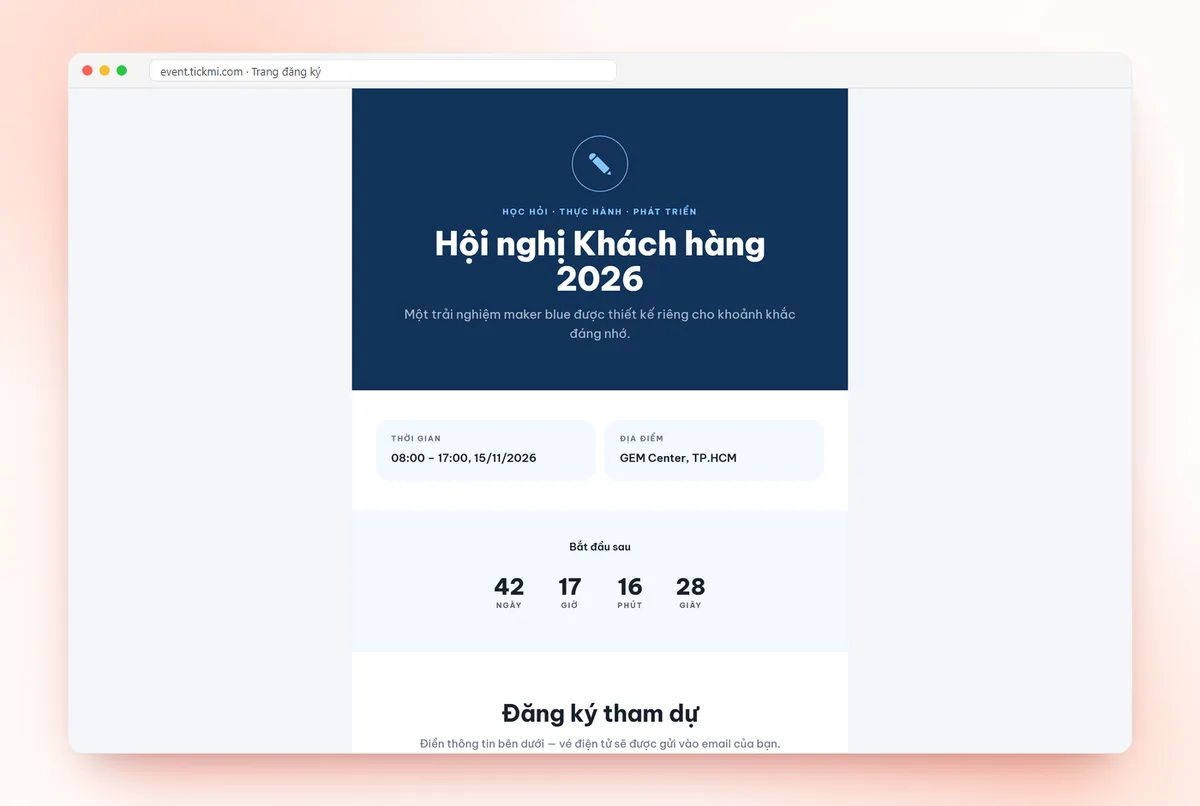
How a registration QR code differs from the QR code on a ticket
These two kinds of codes are often confused, but they do opposite jobs:
| Registration QR code | Ticket QR code | |
|---|---|---|
| Used to | Open the registration page so viewers fill in their own information | Staff scan to confirm this person may enter |
| Quantity | One shared code for the whole event | One individual code per person |
| Who scans | Interested people, with their own phones | Staff, with the app or a scanner |
| When | From promotion until registration closes | At the entrance |
In other words, a registration QR code is really just the registration page's link drawn as an image. So every principle about links (correct link, live link, link that doesn't change) applies to it too. For the QR code on a ticket, see what a QR code ticket is. If you just need to turn any link into a code, you can create a QR code online for free, with no sign-up.
Getting the QR code from the registration page in Tickmi Studio
- Open the ticket product, go to Setup → Information → Registration page (or click the Registration page button on the Attendees page).
- Choose a registration page template and turn on Enable public access.
- In Public link — Registration, choose the language for attendees. You will see the link and the matching QR code.
- Click Copy to get the link, or Download QR to get the code image.
- Click Save, then open the link on a phone to see the page exactly as attendees see it.
The code image downloaded from Studio is a moderate-size PNG, good for embedding in emails, slides or posts. If you need to print large (A3 posters, standees, backdrops), use the link you just copied to regenerate the code in vector format (SVG or PDF) with any QR generator, to avoid a pixelated image when enlarged. Page-building details are in the guide to creating a registration page.
One crucial thing before printing: do not use the Change code button after publishing. This button makes the old link and old QR code stop working. If you have already printed 500 flyers and then change the code, all 500 become scrap paper. Renaming the ticket product does not affect the link.
Printing posters and standees: size, placement, call to action
A rule of thumb used by many print guides: the side of the QR code should be about one tenth of the distance the viewer will stand at when scanning. For example:
| Printed item | Scanner stands at | Minimum code side (suggested) |
|---|---|---|
| Invitations, flyers | Held in hand, about 30 cm | 2-3 cm |
| A3 wall posters, notice boards | About 1 m | 10 cm |
| Standees, lobby backdrops | About 2-3 m | 20-30 cm |
| LED screens, projected slides | The whole room | About a quarter of the screen height |
The figures above are a starting point; what decides it is that you have test-scanned with a real phone at exactly that distance. A few more principles:
- Place the code in the lower corner of the poster, where the viewer's eye ends its reading journey, with a specific line such as "Scan to register and reserve your spot" rather than a bare code.
- Keep a white border around the code of about 4 small squares of the code, and use a light background with a dark code. An inverted code or one placed on a busy background easily fails to scan.
- Print a short text link under the code. Someone on a bus or with an old phone that can't read QR can still type the link.
- Say what they get when they scan: "Scan to register and receive your e-ticket by email" prompts action better than an unexplained code.
When to use a QR code and when to use a link
A QR code only has a reason to exist when the viewer is outside the digital environment or looking at a different screen. Putting a QR code on the reader's own phone is pointless because they can't scan the screen they are holding.
| Channel | Use | Why |
|---|---|---|
| Posters, standees, flyers, paper invitations | QR code | The viewer has a phone in hand |
| Projected slides, LED screens | QR code plus a text link | The whole room scans at once |
| Email, messages, Zalo, Facebook | Button or link | Tap directly, no scanning needed |
| Email signatures, business cards | Short link or small QR code | Depends on whether the recipient reads on a computer or in print |
| Posts viewed on a desktop | Both | Desktop users need the code to move over to a phone |
For email, don't forget that a good invitation can include a registration button right in it. See more layouts in event invitation email templates.
Measuring how many registrants each channel brings in
Tickmi has one registration link per ticket product and does not yet have a registration source report by channel. You can still measure with three methods combined, from quick to accurate:
- Ask directly in the form. Add a custom field of the Choice list type named "How did you hear about the event?" with options such as Poster, Email, Facebook, Referred by a friend, Other. This field is in Setup → Information → Attendee information fields; turn it on for the ticket product, then use Export data to count by option. This gives self-reported figures from registrants, with no outside tools.
- Use a separate short link for each channel. Create one short link for the poster, one for email, one for social media, all pointing to the same registration page, with the QR code on each printed item generated from the matching short link. The link shortener counts clicks or scans. You know which channel is opened most, and you can change the destination without reprinting.
- Attach tracking parameters to the link. Add a suffix like
?utm_source=posterand track it with your analytics tool. Tickmi does not read these parameters, so this only helps when you measure with another tool (for example a link shortener site). Open the link with the parameter on a phone before printing.
Method one gives "how many people finished registering", method two gives "how many people opened the link". They are two different numbers, and the gap between them shows whether your registration page is losing people. For what to ask in the form, see what a registration form should ask.
Checklist before printing
- The ticket product is visible (not hidden), and the registration page has public access turned on.
- The ticket type has Registration from and Registration to set to the period you are promoting.
- Test-scanned with at least two different phones (one iPhone, one Android) at the actual usage distance.
- Registered once yourself and received a ticket; then cleaned up the test data in the attendee list.
- The printed code has a white border, enough contrast, and comes with both a call-to-action line and a text link.
- Decided which channels get their own code, and the source-tracking method is ready.
- No one is about to click Change code.
If you want registrants to actually show up, read how to increase the rate of registrants attending. The whole process of building the page, approving and issuing tickets is on the online registration page.
Common mistakes with registration QR codes
- A code that is too small or blurry because a small PNG was enlarged. Rebuild the code in vector format for large prints.
- A code pointing to a test version. Check that the copied link is the event's real registration page.
- Closing registration and forgetting to announce it. The poster is still up and people who scan see an error page. Update the content or replace the poster once registration closes.
Need a separate QR code for a whole list of cards, slips or labels? Paste the data column into Tickmi's bulk QR code generator, preview, then download a ZIP or print A4 pages.
About Tickmi
Tickmi is a ticketing and attendee experience platform (Ticketing & Participant Experience Platform). On a single, unified set of attendee data, Tickmi connects the whole journey: issuing invitation, registration and paid tickets, sending branded QR tickets, checking in with the app, kiosk or scanner (even when the network is down), and then welcome screens, lucky draws, voting, quizzes and surveys. Tickmi is trusted by organizations such as Viettel, VNPT, MobiFone, FPT and CMC. Learn about Tickmi or try it free.
Frequently asked questions
How do I get the registration QR code on Tickmi?
Open Setup, choose Information then Registration page, pick a template and turn on public access. In Public link — Registration, click Download QR to get the code image or Copy to get the link.
Will a QR code get pixelated when printed on a large poster?
The downloaded code image is a moderate-size PNG, fine for email and screens. For a poster or standee, use the copied link to regenerate the code in vector format (SVG or PDF) and send that to the printer.
If I rename the event, does the printed QR code still work?
Yes. The link does not change with the ticket product name. Only when you click Change code do the old link and QR code stop working, so don't do that after printing or sending the link.
How do I know whether registrants came from the poster or email?
Tickmi does not yet have a source report by channel, but you can add a "How did you hear about the event?" Choice list field and export the data to count, or use a separate short link for each channel to count scans.
Do users need to install an app to scan the QR code?
No. They scan with the phone camera and register right in the browser. They then receive their e-ticket on the registration page or by email, depending on how you configure it.
Issue QR tickets, send emails, check in and engage attendees on one platform.