
Knowledge
Lucky draw by name or by number: which to choose and how to do it
It is the same prize raffle, but some events call out the winner's name and others call out a sequence number. Each suits a different situation, and the list preparation differs too. This article helps you choose the right way, build the list in Excel and run it on the free lucky draw tool without signing up.
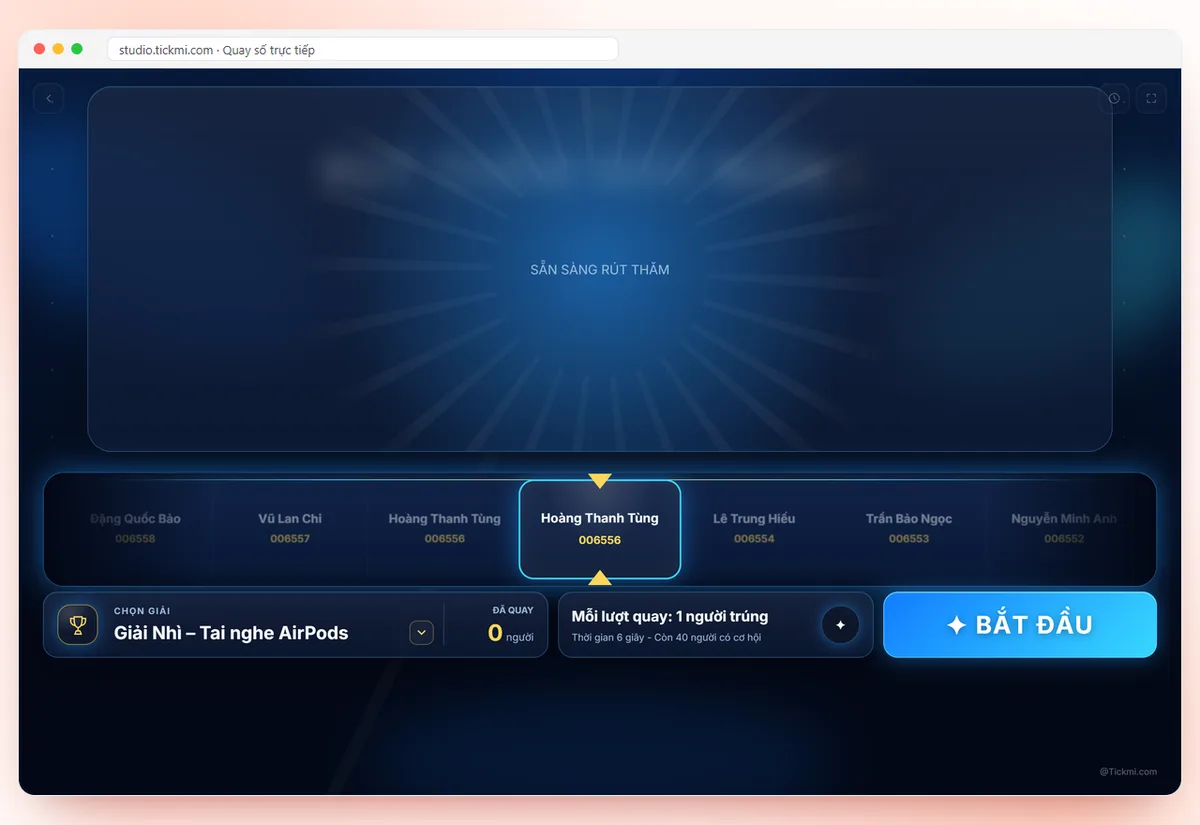
How drawing by name differs from drawing by number
In essence, the machine just picks a random row from a list. What you put in that row decides the experience: a name, a number, or both.
| Criterion | Draw by name | Draw by number |
|---|---|---|
| Best for | Company meetings, classes, small groups where everyone knows each other | Large crowds, walk-in guests, numbers handed out at the door, fairs |
| Preparation | A ready list of full names | Hand out numbered slips or tickets to attendees |
| Feel on stage | Called out by name, the winner comes up right away | More suspense: a number is read and the whole room checks their ticket |
| Risk | Drawing someone who is absent | The number holder does not notice and misses the prize |
| Privacy | Names appear on the big screen | Only a number is shown, more discreet |
Neither is "more correct". If the event has under about 100 people who know each other, drawing by name usually creates more atmosphere. If you do not know in advance who will come, drawing by number is the practical choice, because numbers are handed out on the spot.
How to run a draw from 1 to 100 (or any number range)
Tickmi's free lucky draw tool treats each line in the list box as one "person". So a range of numbers is just a list where each line is a number. The tool has no button to generate number ranges, so you create the range in Excel or Google Sheets:
- Open a spreadsheet, type 1 in the first cell and 2 in the cell right below.
- Select both cells and drag the square handle at the corner down to the last number (for example 100). The spreadsheet fills in the following numbers.
- Select the whole column and copy it.
- Open the tool, click Settings, and paste into the Participant list box. Each number is on its own line.
- Check that the counter below the list box shows the right quantity (for example 100 people).
If you want numbers with a prefix for easier reading, such as "A001", "A002", use a text-joining formula in the spreadsheet and then paste the whole result column. Handing out tickets with matching numbers to attendees at the entrance is entirely outside the tool, and you must make sure no number is handed out twice.
How to draw by name from an existing list
With a list of full names you follow the same steps above, except you paste the name column. Two tips make the list ready to use:
- Paste two columns from Excel. Column 1 shows large on screen (full name), column 2 shows small below (unit, ticket number...). This is very useful when two people share a name: the secondary line helps the MC tell "Nguyen Van An, Sales Department" from "Nguyen Van An, Engineering Department".
- One line separated by commas. If you paste only one line containing commas, the tool understands it as a list and splits on the commas. Handy when a short list arrives by message.
You can try it first with the Use sample list button to get used to the interface. Before the real session, remember to click Reset draws to clear the test results.
If you prefer a wheel effect instead of a scrolling name strip, use the random name wheel: paste the list, each name becomes a slice, and click spin.
Combining names and numbers in the same list
Thanks to the secondary column, you can merge both methods. For example, make column 1 the slip number (shown large for the whole room to see) and column 2 the name (shown small below). The MC reads the number aloud, the winner stands up on their own, and the small name helps organizers cross-check quickly. Conversely, if you want discretion, put the number in column 1 and leave column 2 empty so no personal information appears on the big screen.
Avoid putting phone numbers or emails in the secondary column when projecting for the whole room to see.
Setting the number of prizes and winners per draw
In the How to draw section you set the Prize being drawn (for example "Third prize"), Winners per draw (1 to 100) and Draw duration (3 to 30 seconds). For small prizes, draw 5 people in one go to save time. For big prizes, draw one person at a time and use a longer duration to build suspense.
Turn on Exclude previous winners from later draws if each person can only win one prize. The tool shows the line "n/t people have not won yet" so you know how many numbers remain in play. Turn this option off if your rules allow one person to win several times. Suggested order: draw small prizes first, big prizes last. Detailed prize splits are in the article prize structure and lucky draw scripts.
After the draw: save results and handle unclaimed numbers
Every draw is recorded in Drawn results. You can click Download winners (CSV) to open it in Excel and cross-check against the slips. Note that history and lists are kept in the browser of the machine you are using, so use the same machine and browser for the whole event and download the CSV right after drawing finishes.
Drawing by number often runs into a number holder who is absent or did not hear. Announce the rules in advance, for example "if no one claims within 30 seconds, we draw again", then do exactly as stated. The transparency principle is discussed in detail in the article fair random drawing.
Common mistakes
| Mistake | How to avoid |
|---|---|
| Pasting numbers mixed with blank lines or spaces | Blank lines are skipped, but check the quantity in the counter line before drawing |
| Handing the same number to two people | Hand out slips from pre-printed number rolls, not handwritten |
| Forgetting to click Reset after a test run | Click Reset draws right before the real draw |
| Closing the tab midway | Do not close the browser; download the CSV after each prize |
| Projecting personal information on screen | Only keep the name or number in the displayed column |
Step-by-step instructions for using the tool are in the article how to use an online lucky wheel.
When to switch to drawing from checked-in attendees
Drawing by name and by number share one weakness: the list is pasted by you, so you cannot be sure the people on it are present. For events with tickets or registration, Tickmi Studio lets you declare several prizes in advance and draw directly from the list of checked-in attendees, so prizes only go to people sitting in the room. See the lucky draw solution and the live lucky draw guide; Tickmi has 100 free ticket issuances to try, details in the pricing.
Want to try right now with your own list: online lucky draw in the browser, paste the list, click draw, no installation.
About Tickmi
Tickmi is a ticketing and participant experience platform. On a single, unified set of attendee data, Tickmi connects the whole journey: issuing invitation, registration and paid tickets, sending branded QR tickets, checking in with an app, kiosk or scanner (even offline), and then moving on to the welcome screen, lucky draw, polls, quizzes and surveys. Tickmi is trusted by organizations such as Viettel, VNPT, MobiFone, FPT and CMC. Learn about Tickmi or try it free.
Frequently asked questions
Is drawing by name or by number fairer?
They are the same in terms of randomness, because the machine only picks a row from the list. Fairness depends on a complete list with no duplicates and rules announced in advance, not on whether the row is a name or a number.
How do I create a number range from 1 to 100 to draw from?
The tool does not generate number ranges. Type 1 and 2 in Excel or Google Sheets, drag down to 100, copy the whole column and paste it into the Participant list box, one number per line.
How does the tool handle two people with the same name?
Each line counts as a separate person, even if the content is identical. Paste a secondary column such as unit or ticket number so the MC can tell them apart when reading the result.
Can one person win several prizes?
It depends on your rules. Turn on Exclude previous winners from later draws so each person can win only once; turn it off and the same line can win again in other draws.
Do I need an account to draw on the free tool?
No. Open the page, paste the list and click START or press Space. To draw directly from the list of checked-in attendees, use Tickmi Studio.
Issue QR tickets, send emails, check in and engage attendees on one platform.