
Knowledge
Organizing a study abroad fair: one QR ticket from the gate to every advisory booth
The simplest way to organize a study abroad fair is to treat each student or parent as having a 4-stage journey: online registration, gate check-in, a seminar session, and visits to advisory booths. With Tickmi, one QR ticket is scanned at all 4 stages, so after the fair you know who came, which sessions they attended and which schools' booths they visited, so the schools can follow up.
What stages does a study abroad fair have?
A study abroad or admissions fair has 4 stages the organizers need to record: registration, gate entry, seminar session, and advisory booth visit. If data is missing at any stage, you lose the answer for that stage after the fair. If the fair charges an admission fee, you can sell event tickets online right on Tickmi.
| Stage | Question to answer | How to record it on Tickmi |
|---|---|---|
| 1. Registration | Who is interested, in which country, in which field? | A registration page with its own fields; after registering, attendees receive a QR ticket by email |
| 2. Gate entry | How many people actually came, and at what time? | Staff scan tickets with the Tickmi Studio app, with self check-in kiosks when it is crowded |
| 3. Seminar session | Which session is busy, who attended which session? | Scan the ticket again at the room door, one scanning account per room |
| 4. Advisory booth | Who visited which school's booth? | One staff scanning account per booth, filter the history by scanner |
The condition for a ticket to be scanned at multiple stages: set Check-ins per ticket greater than 1 for the ticket type. Hypothetical example: 1 at the gate, 2 seminar sessions and at most 5 booths means setting about 8.
A study abroad fair plan by milestone
A study abroad fair plan should be fixed backward from the event date. The milestones below are an example for a mid-sized fair; stretch or shrink them to your scale.
- 4–6 weeks before: finalize the list of schools and participating organizations, the booth map and the seminar schedule. Each booth assigns one person to scan tickets.
- 3–4 weeks before: create the ticket product, design the registration page, open registration and share the link through the fanpage, parent groups and high schools.
- 1 week before: create Check-in staff accounts for the gate, each seminar room and each booth. Name accounts by location, for example “Booth-07-Australia” or “RoomA-Canada”, so the scan history is readable at a glance.
- 1–2 days before: send reminder emails to registrants and run a scan test at every location using test tickets.
- Event day: monitor the number checked in, and open more lanes or kiosks when the gate is crowded.
- Within 48 hours after: export the data and hand the lists over to each school.
How to create accounts and assign permissions is in the guide to managing members and permissions. The Check-in staff role can only scan tickets and cannot view or edit other data, so it is safe to give to school representatives.
What should a study abroad fair registration form ask?
A study abroad fair registration form should ask only what the schools truly use for advising. Every extra question reduces the number of people who finish it.
- Required: full name, phone number, email (to receive the QR ticket).
- Recommended: whether you are a student or a parent, grade or graduation year, country of interest (a choice field), intended level of study.
- Optional: field of interest, seminar sessions they want to attend, desired level of financial support.
Multiple-choice questions make it quicker to filter and split lists by country than free-text fields. See also event registration form templates and how to create a registration page. If you have student lists from partner high schools, import them from Excel to issue tickets in advance; note that Excel import only adds new people and does not update people who already exist.
Gate check-in at an admissions fair when it is crowded
The gate is the stage most likely to jam because students arrive in a rush at opening time and before the seminar sessions. Two ways to reduce congestion: multiple phone-scanning lanes and kiosks where attendees scan for themselves.
- Each lane has one staff member with a phone running the Tickmi Studio app, with no need to buy scanners.
- Place a self check-in kiosk next to the gate for people who already have their ticket open.
- A separate help desk for people who forgot their ticket: find them by name in the attendee list and check them in manually.
To calculate the number of lanes by crowd size, see laying out check-in lanes.
Seminar session attendance and ticket scanning at advisory booths
Tickmi tracks session and booth attendance by giving each room and each booth its own staff scanning account. No other device or software is needed: attendees show their QR ticket and booth staff scan it with a phone.
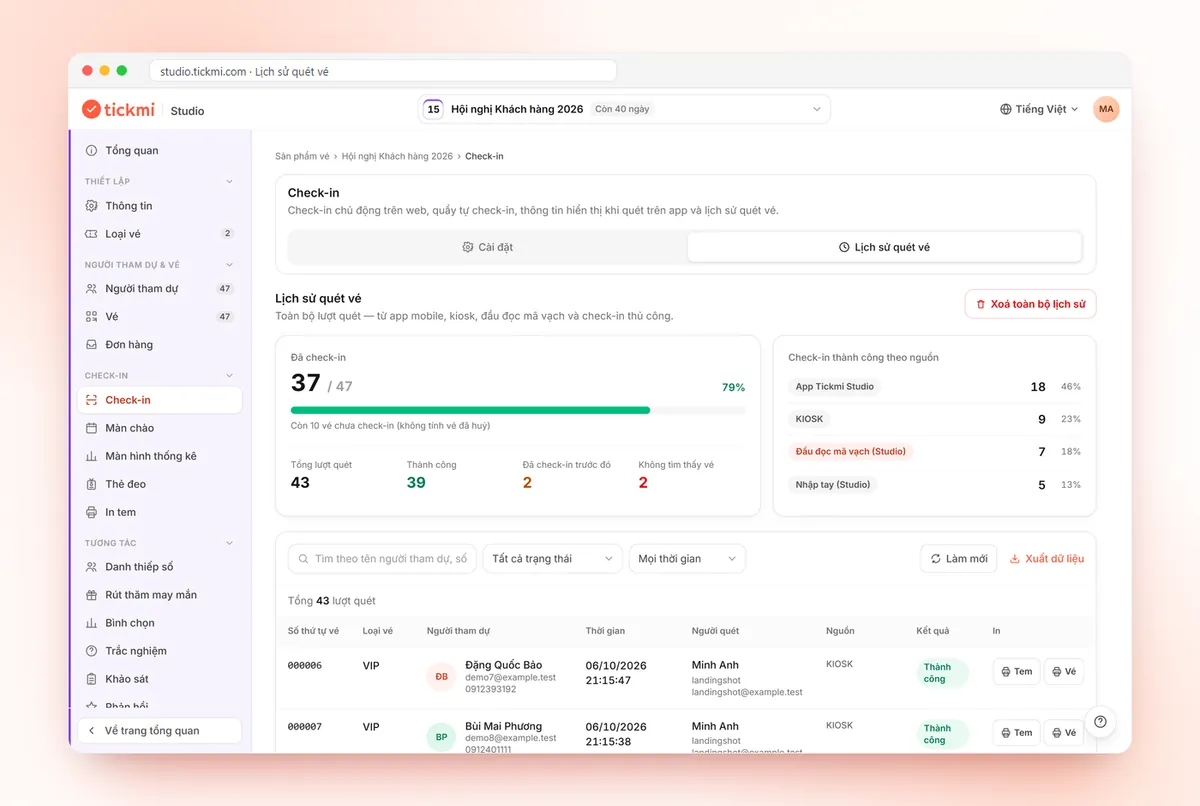
Every scan is recorded in the Ticket scan history with the time, scan source and scanner. The By scanner statistics block shows how many scans each account made, so you can see at once which booth is busy and which room is quiet.
There are two ways to set this up; choose based on your reporting needs:
| Approach | When to use | Note |
|---|---|---|
| One ticket product, multiple check-ins | A fair with one general admission ticket, with sessions and booths open to all | Set Check-ins per ticket high enough; filter the history by scanner |
| One ticket product per session | Sessions with limited seats that need registration and separate reporting | Attendees register for each session and receive a separate ticket for that session |
For how to use the scanning app, see the guide to check-in with the Tickmi Studio app.
After the study abroad fair: handing data to each school
The biggest value of a study abroad fair for participating schools is the list of people who visited their booth. The sooner you hand it over, the higher the success rate of follow-up contact.
- Open the Ticket scan history and filter by each booth's account.
- Export the data to Excel (export permission is for the Owner and Administrators).
- Send the file to the right school, together with the number of people who attended that school's seminar session.
- Compile for the organizers: registrations, actual attendance, peak hours, busiest booth. Read the figures by source in the article reading statistics by scan source.
Agree in advance with attendees on sharing their information with participating schools, for example by stating it clearly on the registration page.
Common mistakes when organizing a study abroad fair
- Leaving Check-ins per ticket = 1: once the ticket has been scanned at the gate, the booth scan will report it as already checked in.
- Sharing one account across several booths: the history cannot tell which booth is which.
- Using confusing account names like “staff1”: when it is time to export the file you have to guess again.
- Not doing a test run: a booth phone that is not signed in costs 15 minutes at opening time.
- A form that is too long: students abandon it halfway on their phones.
Tickmi can be tried free with 100 ticket issuance quota. A fair that does not sell tickets suits the per-event package (chosen by the maximum number of attendees, with ticket issuance quota included), or the pay-as-you-go quota package priced by ticket issuance quota; details are on the pricing page. See the full solution at check-in for study abroad fairs, admissions and job fairs.
@@ABOUT@@Frequently asked questions
What do I need to prepare to organize a study abroad fair?
A list of schools and the booth map, the seminar schedule, an online registration page, QR tickets for registrants, staff to scan at the gate, seminar rooms and each booth, and a plan for handing data to the schools after the fair.
How do I know which schools' advisory booths a student visited?
On Tickmi, each booth uses one staff scanning account. The ticket scan history records the scanner, can be filtered by each account, and can be exported to Excel to send to each school.
Can one ticket be scanned at the gate, seminar rooms and booths?
Yes, if you set Check-ins per ticket greater than 1 for the ticket type. Each scan is recorded with the time and scanner.
Do I need to buy scanners for the booths?
Not necessarily. Staff scan with the Tickmi Studio app on their phones; you can add self check-in kiosks or a barcode reader at the gate when it is crowded.
Can school representatives see the organizers' data?
No, if you give them the Check-in staff role. That role can only scan tickets and cannot view or edit other data; the organizers export files and send them to each school.
Issue QR tickets, send emails, check in and engage attendees on one platform.