
Knowledge
How to do invitations and check-in for a graduation ceremony for graduates and parents
A graduation ceremony has its own puzzle: the hall capacity is fixed, every graduate wants to invite the whole family, and the school needs to know who got in. How do you split tickets fairly, issue them so they are not passed around freely, and welcome guests quickly? This article walks through each of those steps.
Three groups enter the hall and should be separate ticket types
Whether the school is small or large, the people entering the ceremony usually fall into three groups with different needs:
| Group | What needs to happen | Suggested ticket type |
|---|---|---|
| Graduates | Arrive early, gather separately, be recorded as present to receive their degree | "Graduate" |
| Parents, relatives | Enter according to the tickets issued, sit in the audience area | "Parent" |
| Faculty, guests, organizers | Welcomed separately, usually with assigned seats | "Guest", "Organizer" |
Separate ticket types let you set the Ticket count per group. This number should match the capacity of each area: when issuance goes over, Tickmi tells you how many spots that ticket type has left, so you do not have to worry about over-issuing. Each ticket type also has its own ticket template and email template, for example the graduate ticket states an earlier assembly time.
Allocating tickets to each graduate: three approaches
This is where schools argue the most. All three approaches can be done in Tickmi Studio:
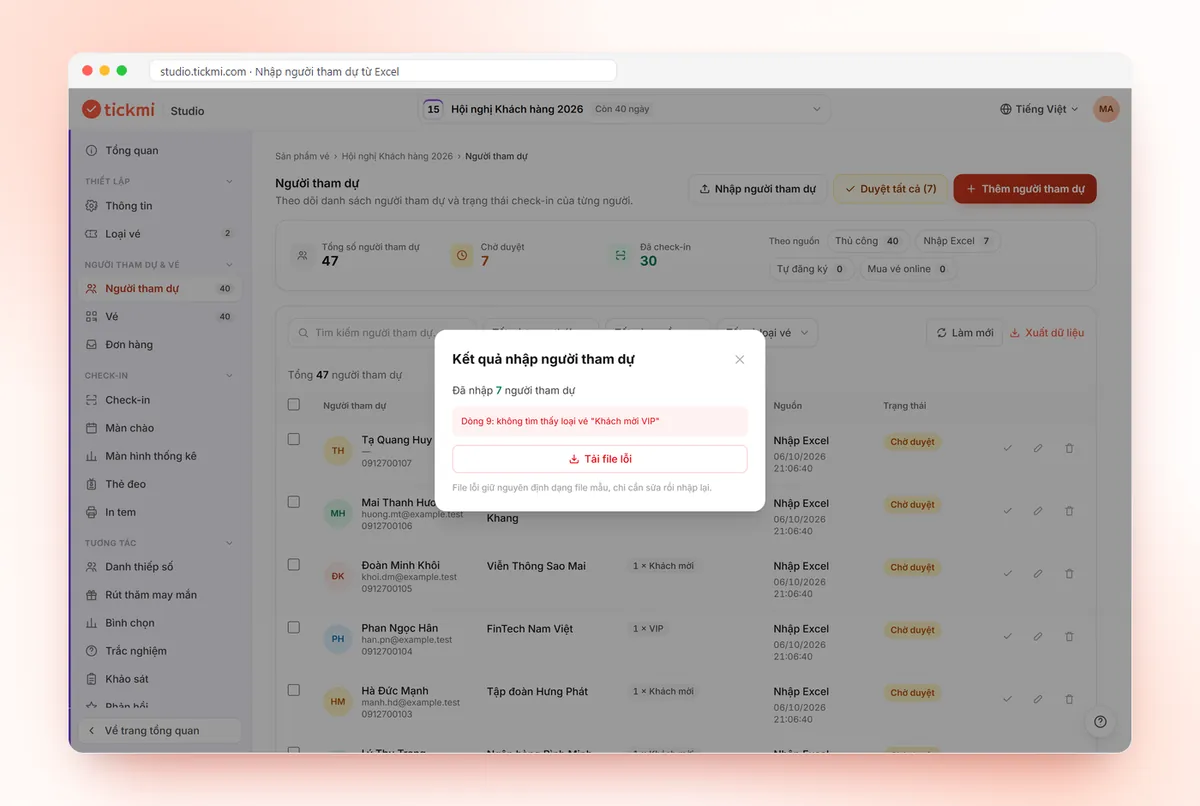
- The school sets a fixed number. The list of graduates comes from the academic affairs office, one row per person with the Ticket type and Quantity columns (for example 3 Parent tickets). You import it from an Excel or Google Sheets file following the template file. This is the fastest and tightest control, and fits when capacity is tight. Any row with a misspelled ticket type name will land in the error file to be fixed.
- Graduates register themselves. Open a registration page and set the Maximum tickets per registration to the school's quota. Each email can only register once for a ticket product, so nobody can register repeatedly to get more tickets. Turn off Auto-approve registrations if you want to check student IDs before approving and issuing tickets. See creating a registration page.
- A base quota plus a reserve pool. Issue tickets in advance as in approach one, while keeping a "Reserve" ticket type with a small Ticket count. When someone asks for more, the academic office reviews and adds it manually with the Add ticket row button on that attendee. The remaining tickets in the reserve pool tell you when it runs out.
Whichever you choose, announce the quota and the ticket deadline publicly in the very first notice. Most complaints come from parents finding out too late.
Sending tickets: one email, several tickets, each with its own code
When a graduate has 3 tickets, the personal ticket page shows each ticket in turn (Ticket 1/3, 2/3, 3/3), each with its own QR code and its own 8-character ticket code. The graduate forwards them to relatives or downloads each ticket to send. See the attendee's personal ticket page.
Because each code records only one entry, passing one ticket image among many people no longer makes sense: the first person to scan gets in, and the next sees Already used. State this in the invitation so parents keep their tickets carefully. Families who do not use email can have tickets downloaded in bulk, printed on paper and handed out through the class or faculty contact. The article paper tickets or QR e-tickets compares the two formats.
On the day: check-in with two separate lanes for graduates and guests
- The graduate lane opens early. Scan "Graduate" tickets at the assembly point. The check-in results are the attendance list used to hand out degrees. After the ceremony, the organization owner or an admin exports it to Excel with the Export data button.
- The guest lane opens later. Parents arrive in a rush in the 30 minutes before the ceremony. Use several scanning devices in parallel; how to calculate lanes and staff helps you estimate. Student volunteers can be added with the Check-in staff role, which can only scan tickets and cannot view or edit other data.
- People who forgot their ticket. Enter the 8-character ticket code or search by the name of that graduate's relative in the Attendees tab, then verify with a student card or ID.
- Re-entry. If you let parents step out and come back in, set Number of check-ins per ticket to 2 for the Parent ticket type. Note that the system counts scans and does not distinguish entering from leaving, so only use it when door staff are clearly briefed.
- Weak network in a large hall. Tap Download offline data in the app while still online. See check-in with the Tickmi Studio app.
If there are several ceremonies by faculty, create a ticket product for each so statistics and export files are separate per ceremony. Schools have used a similar approach for opening ceremonies: Hung Vuong University HCMC issued nearly 1,800 QR tickets for the 2023–2024 school year opening ceremony, see the customer story. A broader view for schools is in tickets and check-in for schools.
A sample invitation for graduates
You can start from the following frame and adjust it for your school:
- The graduation ceremony date, time and venue (hall, entrance gate).
- When graduates should arrive, what to wear, which gate to use.
- Each graduate gets N tickets for relatives, each ticket has its own QR code and admits one entry only.
- Children, older people and people needing mobility help: who to contact before the ceremony. Decide the ticket policy for young children in advance and state it clearly.
- How to get there: the Directions button on the personal ticket page appears when the ticket product has a venue.
Common mistakes with graduation invitations
- Issuing tickets only to graduates and forgetting guests and faculty. On the day, this group has to stand in line with parents.
- The list has duplicates or someone withdrew. Select that person in the Attendees list and click Cancel ticket so the ticket can no longer be scanned.
- Sending tickets too close to the ceremony. Send at least a few days ahead, and remind in the class group that morning.
- Not testing students' emails. School-issued emails sometimes land in Gmail's spam folder; see ticket emails not reaching the inbox.
Details on importing the list and issuing tickets in bulk are in the attendee management guide; the overall solution is on the QR invitation tickets page.
About Tickmi
Tickmi is a ticketing and participant experience platform. On a single, unified set of attendee data, Tickmi connects the whole journey: issuing invitation, registration and paid tickets, sending branded QR tickets, checking in with an app, kiosk or scanner (even offline), and then moving on to the welcome screen, lucky draw, polls, quizzes and surveys. Tickmi is trusted by organizations such as Viettel, VNPT, MobiFone, FPT and CMC. Learn about Tickmi or try it free.
Frequently asked questions
Can each graduate receive several invitation tickets?
Yes. One attendee can hold several tickets, for example 1 Graduate ticket and 3 Parent tickets. You set the quantity in the Excel file when importing, or click Add ticket row when adding manually. Each ticket has its own QR code.
How do I limit the total number of tickets to the hall capacity?
Set the Ticket count for each ticket type to the number of places in the matching area. When issuance goes over this number, the system tells you how many spots that ticket type has left and issues no more.
How do parents without email receive tickets?
Graduates receive the email and forward it, or the school downloads tickets in bulk to print and hand out through classes or faculties. A QR code printed on paper scans normally.
What if one ticket is sent to many people?
Each ticket can only be checked in the number of times you set, which is one by default. The first person to scan gets in; later scans show Already used with the earlier check-in time.
Issue QR tickets, send emails, check in and engage attendees on one platform.