
Knowledge
Issuing tickets and check-in for schools from opening ceremonies to camps
Schools use QR tickets to know exactly who has entered the hall or the school gate, instead of sign-in books and paper lists. With Tickmi, the school imports class lists or opens a registration page for parents, each person receives a ticket with its own QR code by email or in print, and volunteers scan tickets with the app on their phones. This article goes through each occasion, how to do it when students have no email, and common mistakes.
For which occasions do schools need tickets and check-in?
Use tickets for any occasion where outside guests enter the school or where you need to count who is present. The occasions differ in who receives tickets and how they are issued:
| Occasion | Who gets tickets | How to issue tickets | Where to check in |
|---|---|---|---|
| Opening ceremony, graduation ceremony | Students, parents, guests | Import the class list from Excel, send by email or print tickets to hand out by class | Hall entrance, one lane per group |
| Camp, traditional festival day | Students, alumni, visitors | Student list from Excel, outside guests register through a link | School gate |
| Admissions fair, career counseling day | Final-year students, parents | Online registration page, ticket received right after registering | Reception desk or self check-in kiosk |
| Parent seminar, professional seminar | Parents, teachers, speakers | Registration page, with manual approval possible to limit the audience | Seminar room door |
How to allocate tickets to graduates and their families is in the article graduation ceremony invitations. For fairs with many drop-in visitors, see job fair check-in.
For admissions fairs and study abroad fairs with many counseling booths, see how it works on the admissions and study abroad fair check-in page.
How do you issue tickets to students without email?
Students without email can still receive tickets: send tickets to the parent's email, or print tickets in bulk and hand them out by class. A QR code printed on paper scans just like one on a phone.
- Send to the parent's email. Fill the Email column with the parent's email and add a "Class" field so homeroom teachers can check.
- Print tickets to hand out by class. In the Tickets tab, tick the tickets of one class and click Print tickets, choosing the Exact ticket size or A4 paper format. To send to a print shop, use Download all tickets to get a zip file. Set the ticket file format to Image, because PDF tickets are skipped in bulk printing.
- Students who forget their ticket. Each ticket has an 8-character Ticket code. Staff type this code in Enter ticket code in the app, or search by name in the attendee list and Mark as checked in.
Details of printing and zip download are in the guide to downloading and printing tickets in bulk.
Steps to roll out QR tickets for a school event
A school event usually goes through seven steps, and it is best to start about two weeks before the event (an example timing).
- Create a ticket product for the event, then create ticket types by group, for example Student, Parent, Guest.
- Turn on the information fields you need, such as Class, Grade or Unit as a Choice list so filtering works properly.
- Import the list with Import attendees: click Download template file, fill in the columns and upload it. Error rows come back through Download error file; for a list in Google Sheets, use Import from Google Sheets.
- Open a registration page for groups without a ready list (parents, visitors). Turn on Auto-approve registrations if anyone who registers may enter, or leave it to manual approval if you need to screen.
- Choose the ticket template and email template with the school logo, then issue the tickets.
- Add volunteers to the organization with the Check-in staff role and have them install the Tickmi Studio app.
- Rehearse with a few real tickets the day before: scan with the app, try entering a ticket code, try with the network off.
If you have not used Tickmi before, you can try it with 100 free ticket issuance quota before running a big event.
How can student volunteers check people in without exposing data?
Assigning the Check-in staff role and hiding some information on the scan result screen is enough for volunteers to work without seeing the data of friends or parents.
- The Check-in staff role can only scan tickets with the app, cannot sign in to the Tickmi Studio web, and cannot view or edit the list. How to invite them is in managing members and permissions.
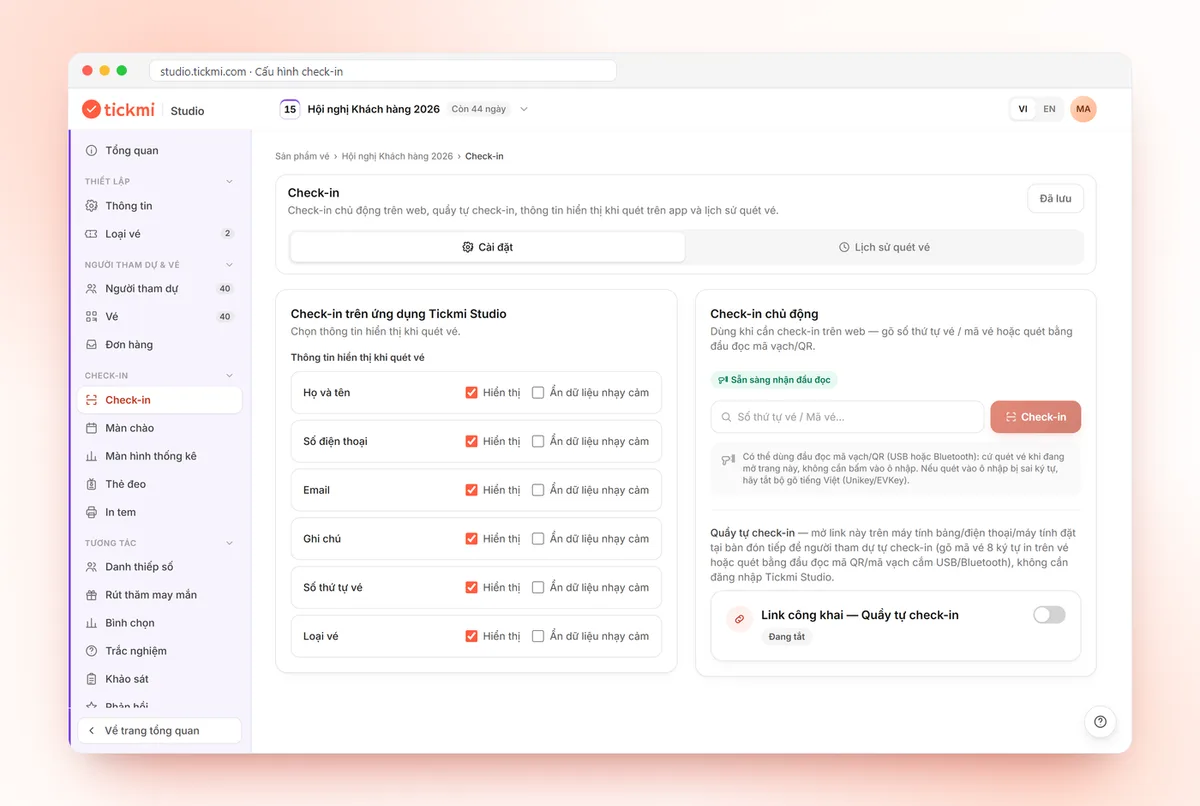
- Choose the information shown on scan. In the Check-in tab on the web, the Information shown when scanning tickets section lets you tick Show for each field. Full name and class are enough; for phone numbers and parents' emails, turn on Hide sensitive data so only part is shown.
- An easy-to-read result screen. The app shows Check-in successful, Already used, Invalid ticket or Cancelled.
- A kiosk instead of people. At a gate with many parents, you can set a tablet in kiosk mode so they scan tickets themselves; the kiosk is locked with a PIN.
Only the Owner and Admins can export the list to a file. The general principles are in the article protecting attendee data.
How do you configure a multi-day camp with several entries and exits?
A camp running two or three days needs each ticket to be scannable several times; otherwise the second scan shows Already used. In the ticket type settings there is a Number of check-ins per ticket field: enter 1 if each ticket enters only once, and a larger number for multi-day tickets or several entries and exits.
Example for a three-day camp: set 3 for the Student ticket type and keep 1 for one-day Visitors. School gates often have a weak signal, so tap Download offline data in the app while still online; scans made while offline are stored on the device and synced afterward. Estimate the number of lanes and staff per gate using the article calculating check-in staff and lanes.
Checklist before the event
- The list has been filtered for duplicate emails and has the right classes; re-importing only adds new people and does not update existing ones.
- Each attendee group has its own ticket type, with the right Number of check-ins per ticket.
- All tickets are issued, and tickets that failed to send have had their email fixed and resent.
- Tickets that need printing are printed and sorted by class.
- Volunteers have signed in to the app and downloaded offline data.
- The scan result screen shows only full name, class and ticket type; sensitive fields are hidden.
- A teacher desk is staffed to handle faulty tickets and students who forgot theirs.
Common mistakes when ticketing for schools
- Writing the parent's name instead of the student's. When tickets are sent to a parent's email, the Full name column must still be the student's name, one row per student, even if two siblings share one email. Otherwise both the printed ticket and the scan result screen show the wrong person.
- Typing class names freely. "10A1", "10 A1" and "class 10a1" become three groups when filtering. Use a choice list.
- PDF tickets when printing is needed. Bulk printing skips PDF tickets; change the format to Image and reissue.
- Letting volunteers use an admin account. They would be able to see the whole list.
Schools that have used QR tickets with Tickmi
- Hung Vuong University HCMC: nearly 1,800 tickets for the 2023–2024 school year opening ceremony.
- FPT Schools: more than 2,000 tickets for the F-Edutech seminar and the B.O.C Fest festival.
- Dien Hong High School: nearly 2,500 tickets for the March 26 camp three years in a row.
An overview is in QR code check-in; for registration for parents see the online registration page; detailed scanning steps are in the guide to check-in with the Tickmi Studio app.
About Tickmi
Tickmi is a ticketing and participant experience platform. On a single, unified set of attendee data, Tickmi connects the whole journey: issuing invitation, registration and paid tickets, sending branded QR tickets, checking in with an app, kiosk or scanner (even offline), and then moving on to the welcome screen, lucky draw, polls, quizzes and surveys. Tickmi is trusted by organizations such as Viettel, VNPT, MobiFone, FPT and CMC. Learn about Tickmi or try it free.
Frequently asked questions
How do I send tickets to students who have no email?
Send tickets to the parent's email, or print tickets in bulk in the Tickets tab and hand them out by class. A QR code printed on paper scans like one on a phone; if a student forgot their ticket, staff enter the 8-character Ticket code or search by name.
Can student volunteers use the ticket scanning app?
Yes. Add them to the organization with the Check-in staff role: they can only scan tickets with the Tickmi Studio app, cannot sign in to the web, and cannot view or edit other data.
Can one ticket cover a whole multi-day camp?
Yes. Set Number of check-ins per ticket to more than 1 in the ticket type settings, for example 3 for a three-day camp. If you leave it at 1, the second scan shows Already used.
Can we still check in if the school gate has no signal?
Yes, if you tapped Download offline data in the app while still online. Scans made while offline are stored on the device and sync automatically when the network is back.
How do I keep volunteers from seeing parents' phone numbers?
In the Check-in tab on the web, under Information shown when scanning tickets, tick Show only for full name, class and ticket type, and turn on Hide sensitive data for phone number and email.
Issue QR tickets, send emails, check in and engage attendees on one platform.