
Knowledge
How to send ticket emails so they do not land in spam
To keep ticket emails out of spam, you need to send from an authenticated domain (SPF, DKIM, DMARC), write a clear subject line and body, and remove wrong emails from the list before sending. Tickmi supports all three: sending from the system's authenticated address or the organization's own-domain SMTP, checking mistyped emails as they are entered, and automatically stopping sends to faulty addresses.
Why do ticket emails often land in spam?
Ticket emails land in spam mainly because the recipient's mail server does not trust the sending address, or because the content and the recipient list show suspicious signs. Five common causes:
- Sending from an address that does not match the domain, or from a domain that has not declared SPF and DKIM.
- Sending a large volume at once from a new address with no sending history.
- A subject line in all capitals, with many exclamation marks and a promotional tone.
- An email that is just one large image with almost no text.
- A list with many wrong emails; many bounces lower the reputation of the sending address.
Which sending address is least likely to land in spam?
The address least likely to land in spam is one that is fully authenticated and that recipients recognize immediately. In Tickmi you have three options, ordered by brand recognition:
| Sending method | Address the recipient sees | What to prepare | Suits |
|---|---|---|---|
| Tickmi system mail | Tickmi's authenticated address | No configuration needed | Quick sending, no own domain yet |
| System mail + organization name | Still a Tickmi address, display name is the organization name | Turn on Use the organization name as sender name | Want recipients to recognize the organization |
| Own-domain SMTP | The organization's address, for example ve@congty.vn | SMTP details, SPF/DKIM in DNS | Businesses sending large volumes regularly |
Steps to configure SMTP in Tickmi:
- Go to the Settings → Ticket email menu and click Add configuration.
- Enter the sending email (From) and the Display name. The sending email should match the SMTP account.
- Enter the SMTP server, Port, Username and SMTP password. For Gmail or Outlook, use an app password instead of your sign-in password.
- Enter a test recipient email and click Send test.
- Click Create configuration, then Activate.
Personal Gmail has a daily sending limit, so it only suits small lists. For large lists, use a business-domain email.
What are SPF, DKIM and DMARC, and where do you declare them?
SPF, DKIM and DMARC are three DNS records that help mail servers confirm that an email really comes from your domain. Without them, Gmail and Outlook easily mark the mail as suspicious.
| Record | Purpose |
|---|---|
| SPF | Declares which servers are allowed to send mail on behalf of your domain |
| DKIM | A digital signature proving the mail was not altered in transit |
| DMARC | A policy for handling mail that fails SPF/DKIM, with reports to the domain owner |
You add these three records where your domain's DNS is managed. Your email provider (Google Workspace, Microsoft 365…) has instructions with the specific values. When you send through that provider's own SMTP, the mail is signed with your own domain.
How do you write a safe subject line and body for ticket emails?
A safe ticket email looks like a transactional email, not a promotional one. A few rules:
- A clear subject line, for example "Your ticket for [event name] – [date]".
- A greeting using the recipient's name and a few lines of text about the time and place, not just a ticket image.
- One main button, and few links.
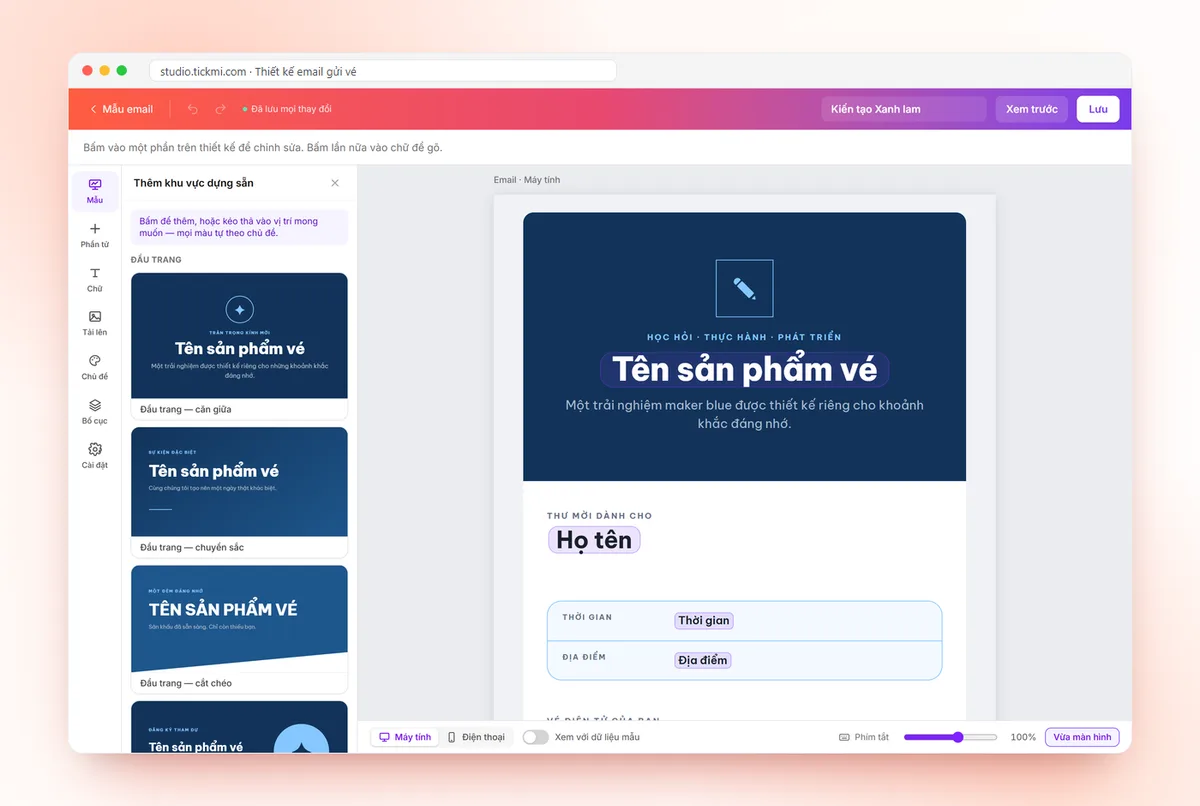
- Use the E-ticket element so the ticket image appears right in the email; the attach-ticket-file option only decides whether to send an extra file.
- Click Preview on the email template before assigning it to a ticket type, and send test emails to a few Gmail and internal Outlook inboxes.
How to compose the template is in the guide to designing emails and own-domain email. For content ideas, see the article on event invitation email templates.
Clean your email list before sending tickets
A clean list is the cheapest way to protect your sending address's reputation, because every bounced email makes later emails more likely to land in spam. Tickmi checks emails everywhere they are entered: when an email looks mistyped (for example gamil.com), the input shows the suggestion Did you mean …@gmail.com?.
When the recipient's server reports an error, Tickmi automatically stops sending to that address and labels the reason: Email does not exist, Mailbox full, Recipient reported spam or Mistyped email. The ticket remains intact; it just has not reached the inbox.
A hypothetical example: you import 800 people from Excel, and 12 emails have a mistyped domain. If you fix them before approving, you avoid 12 bounces right in the first sending batch.
Track failed emails and resend tickets to the right people
After sending, handle each faulty ticket instead of resending the whole list. Mass resending increases duplicate emails and may cause recipients to report spam.
- In the Tickets tab, look at the Email delivery status bar: Received, Awaiting confirmation, Not sent, Send failed, Email needs fixing, No email.
- Click Email needs fixing to filter tickets with faulty emails.
- Click the yellow error label, enter the correct email, keep Resend ticket email after saving ticked and click Save.
- For Send failed tickets, the system has already retried up to 5 times. Check the email, then select the ticket and click Resend email.
- Open History → Email sending and click View email to see exactly what was sent to each person.
Details of each status are in the guide to fixing faulty emails.
What if attendees still cannot see the ticket email?
Always have at least one backup channel so attendees can get their ticket without depending on their inbox. Commonly used options:
- Remind people to check the Spam or Promotions folder, searching by event name.
- Send tickets in parallel through Zalo ZNS, see the article on sending invitation tickets via Zalo ZNS.
- At the desk, look up by name or phone number and enter the Ticket code.
Common mistakes when sending ticket emails in bulk
- Switching to a new SMTP right before the sending day without clicking Send test.
- A sending email (From) that differs from the SMTP account, causing mail to be rejected or land in spam.
- Resending the whole list because a few people said they did not receive it.
- An email template with only one large image and no text.
See the full process in the guide to sending QR tickets in bulk by email and the overview of Tickmi QR invitation tickets.
About Tickmi
Tickmi is a ticketing and attendee experience platform (Ticketing & Participant Experience Platform). On one unified set of attendee data, Tickmi connects the whole journey: issuing invitation tickets, registration tickets and paid tickets, sending branded QR tickets, checking in by app, kiosk or scanner — even when the network is down — and then the welcome screen, lucky draw, polls, quizzes and surveys. Tickmi is trusted by organizations such as Viettel, VNPT, MobiFone, FPT and CMC. Learn about Tickmi or try it free.
Frequently asked questions
Can I send tickets without my own domain?
Yes. Tickmi sends from the system's authenticated address when you have not activated an SMTP configuration; you can still change the sender name to the organization name. An own domain helps recipients recognize you immediately.
Can I use a personal Gmail as the sending server?
Yes for small volumes, and you need to create an app password. For large volumes use a business-domain email, because personal Gmail limits the number of emails per day.
How do I know who has not received the ticket email?
Look at the Email delivery status bar in the Tickets tab and History → Email sending; tickets with Send failed or Email needs fixing are flagged so you can correct the email and resend.
What if the email has SPF and DKIM and still lands in spam?
Check the content (a promotional-sounding subject line, an image-only email) and the list (many wrong emails). Send tests to a few Gmail and Outlook inboxes before sending in bulk.
What does Tickmi do if a recipient marks the email as spam?
Tickmi stops sending to that address and labels it Recipient reported spam so you can contact the attendee through another channel.
Is there a limit on resending ticket emails?
Yes. Each ticket has a limit on the number of resends; a ticket that has reached the limit is skipped, and Studio reports how many tickets were skipped.
Issue QR tickets, send emails, check in and engage attendees on one platform.