
Knowledge
Conference attendance software: take delegate attendance fast without missing anyone
Delegate attendance differs from ordinary attendee check-in: the list exists in advance, delegates arrive in delegations, and after the meeting you must report who was present and who was absent. This article helps you choose the right attendance method, prepare lists by unit and handle situations common at the reception desk.
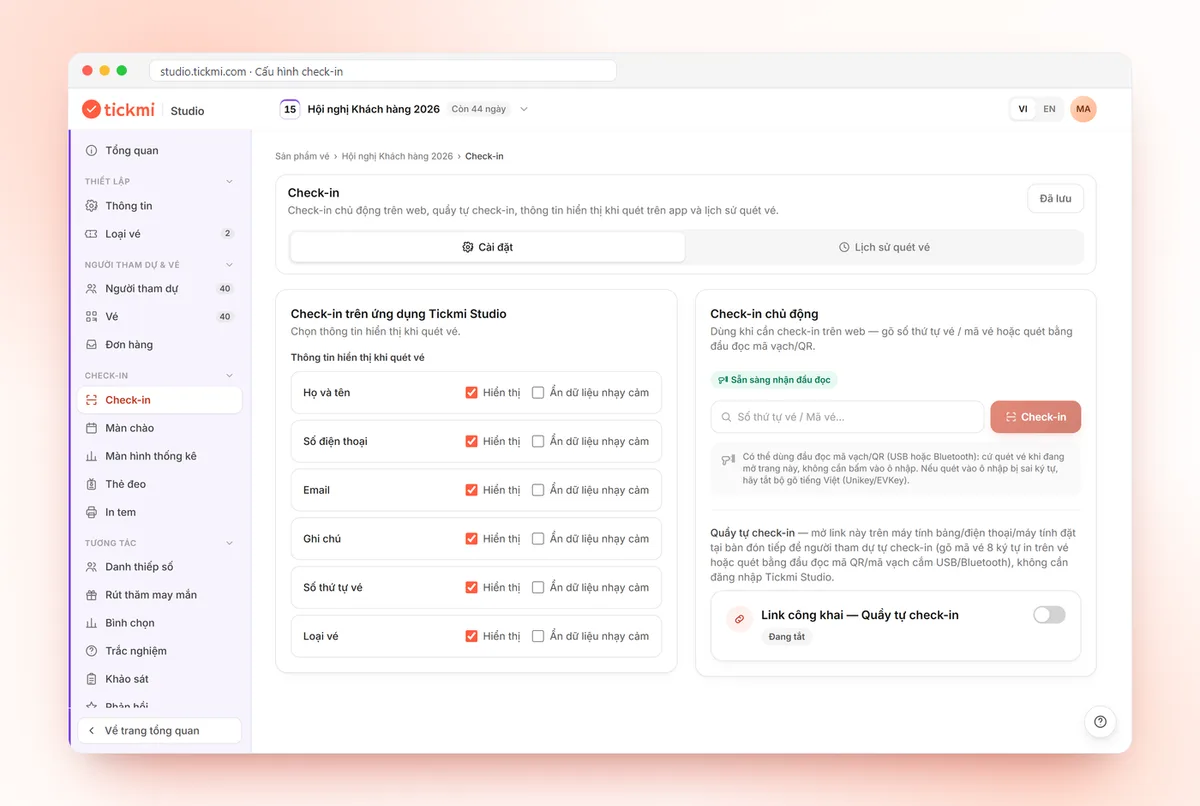
What delegate attendance at a conference needs from software
Conferences of associations, councils, government departments or companies usually have a delegate list finalized a few days ahead. The person in charge needs three things: greet the right people, count those present in real time, and export the final numbers. Good attendance software only needs to do these three things solidly, without many features.
| Attendance method | Advantages | Limitations for a conference with many delegates |
|---|---|---|
| Paper, signing in person | No devices needed | Long lines, illegible signatures, manual re-compilation |
| Excel and a person ticking | Cheap, familiar | Everyone has their own copy, numbers drift; you cannot see who has entered in real time |
| One shared QR code and a form | Quick to deploy | People outside the list can scan too, and people ask others to scan for them |
| A unique QR code per delegate | One code per person, scan means present, numbers update instantly | You must send codes in advance and have people holding scanning devices |
For conferences of roughly 80 delegates or more, the last method is usually neatest. The rest of this article follows that approach.
Step 1: build a delegate list with unit and delegation columns
Delegates are usually remembered by unit more than by name. Prepare an Excel file with full name, email, title, unit and, if needed, a "delegation" or "table" column. In Tickmi Studio, go to Info fields to declare custom columns such as Unit and Title, then go to Import attendees, click Download template, paste in the data and upload. Rows with errors are reported with a file so you can fix them. Details are in the guide to managing attendees.
Note: importing from Excel only adds new people and does not update existing ones. If the list changes after importing, edit each person directly or import the new part instead of re-importing the whole file.
Step 2: send a QR code to each delegate
Each delegate has their own QR ticket, sent by email before the conference. If the conference has an official invitation letter, you can embed the QR code in the invitation so delegates only need to open one email. See the article invitation letters with QR codes. Delegates who do not read email can still get the ticket if you resend it or read out the 8-character Ticket code to be typed in manually at the desk.
Step 3: set up the attendance desks by delegation
The number of desks depends on how many delegates arrive at once, usually 30 to 50 people in the first 15 minutes. One effective way to split:
- QR scanning desk: staff open the Tickmi Studio app, go to the Scan tab and scan the code on the delegate's phone or printout. See check-in with the Tickmi Studio app.
- Lookup desk: for delegates who forgot their code. Staff enter the ticket sequence number or ticket code in the Manual check-in tab on a computer, or search by name in the attendee list.
- Off-list delegate desk: for substitute or newly added delegates. Use Add attendee to create the new person and choose a ticket type, check that the ticket is ready (approved, issued), then scan.
If the hall has poor signal, tap Download offline data in the Offline check-in section of the app while you still have a connection. Scans are saved on the device and sync automatically when the connection returns; see also the article check-in when the network is down.
Substitute delegates, late delegates and situations at the desk
| Situation | How to handle it |
|---|---|
| A delegate sends someone in their place | Edit the attendee information (full name, email, custom fields) or add a new person and then cancel the old ticket; a cancelled ticket cannot be scanned |
| A cancelled ticket is still scanned | A cancelled ticket cannot be checked in until the cancellation mark is removed |
| Two people use the same code | The second person scanning sees the "Ticket has reached its scan limit" notice with the time of the last scan, so you know who came in first |
| A delegate forgot their phone and code | Look up by name and use Manual check-in; or Mark as checked in manually once you have verified their identity |
| A delegate arrives late after the meeting opens | Scan as normal; note the time in the Scan history for the report |
When marking manually, only give the permission to the person in charge, because this entry has no scan action to cross-check. Keep the list of people who were marked for the post-meeting report.
Tracking delegates present during the meeting
Show the check-in stats screen to the organizing committee: checked-in over total, and the By ticket type block shows how many of each delegate group (for example invited delegates, official delegates) have arrived. It refreshes every 5 seconds, so you do not need to ask each desk.
In the Scan history, filter by Check-in source and Scanner to see which desk handled the most, useful when reassigning staff for the afternoon session.
Multi-session conferences: understand the limits of ticket-based attendance
Tickmi counts check-ins per ticket, not per meeting session. For a multi-session conference, set Check-ins per ticket greater than 1 so delegates can scan again at later sessions. However, the system only counts the number of scans and does not know which session a scan belongs to, so if you need a proper report per session, scan each session at a clear time and cross-check the times in the Scan history. The way it is counted is explained in detail in the article attendance with QR codes.
Tickmi does not check voting rights or shareholdings and has no electronic signature for delegates. Conferences that need these steps should add their own organization's process; see shareholder meeting check-in.
Exporting numbers and printing delegate badges
After the conference, the Owner or an Administrator clicks Export data in Attendees to get an Excel file with the check-in column and custom fields such as Unit. This is the basis for compiling the present and absent lists for the report.
If the conference uses delegate badges, you can choose Auto-print on successful check-in on a computer connected to a printer with Tickmi Print installed, and the badge prints right when the delegate is scanned. See badge templates at badge printing.
Checklist before conference day
- The delegate list has a Unit column, fully imported and the count checked.
- QR tickets sent, with a test sent to an internal email address.
- Scanning desk staff have installed the app and signed in, and tried scanning their own ticket.
- Offline data downloaded if the hall signal is uncertain.
- A lookup desk and an off-list delegate desk, each with a clear person in charge.
- The people allowed to Export data have an Owner or Administrator account ready.
Tickmi has 100 free ticket issuances to try before a small conference; details in the pricing. See also the QR code check-in solution.
For an overview of check-in methods (app, kiosk, barcode scanner) and a comparison table, see the event check-in software page. Only need to print QR codes on name badges without scanning for check-in? Use the bulk QR code generator.
About Tickmi
Tickmi is a ticketing and participant experience platform. On a single, unified set of attendee data, Tickmi connects the whole journey: issuing invitation, registration and paid tickets, sending branded QR tickets, checking in with an app, kiosk or scanner (even offline), and then moving on to the welcome screen, lucky draw, polls, quizzes and surveys. Tickmi is trusted by organizations such as Viettel, VNPT, MobiFone, FPT and CMC. Learn about Tickmi or try it free.
Frequently asked questions
What features should conference attendance software have?
It needs a delegate list imported from Excel, a unique QR code per person, scanning by phone, real-time statistics of those present and exporting numbers after the meeting. Other features depend on each conference's needs.
How do I check in a delegate who forgot their QR code?
Staff look up by name, enter the ticket sequence number or the 8-character ticket code in the Manual check-in tab, or Mark as checked in manually after verifying identity.
Does Tickmi take attendance for each meeting session separately?
No. Tickmi counts check-ins per ticket. You can set Check-ins per ticket greater than 1 and cross-check scan times in the Scan history, but the system does not tie a scan to a specific session.
Who can export the list of delegates present?
The Export data function is only for the organization's Owner and Administrators, so prepare a suitable account before conference day.
Can I still take attendance if the connection is lost during the conference?
Yes, if you tapped Download offline data in the app while you still had a connection. Scans are saved on the device and sync automatically when the connection returns.
Issue QR tickets, send emails, check in and engage attendees on one platform.