
Knowledge
How to take attendance with QR codes for classes and training sessions
Calling names or passing around a sign-in sheet takes 10-15 minutes at the start of a session and is hard to compile afterwards. QR code attendance cuts that down to a few seconds per person, but pick the wrong method and people can still "check in for a friend". This article helps you choose the right method and get started right away.
Two ways to take attendance with QR codes: the difference is who scans
Most guides online just say "use a QR code", but in practice there are two opposite models:
| Criterion | Method A: learners scan one shared QR code | Method B: the organizer scans each person's own QR code |
|---|---|---|
| How it works | Display or post one QR code that leads to a form; each person scans it and enters their name | Each person has their own QR code (ticket, card); staff scan with a phone at the door |
| Preparation | Very little: one form, one QR code | Enter the list and distribute codes to each person before the session |
| Checking in for others | Easy: photograph the code and send it to a friend at home | Hard: you need that person's own code, and each code reports if it was already scanned |
| Data | Names typed by hand, often misspelled or duplicated | Matches the original list |
| Best for | Small classes, casual sessions that don't need perfect accuracy | Mandatory training, classes with certificates, large seminars |
Rule of thumb: if attendance results are used to calculate attendance rates, issue certificates or report to management, use Method B. The article Google Form, Excel or a ticketing platform goes deeper on when free tools are enough.
Method A: attendance with one QR code and Google Form
- Create a Google Form with these questions: full name, employee ID or student ID (required), organization. Use a dropdown question for the organization to keep the data tidy.
- Turn on email collection if all learners have an organization Google account. This reduces proxy entries more than asking for a name alone.
- Get the form link, create a QR code from the link and show it on screen at the start of the session.
- Close the form as soon as the attendance window ends (turn off "Accepting responses"). Leaving the form open for the whole session is the fastest way to make the data worthless.
- After the session, open the response spreadsheet, remove duplicates by employee ID, and cross-check against the class list to find who was absent.
This is free and enough for classes of a few dozen people. Limitations: it can't stop someone far away from scanning a photo of the code, and the cross-checking step after the session is still manual. A shared QR code for the form link can be made with the free QR code generator, no registration required.
Method B: distribute individual QR codes and scan with an app (example with Tickmi)
With this method, the learner list is the source and QR codes are generated from it, so nobody outside the list can check in. In Tickmi Studio:
- Create a ticket product for the training course or session, and create ticket types (for example "Learner", "Instructor").
- Go to Attendees, click Import attendees, download the sample file, paste in the class list and upload it. You can also import directly from Google Sheets. See managing attendees.
- Each person receives one unique QR code and an 8-character ticket code. Send them by bulk email, or download the tickets, print them and hand them out by class if learners don't use email.
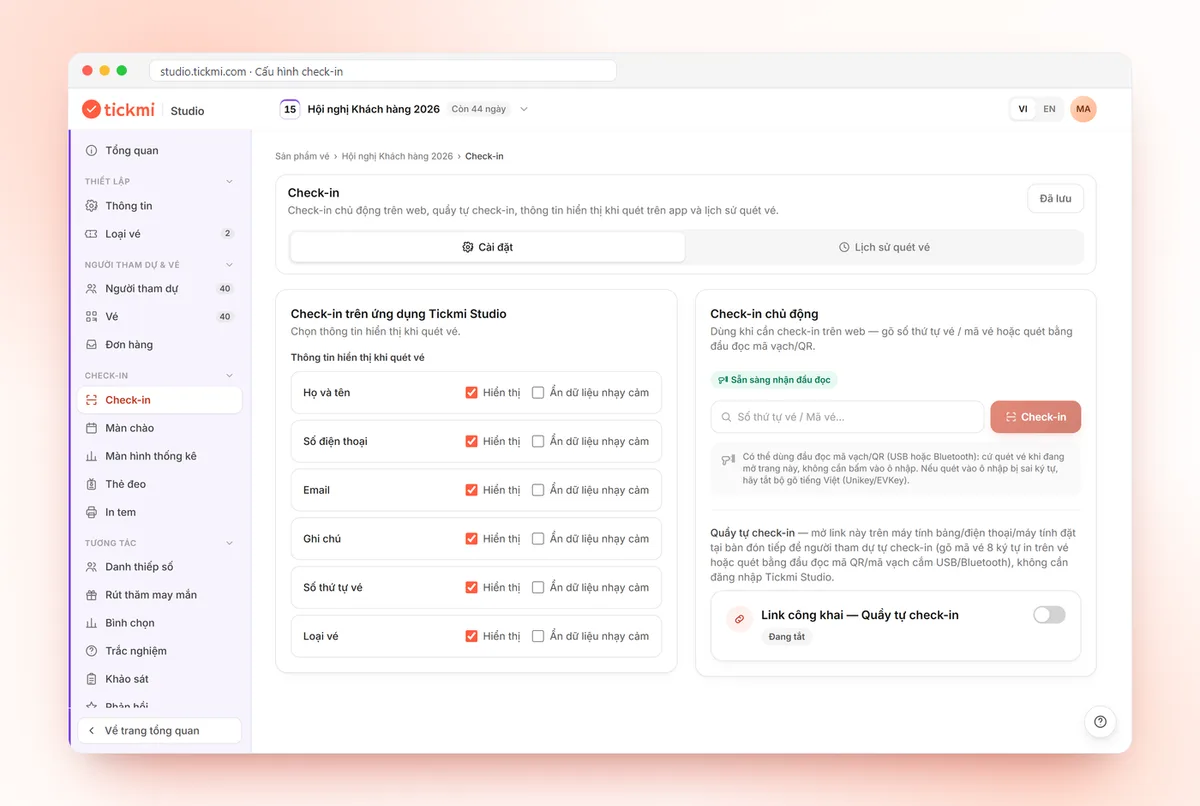
- At the start of the session, staff open the Tickmi Studio app, go to the Scan tab and scan each person's code. If someone forgot their phone, they read out the ticket code and staff tap Enter ticket code. Details: check-in with the Tickmi Studio app.
- A code that has already been scanned shows Already used along with the earlier check-in time, so one code can't check in twice.
- After the session, in the attendee list click Export data to download an Excel file with each person's check-in status and send it to HR or the academic office.
Weak signal in the classroom? Tap Download offline data in the app before entering the room; the app can still scan and syncs automatically when the network returns. If you want a supervisor to follow progress remotely, use the check-in statistics screen. For the full solution, see QR code check-in.
Attendance across multiple sessions: what if a course has 5 or 10 sessions?
This is where many people get stuck. There are two ways to organize it in Tickmi, depending on what you need to report:
- One ticket product per session. Import the same list into each session. Each session has its own check-in rate and export file, so you know exactly who was absent from which session. Suited to tracking attendance session by session.
- One ticket that can be scanned multiple times. In the ticket type, set Check-ins per ticket to the number of sessions (for example 10). Learners use a single code for the whole course, and the list shows the number of scans out of the total allowed. Suited when you only need to know how many sessions each person attended; the scan history in the app still records the time of each scan.
Note on the second method: because one ticket can be scanned many times, the system doesn't distinguish two scans in the same session from two scans in different sessions. Tell staff to scan each person only once per session.
Checklist before the attendance session
- The list has one unique identifier column (employee ID, student ID or email), with duplicates removed.
- QR codes reached learners at least a day ahead; remind them in the class group that morning.
- Scanning devices are signed in, camera permission granted, and a sample code tested.
- There is a plan for people who forgot their code: look them up by name in the list or enter the 8-character ticket code.
- Agree on the attendance cut-off time and how late arrivals are recorded.
- Decide who exports the report and who receives it after the session.
Common mistakes with QR code attendance
- Showing the shared QR code for the whole session. Anyone can photograph it and send it on. If you must use a shared code, show it only for the first few minutes and close the form on time.
- Two rows in the list for the same person. That person gets two codes, and the report shows one person present and one absent. Remove duplicates before importing.
- One door and one scanner for a class of a hundred. A 10-minute jam at the door wastes exactly the time you wanted to save. See how to calculate staff and check-in lanes.
- QR codes printed too small or too close to the card edge. Keep a white margin around the code, and test-print and scan with the same phone you will use.
- Not telling learners in advance. Including a single line of instructions, "open the email and show the code to staff for scanning", makes the first session much smoother.
If the training is part of a larger set of internal activities, also read issuing internal tickets for companies and tickets and check-in for schools.
Need individual QR codes for a whole list of cards, vouchers or labels? Paste the data column into Tickmi's bulk QR code generator, preview, then download a ZIP or print A4 pages.
When a class grows into a conference or festival with several gates and hundreds of people, see Tickmi's event check-in software: send QR tickets, scan with the app or a kiosk, and keep scanning even when the network drops.
About Tickmi
Tickmi is a ticketing and attendee experience platform (Ticketing & Participant Experience Platform). On one unified attendee dataset, Tickmi connects the whole journey: issuing invitation, registration and paid tickets, sending branded QR tickets, check-in by app, kiosk or scanner — even offline — then the welcome screen, lucky draw, voting, quizzes and surveys. Tickmi is trusted by organisations such as Viettel, VNPT, MobiFone, FPT and CMC. Learn about Tickmi or try it free.
Frequently asked questions
Does QR code attendance prevent checking in for someone else?
It depends on the method. One shared QR code leading to a form does not, because anyone can photograph it. Individual QR codes scanned by staff at the door are much harder to abuse, since each code is recorded only once and shows Already used if scanned again.
What if a learner forgot their phone?
In the Tickmi Studio app, staff tap Enter ticket code and type that person's 8-character ticket code or ticket sequence number. You can also print paper tickets for people who don't use phones.
Do I need to issue new codes for each session of a multi-session course?
Not necessarily. You can set Check-ins per ticket to the number of sessions so one code works for the whole course, or create one ticket product per session if you need absence reports session by session.
Can I scan in a classroom with no wifi?
Yes, if you tapped Download offline data in the app while you still had a connection. Scans are stored on the device and sync automatically when the network returns.
Issue QR tickets, send emails, check in and engage attendees on one platform.