
Knowledge
Check-in when the network is down: how to prepare so your desk keeps running
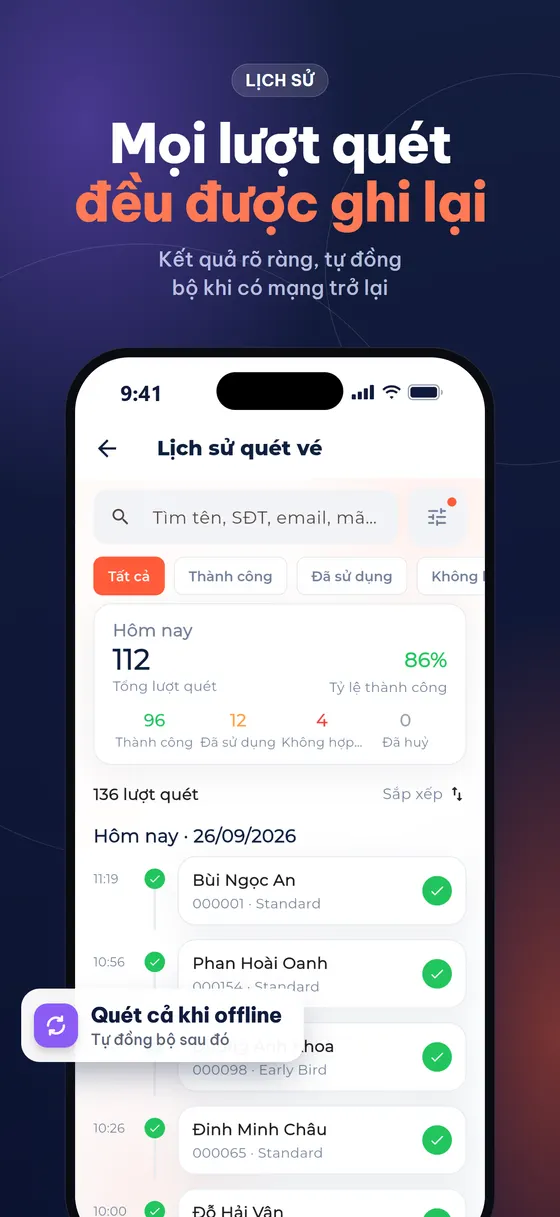
Check-in still works without a network if the device has downloaded the ticket list while it was still connected. With the Tickmi Studio app, you tap Download offline data before doors open; when the network drops, the app still verifies tickets on the device, records check-ins and syncs automatically once the connection returns. What remains is preparing your devices and agreeing on how to handle duplicate scans.
Why does the network often fail right at check-in?
The network often fails at check-in time because too many people use it at once in the same place. Hundreds of attendees arrive at almost the same time, and everyone opens their phone to find their ticket email. Both the venue's Wi-Fi and the nearby mobile towers become overloaded.
Some places have weak signal by nature: basements, enclosed halls, outdoor areas far from a tower, hotels with thick walls. So don't ask "will the network drop?"; ask "if it drops, what does the desk do?"
How does offline check-in work?
Offline check-in works by downloading ticket data to the device in advance, verifying tickets on the device when the network is lost, and then sending the scans to the system once the connection returns. Three concrete steps:
- Download data in advance: while connected, the check-in device downloads the list of valid tickets onto the device.
- Scan while offline: the app looks up the ticket in the downloaded data. A ticket that is in the data and not yet used is recorded as checked in. A cancelled ticket is rejected. A code that is not in the data is reported as invalid.
- Sync when back online: the scans are sent to the system and the overall check-in figures are updated.
An important consequence: tickets issued after the data was downloaded are not on the device. For example, you download the data at 7:00, and by 7:30 10 more people have registered late and been approved. If the network drops at 8:00, those 10 tickets will show as invalid on that device until you download the data again.
How to turn on offline check-in in the Tickmi Studio app
On Tickmi, offline check-in is done in the Tickmi Studio app and takes only a few steps before doors open. The steps:
- Sign in to the app on every phone that will be used at the desk.
- Go to More → Operations → Offline check-in.
- Tap Download offline data while connected. The app shows the Data downloaded at time. The data includes tickets of the organization's ticket products taking place within 7 days before or after the download.
- When the network drops, the scan screen switches to Offline. Keep scanning as usual; each scan shows the line Recorded offline — will sync automatically when online.
- When the connection is back, the app syncs automatically while it is open. You can also tap Sync now. The Pending sync section shows how many scans have not yet been sent.
The self check-in kiosk in the app also accepts QR scans while offline, as long as the device has downloaded the offline data. Details are in the guide to offline check-in and automatic sync.
A risk to know: duplicate scans across devices
While offline, each device only knows its own scans. A ticket already scanned on device A will show as already used if scanned again on device A. But if that ticket is scanned on device B while both are offline, device B does not know and still records it.
On Tickmi, this kind of duplicate is detected during sync. The scan appears in the Conflicts to resolve section and is recorded as an Offline scan conflict in the scan history. You review it and then tap Mark as seen. The app also shows a Data conflict detected notification.
To reduce conflicts:
- Assign lanes by ticket type or by gate, so each attendee goes through only one lane. See how to split lanes in the article on laying out check-in lanes.
- Give priority to a stable network for the busiest lane, for example a dedicated 4G hotspot.
- Tell staff: if a ticket shows as already used, send the person to the help desk instead of letting them through immediately.
Which devices can check in when the network is down?
Each check-in point handles a lost connection differently, so you need to know in advance which ones work. The table below summarizes it according to the Tickmi guides:
| Check-in point | When offline | What to prepare |
|---|---|---|
| Tickmi Studio app (scan screen) | Verifies the ticket on the device, records it, syncs later | Tap Download offline data first |
| Self check-in kiosk in the app | Still accepts QR scans; phone number lookup needs a network | Download offline data on the kiosk device |
| Staffed check-in on the web | Shows a Connection lost label, saves the check-in, syncs automatically when online | Do not close the tab while tickets are waiting to sync |
How to use the web page and barcode readers is in the guide to staffed check-in on the web.
Checklist for preparing offline check-in
This checklist should be done 1-2 hours before doors open, after the list has been finalized:
- Tap Download offline data on every device, not just the desk lead's phone.
- Check the Data downloaded at line on each device. If anyone registered or was approved late, download again.
- Try scanning a real ticket in airplane mode to be sure the app accepts tickets without a network.
- Charge batteries fully and bring backup chargers. Turn off battery-saving mode, which can close background apps.
- Prepare a dedicated 4G hotspot for the main desk if possible.
- Print the attendee list with Ticket codes as a last-resort option.
- Agree on how to handle tickets reported as already used and tickets reported as invalid while offline.
Common mistakes with offline check-in
Most offline check-in problems come from preparation, not from the moment the network drops. Common mistakes:
- Downloading data on only one device. When the network drops, the other devices report mass invalid tickets.
- Downloading data too early. Late registrants are not in the data on the device.
- Fully closing the app while scans are pending. The app only syncs while it is open, so scans sit on the device until the next time it is opened.
- Signing out to switch staff. Unsynced scans are kept on the device and synced at the next sign-in, but the downloaded ticket data is deleted. To keep scanning offline, you must download it again while connected.
- Closing the web tab while tickets are waiting to sync. Keep the tab open until the pending count reaches 0.
Other tricky situations at the desk, such as forgotten tickets or tickets reported as already used, are covered in the article on handling situations at the check-in desk.
What to do after the event?
After the event, make sure every device has finished syncing before finalizing attendance figures. Open the Pending sync section on each device and wait for it to reach 0. The Operations → Devices section lists the devices using the app, with their Active or Offline status and each device's scan count, so you know which device has not yet sent its data.
Finally, review the Conflicts to resolve section to confirm the duplicate cases. Scans from the app while offline are recorded under their own source, Tickmi Studio app · Offline, so you can read them in the statistics by scan source. Learn more about QR code check-in and Tickmi check-in software.
About Tickmi
Tickmi is a ticketing and participant experience platform. On a single, unified set of attendee data, Tickmi connects the whole journey: issuing invitation, registration and paid tickets, sending branded QR tickets, checking in with an app, kiosk or scanner (even offline), and then moving on to the welcome screen, lucky draw, polls, quizzes and surveys. Tickmi is trusted by organizations such as Viettel, VNPT, MobiFone, FPT and CMC. Learn about Tickmi or try it free.
Frequently asked questions
Can tickets still be scanned when the network is down?
Yes, if the device tapped Download offline data while connected. The Tickmi Studio app verifies tickets on the device, saves the scans and syncs automatically once the connection returns, while the app is open.
What about people who register after I download the offline data?
New tickets are not on the device yet, so they will show as invalid while offline. Download the data again when you have a connection, or check that person in once connectivity returns.
Do I lose data if I sign out with unsynced scans?
In the Tickmi Studio app, unsynced scans are kept on the device and synced at the next sign-in, while the downloaded ticket data is deleted. It is best to finish syncing before signing out.
What if two devices scan the same ticket while offline?
Both devices may record it because they do not know about each other's scans. During sync, Tickmi detects the duplicate, puts it in the Conflicts to resolve section and records Offline scan conflict in the history for you to review.
Does the self check-in kiosk work when the network is down?
The kiosk in the Tickmi Studio app still accepts QR scans while offline if the device has downloaded the offline data. Phone number lookup needs a network.
Do I need to tap Sync now as soon as I'm back online?
Not required. The app syncs automatically when there is a network and the app is open. Sync now is only for sending immediately, for example before finalizing figures.
Issue QR tickets, send emails, check in and engage attendees on one platform.