
Knowledge
How to take registrations and check in visitors at trade fairs and exhibitions
To manage trade fair and exhibition visitors, let them register online in advance, send a QR ticket right after registration, scan tickets at the door and put a registration QR code out for walk-in guests. On Tickmi, every check-in is recorded by hour, by gate and by visitor group, so organizers have data for sponsors and exhibitors without counting by hand.
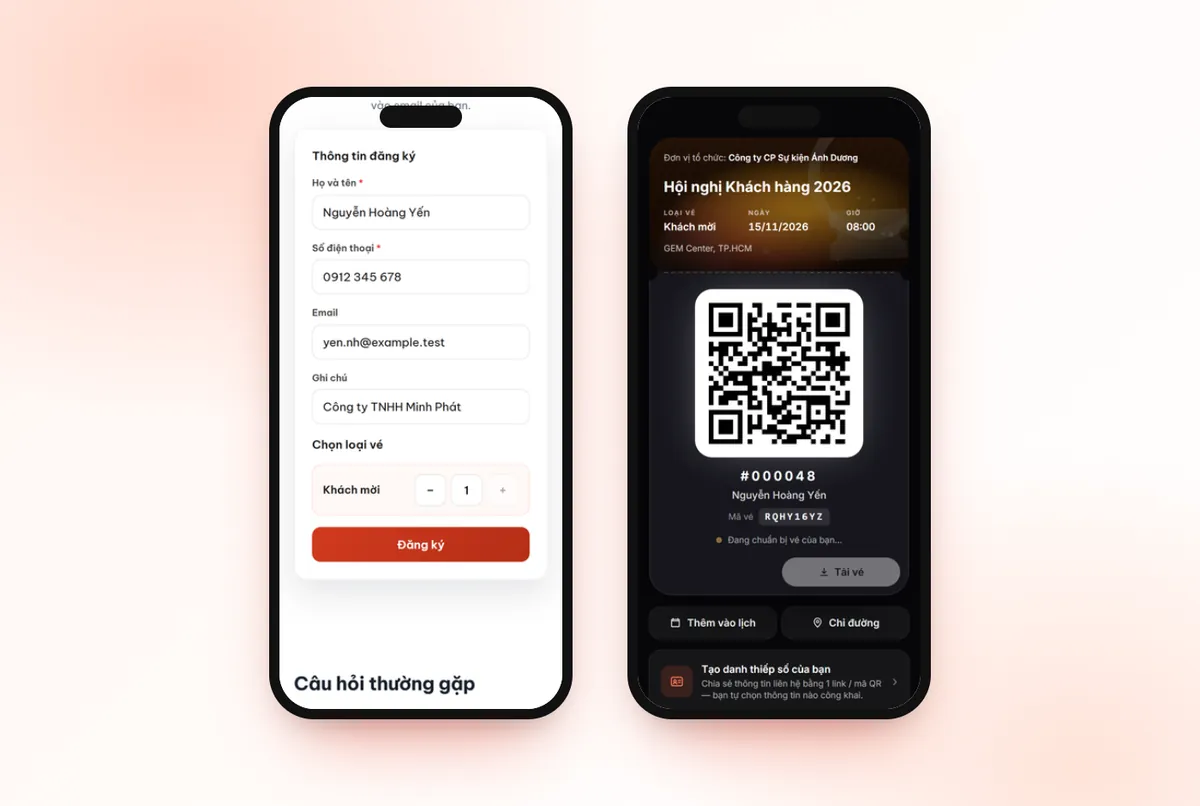
Why should trade fairs and exhibitions let visitors pre-register?
Pre-registration turns visitor numbers into useful data: who came, where they came from, which fields they are interested in. For a specialized trade fair, that data decides the value of a booth in the eyes of exhibitors and sponsors. If you need to open registration or sell online event tickets for a trade fair or exhibition, Tickmi has a dedicated ticket-selling page.
- Shorter queues at the door: visitors arrive with a QR ticket ready, without standing to fill in paper forms.
- Visitor composition reports: you can count visitors by group, field and province.
- Contact before the opening day: send the side-seminar schedule, directions and opening hours.
What fields should a trade fair visitor registration form have?
A visitor form should be short: full name, email, phone number, plus three to four fields for reporting. A field with a fixed set of values should be a dropdown so it can be counted statistically.
| Field | Suggested field type | Used for |
|---|---|---|
| Organization, company | Free text | Printing badges, reporting visiting businesses |
| You are | Dropdown, for example: Business, Distributor, Producer household, Student, Other | Grouping visitors for sponsors |
| Field of interest | Dropdown matching the fair's industries | Suggesting booths, reporting demand |
| Province, city | Dropdown | Knowing where visitors come from |
If you plan to share visitor information with exhibitors, state it clearly on the form and ask for separate consent; see the article protecting attendee data. Field sets for other kinds of programs are in the article event registration form templates.
Multi-day fairs: one ticket for the whole run or one ticket per day?
A multi-day fair should choose one of two approaches: one ticket for the whole run with multiple check-ins, or one ticket type per day. On Tickmi, the ticket type has a Check-ins per ticket field; enter a number greater than 1 and one ticket can be scanned several times.
| Approach | Suitable when | Notes |
|---|---|---|
| One ticket for the whole run, Check-ins per ticket greater than 1 | Trade visitors who come for several days and enter and leave multiple times | The number is a total for the whole run, not split by day |
| One ticket type per day, each ticket scanned once | You need an exact count of visitors each day | Staff look at the ticket type name on the scan result screen to check it's the right day |
For example: a three-day fair for trade visitors usually chooses a whole-run ticket with 3 or more check-ins; a public open day can split tickets by day. More on organizing longer programs is in the article multi-session, multi-day programs.
Receiving guests at the door: registered visitors and walk-ins
The fair entrance should have two separate flows: a ticket-scanning flow for registered visitors and a quick registration flow for walk-ins. Separating them means ticket holders don't wait behind someone filling in a form.
- Registered visitors: staff scan with the Tickmi Studio app, or set up a computer with a barcode reader running the Self check-in kiosk so visitors present their tickets themselves. Set the Gate / desk name when turning on Kiosk mode to know which entrance each check-in came from.
- Walk-ins: print the QR code of the registration page link on a standee. Turn on Auto-approve registrations and Show ticket right after registration so visitors see their ticket on their phone immediately, then go to the scanning flow.
- VIP guests, exhibitors: print badges in advance by ticket type, or open the Print station so badges print automatically at check-in.
The steps to turn on the registration page are in the guide to creating a registration page; how to split lanes is in the article check-in lane layout.
If you want to count visitors by zone or booth, see the exhibition and festival check-in page: one scanning account per point, then filter by scanner.
Where does the visitor report for sponsors come from?
Report data comes from three places in Tickmi: the check-in statistics screen, the ticket scan history and the attendee list export file. You don't need to merge several tables by hand.
- Check-in statistics screen: arrival rate, check-ins per 15 minutes and progress by ticket type. The link needs no login and can be sent to sponsor partners to follow live; in that case, set the name of the person who just checked in to Abbreviated mode. See the check-in statistics screen guide.
- Ticket scan history: each scan has a time, source and scanner, suitable for comparing entrances. How to read it is in the article reading statistics by scan source.
- Data export: a file with a Source column (self-registered or imported from Excel), a Check-in column and fields such as field of interest, enough to build a visitor composition table.
Trade fair and exhibition registration and check-in checklist
- The registration page has public access turned on, and the link and QR code are printed on standees, invitations and posts.
- The form has no more than four extra fields; statistics fields are dropdowns.
- You chose a multi-day ticket approach and set Check-ins per ticket accordingly.
- The walk-in flow was tested on a real phone over a 4G network.
- Each gate has its own name; scanners have downloaded offline data.
- The statistics screen link has been sent to the people who need to follow it.
Common mistakes at trade fairs and exhibitions
- Leaving Check-ins per ticket at 1 for a whole-run ticket. On day two, visitors are told the ticket has already been used.
- One shared flow for both ticket holders and walk-ins. Long queues right at opening time.
- Field of interest as a free-typing box. You can't produce statistics at the end of the fair.
- Turning off auto-approval for walk-ins. Visitors stand waiting for organizers to approve before they get a ticket.
- Sharing the visitor list with exhibitors when visitors have not agreed.
A real example: VietShrimp Aquaculture International Fair, an international shrimp industry fair, used Tickmi for registration, QR ticket delivery and visitor check-in for the 2023 edition in Can Tho and the 2024 edition in Ca Mau, with more than 3,500 tickets across the two editions. See also the online registration page and badge printing.
About Tickmi
Tickmi is a ticketing and attendee experience platform (Ticketing & Participant Experience Platform). On one unified attendee dataset, Tickmi connects the whole journey: issuing invitation, registration and paid tickets, sending branded QR tickets, check-in by app, kiosk or scanner — even offline — then the welcome screen, lucky draw, voting, quizzes and surveys. Tickmi is trusted by organisations such as Viettel, VNPT, MobiFone, FPT and CMC. Learn about Tickmi or try it free.
Frequently asked questions
What about visitors who come to the fair without registering?
Put the registration page QR code at the door. If Auto-approve registrations and Show ticket right after registration are turned on, visitors see their ticket on their phone immediately and can check in right away.
Can a ticket be reused over a three-day fair?
Yes, if you set Check-ins per ticket to more than 1 for that ticket type. Note that the number is a total for the whole run, not split by day; to count each day separately, create one ticket type per day.
Are there statistics by hour and by gate?
Yes. The check-in statistics screen shows check-ins per 15 minutes and by ticket type; the ticket scan history records the time, source and scanner of each scan.
Can sponsors view the data live?
Yes. Send them the link to the check-in statistics screen; the link needs no login. Set names in the Just checked in list to Abbreviated or Hidden, and use Change link to disable the old link when it is no longer needed.
Can I print badges for VIP guests and exhibitors?
Yes. You can print badges in bulk by ticket type before opening day, or open the Print station so badges print automatically as visitors check in.
Issue QR tickets, send emails, check in and engage attendees on one platform.