
Knowledge
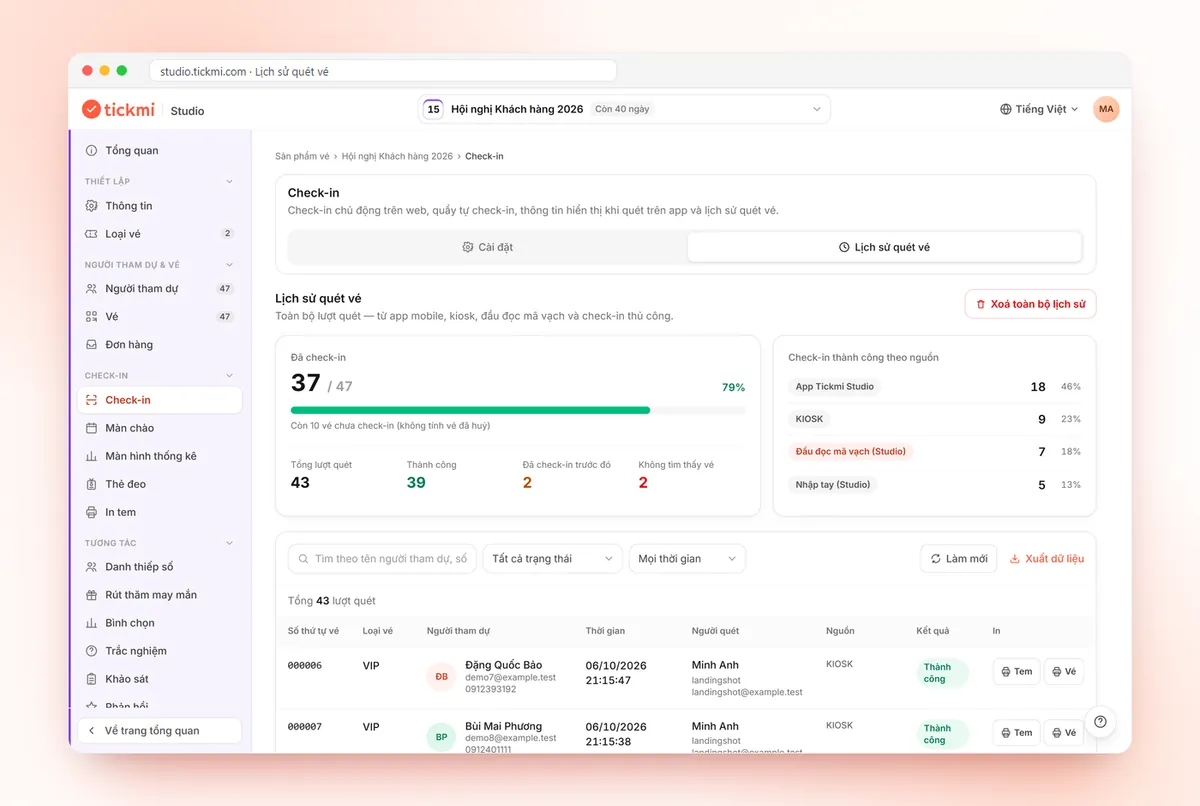
Reading check-in statistics by scan source: see which gate is carrying the load and who is scanning
The total number checked in tells you how far the program has progressed, but not why the queue is long at one gate. Statistics by scan source and by scanner answer that: where check-ins come from, from which device, from whom. This article shows how to read each block of figures and use them for on-the-spot coordination and for reconciliation after the program.
What is a scan source and which sources does Tickmi record
Every ticket scan is saved with its source (how it was scanned) and, where available, the scanner (which account scanned). In Tickmi Studio, sources are grouped into four categories:
| Source group | Includes | Linked to a scanner? |
|---|---|---|
| Studio web | Manual entry; a barcode reader plugged into a computer that has Studio open | Yes, the signed-in account |
| Self check-in station | Attendees scan for themselves at the station; a barcode reader mounted at the station | No |
| Tickmi Studio app | Staff scan with the app; offline scanning (synced later); station mode | Yes, the account signed in to the app |
| Tickmi Ticket app | Attendees check themselves in on their own app | No |
Grouping lets you see at a glance by channel (web, station, app) instead of reading each technical code. To see how each channel is set up, see the guide to check-in with the Tickmi Studio app and the self check-in station guide.
Two blocks of figures to read
Successful check-ins by source
This block is on the Ticket scan history tab of the Check-in section. Each row is a source, with its count and its share of total successful scans. Only successful scans are counted; tickets already checked in earlier or tickets not found are on a separate overview card.
Successful check-ins by scanner
This block lists each account that scanned, with its number of successful scans and its total number of scans. Scans from self check-in stations or the Tickmi Ticket app have no account, so they are grouped into a separate row clearly labeled “No linked account”.
Reading tip: compare the number of successful scans with the total scans of the same person. A much higher total means that person often encounters tickets already checked in or invalid tickets, usually because guests queued again or scanned the wrong code.
Hypothetical example: a 600-person conference, three gates
Suppose the program has gate A (two staff scanning with the app), gate B (one computer with a barcode reader) and one self check-in station. After the first 20 minutes, you open the statistics:
- By source: Tickmi Studio app 62%, Studio web 28%, self check-in station 10%.
- By scanner: each of the two gate A staff scanned nearly double the account at gate B.
How to read it: gate A is handling most of the guests, gate B has few people and guests have not noticed the self check-in station. The thing to do right away is to place a sign for the self check-in station at the head of gate A's line, or move one staff member from gate B to help. More on lane layout is in the article laying out check-in lanes by crowd size and arrival time.
How to filter the ticket scan history
- Go to the ticket product, open Check-in and choose the Ticket scan history tab.
- Click the Check-in source button. By default the All sources box is ticked and the detailed list is hidden.
- Untick All sources to open the list, then tick the source groups or individual sources, and the accounts in the Scanning staff group that you want to see.
- The history table and the statistics blocks update to match your selection. Any scan that matches any item you ticked is shown.
- For a quick filter, click directly on a row in the by-source or by-scanner statistics block: that row is ticked or unticked for you.
- For reconciliation outside the system, use Export data; click Refresh during peak hours to see the latest figures.
Note: the filter rule is “match any ticked item”, so ticking one more item widens the results rather than narrowing them.
The statistics screen on a TV: let the whole organizing team see
Besides the history tab, the public statistics screen (a separate link to display on a TV or projector) also has two blocks, By check-in source and By scanner, which refresh automatically every 5 seconds. A few points to consider before displaying it:
- Only successful scans are counted, so the figures are concise and not misleading.
- Scanner names appear according to the mode you choose for the screen: Abbreviated, Full or Hidden. A screen in a public place should use Abbreviated.
- Anyone with the link can see the aggregate figures, so share the link only with people who need it and change the link when you no longer use it.
How to enable and configure it is in the check-in statistics screen guide.
Using the figures after the program
| Question | Where to look | Suggested action |
|---|---|---|
| Which channel did guests use most? | By source | Next time, invest more devices or staff in that channel |
| Did the self check-in station really reduce the load? | Share of the Self check-in station group | If low, adjust its position and signage |
| Did offline scanning happen? | Source “Offline scan (synced later)” | If yes, check the network signal at the gate |
| Who needs more support? | By scanner: successful vs total scans | Retrain people who often have invalid scans |
These figures should accompany the overall report sent to leadership; see a template in the article the 24-hour wrap-up report.
Common mistakes when reading scan source statistics
- Reading percentages when the sample is too small. In the first 5 minutes, a few scans are enough to skew the ratio badly; wait for a few dozen scans before concluding.
- Treating “No linked account” as an error. It is simply scans from self check-in stations or the Tickmi Ticket app, which do not sign in with a staff account.
- Using the by-scanner numbers for rigid performance tracking. Someone at a gate with a large crowd will scan more even when working normally; read it together with the gate's position.
- Showing staff full names on a public screen. Choose Abbreviated or Hidden before turning on the screen.
- Forgetting to refresh while viewing the history tab and thinking the system is slow.
For an overall view of check-in software for your program, see the Tickmi event check-in software page. If you are choosing scanning devices, the article QR check-in scanners: phone, handheld scanner or kiosk will help you compare.
@@ABOUT@@Frequently asked questions
How do statistics by scan source differ from statistics by ticket type?
Statistics by ticket type show which groups of guests have arrived (VIP, invited guests, and so on). Statistics by source show which channel check-ins came through (web, station, app), and by scanner show which account scanned. The two views complement each other.
Why is there a “No linked account” row in the by-scanner statistics?
Scans from self check-in stations and from the Tickmi Ticket app are done by attendees themselves, who do not sign in with a staff account, so there is no scanner to link.
Does the public statistics screen show staff names?
It can. Scanner names appear according to the mode you choose for the screen: Abbreviated, Full or Hidden. For a screen in a public place, choose Abbreviated or Hidden.
Are offline scans included in the statistics?
Yes. Offline scans are stored on the device by the app and synced to the system later, and once synced they appear as a separate source in the statistics.
Can I export the scan history for reconciliation?
Yes. The Ticket scan history tab has an Export data button, and the exported figures follow the source filter you have selected. The permission to export data depends on the account's role in the organization.
Does using this feature on Tickmi cost anything?
Statistics by scan source are part of Tickmi Studio. New accounts get 100 free ticket issuance quota to try it; see the detailed pricing on Tickmi's pricing page.
Issue QR tickets, send emails, check in and engage attendees on one platform.