
Knowledge
Ticketing and check-in for multi-day, multi-session events
For a multi-day event, the most important decision is the ticket model: one ticket for the whole event, tickets per day, or a separate ticket product for each session. On Tickmi, each ticket type has Check-ins per ticket, while the session schedule is defined in the Program tab. This article helps you choose a model, count arrivals correctly each day and avoid common mistakes from day two onward.
Which ticket model should you choose for a multi-day event?
Choose the ticket model by how attendees come: if they attend every day, use one ticket scanned multiple times; if they choose which days to come, use per-day tickets; if the list changes by session, split ticket products. The table below compares the three models:
| Model | Suited to | Configuration on Tickmi | Counting people per day |
|---|---|---|---|
| One ticket for the whole event | 2-3 day conferences where attendees attend everything | One ticket type, Check-ins per ticket greater than 1 | Filter Scan history by day |
| Per-day tickets | Exhibitions, fairs, where attendees choose which days to come | One ticket type per day, with the date in the ticket type name | See the By ticket type bar |
| Separate ticket product per session | Multi-session training courses where each session has a different list | One ticket product per session | Each ticket product has its own figures |
If unsure, choose the simplest model that still answers your reporting questions. Multi-day fairs have more suggestions in tickets and check-in for fairs and exhibitions. However many sessions and days the event has, you still manage the whole event within one ticket product: the attendee list, tickets and check-in all sit in one place.
How does Check-ins per ticket work?
Check-ins per ticket is the total number of times a ticket can be successfully scanned across the whole event, not the number of times per day. When a ticket has used up its count, the next scan is rejected with a message that the ticket has reached its scan limit.
- 2-day conference, scanned only at the morning door: set 2.
- Re-scan after the lunch break: add more, for example 2 days x 2 scans = 4.
- Scanning at each session room: set it to the total number of scan points an attendee may pass through.
Set too high, and a ticket forwarded to someone else can still be scanned on a later day. Set too low, and attendees are blocked at the door on the last day. Because the limit is shared, Tickmi cannot prevent a ticket from using up all its scans on the first day. If you want one entry per day, use the per-day ticket model. Ways to prevent forwarded tickets are in preventing fake and reused tickets.
Where do you define a multi-session schedule?
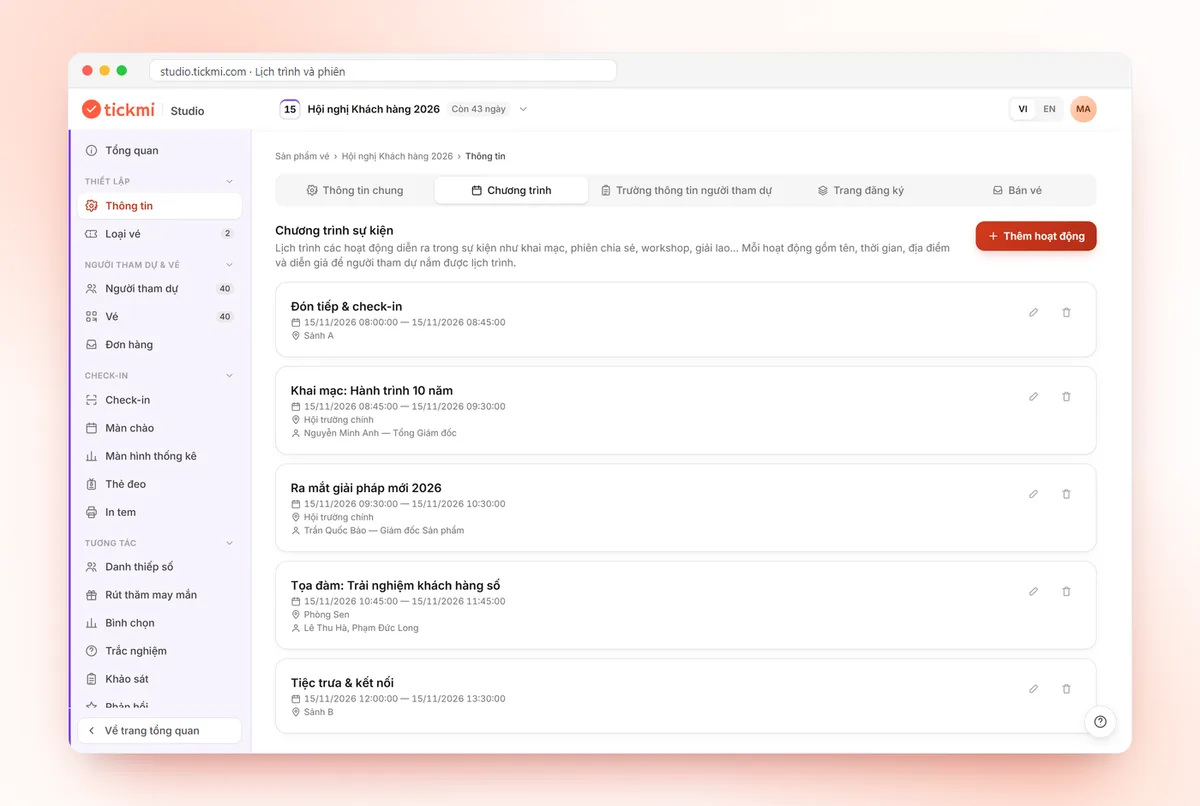
The session schedule is defined in the ticket product's Program tab. Each activity has a name, description, start and end time, location and speaker, so you can define parallel sessions in multiple rooms too.
- Open the ticket product, choose Information, and switch to the Program sub-tab.
- Click Add activity, enter the information and click Save. Repeat for each session, stating the day and room clearly.
- For attendees to see the schedule, add a Program block in the registration page designer or in the ticket email and enter the content yourself.
The Program block does not sync automatically with the Program tab. When you change a session's time, edit both places. See the full details in the schedule and sessions guide.
How do you know how many people came each day, each session?
The number of people each day comes from Scan history, filtered by day and the Success result. The statistics screen is not enough for this, because the Checked in box counts tickets checked in at least once, so a ticket scanned on day one is still counted on later days.
- Open the Check-in tab and switch to Scan history.
- In the time filter, choose Custom date... and select exactly one day.
- Filter the result Success. The total number of scans appears right on the list.
- To count by room, assign one fixed staff member per room to scan, then filter by Scanner. To count by door or device, filter by Source.
- Click Export data to get a file for your report.
Note: if an attendee is scanned twice in one day (for example morning and afternoon), the number of scans will exceed the number of people. In that case, count distinct tickets in the exported file. Within a day, the Check-ins per 15 minutes chart on the statistics screen is still useful for seeing that day's peak hours. How to read figures by source is in reading statistics by scan source.
Badges and reception from day two
From day two, attendees already have badges, so the desk only needs to scan quickly and reprint badges for those who lost theirs. Check the printer before doors open.
- Print badges before or during day one, with the ticket's QR code so the next days can scan directly from the badge.
- When printing additional batches, choose Only tickets without a printed badge to avoid duplicates.
- The print station automatically prints for every successful check-in, including re-scans on later days. Stop the station or enable it only for the desk issuing new badges.
- For someone who lost their badge: find them in Scan history and reprint the badge for that exact row.
How to set up a print station is in the label and badge printing guide.
Checklist for multi-day events
- The ticket model is chosen and the reason noted (whether you need headcount by day, by session or just the total).
- Check-ins per ticket matches the actual number of scan points, with spare scans added.
- Per-day ticket type names state the date, for example "Day 1 - 12/11".
- The Program tab, registration page and ticket email carry the same schedule.
- Each room has a fixed scanning staff member if you need counts by room.
- The printer plan from day two has been agreed.
- At the end of each day, export that day's Scan history.
Common mistakes with multi-session, multi-day events
- Leaving Check-ins per ticket at 1. This is the default value. Attendees get in on day one and are blocked on later days.
- Reading the Checked in box as the number of people who came today. This box counts by ticket, accumulated from day one.
- Changing a session time in the Program tab but forgetting the registration page. Attendees arrive at the old time.
- Test-scanning with a real ticket. A test scan counts against the ticket's check-ins. Use a separate test ticket.
- Leaving the automatic print station running on day two. Every re-scan prints another badge.
After the event, gather each day's figures into the post-event report. An overview of check-in by app, kiosk and scanner is on the check-in software page.
About Tickmi
Tickmi is a ticketing and attendee experience platform (Ticketing & Participant Experience Platform). On a single, unified set of attendee data, Tickmi connects the whole journey: issuing invitation, registration and paid tickets, sending branded QR tickets, checking in with the app, kiosk or scanner, even when the network is down, then the welcome screen, lucky draw, voting, quizzes and surveys. Tickmi is trusted by organizations such as Viettel, VNPT, MobiFone, FPT and CMC. Learn about Tickmi or try it free.
Frequently asked questions
Can one ticket be scanned multiple times for a multi-day event?
Yes. Each ticket type has Check-ins per ticket, which defaults to 1. For a multi-day event, set it to the number of times an attendee needs to pass a scan point across the whole event.
Is Check-ins per ticket counted per day or for the whole event?
For the whole event. Tickmi does not limit per day, so if you want one entry per day, use one ticket type per day.
How do I know how many people came each day?
Open Scan history, choose Custom date to filter the exact day and filter the Success result, then export the data if needed. If one person is scanned several times in a day, count distinct tickets in the exported file.
Does the session schedule automatically show on the registration page?
No. You define activities in the Program tab for your team, while on the registration page and ticket email you add a Program block and enter the content yourself.
Can I count attendees for each session?
Possibly, if each room has a fixed scanning staff member. Filter Scan history by Scanner and by day to get that room's count. Remember to set Check-ins per ticket high enough to cover the scans at rooms.
Issue QR tickets, send emails, check in and engage attendees on one platform.