
Knowledge
Setting up tickets and check-in for corporate conferences by program type
Companies handle conference tickets and check-in by giving each invited guest a personal QR ticket sent from the company email, then scanning tickets at the door to know who arrived, when, and which guest group they belong to. On Tickmi, the same process works for customer conferences, distributor training and year-end parties; they differ mainly in how you build the list and welcome guests. This article compares each type and gives a checklist you can apply.
How do corporate conferences differ from public events?
Corporate programs have a selective invitation list, demand a strong brand image and need attendance reports for management. These three points decide how tickets are handled: Tickmi brings the tickets, check-in and reports of corporate programs together in event management software that works on web and phone.
- A deliberate list. Customers, partners, employees by level. People without a valid ticket cannot enter; used or cancelled tickets are flagged when scanned.
- Invitations, tickets and badges that match the brand. Major customers judge the company by looking at the invitation.
- Post-event reporting. Who came, which guest groups were mostly absent, so the sales team can follow up.
Comparing approaches by type of corporate program
Each type of corporate program should choose a different way to build the list and welcome guests. The table below is a starting point, which you adjust to your actual scale:
| Program type | Building the list | Suggested ticket types | Reception | Accompanying activities |
|---|---|---|---|---|
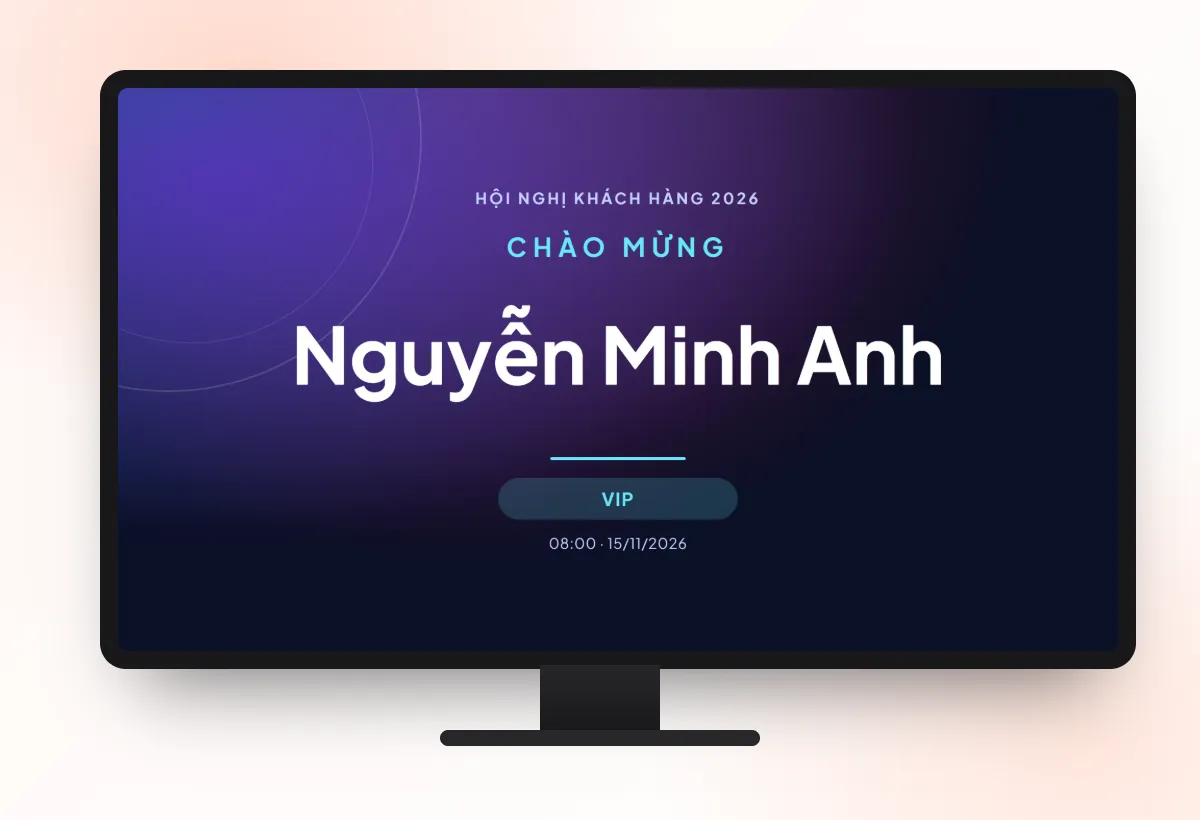
| Customer and partner conference | Import Excel from the sales team | VIP, Customer, Press | Separate VIP lane, name-greeting screen | Polls, post-event survey |
| Training, distributor conference | Registration page, manual approval against the dealer list | By dealer tier or by region | QR scanning with the app, badge printing at the desk | Knowledge-check quiz |
| Year-end party, employee day | Import Excel from HR | Employee, Leadership, Guest | Self check-in kiosks for large crowds | Lucky draw from the checked-in list |
| Product launch, open seminar | Public registration page | Guest, Open registration | Barcode reader at the desk | Feedback, survey |
The detailed process for internal programs is in the article issuing internal company tickets; dealer conferences split by region are in the article customer and dealer conferences.
Send invitation tickets from a list or open a registration page?
If the list is final, send invitation tickets directly; if the list is still open or you need guests to confirm information, use a registration page with manual approval. Many programs use both in the same ticket product.
- Invitation tickets from a list. Click Import attendees, download the template, fill it in and upload. Each person receives a unique QR code and an 8-character ticket code. Suited to VIP guests and employees.
- Registration page, manual approval. Turn off Auto-approve registrations: registrants sit in Pending approval status, and you select them and click Approve selected. Suited to dealer conferences, where you need to cross-check the dealer code before issuing tickets.
- Registration page, auto-approval. Suited to open seminars where anyone who registers may come in.
If you want guests to confirm before you finalize seat counts, also see attendance confirmation (RSVP).
How do you make invitations and tickets carry the company brand?
A branded invitation needs three things: a ticket template with the company logo and colors, a separate email template, and a sending address on the company domain.
- Choose a ticket template from the library and adjust the logo and colors. Full name, ticket type and QR code are filled in automatically for each person.
- Write the email template with drag-and-drop blocks, inserting the ticket image into the email body. In the ticket type settings, turn on Automatically send email when an attendee is approved, choose the template, enter a subject, and add a CC if you need to notify the customer account manager.
- Go to the Ticket email menu, declare the company's SMTP server, click Send test and then Activate. Tickets will go out from an address such as sukien@congty.vn instead of the system's default address.
The steps with illustrations are in the guide to designing emails and custom-domain email. Ticket content suggestions are in the article conference invitation ticket templates.
How do you welcome VIP guests and a large crowd at the same time?
Split lanes by ticket type and let the machine do the repetitive part: regular guests self check-in or use a fast scanning lane, while VIP guests get a host and a pre-printed badge.
- Fast scanning lane. Staff scan tickets with the Tickmi Studio app, or use a barcode reader plugged into a computer on the Check-in tab.
- Self check-in kiosks for large parties: guests present their QR code or enter a ticket code or phone number themselves.
- Badge printing station. Each successful check-in immediately prints a badge with the name. You can deselect ticket types that do not need printing, or set up a separate station for VIPs.
- Name-greeting screen shows the guest's name when they check in through the web desk, barcode reader, self check-in desk or an in-app kiosk. Scans by staff using the app are not among these sources, so for a gate that should greet by name, use a kiosk or a reader.
Estimate the number of lanes and staff for each gate using the article calculating staff and check-in lanes.
Where do you get the attendance report after the event?
Attendance data is already in the ticket product: each person's check-in status, the scan history and an export file for the sales team.
- The Ticket scan history in the Check-in tab has Source and Scanner columns and statistics of successful check-ins by source.
- Export data of the attendee list to your computer; only the Owner and Administrators can do this.
- The check-in stats screen shows the arrival rate by ticket type during the event, so organizers can decide when to open.
Checklist for corporate conferences
- The list has been deduplicated by email and split into ticket types by guest group.
- Ticket emails from the company domain have been test-sent and activated.
- Tickets that failed to send in the Tickets tab have had the email corrected and been resent.
- The information shown in the app when scanning is limited, and customers' phone numbers are partly hidden.
- Reception staff have their own Check-in staff accounts, not administrator accounts.
- The greeting screen and printing station have been tested with a real ticket.
Common mistakes
- Sending tickets before finalizing the template. Editing the template afterwards means reissuing tickets and resending the email to the whole list.
- Merging all guests into one ticket type. On the day you cannot separate a VIP lane or count customers who arrived.
- Re-importing the Excel file to fix information. Importing only adds new people and does not update existing ones; edit directly in the list.
- Waiting until guests arrive to find out a ticket never reached them. Check the send status column in the Tickets tab a few days before.
How have companies done it?
- Unicity Vietnam issued over 7,000 invitation tickets across more than 35 training programs and distributor conferences, at home and abroad.
- CBRE Vietnam uses QR tickets for its year-end party and internal programs, more than 1,700 tickets.
- Ocean Group issued over 10,000 tickets and ran a lucky draw on the checked-in list for its corporate clients.
For an overview, see QR invitation tickets, badge printing and lucky draw.
About Tickmi
Tickmi is a ticketing and participant experience platform. On a single, unified set of attendee data, Tickmi connects the whole journey: issuing invitation, registration and paid tickets, sending branded QR tickets, checking in with an app, kiosk or scanner (even offline), and then moving on to the welcome screen, lucky draw, polls, quizzes and surveys. Tickmi is trusted by organizations such as Viettel, VNPT, MobiFone, FPT and CMC. Learn about Tickmi or try it free.
Frequently asked questions
Can I restrict who gets in according to the invitation list?
Yes. Only people with a valid ticket can check in; used, cancelled or foreign-organization tickets are flagged immediately when scanned.
Can I send conference invitation tickets from the company email?
Yes. Declare the company SMTP in the Ticket email menu, send a test, then activate; tickets will go out from the company domain address. If it is not configured, the system sends from the default address.
Can I use it for a conference held abroad?
Yes. Tickets are sent by email and staff check in with the phone app, so it does not depend on the location; in weak-signal places, download offline data first.
How do I print badges for guests right at check-in?
Open the Print station on a computer connected to a printer. Each successful check-in from the app, a kiosk or the web automatically prints a badge with the guest's name; you can print for only some ticket types.
Who can export the list of guests who attended after the event?
Only the organization's Owner and Administrators. Check-in staff only scan tickets and cannot view or export data.
Issue QR tickets, send emails, check in and engage attendees on one platform.