
Knowledge
A race BIB pickup and check-in process that doesn't pile up at the racekit desk
On racekit pickup day, runners arrive in a rush and everyone wants to be done in five minutes. Long lines are rarely caused by too few staff; they come from searching for each name on a paper sheet. This article describes a station-by-station BIB pickup process, the data to prepare and the situations you need an answer ready for.
Which stations make up a racekit pickup
Every race is different, but the pickup process usually goes through the same sequence. What matters is that each station does exactly one job so the line doesn't clog at a single point. Preparing the runner list in advance is just like preparing electronic event tickets with an individual QR code for each person:
| Station | Task | Data needed |
|---|---|---|
| 1. Verification | Scan the QR code or search the name, check ID if the race rules require it | Full name, ticket code, pickup status |
| 2. BIB | Hand out the BIB number for the correct distance | BIB number, distance |
| 3. Shirt and gifts | Hand out the right shirt size and the bag | Shirt size |
| 4. Labeling or label printing | Stick a label with name, BIB number and distance on the bag to avoid mix-ups | Name, BIB number, distance |
| 5. Support | Handle people who forgot their code, wrong names, proxy pickups, distance changes | Permission to edit data |
Station 1 decides the speed of the whole flow. If one scan shows the full name, BIB number and shirt size, the later stations only need to hand out items.
Preparing the list: columns you need before pickup day
In Tickmi, a runner is an attendee with an individual QR code. The distance is usually mapped to a ticket type (for example, three distances means three ticket types). The remaining information is created with custom fields in the Fields section of the attendee list:
- BIB number: Free text type.
- Shirt size: Choice list type (S, M, L...), so the data has no spelling variations.
- Club or team: Free text type, used for label printing and group statistics.
Then use Download template: an Excel file with the columns that match the fields you turned on. Fill in the list, then Import attendees. Rows with errors are exported to an error file so you can fix them and import again; details are in managing attendees. The Image field type can be used if the race rules require a portrait photo.
What Tickmi does and does not do in this chain
So you don't wait for the wrong feature: Tickmi manages QR tickets, lists, check-in and label printing. Tickmi does not assign BIB numbers automatically, and does not time races or export race results. Your timing software or chip provider still does that. The BIB number in Tickmi is just a data field shown when scanning and printed on labels.
One point to settle early: BIB numbers are usually assigned after registration closes, but Excel import in Tickmi only adds new people; it does not update existing ones. Re-importing a file with BIBs filled in will create a duplicate set of tickets. The cleanest approach is to wait until you have the BIB numbers, then import the list with the BIB number column and send the tickets. If you already imported earlier, you must open Edit attendee information and enter the BIB for each person.
The QR pickup process, step by step
- Send QR tickets to runners before pickup day, with the details: location, pickup hours, what to bring (QR code, ID). See how to send QR tickets in bulk by email.
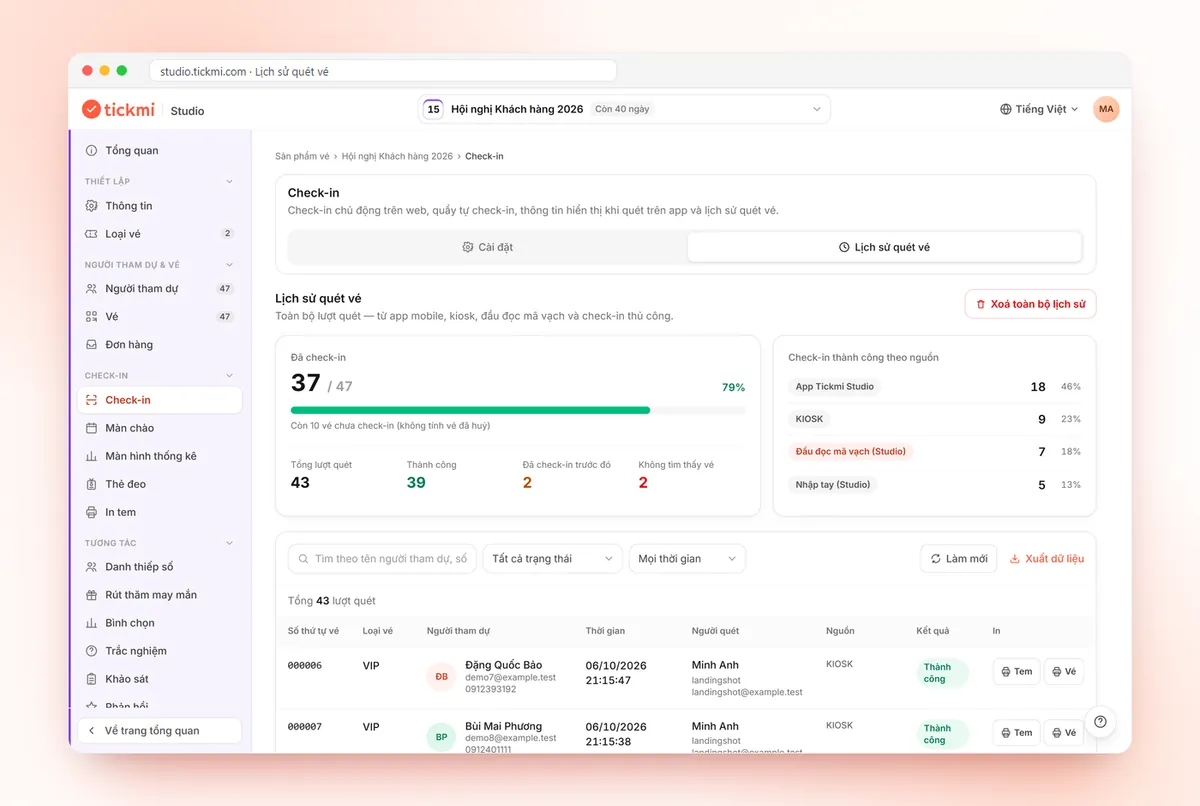
- At station 1, staff open the Tickmi Studio app, go to the Scan tab and scan the code. The result shows Check-in successful along with the information you chose to display (name, ticket type, BIB number, shirt size) in the check-in configuration on the web.
- People without a code: staff click Enter ticket code, type the 8-character code or the ticket sequence number, or search the list by name, phone number or email and then Mark as checked in.
- Print labels for bags: turn on the Print station on the computer connected to the printer, and choose to print a label for each check-in. Each successful scan prints a label automatically; failed scans or already-checked-in tickets do not print. Set Copies per print to 2 if you want one label for the bag and one for the pickup slip. See printing labels and badges.
- Staff at later stations read the name, BIB and size on the label or screen and hand out the items.
This label goes on the bag, box or pickup slip. It does not replace the BIB number printed to the race's standard. If it is crowded, you can set up multiple scanners and barcode readers at station 1, balanced using how to calculate staffing and check-in lanes.
Proxy pickup and runner swaps: write the rules first
This is the biggest source of disputes at the pickup desk, because it involves safety, insurance and race rules. Agree on three things in writing and send them in the email before the race:
- Proxy pickup: whether it is allowed, and what the collector must bring (a photo of the runner's QR code, a copy of their ID, an authorization letter).
- Swapping runners: whether it is allowed, and the deadline. Many races ban BIB transfers for safety and insurance reasons. If your race allows it, use Edit attendee information to change the name and details before pickup day so labels and data match the right person.
- Changing distance or shirt size: the deadline, who approves, and whether stock is still available.
With proxy pickup, a QR code is still only recorded once: whoever scans first is checked in. If the runner later comes to collect again, the screen shows Already used with the earlier time, and staff can verify on the spot. For general handling, see 8 tricky situations at the check-in desk.
Common situations at the pickup desk
| Situation | How to handle it |
|---|---|
| Forgot the QR code, can't find the email | Look up by name, phone number or email in the list; check ID, then Mark as checked in |
| Code shows "Already used" | Send them to the support desk and check the check-in time and scanner in the scan history |
| Misspelled full name | Edit the attendee information at the support desk, then reprint the label |
| Not on the list | Handle only according to the race rules. If allowed, Add attendee on the spot |
| Network outage | Scan offline if you downloaded the offline data beforehand; sync when the network returns |
| Out of a shirt size | Note it in the data, arrange an exchange later, and don't handle it at the pickup line |
Tracking progress during the day
Open the check-in stats screen at the coordination desk to see how many people have collected and how many remain. The Scan history tab lists each scan by scanner and source, very useful for finding who collected on behalf of someone or collected by mistake. After the race, Export data in the attendee list gives you a file with check-in status to reconcile the racekits handed out against what is left in stock.
Checklist for two days before the race
- The list is finalized, de-duplicated and has Distance, BIB number and Shirt size.
- QR tickets are sent, and the email with pickup schedule and proxy pickup rules has gone out.
- Devices at station 1 are signed in, camera permission granted, offline data downloaded.
- Print a test label, check the size and content; the printer has enough paper.
- The support desk is separate, with someone authorized to edit information.
- Plan for mass scan failures: a backup paper list is printed.
The full check-in solution is at QR code check-in, and a more detailed desk checklist is at the check-in desk checklist.
About Tickmi
Tickmi is a ticketing and attendee experience platform (Ticketing & Participant Experience Platform). On a single, unified set of attendee data, Tickmi connects the whole journey: issuing invitation, registration and paid tickets, sending branded QR tickets, checking in with the app, kiosk or scanner (even when the network is down), and then welcome screens, lucky draws, voting, quizzes and surveys. Tickmi is trusted by organizations such as Viettel, VNPT, MobiFone, FPT and CMC. Learn about Tickmi or try it free.
Frequently asked questions
Does Tickmi assign BIB numbers and time the race automatically?
No. Tickmi manages QR tickets, the attendee list, check-in and label printing. The BIB number is an information field you create to show when scanning and to print on labels. Assigning numbers and timing are still done by you or your timing provider.
How does a runner who forgot their QR code collect their BIB?
Staff type the 8-character ticket code or the ticket sequence number into the Enter ticket code box in the app, or search by name, phone number or email in the list and mark them as checked in.
Can someone else collect a racekit on a runner's behalf?
It depends on the race rules. Technically, whoever holds the runner's QR code can scan it once, so state clearly the ID to bring and the proxy pickup deadline, and send it in the email before the race.
What do I need to prepare for automatic label printing at pickup?
A computer connected to a printer with the label Print station open, choose to print a label for each check-in, then click Start auto-print. Install Tickmi Print to print directly without prompts, and do a test print before opening the desk.
Issue QR tickets, send emails, check in and engage attendees on one platform.