
Knowledge
8 tricky situations at the check-in desk and how to handle them
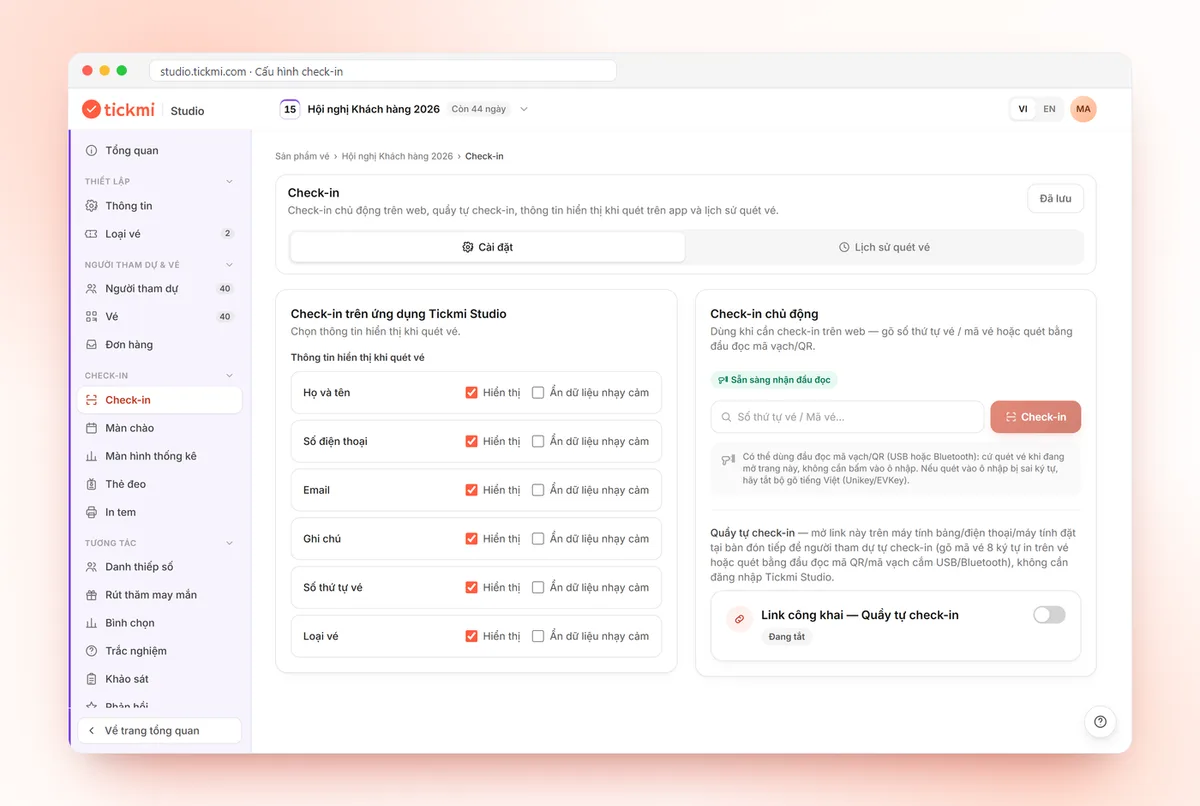
The fastest way to handle check-in desk situations is to read the scan result correctly and move hard cases to a separate support desk, so the main lane keeps scanning. With the Tickmi Studio app, each scan clearly reports Check-in successful, Already used, Invalid ticket, Cancelled or Not yet valid, so staff know right away what to do. This article lists 8 common situations and a sample response for each case.
General principle: separate hard cases from the main scanning lane
A check-in desk usually jams because of a few hard cases, not because of crowds. The fix is to set up a support desk next to the desk: any case that takes more than about 30 seconds, invite the attendee over to this desk.
- Scanning lane: only scan the code and read the result. Use the Tickmi Studio app, a barcode scanner or a kiosk.
- Support desk: a computer with Tickmi Studio web open to look up the list, resend emails, edit information and mark check-in.
- Coordinator: watches the line and moves people who need help out of the lane early.
A tip from experience: at peak time, have at least 1 person at the support desk for every 2-3 scanning lanes. Detailed lane splitting is in the article check-in lane layout.
Quick lookup table: what does the screen say, what does staff do?
Each result on the scan screen maps to a fixed action, so print this table and post it at the desk. The statuses below are exactly the names the Tickmi Studio app displays.
| Screen says | Staff says | Next step |
|---|---|---|
| Check-in successful | "Hello, welcome in" | Hand over the badge and gift if any |
| Already used | "This ticket was scanned at ..., could you please come to the support desk" | Support desk verifies (situation 3) |
| Invalid ticket | "Let me check again by your name" | Look up on Studio web |
| Cancelled | "This ticket is no longer valid, could you please come to the support desk" | Check the reason for cancellation (situation 5) |
| Ticket not yet valid / Ticket expired | "This ticket is for another day, let me check again" | Cross-check the date on the ticket |
| Ticket not of this organization | "This ticket is for another event" | Direct them to the right event |
8 common situations and how to handle them
Most situations at the desk are resolved with three tools: entering the Ticket code, looking up the list by name or phone number, and resending the ticket email. Here is each specific case.
1. The attendee cannot find the ticket email or forgot their phone
Do not let them hunt for the email right at the scanning lane. Invite them to the support desk and follow this order:
- Open the ticket product in Tickmi Studio and type the name, phone number or email into the attendee list search box.
- If the attendee still has their phone, select the ticket in the Tickets tab and click Resend email, or have them read out the Ticket code for staff to type in.
- If they have no phone, verify using their registration information, then select the ticket and click Mark as checked in.
2. Cracked screen, too dark, or code will not scan
Remind the attendee to raise screen brightness. Staff turn on the Flashlight or use Zoom if the code is small. If it still fails, open the Enter ticket sequence number / ticket code manually box, type the 8-character Ticket code printed on the ticket and click Check. A photo taken from another screen often has striped interference, and entering the code will be faster.
3. The ticket says "Already used"
The app shows the Previous check-in time. If this same person just scanned, went out and came back, let them through according to your rules. If it is someone else, the ticket may have been shared: move to the support desk and cross-check the name and registration information. See also how to prevent fake and reused tickets.
4. The ticket belongs to a different ticket type or area
The result screen shows the Ticket product and the Additional information section that you allow to display, such as ticket type or organization. Turn on in advance the fields staff need to route people, then put up directional signs from a distance to reduce wrong-area cases.
5. The ticket is cancelled or not yet valid
Explain politely and move them to the support desk. A ticket may be cancelled because the organizers chose Cancel ticket or because the order was refunded. If it was cancelled by mistake, the support desk clicks Undo cancel ticket and scans again.
6. A substitute attendee
Agree on the policy beforehand: whether transfers are allowed. If allowed, the support desk edits the attendee's full name in Studio so the badge and reports are correct. When you need a new ticket with a new name, use Reissue ticket; the ticket keeps the same QR code and Ticket code, and each reissue deducts 1 ticket issuance quota.
7. An unregistered person shows up in person
Place the registration page QR code at the support desk so attendees can register themselves on their phone. After you approve, the ticket is issued and sent, and the attendee checks in as normal. How to create the page is in the guide to creating a registration page.
8. Connection lost during peak time
If you tapped Download offline data beforehand, just scan as normal; scans are saved on the device and sync automatically when the network is back. Duplicate scans between two devices appear in the Conflicts to resolve section. Details are in the article check-in when the network is down.
What to prepare before opening time to reduce hard cases?
Most hard cases can be prevented with five tasks done in the 30 minutes before opening. For example: a 300-person seminar, where each hard case takes about 2 minutes; just 10 cases piling into one lane makes everyone behind wait about 20 more minutes.
- Sign in to the app on every scanner and scan a sample ticket.
- Download offline data on each device if the venue has weak signal.
- Have Tickmi Studio web open at the support desk, on the right ticket product.
- Print the quick lookup table above and post it next to each lane.
- Put up the registration page QR code and area directional signs.
The full list is in the check-in desk checklist.
Common mistakes by check-in desk staff
The most common mistake is handling a hard case right at the scanning lane, which stops the whole line. Other mistakes:
- Letting an "Already used" ticket through without looking at the earlier scan time.
- Resending the email to someone standing at the desk when entering the Ticket code is faster.
- Closing the app completely while offline scans are still unsynced.
- Editing a substitute's information on paper without updating the system.
If you want attendees to scan by themselves to relieve the desk, see Tickmi's check-in kiosk. App operations are in the guide to check-in with the Tickmi Studio app, and an overview is on the Tickmi check-in software page.
About Tickmi
Tickmi is a ticketing and participant experience platform. On a single, unified set of attendee data, Tickmi connects the whole journey: issuing invitation, registration and paid tickets, sending branded QR tickets, checking in with an app, kiosk or scanner (even offline), and then moving on to the welcome screen, lucky draw, polls, quizzes and surveys. Tickmi is trusted by organizations such as Viettel, VNPT, MobiFone, FPT and CMC. Learn about Tickmi or try it free.
Frequently asked questions
How do I check in an attendee who forgot their phone?
Look up by name or phone number in the attendee list in Tickmi Studio, verify the information, then select the ticket and click Mark as checked in. If they remember the Ticket code, staff type it into the app.
Should I let a substitute attendee in?
It depends on the event policy. If allowed, edit the attendee's full name in the system so the badge and attendance numbers are accurate.
How many support staff are enough?
A tip from experience: besides scanning staff, have at least 1 person at the support desk for every 2-3 scanning lanes at peak time.
Does an "Already used" ticket mean it is fake?
Not necessarily. The app shows the previous check-in time; if the same person just went in and out, it is a repeat scan. If it is a different person, move them to the support desk to cross-check the registration information.
What do I enter if the QR code will not scan?
Enter the 8-character Ticket code printed on the ticket or the Ticket sequence number into the manual entry box in the Tickmi Studio app and click Check.
Can a ticket cancelled by mistake be restored?
Yes. Select the ticket in the Tickets tab and click Undo cancel ticket, then scan again as normal.
Issue QR tickets, send emails, check in and engage attendees on one platform.