
Knowledge
Why a QR code will not scan and how to fix it before printing
A QR code that will not scan almost always comes down to one of five causes: the code color is too pale against the background, there is no white margin around the code, the logo covers too much, the content is so long that the code gets dense, or the code is printed too small for the scanning distance. All five can be fixed right while you <a href="/tao-ma-qr">create the QR code online</a>, before printing. This article helps you identify the cause from the symptom and fix the right thing.
Quick lookup: which symptom, which cause
The short answer: how the phone reacts tells you the cause. A camera that shows nothing is very different from a camera that reads the code but opens the wrong content.
| Symptom | Common cause | Where to fix |
|---|---|---|
| Camera does not detect a code | Low contrast, inverted colors, no white margin | Code and background colors, margin around the code |
| Detects the code but you must hold it very close | Code printed too small or too dense | Print size, shorten the content |
| Newer phones scan it, older ones do not | Large logo, pale gradient, stylized dot shape | Reduce the logo, use darker colors, square dots |
| Scans on screen, not on print | Low-resolution image gets blurry, glossy paper glares | Export SVG or a large PNG, switch to matte paper |
| Scans but opens an error page | Mistyped link, page removed or moved | Regenerate the code with the correct link |
| WiFi code scans but will not join the network | Wrong security type, wrong password, hidden network not marked | WiFi information in the code |
QR code not scanning because of color and white margin
This is the most common group of errors and the easiest to fix: the camera needs to clearly tell dark cells from light ones, and it needs empty space around the code to know where the code starts.
- Dark code on a light background. Black, navy or dark brown on white or cream is safe. Yellow, pale blue or pastel pink on white is risky. Tickmi's QR code generator automatically shows the warning "Code color and background color are too close" when the contrast is not enough.
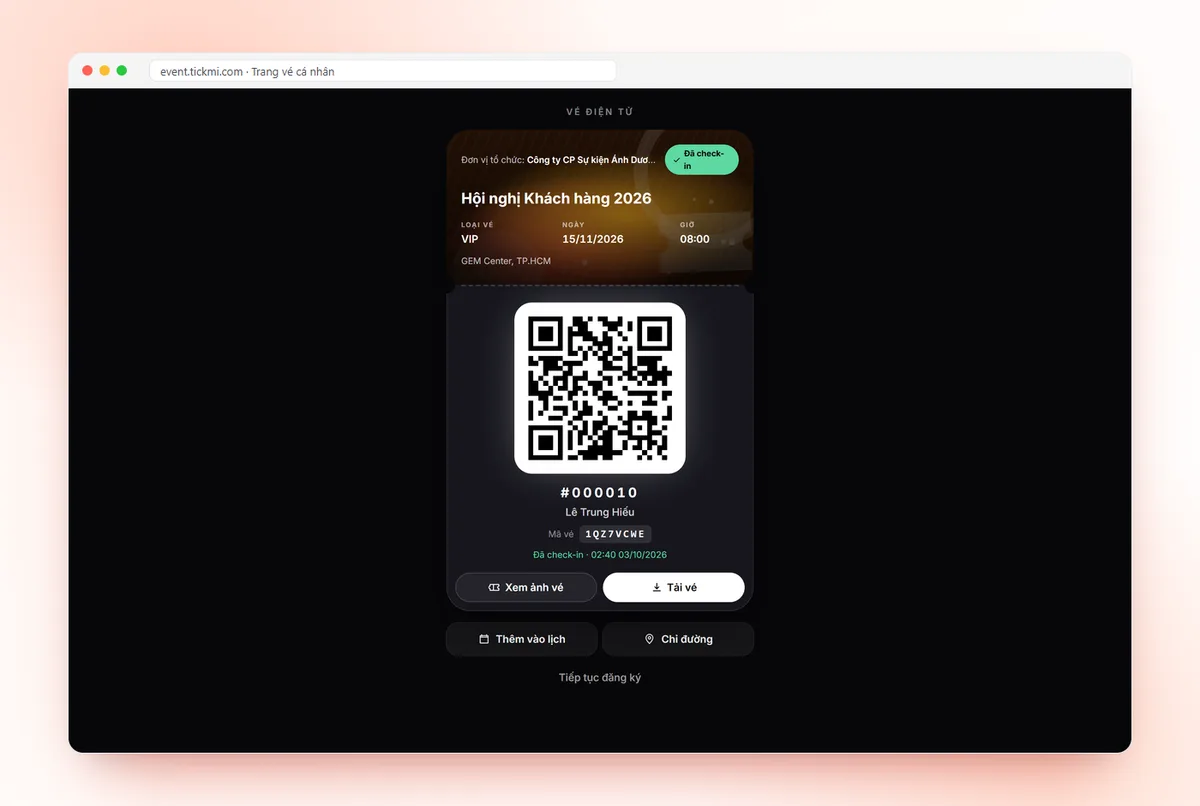
- Avoid inverted colors. A white code on a black background looks nice on a dark poster but some older scanners cannot read it; the tool reminds you of this too. On a dark background, place the code in a white box, like the e-ticket page in the image at the top of the article.
- Gradients must be dark at both ends. With a gradient from black to pale green, the pale half of the code will not be readable.
- Keep the white margin. In the Size and file format group, the Margin around the code option has four levels: None, Thin, Medium, Wide. Choose None only when you leave white space in your own design; if the code will be placed on a patterned background, choose Wide.
How a logo and long content make a QR code hard to scan
In short: every QR code has a share of backup data called the error correction level. A logo eats into that backup, and long content makes the code denser; together they are the reason many "pretty" codes will not scan.
| Error correction level | Tolerates about | When to use |
|---|---|---|
| L | 7% | Long content, small print, no logo |
| M (default) | 15% | Most link, text and WiFi codes |
| Q | 25% | Codes posted outdoors, prone to scratches and dirt |
| H | 30% | With a logo in the middle of the code |
When you insert a logo, the tool automatically switches to level H and locks the error correction selector. The logo size can be adjusted from 12% to 26% of the code width, default 20%. A practical rule: if the code will be printed small (under about 2.5 cm), reduce the logo to a low setting or drop the logo.
For content, shorter is better. A long link with many tracking parameters produces a code twice as dense as a clean link. When the content exceeds the capacity, the tool reports "Content is too long to create a QR code" and suggests shortening it or removing the logo. Do not stuff a whole introduction into a text code; put the content on a web page and create a QR code for that link.
Print size and material: why a code scans on screen but not when printed
The conclusion: scanning well on screen does not guarantee scanning well on paper; you need the right size and a sharp enough file.
- Size by distance. Rule of thumb: the code width is about one tenth of the scanning distance. For someone standing 2 m from a standee, the code should be about 20 cm wide; a code on a business card scanned at arm's length only needs 2-2.5 cm.
- A sharp enough file. A 256 px PNG is enough to send over chat, but for print choose 1024-2048 px, or choose SVG in the Format option. SVG is a vector image, so it stays sharp even enlarged to banner size.
- Paper and surface. Glossy lamination glares under hall lights, and the camera loses the cells in the reflective area; prefer matte lamination. Avoid placing codes on curved surfaces such as cups or small bottles.
If you print tickets with a QR code on an office printer, the notes on paper size, ink and the print dialog are in the article printing QR tickets on an office printer.
QR code scans but opens the wrong thing: the problem is the content
Once the camera has read the code, the problem is no longer the image but the data inside. A QR code created on Tickmi is a static code: the content sits right in the code, never expires and does not pass through an intermediary server. In exchange, to change the content you must create a new code and reprint.
- Link opens an error page. Open the link in a browser before creating the code. If the destination page has moved, regenerate the code with the new link. For the difference between static and dynamic codes, see the article dynamic and static QR codes.
- WiFi code will not join the network. Check three things in the WiFi QR code: the network name typed with the exact upper and lower case, the right security type (most routers today are WPA/WPA2/WPA3), and tick Hidden network if the router does not broadcast its name. Special characters in the password such as semicolons are handled by the tool according to the standard, so you do not need to add anything. Changing the WiFi password means creating and reprinting the code.
5-minute checklist before printing a QR code
- Dark code on a light background, and the tool shows no color warning.
- Margin around the code at Medium or above, or the design already leaves white space.
- Logo no more than 20% if the code is printed under 3 cm.
- Content as short as possible; the link has been opened successfully.
- Print file is SVG or a PNG of at least 1024 px.
- Code width is about one tenth of the scanning distance.
- Test-scan the real print with at least three phones, including an old one, using both the camera and Zalo.
When you need many QR codes or a unique code per person
If you need a few hundred codes from a list, use bulk QR code generation (with the same customizations above, download a ZIP or print A4 pages) and test-scan the first few, a few in the middle and the last few in the list. If each code is the ticket of one attendee and you need to know who has arrived, that is the job of QR code check-in: Tickmi Studio automatically creates a unique code for each ticket, sends it by email and records the check-in when scanned. How to download and print tickets in bulk is in the guide to downloading and printing tickets; new accounts get 100 free ticket issuances, details in the pricing.
Common mistakes when creating QR codes online
| Mistake | Consequence | How to avoid |
|---|---|---|
| Only test-scanning on a computer screen | You print 500 sheets and only then find the print will not read | Print one sheet and scan the print |
| Enlarging a small PNG to print a banner | Cell edges blur and the camera cannot catch the corners | Download SVG for large formats |
| Using a free shortened link of unknown origin | The link expires or injects ads, and the printed code becomes useless | Use the original link of a page you own |
| Adjusting colors to match branding and ignoring the warning | Older phones cannot scan it | Use a dark code color and keep a light background |
If you have customized too much and the code is hard to scan, click Restore defaults to return the code style to the original, then adjust again step by step.
About Tickmi
Tickmi is a ticketing and participant experience platform. On a single, unified set of attendee data, Tickmi connects the whole journey: issuing invitation, registration and paid tickets, sending branded QR tickets, checking in with an app, kiosk or scanner (even offline), and then moving on to the welcome screen, lucky draw, polls, quizzes and surveys. Tickmi is trusted by organizations such as Viettel, VNPT, MobiFone, FPT and CMC. Learn about Tickmi or try it free.
Frequently asked questions
Why will my QR code not scan even though it looks very clear?
Usually the code color is too pale against the background, a light code is on a dark background, or the code sits right against a pattern with no white margin. Switching to a dark code on a light background and increasing the margin around the code fixes most cases.
Does inserting a logo into a QR code stop it scanning?
It can, if the logo is too big relative to the code. Tickmi's QR generator automatically sets the highest error correction level H (30%) when there is a logo and limits the logo to 12% to 26% of the code width. For small prints, reduce the logo or drop it.
What size should a printed QR code be?
The rule of thumb is that the code width is about one tenth of the scanning distance: 2-2.5 cm when scanned at arm's length, about 20 cm when scanned from 2 m. Use an SVG file or a PNG of at least 1024 px for a sharp print.
What if the WiFi QR code scans but will not connect to the network?
Check that the network name has the exact upper and lower case, the security type matches the router, the password is still valid, and tick Hidden network if the router does not broadcast its name. If you change the WiFi password, you must recreate the code.
Does a QR code created on Tickmi expire?
No. It is a static code: the content sits right in the code and does not pass through an intermediary server, so the code works forever. To change the content, create a new code.
Issue QR tickets, send emails, check in and engage attendees on one platform.