
Knowledge
Choosing a QR check-in scanner: phone, handheld or kiosk
All three device types can scan QR tickets, but each suits a different kind of entrance. Choose wrong and you get long lines at the door or a device that cannot read codes on phone screens. This article helps you choose well and combine devices for each situation.
Quick choice by situation
If you only have a minute, scan this table first, then read the details for the device type you lean toward.
| Situation | Device to prioritize | Main reason |
|---|---|---|
| Small event, a few dozen people, staff who know the guests | Staff phones | Nothing to buy, install the app and scan |
| Busy entrance, people arriving in a 20-30 minute rush | Phones on several lanes, plus handhelds on the main lane | Handhelds read fast, and you open more lanes with phones when the line grows |
| A desk with a computer already, badges need printing right after scanning | Barcode reader plugged into the computer | One device scans and prints, fixed workflow, fewer mistakes |
| Attendees already have tickets in their email, and you want fewer staff at the desk | Self check-in kiosk | Attendees scan themselves, staff only help the hard cases |
| Entrance in a weak-signal area | Any type, as long as it has offline mode | Download data first, scan, sync later |
General principle: do not pick one type for the whole event. The most reliable approach is usually to combine two types, for example staffed lanes plus one or two kiosks as a side route.
Staff phones: the most flexible, and often underrated
A phone camera reads QR very well, and you add or remove lanes simply by bringing another phone to the door. In the Tickmi Studio app, go to the Scan tab, choose QR code or Barcode, and put the code in the frame to get a result. There is a flashlight, camera switching and zoom for dim places.
- Best for: small to medium events, needing to open extra lanes on short notice, staff who walk around to scan (guests already seated, classes, fairs).
- Limitations: battery drains with continuous scanning, screens glare outdoors, and staff must hold the device properly. Prepare power banks and tell staff to raise screen brightness.
- Backup: if a ticket is blurry or an attendee's phone screen is cracked, tap Enter ticket code and type the 8-character ticket code or the ticket sequence number.
For detailed steps, see check-in with the Tickmi Studio app.
Handheld scanners (barcode readers): fast and stable at the desk
A USB or Bluetooth barcode reader works like a keyboard: after scanning, it "types" the code into the computer. With Tickmi, open the Check-in tab of the ticket product on the web; when the page shows Ready for reader, you can scan immediately, with no software to install. Each scan is recorded with the source Barcode reader (Studio) in the history.
If you plan to buy one, here are a few points to check, because this is where wrong purchases happen:
- It must be a 2D reader (able to read QR). Readers that only read linear barcodes (1D) cannot read QR.
- It must read codes on phone screens. Many attendees show tickets on a bright screen. Test with a real phone, not just with printed tickets.
- Keyboard mode (HID). This is the mode that lets the reader work in the browser as soon as it is plugged in. Ask the seller about this clearly.
- USB cable or Bluetooth. A cable is more stable and never runs out of battery; Bluetooth is neater but must be charged and paired beforehand.
The most common error: scanning produces strange characters because the computer has a Vietnamese input method turned on. Turn off Unikey or EVKey on the machine before scanning. See also web check-in and barcode scanners.
Self check-in kiosks: fewer people at the desk, but they do not replace all staff
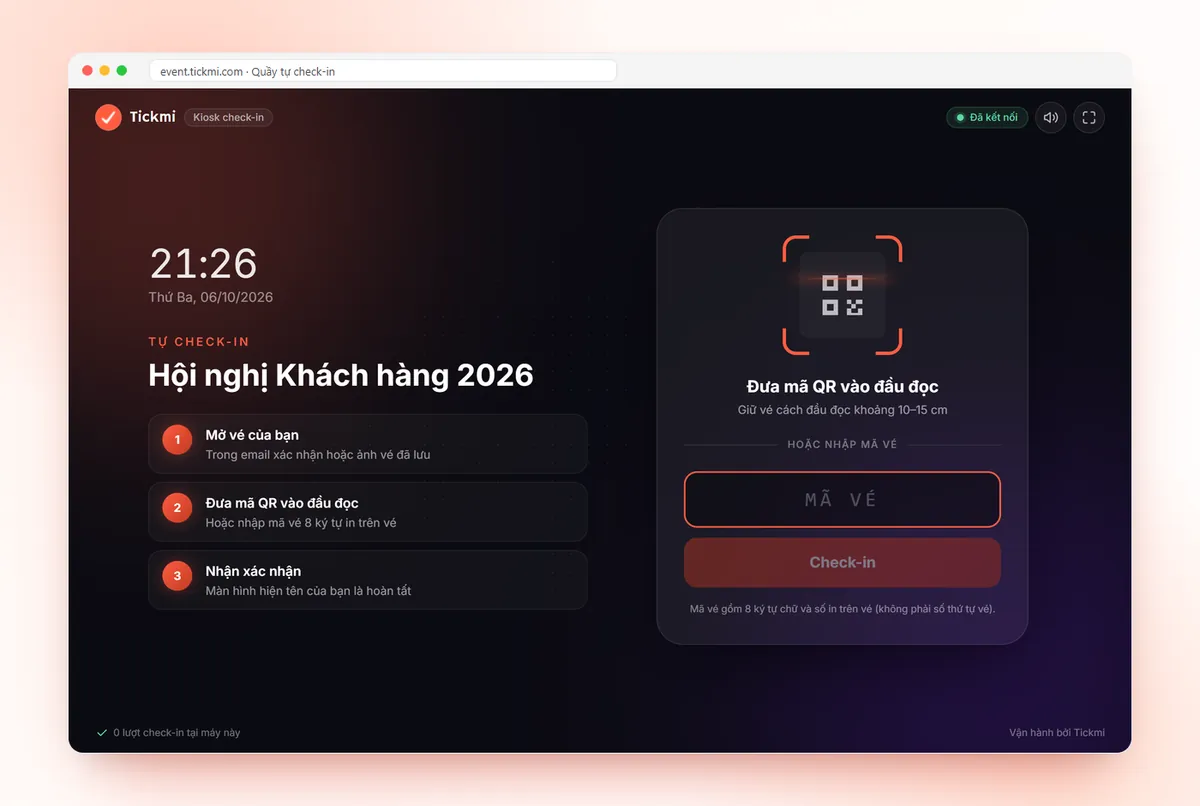
A kiosk is a tablet or phone placed in a fixed position so attendees scan by themselves. Tickmi has two forms:
- Kiosk mode in the app: go to More → Kiosk mode (self check-in), choose the ticket product and gate name, turn on the front camera if the device faces the attendee, and set an exit PIN. Android uses App pinning and iOS uses Guided Access to lock the device.
- Self check-in desk on the web: a link opened on a computer or tablet, where attendees scan with a reader or type the 8-character Ticket code, with no login needed.
Because the web desk requires no login, anyone with the link can use it, so only open the link on a device placed at the reception desk. After too many wrong entries, the desk locks for a few minutes to prevent code guessing.
- Best for: groups of attendees who already have tickets, are used to phones, and need shorter lines at peak time.
- Limitations: people who cannot find their ticket email will be left confused. Always have a staff member standing nearby to handle these cases.
Step-by-step guide: self check-in kiosk. For a solution overview, see the check-in kiosk page.
How to combine devices by scale (illustrative numbers)
The numbers below are assumptions to help you picture the combination, not statistics. Replace them with your own event's numbers and run a test to measure real times. The formula for the number of lanes is in the article how to calculate check-in lanes and staff.
| Assumed scale | Suggested combination |
|---|---|
| About 50 people | 2 staff phones, 1 support desk for name lookup |
| About 300 people, arriving in a rush | 2 handheld readers on the main lane, 2 phones on side lanes, 1 kiosk, 1 support desk |
| Over 1,000 people | Several reader lanes, a few kiosks as shortcuts for people who already have tickets, a queue-management team, 1 technical person on duty |
Every scan, whether from the app, a kiosk or a reader, goes into the same data. The Scan history tab has a source column and stats by source, so after the event you know how many people each lane handled.
A 10-minute test before the event day
- Take 5 real tickets: a printed ticket, a ticket on a bright phone screen, a ticket on a dark screen, a photo of a ticket, and a ticket you deliberately scan twice.
- Scan each ticket on each type of device. Note which device reads slowly or not at all.
- Unplug the network cable or turn off wifi and keep scanning to make sure offline mode works (see check-in when the network is down).
- Try entering the ticket code manually for someone who forgot their ticket.
- Time one full pass, from the moment the attendee shows the ticket until they leave the desk.
Common mistakes when choosing scanners
- Buying a 1D reader and then finding it cannot read QR. Check beforehand, and test with real tickets.
- Having only one type of device and no plan for when it fails or runs out of battery.
- Placing a kiosk against the light or too low, making the camera read poorly. Place it at chest height and avoid direct sunlight on the screen.
- Forgetting the kiosk exit PIN. The code is only kept temporarily in that session. Write it down when you set it and give it to the right person in charge.
- Not recording which device is at which gate. Name the gate when you turn on the kiosk so you get stats by location.
If you are also comparing other check-in methods such as chip cards or paper lists, read comparing check-in methods.
About Tickmi
Tickmi is a ticketing and participant experience platform. On a single, unified set of attendee data, Tickmi connects the whole journey: issuing invitation, registration and paid tickets, sending branded QR tickets, checking in with an app, kiosk or scanner (even offline), and then moving on to the welcome screen, lucky draw, polls, quizzes and surveys. Tickmi is trusted by organizations such as Viettel, VNPT, MobiFone, FPT and CMC. Learn about Tickmi or try it free.
Frequently asked questions
Can a handheld scanner read a QR code on a phone screen?
Only if it is a 2D reader that can read screens. Readers that only read linear barcodes cannot read QR. Test with a real phone before buying or renting.
What software do I need to install for a barcode reader when checking in on Tickmi?
None. Keyboard-type readers connected by USB or Bluetooth work as soon as you open the Check-in tab on Tickmi Studio web. If scanning produces strange characters, turn off the Vietnamese input method on the computer.
Does a self check-in kiosk need a login?
Kiosk mode in the app requires you to sign in to the app before turning it on and locks with a PIN. The web self check-in desk needs no login, so only open the link on a device placed at the reception desk.
How does each device type handle a lost connection?
The app has a Download offline data option, so tap download while you still have a connection, then scan normally and sync when the network returns. The in-app kiosk still accepts QR scans when offline, while lookup by phone number needs a connection. On the web, check-ins are saved and synced when the connection returns.
Issue QR tickets, send emails, check in and engage attendees on one platform.