
Knowledge
A ticket plan for a new-year customer conference: 4 weeks, straight through Tet
A new-year customer conference usually falls in February or March, right after Tet (Vietnamese Lunar New Year). The hard part is that four weeks of preparation are cut in half by the holiday: before Tet customers still read email, during Tet almost no one opens it, and after Tet inboxes are overflowing. This article splits the work week by week so tickets reach customers at the right moment and no one is missed.
Why does a new-year conference need its own ticket plan?
For a mid-year conference, sending tickets one to two weeks ahead is enough. A new-year conference differs in three ways:
- Customers' calendars lock in early. Many businesses schedule Q1 at the end of the previous year. An invitation that arrives after Tet easily clashes with the customer's own internal new-year meetings.
- There is a long "dead zone". Tet leads to a whole week before and after when people barely handle work email. Emails sent in this period tend to get buried.
- The list changes often. The start of the year is when staff on the customer side change: the contact person leaves, changes departments, changes email.
So the plan below separates two jobs that are often merged into one: finalizing the list (done before Tet) and issuing tickets (done after Tet). The milestones are counted in weeks before the conference date (W-4 is four weeks before). Assumed example: the conference takes place about three weeks after the first day of Tet, so Tet falls between W-4 and W-3. If you want to bring the lists, tickets and check-in for the whole conference into one place, you can look at Tickmi's event management software.
A 4-week plan for a new-year customer conference
| Milestone | Main tasks | In Tickmi Studio | Output |
|---|---|---|---|
| Before Tet (W-5 to W-4) | Send a "save the date" email, finalize the list and customer types | Create the ticket product, ticket types, fields; import from Excel | A list in Pending approval status |
| During Tet | Send nothing | No action | — |
| W-3 | Update the list after Tet, make the ticket template and email | Edit attendees, Test-render the ticket template, send a test to the internal team | Approved ticket template and email |
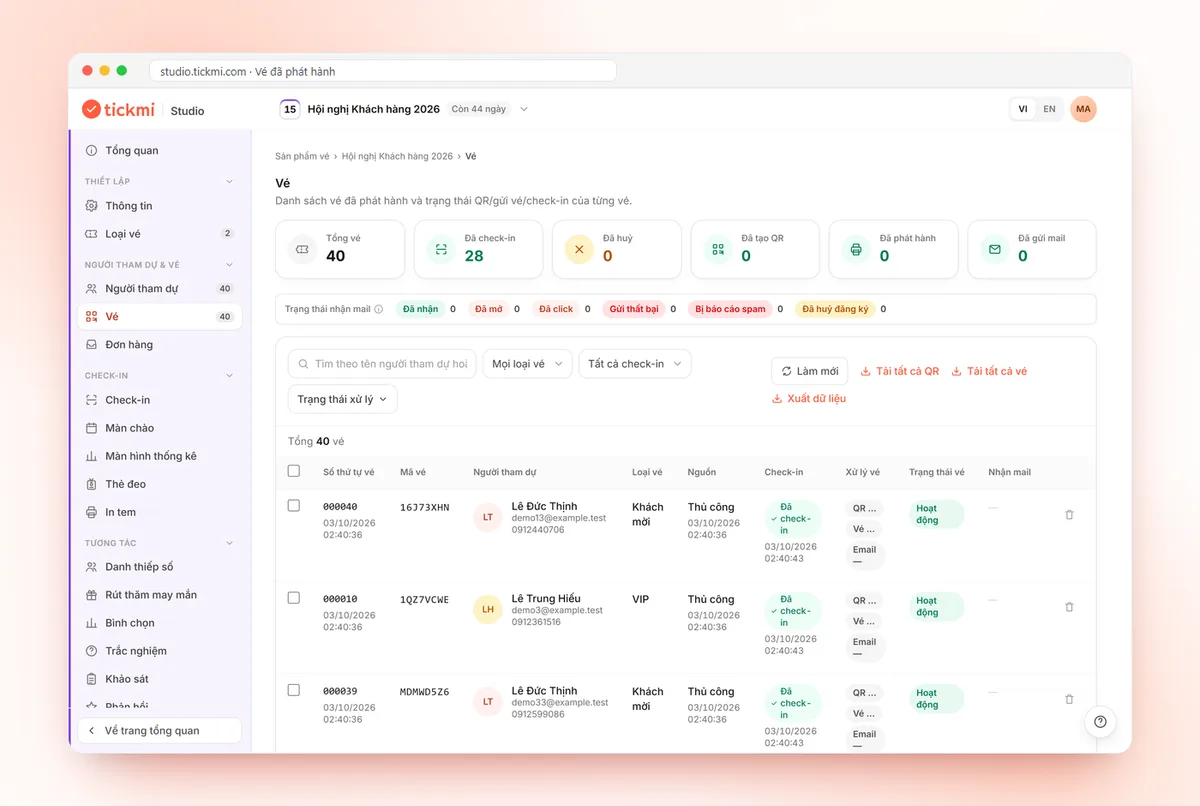
| W-2 | Issue and send tickets | Approve by group, track sending status in the Tickets tab | Every guest has their own QR ticket |
| W-1 | Send reminders, handle bounced emails, prepare the gate | Resend emails for failed tickets, configure check-in | "Ticket not received" list at zero |
| Event day | Welcome guests | Check-in with the app, scanner or kiosk | Data on who has arrived |
Before Tet: finalize the list but don't issue tickets yet
This is the most important week, even though not a single ticket gets sent.
- Send a save-the-date email. One short email: conference name, date, city, and the line "the invitation with your ticket will be sent after Tet". The goal is for customers to put the date in their calendar before the Q1 calendar fills up. Content suggestions are in the article on event invitation email templates.
- Create the ticket product and ticket types by customer group, for example Strategic customers, Customers, Partners. Turn on the fields you need at the gate, such as Company, Region, Table.
- Import the list from Excel using the template file. In Tickmi, each imported row is an attendee in Pending approval status; a ticket is only issued when you approve. That way you can finalize the list before Tet without worrying about ticket emails going out in the middle of the holiday.
Note: Excel import only adds new people; it does not update existing ones. If someone's information needs to be corrected, edit it directly on their row, and don't re-import the whole file because it will create duplicates. Operation details are in the attendee management guide.
Week W-3: clean the list after Tet and finish the templates
On the first day back at work, ask the sales team to go through the list once. The questions to answer for each customer: is the contact person still there, is the email still correct, is anyone else coming along.
- Filter by Pending approval to see exactly who doesn't have a ticket yet, and correct the email or contact person right on the row.
- If a customer says they won't attend, remove them from the list before approving, so you don't issue extra tickets.
- Design the ticket and the ticket email. Use Test render to see the ticket with real data, then send a test to a few colleagues using different mailboxes. Ticket layout suggestions are in the article on conference invitation ticket templates.
Week W-2: issue tickets in batches
After Tet, customers' inboxes are full of new-year greetings and quotations. A ticket sent on the very first day back at work can easily get buried, so send it once everyone has settled back in, usually from the third working day onward.
Don't approve the entire list in one click. Split it into batches for easier control:
- Check that the ticket type has Send email turned on.
- Batch 1: choose a small group, for example strategic customers, and click Approve selected. Tickets are issued, each person gets their own QR code and ticket code, and the email goes out.
- Open the Tickets tab and check the email sending status of batch 1. If it looks fine, approve the remaining groups, using Approve all if you wish.
Ticket type capacity is checked at approval, so if a ticket type is full, the system reports an error for those over the limit. The full bulk-sending process is in the guide to sending QR tickets in bulk by email.
Week W-1: remind and clean up bounced emails
Tickmi automatically retries failed emails up to 5 times. For tickets that still fail after that, you filter them in the Tickets tab, correct the address if it is wrong, select those tickets and click Resend email. A customer who calls to say they can't find their ticket is handled the same way.
Tickmi has no scheduled email sending, so the reminder email is something the organizers schedule and send themselves. One reminder one to three days before, with directions and a note to open the ticket on their phone beforehand, is enough. A detailed email schedule by milestone is in the article on the pre-event email schedule.
In the same week, prepare the welcome gate: choose the Information shown when scanning tickets (for example Company, Table) so gate staff know where to direct guests, set the Check-ins per ticket, and assign who stands at which gate.
Common mistakes when issuing new-year conference tickets
| Mistake | Consequence | How to avoid it |
|---|---|---|
| Sending tickets right before the holiday | Customers forget, and you have to resend after Tet | Only send the save-the-date before Tet; send tickets after Tet |
| Sending tickets on the first day back at work | The email is buried under greeting emails | Push back a few days, send in batches |
| Using last year's list without reviewing it | Tickets reach people who have left their job | Review the list in week W-3 |
| Re-importing the whole Excel file to update | Attendees get duplicated | Edit each person directly, only import files for new people |
| Approving everything at once before the template is tested | The whole list receives a faulty ticket | Test render, send an internal test, approve a small batch first |
New-year customer conference checklist
- Save-the-date email sent before Tet.
- List imported and in Pending approval; reviewed again after Tet.
- Ticket template and email test-rendered and sent as an internal test.
- Ticket type has Send email on; the first approval batch's sending status checked.
- Failed tickets handled; reminder email planned.
- Information shown on scan and gate staff ready.
If the conference includes a new-year lucky draw, also see new-year lucky draw; for regional dealer conferences, read customer appreciation conference for dealers. The whole process from list to QR ticket is in Tickmi's QR invitation tickets and bulk email sending solution.
About Tickmi
Tickmi is a ticketing and attendee experience platform (Ticketing & Participant Experience Platform). On a single, unified set of attendee data, Tickmi connects the whole journey: issuing invitation, registration and paid tickets, sending branded QR tickets, checking in with the app, kiosk or scanner (even when the network is down), and then welcome screens, lucky draws, voting, quizzes and surveys. Tickmi is trusted by organizations such as Viettel, VNPT, MobiFone, FPT and CMC. Learn about Tickmi or try it free.
Frequently asked questions
How far ahead should tickets for a new-year customer conference be sent?
About two weeks before the event, a few days after the Tet holiday ends. Before Tet, only send a save-the-date so customers put the date in their Q1 calendar; send tickets after Tet so they don't get lost over the holiday.
Can I import the list before Tet without sending tickets?
Yes. In Tickmi Studio, attendees imported from Excel are in Pending approval status; a ticket is only issued and emailed when you approve. You can import before Tet and approve in batches after Tet.
Does Tickmi schedule ticket sending or reminder emails?
No. Tickets are sent when you approve attendees (if the ticket type has Send email on). Reminder emails are scheduled and sent by the organizers themselves.
What if a customer changes their contact person after Tet?
If the ticket has not been issued, edit the name and email on that person's row, then approve. If the ticket was already sent and the person is fully replaced, Cancel the old ticket in the Tickets tab and add the new person so the ticket carries the right name. If only the email is wrong, correct the email and click Resend email for that ticket.
Issue QR tickets, send emails, check in and engage attendees on one platform.