
Knowledge
Guest list and name badges for a press conference or small customer meeting: done in 1 day
For a press conference or customer meeting of 20 to 150 people, you can finish the guest list and name badges in 1 day if you follow the right order: finalize the list before noon, choose the printing method based on the printer you already have, design one shared badge template, print a test, and only then print the whole batch. Tickmi brings the attendee list, badge templates and printing into one place, so badges always pull the latest data, even when you fix a name at the last minute.
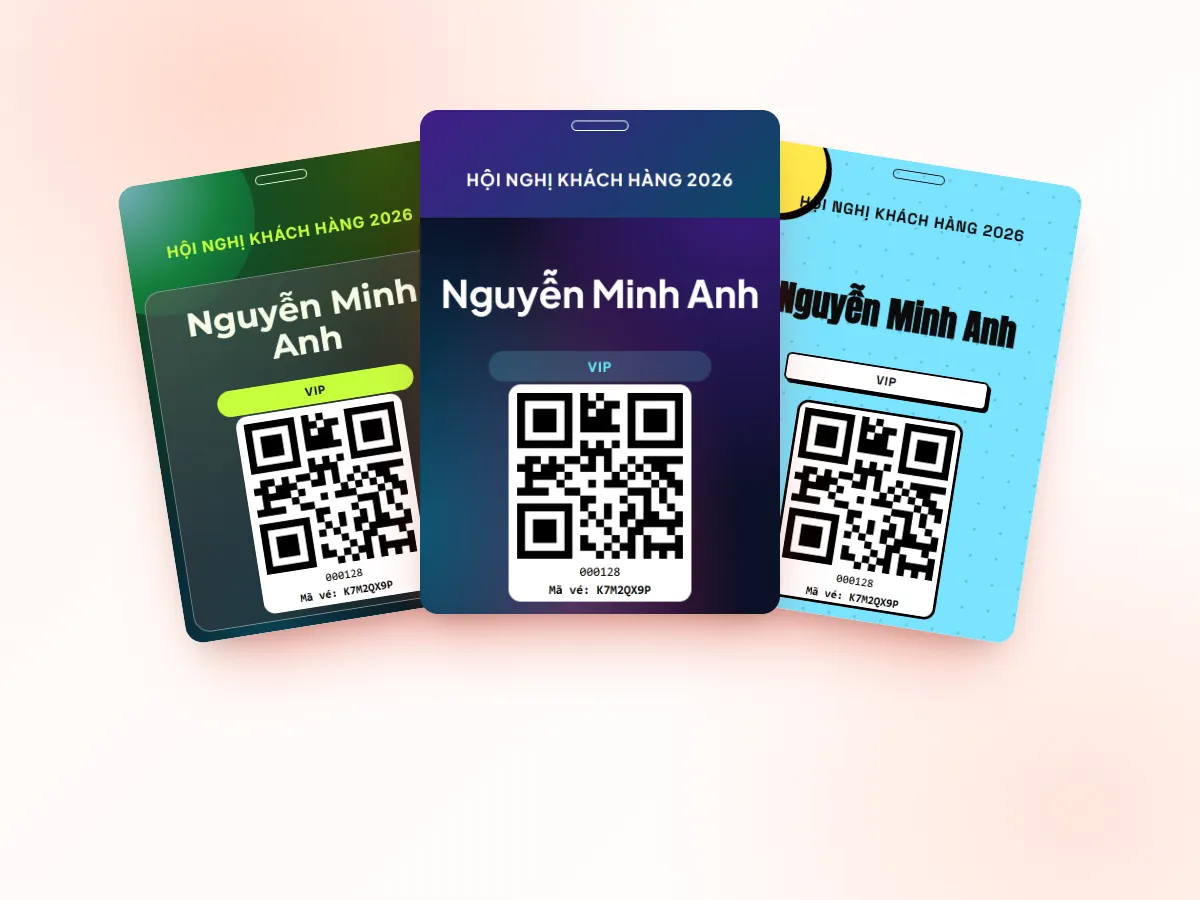
A 1-day schedule for making press conference name badges
Press conference name badges can be done in 1 day when the list is finalized first and the design comes after. The table below is a suggested schedule for a press conference of about 60 people (hypothetical example), done on the day before the event.
| Time slot | Task | Output |
|---|---|---|
| 8:00-10:00 | Collect lists from contact points (PR, sales, board of directors) | A single file, one row per person |
| 10:00-11:30 | Check names, job titles, organizations; call to confirm people still undecided | First finalized list |
| 11:30-13:00 | Import the list into Tickmi, approve to issue tickets | Each person has a ticket with an individual code |
| 13:00-15:00 | Choose a badge template, put data fields on the badge, print 2-3 test badges | Approved badge template |
| 15:00-17:00 | Print the whole batch, put into holders, sort by name | Box of badges ready |
Finalizing the guest list before making conference name badges
The list determines the quality of conference name badges: a badge is only correct when the data is correct. Agree on the columns from the very first file.
| Column | Printed on the badge? | Notes |
|---|---|---|
| Full name | Yes, largest text | Spelled correctly, with correct diacritics, the way that person wants to be addressed |
| Job title | Yes, small text | Keep it short: "Deputy General Director" instead of an entire line of concurrent positions |
| Organization / Media outlet | Yes | The commonly used name of the company or newspaper, with consistent capitalization |
| Group (Press, Customer, Speaker, Organizer) | Yes, as a label | Used to separate ticket types |
| Email, Phone number | No | For contact |
In Tickmi, each group should be a ticket type. Job title and organization are custom fields: go to Setup → Information → the Attendee information fields tab, click Create new field, then turn that field on for the ticket product. Next, in the Attendees section, click Import attendees, choose Download template (the file already has the columns you just created), fill it in and upload. Rows with errors are returned in an error file with the reasons.
Imported people are in Pending approval status. When you approve, tickets are issued and use ticket issuance quota. If the event only needs name badges and doesn't need to send tickets by email, check the Send email option in the ticket type before approving: if it is off, tickets are still created but no email is sent. Step-by-step details are in the attendee management guide.
Choosing badge size and print method for the printer you have
When you only have 1 day, choose the printing method based on the equipment you already have. In Tickmi Studio, the paper size and print method are remembered separately on each computer.
- Only an office printer: in Check-in → Badges, choose Center on A4 (each badge centered on one sheet, with crop marks) or Tile on A4 (several badges per sheet, cut along the lines), then put them in badge holders.
- Have a card printer: choose Exact badge size.
- Only a thermal label printer: use the Label printing section with the 100 x 150 mm size, the label type used as a neck-worn name tag.
A comparison of common badge sizes, holders and lanyards is in conference badges: choosing size, content and printing.
Content on press conference and customer meeting name badges
A press conference name badge only needs to answer three questions: who this person is, where they are from, and which group they belong to.
- Name largest, readable at handshake distance.
- Job title and organization in a smaller size, one per line.
- Group label such as PRESS, GUEST, SPEAKER, so the receptionist can tell at a glance where to direct them.
- QR code of the ticket if you check in with the badge or need quick lookup.
In the designer, you insert name, job title and organization using Merge information. To use one template for all groups, place a PRESS label and turn on Conditional display so the label only prints for people in the press group. How to split groups and the color label convention are in classifying VIP, press and guest tickets.
Print name badges ahead or on site?
For an event of 20-150 people, the safest approach is to print ahead for everyone who has confirmed, and bring a small printer to the venue for walk-ins. Printing everything on site only makes sense when the list changes constantly and you have someone to staff the printer.
- Open Check-in → Badges, click Choose badge template, choose the page layout, paper size and double-sided printing, then save.
- Click Test print: Tickmi prints a test badge with the words FRONT and BACK so you can check the print orientation.
- In the Print badges step, filter by ticket type if you want to print group by group, then click Print all badges by filter.
- Check the status: each ticket shows Not printed or Printed [n] times. Turn on Only tickets without a printed badge to print extras without duplicates.
If you want badges to print automatically when guests check in, on the computer connected to the printer click Open print station, choose to print Badges and click Start auto-print; also install Tickmi Print to print directly, without the print dialog. Full operation is in the guide to printing labels and badges.
Guests arrive without a name on the list: make a name badge on site
Walk-ins are normal at press conferences, especially reporters sent by the newsroom in someone else's place. Decide in advance who may approve adding people.
- On the computer at the desk, go to Attendees, click Add attendee, fill in full name, job title, organization, choose the ticket type and click Save.
- Approve the person you just added to issue the ticket.
- Go to Badges, find the name, tick it and click Print selected badges. If the Print station is running, just type the Ticket code in the active Check-in box, and the badge prints automatically after a successful check-in.
For a reporter sent as a replacement, add the name of the person who actually attends instead of reusing the absent person's ticket, so the check-in list matches the people present.
Fixing a misspelling on a name badge without messing up the list
If a badge is printed with the wrong name, fix it on the attendee and reprint exactly that badge. Don't re-import the whole file: Tickmi's Excel import only adds new people and does not update existing ones, so re-importing will create duplicates.
A reprinted badge always pulls the latest data: open the person, edit, save, then go to Badges, select the right person and reprint. To reduce errors from the start, ask someone who didn't build the list to proofread all the names group by group before printing the whole batch.
Common mistakes when making press conference name badges
| Mistake | Consequence | How to avoid it |
|---|---|---|
| Designing before the list is finalized | Reprinting many times, wasting paper and time | Finalize the list before 11:30, design afterwards |
| Job titles that are too long | Text overflows or shrinks until hard to read | Keep job titles short, test with the longest line |
| Choosing Exact badge size for an office printer | The badge prints as a small image in the corner of the paper | Use Center on A4 or Tile on A4 |
| Not printing a test | The back is upside down relative to the front | Always click Test print before printing the whole batch |
| Re-importing the file to fix a name | Attendees get duplicated | Edit directly on the attendee |
| No on-site plan | Walk-ins have to hand-write their name badges | Bring a computer, a small printer and blank badge holders |
Before guests arrive, the computer at the desk needs to be signed in to Tickmi Studio and have printed a test badge on that very machine. New Tickmi accounts get 100 free ticket issuances, enough for a small press conference; for larger events see the pricing page. A solution overview is on the badge printing page.
About Tickmi
Tickmi is a ticketing and attendee experience platform (Ticketing & Participant Experience Platform). On a single, unified set of attendee data, Tickmi connects the whole journey: issuing invitation, registration and paid tickets, sending branded QR tickets, checking in with the app, kiosk or scanner (even when the network is down), and then welcome screens, lucky draws, voting, quizzes and surveys. Tickmi is trusted by organizations such as Viettel, VNPT, MobiFone, FPT and CMC. Learn about Tickmi or try it free.
Frequently asked questions
What information does a press conference name badge need?
At minimum: full name (largest text), job title, organization or media outlet, and a group label such as PRESS or GUEST. You can add the ticket QR code if you check in with the badge, plus a small logo and event name.
Can the list and name badges for 100 people be done in 1 day?
Yes, if you finalize the list before noon, import with the Excel template, use one shared badge template for all groups and print a test before printing the whole batch. The most time-consuming part is usually checking names and job titles, not printing.
What do I use to print conference name badges without a card printer?
Use an office printer with the Center on A4 paper layout or the Tile on A4 style with crop lines in Tickmi, then put the badges in holders. Only choose Exact badge size when using a card printer or a machine loaded with that exact paper size.
What if a guest at the press conference isn't on the list?
Add the attendee right on the computer at the desk, approve to issue the ticket, then select that person in the Badges section and print the badge. If the Print station is running, checking in the guest's ticket on the station computer prints the badge automatically.
If a name is printed wrong on a badge, do I have to re-import the list?
No. Edit directly on the attendee and reprint the badge for that person; a reprinted badge uses the latest data. Re-importing the Excel file only adds new people, so it would create duplicates.
Is making name badges on Tickmi free?
New accounts get 100 free ticket issuances, enough to make a list and name badges for a small press conference. For larger events you can choose a suitable package; see Tickmi's pricing page for details.
Issue QR tickets, send emails, check in and engage attendees on one platform.