
Knowledge
How to manage a guest list in Excel: a column template and how to avoid duplicates
A guest list usually starts as one Excel file and ends as five versions, three editors and a few people who received the invitation twice. This article gives you a set of template columns, standardizing formulas, ways to catch duplicates and when to move the list into a ticketing system.
One master file, one keeper
Most list errors come not from formulas but from process. Before building columns, settle three things:
- A single master file updated by one person. Departments and partners send additions through a shared form, and never edit the master file directly.
- One identifier column that every row has and that is never duplicated: email, or employee ID, or customer ID. This is the "key" for knowing whether two rows are the same person.
- A list lock date. After this date, every change goes through the file keeper. Lock late and you will have to resend invitations and tickets constantly.
A column template for a guest list
You do not need many columns, but each column must have a reason. The framework below works for conferences, appreciation events and any program with invited guests:
| Column | Example | Rule |
|---|---|---|
| Full name | Nguyen Minh Anh | A single column, with diacritics, capitalizing the first letter of each word |
| Organization | ABC Company | Write it one consistent way (not "Co." sometimes and "Company" other times) |
| Title | Sales Director | Can be left blank; used to print on tickets and badges |
| anh.nm@congty.vn | Lowercase, no spaces; this is usually the identifier column | |
| Phone number | 0901234567 | Format the column as Text so the leading 0 is not lost |
| Guest type | VIP, Guest, Press | Use a preset dropdown list, no free typing |
| Quantity | 1 | The number of tickets (seats) for this row; blank means 1 |
| Inviter / Source | Sales department | Know who is responsible when you need to follow up |
| Response | Not invited / Invited / Confirmed / Declined | A dropdown list with 4 fixed values |
| Notes | Vegetarian, needs parking | Record only what the organizers will act on |
The last two columns in this table (Response, Notes) are "internal" columns used for tracking. Separate first-name and last-name columns are only needed if you want to greet by the name people go by (for example "Mr. Tuan"); otherwise a single Full name column is tidiest. For choosing extra columns that match the data you will use, the article what a registration form should ask applies to invitation lists too.
Standardize before looking for duplicates
The two rows "Anh.NM@congty.vn " and "anh.nm@congty.vn" are the same person, but Excel treats them as two. Add a temporary column to standardize, then paste the values back:
- Email:
=LOWER(TRIM(E2))converts to lowercase and removes extra spaces at both ends. - Phone number:
=SUBSTITUTE(SUBSTITUTE(SUBSTITUTE(F2," ",""),".",""),"-","")removes spaces, dots and hyphens. Numbers starting with +84 should be changed to a leading 0 so they share one form. - Full name:
=TRIM(B2)removes double spaces between words.
Depending on your computer's regional settings, the commas in formulas may need to be changed to semicolons. Remember to change the phone column format to Text before importing, otherwise the leading 0 will be lost.
Finding duplicates: three kinds
Hard duplicates are the same email or the same identifier. Add a check column: =IF(COUNTIF($E$2:$E$500,E2)>1,"DUPLICATE",""), then filter this column. Another way is to select the Email column and go to Home → Conditional Formatting → Highlight Cells Rules → Duplicate Values to color them. Use Data → Remove Duplicates only after backing up the file, because this command keeps the first row and deletes later ones, even when the later row is the one with complete information. Sort so the most complete row comes first, or merge by hand.
Soft duplicates are the same person written differently: a work email and a personal email, the same name written with and without diacritics, a changed phone number. No formula catches them all. The practical way is to sort by name, then by phone number, and scan by eye for rows that sit next to each other.
False duplicates are two different people sharing one email (an assistant receiving on behalf of a boss, a company info@ mailbox). If you delete by email, you lose a guest. In this case, use the Full name plus Email pair as the key, or ask the contact to provide a separate email, because every ticket sent to a shared email lands in the same mailbox.
Tracking responses with a few steps
- Make the Response and Guest type columns dropdown lists: Data → Data Validation → List. Free typing is the source of "Confirmed", "confirmed " and "OK".
- Quick count:
=COUNTIF(I:I,"Confirmed")gives the number of people who confirmed; change the value in the quotes to count other statuses. - Filter by Inviter so each person follows up with their own group of guests.
- Save versions by date (for example 2026-10-07) before each major edit, so you can go back if you delete something by mistake.
When should you move the list into a ticketing system?
Excel still suits small lists with few changes. Signs to move: you need to send a personal QR ticket to each person, need to know who has arrived while the event is happening, or several people edit the list. The article Google Form, Excel or a ticketing platform analyzes this further.
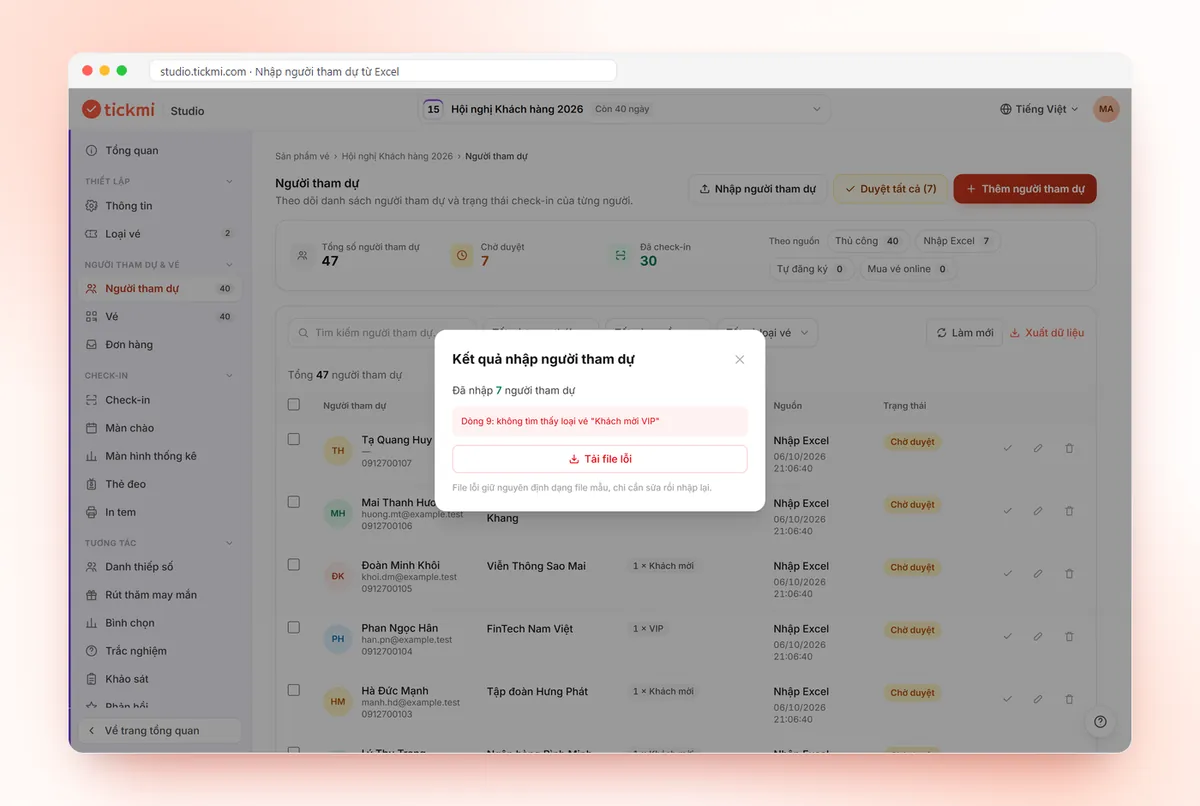
With Tickmi Studio, the Excel list is used as input. In Attendees, click Import attendees, Download template and paste the data into the right columns. A few things to know in advance:
- The template has the columns Full name, Email, Phone number, Notes, Ticket type, Quantity, plus any custom fields you have turned on. The system matches columns by header name, so do not rename columns.
- The Full name and Ticket type columns are required. The ticket type name must match a ticket type created in the ticket product; if mistyped, that row is reported as an error and lands in Download error file.
- Rows with a blank Full name are skipped without an error, so compare the number of people imported successfully with the number of rows you have.
- The system does not merge duplicates for you. Remove duplicates in Excel before importing, because two identical rows become two people and two tickets.
- Extra information such as company, position and guest tier becomes a Field (free text, dropdown list or image), reusable when designing tickets and badges.
- Newly imported people are in Pending approval status until you approve them to issue tickets.
- Importing from Google Sheets requires sharing set to "Anyone with the link". Turn off sharing right after importing because the list contains personal data.
For detailed steps see attendee management; for the solution overview see guest management software. To issue a QR ticket to each person once you have the list, see QR invitation tickets.
Common mistakes when managing a guest list
- Editing directly across multiple copies. Two people edit two files and merge by hand. Settle on one master file, and have everyone send additions through a shared form.
- Merged cells, header rows inserted midway. This breaks filters and the import into the system. One person per row, one header row at the very top.
- Phone numbers losing the leading 0. Set the Text format from the start.
- One column holding multiple pieces of information ("Director - ABC Company"). Split columns so printing on tickets and badges stays tidy.
- Keeping the file in a shared folder anyone can open. The list is personal data; limit who can view it and read more in protecting attendee data.
- Not rechecking counts before sending invitations. Reconcile the total rows, the number of valid emails and the number of people in each guest type.
Once the list is final, the next step is sending tickets and receiving guests: event check-in software uses this very list to issue QR tickets and scan at the gate. If you only need one QR code per guest to print on badges, paste the code column into the bulk QR code generator.
About Tickmi
Tickmi is a ticketing and attendee experience platform (Ticketing & Participant Experience Platform). On a single, unified set of attendee data, Tickmi connects the whole journey: issuing invitation, registration and paid tickets, sending branded QR tickets, checking in with the app, kiosk or scanner, even when the network is down, then the welcome screen, lucky draw, voting, quizzes and surveys. Tickmi is trusted by organizations such as Viettel, VNPT, MobiFone, FPT and CMC. Learn about Tickmi or try it free.
Frequently asked questions
What columns should a guest list in Excel have?
At a minimum: Full name, Email or phone number, and Guest type. Add Organization and Title if you need to print them on tickets, plus a Response column to track who has confirmed.
How do I know whether the list has duplicates?
Standardize emails to lowercase, remove spaces, then use COUNTIF or color duplicate values (Conditional Formatting → Duplicate Values). Then scan by eye for rows with the same name or the same phone number but different emails.
Does importing an Excel list into Tickmi remove duplicates automatically?
No. Every valid row becomes an attendee, so remove duplicates in Excel before importing. Error rows (for example a ticket type name that does not match) are returned in the error file for you to fix and import again.
Can I import directly from Google Sheets?
Yes. Paste the Google Sheets link shared as Anyone with the link, with the same column structure as the template file. After importing, turn off sharing because the list contains personal data.
Issue QR tickets, send emails, check in and engage attendees on one platform.