
Knowledge
Designing a guest welcome screen for check-in: what to show, what to leave out
A big screen that shows a guest's name the moment they scan their ticket makes a very different impression from a screen with only a logo. But with the wrong information, small text or a slow greeting pace, it becomes decoration nobody looks at. This article helps you decide the content, layout and greeting pace before you switch the screen on.
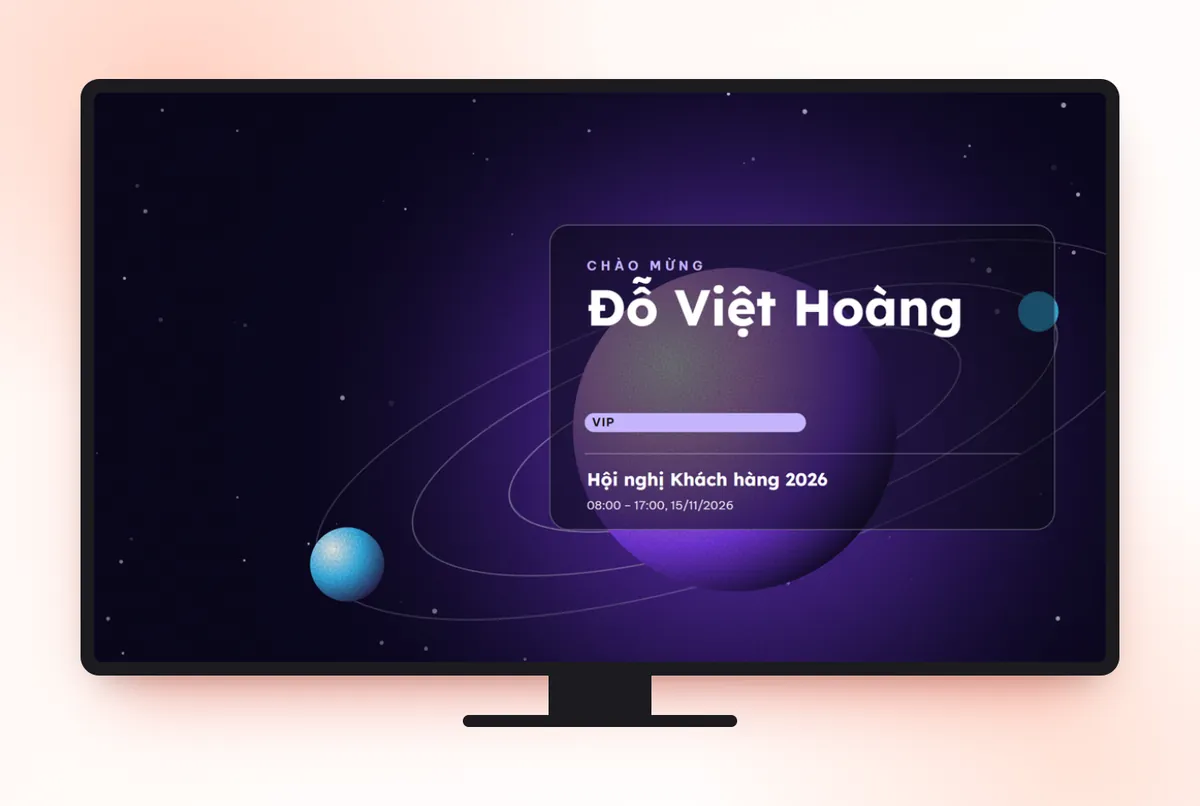
A welcome screen should do three things
- Let guests know they have been registered. A name appearing right after a scan is instant feedback, replacing the "is it done?" question at the gate.
- Create a moment for the arriving guest. Being greeted by name ahead of others is an experience a paper list cannot give.
- Reduce repeated questions. A line such as the ticket type or the seating area helps guests know where to go without asking staff.
The welcome screen is not an access control tool. Checking that a ticket is valid is still done by the app or scanner at the gate; the screen only mirrors the result onto a big display. See also the comparison of check-in methods in the article QR, RFID or paper list check-in.
What information should be displayed?
The screen sits in a public space where anyone passing by can read it. Treat everything on it as public information.
| Information | Show it? | Reason |
|---|---|---|
| Full name | Yes, in the largest text | This is the reason the screen exists |
| Short greeting | Yes | One sentence, like "Welcome {{name}} to the event", is enough |
| Ticket type / guest tier | Depends | Good for VIP areas and delegations; unnecessary if everyone is the same |
| Organization, job title | Recommended, if collected | Partner and customer conferences: guests like to see their organization mentioned |
| Table number, seating area | Yes, if seats are assigned | Sharply reduces the stream of people asking for directions |
| Portrait photo | Only with consent | It is personal data; use it only when attendees know in advance and the template you chose has a place for a photo |
| Phone number, email | No | Anyone standing near the screen can read them |
| Internal notes (vegetarian, special requests) | No | For the organizers, not for the whole lobby |
The rule: one main piece of information (the name), at most two secondary ones. More than that and the eye does not know where to look in those few short seconds. For handling attendee data, also read protecting attendee data.
Design for readability from a distance
- Choose a template that matches the screen format. Landscape, portrait and long LED strip screens have very different layouts. A landscape template shown on a portrait screen will shrink the text.
- Make the name text very large. Test by standing at the distance guests will stand, not 50 cm from the screen as when you design.
- Strong contrast, a plain background. A busy photo background makes text hard to read, especially under lobby lighting.
- Test with long names and names with many diacritics. Vietnamese names often have four or five syllables; the font needs to support all Vietnamese diacritics, and the name box must be able to shrink.
- A small logo, fixed in a corner. The welcome screen is the guest's stage, not the logo's.
In Tickmi Studio, you choose a template under Display template when creating a screen in Check-in → Welcome screen. The template library can be filtered by landscape, portrait and long LED strip formats, and the name and ticket type of the person who just checked in fill into the template automatically. The creation steps are in the welcome screen creation guide.
Set the greeting pace: how long does each person show?
When many people scan almost at once, the welcome screen greets them one at a time in check-in order. The display time per person is a number you can adjust (from a few seconds to half a minute). This number decides whether the screen can "keep up" with the crowd:
| Time per person | People greeted per minute |
|---|---|
| 4 seconds | 15 |
| 6 seconds | 10 |
| 10 seconds | 6 |
Example: if at peak about 20 people scan per minute and you set 6 seconds, the screen can only greet 10 people per minute, and the delay builds up after a few minutes. Then someone who just scanned waits another full minute to see their name, which is exactly what you want to avoid. Estimate your peak number of people (see how to calculate it in the article check-in staff and lanes), then choose a shorter time, or use several screens.
Screen placement and check-in sources
- Place it where guests who just scanned can still see it, usually right behind the desk or in the direction guests walk in. Too far away and guests cannot connect the name on the screen with what they just did.
- Each screen follows its own source. The welcome screen only shows people who check in through the sources you choose: the manual check-in desk, a barcode reader, the self check-in desk, an app kiosk, or by individual scanning staff member. That way the main gate and the VIP area can have two screens with two different styles.
- Use it with self check-in kiosks. Guests scan their own ticket and see their name right in front of them, which suits a self-service area (see self check-in kiosk).
Common situations and how to handle them
- A name appears misspelled. The screen takes data from the attendee list, so fix it right in the list; later check-ins will show the correct name.
- A guest does not want their name on the big screen. Let them check in at a desk whose source the welcome screen does not follow. For example, the welcome screen follows only the kiosk source, and the manual desk is reserved for these cases.
- A group arrives at the same time. Shorten the time per person or add a gate and a screen, instead of letting the queue on the screen get longer than the real queue.
- The screen link is shared. Each screen has its own link; if it leaks, change the code to revoke the old link. The old link stops working immediately and a screen that is already open must be reopened with the new link.
- The projector shows the browser bar. Turn on full screen (the F11 key) before opening the gate.
Rehearse before opening the gate
- Check in a test ticket with the longest name in the list.
- Check on the real screen, not just on a computer: the text, the colors, the layout under lobby lighting.
- Try two people scanning back to back to see whether the greeting pace keeps up.
- Confirm the check-in source matches the device you are using at the gate.
- Turn off sleep mode on the computer connected to the screen, and have a backup machine with the link already open.
A fuller check-in desk preparation list is in the article check-in desk checklist. If you want the welcome moment to be part of the overall experience, also read how to increase attendee engagement and VIP guest reception.
Compared with an MC reading names or showing slides
The manual way still works: one shared welcome slide, or an MC reading names from the list. These suit small events where guests know each other and arrive all at once. The weakness is that the MC can easily skip or misread names when guests trickle in, and a static slide does not know who just arrived. An automatic welcome screen is worth it when guests arrive in a continuous stream and you want everyone to be acknowledged. For an overview of the feature, see welcome screen.
About Tickmi
Tickmi is a ticketing and participant experience platform. On a single, unified set of attendee data, Tickmi connects the whole journey: issuing invitation, registration and paid tickets, sending branded QR tickets, checking in with an app, kiosk or scanner (even offline), and then moving on to the welcome screen, lucky draw, polls, quizzes and surveys. Tickmi is trusted by organizations such as Viettel, VNPT, MobiFone, FPT and CMC. Learn about Tickmi or try it free.
Frequently asked questions
What information should a guest welcome screen display?
The full name as the main item, plus at most two secondary pieces such as ticket type, organization or table number. Do not show phone numbers, emails or internal notes because the screen sits in a public place.
How long should each person be shown on the screen?
It depends on how many people arrive at peak. For example, 6 seconds per person greets only about 10 people per minute; if it is busier, shorten the time or add more screens to avoid delay.
Can I separate screens for the main gate and the VIP area?
Yes. In Tickmi Studio, each screen has its own link and its own check-in source, so the main gate and the VIP area can run two different screens at the same time.
What if a guest does not want their name shown on the big screen?
Let them check in through a source the welcome screen does not follow, for example a manual desk when the screen follows only the kiosk. The check-in is still recorded, but the name is not shown on screen.
What devices can the welcome screen run on?
Any computer with a browser connected to a projector, a TV or an LED screen controller. Open the screen link and turn on full screen.
Issue QR tickets, send emails, check in and engage attendees on one platform.