
Knowledge
A VIP guest reception process so nobody has to queue
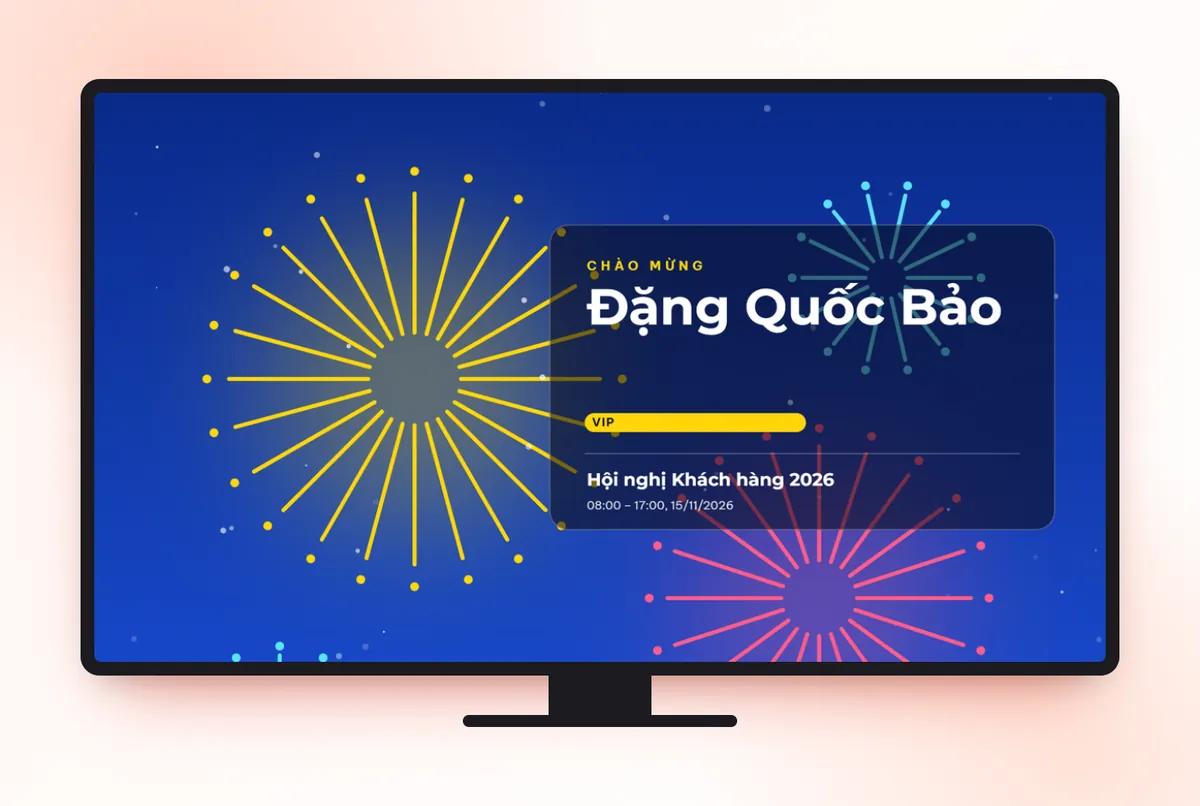
Good VIP reception means guests are recognized right at the door, have a host to greet them, and never have to queue or explain who they are. To get there, the organizers need to prepare three things in advance: a VIP list with a named host, a separate VIP ticket type and a dedicated lane. On Tickmi, the VIP ticket type, the scan result screen and the welcome screen are configured to recognize guests the moment their ticket is scanned.
What do VIP guests need that regular attendees do not?
VIP guests need to be recognized, not wait, and have someone walk with them. The rest of the program can be the same as for any other attendee. The table below compares each stage:
| Stage | Regular attendees | VIP guests |
|---|---|---|
| Invitation ticket | A shared email, a shared ticket template | A separate ticket template and invitation, with a confirmation call |
| Arriving at the door | Queue in the shared lane | A separate lane or desk, no queueing |
| Recognition | Scan the ticket, see the name | Scan the ticket and immediately see the VIP ticket type and the host |
| Badge | Printed at the desk after check-in | Pre-printed, handed over personally |
| Afterward | Find their own seat | The host walks them to their seat and introduces them to leadership |
Keep the VIP group small. When a third of the list is VIP, the dedicated lane becomes a long queue too. How to divide groups such as VIP, press and guests is in the article classifying VIP, press and guest tickets.
What are the steps of a VIP reception process?
The VIP reception process has 5 steps, starting about a week before the event. The timings below are examples; adjust them to the size of your event.
- Confirm the list and hosts (for example: 7 days before). Each VIP guest has one host in charge of the reception, along with the title and organization written the correct way. Also note anything needed, such as companions, dietary needs and expected arrival time.
- Send VIP tickets and make confirmation calls (for example: 5 days before). VIP tickets use a separate template and invitation. The host calls to confirm, since the guest's assistant is often the one who decides the schedule.
- Prepare the VIP lane (1 day before). Pre-print badges, arranged in name order. Assign one fixed staff member to scan tickets in the VIP lane. Rehearse the welcome screen.
- Receive at the door (event day). Scan the ticket, the welcome screen greets the guest by name, hand over the badge, and pass the guest to the host. The whole thing should take under a minute.
- Follow up after the event (within 24 hours). Send a personal thank-you and pass the list of VIPs who attended to the team in charge of customer relations.
How do you recognize a VIP guest the moment a ticket is scanned?
A VIP guest is recognized right away when the scan result screen shows the VIP ticket type and the host's name. On Tickmi you do this with a separate ticket type and a separate information field, with no other software needed.
- Create a VIP ticket type. Each ticket type has its own ticket template, email template and subject line. The CC field of the ticket type lets you add the reception team's email so the team receives a copy of every VIP ticket email.
- Add a "Reception host" field. Create a text-type attendee information field and fill it in when importing the list.
- Choose what shows on scan. In the Check-in tab, under Information shown when scanning tickets, tick the ticket type and the host field, then click Save configuration. For phone numbers and emails, turn on Hide sensitive data so door staff see only part of them.
- Create a separate welcome screen for the VIP lane. Go to Check-in → Welcome screen and click Create new screen. In Check-in source, choose the exact staff member scanning at the VIP lane, so this screen only greets guests passing through that lane. In the welcome screen template, use Conditional display so the "VIP" element only shows when the ticket type is VIP.
- Pre-print VIP badges. In the Badges section, filter Ticket type to VIP and print by that filter. If you want to print on site, open a separate Auto print station and keep only the VIP ticket type in Ticket types to print.
Tickmi does not automatically block guests from areas by ticket type. Letting people into the VIP area is up to door staff, who check the ticket type or the badge color. The detailed steps are in the check-in gate and barcode scanner guide, the welcome screen guide and the label and badge printing guide.
What if a VIP guest forgets their ticket or brings someone along?
If a VIP guest forgets their ticket, staff look them up by name and check them in manually, without asking the guest to open an email. A companion who is not yet named is added to the list right at the desk.
- Forgotten ticket: open the attendee list, search by name or phone number, tick the ticket and click Mark as checked in. If you picked the wrong person, click Mark as not checked in.
- Companion: add a new attendee with the right ticket type. It is best to ask ahead during the confirmation call so the badge can be pre-printed.
- Guests arriving early or late: keep one staff member at the VIP lane for the whole reception period, and do not pull them back to the shared lane when the shared lane is busy.
Other situations at the desk are in the article handling situations at the check-in desk.
VIP guest reception checklist
- The VIP list has the title, the correctly written organization and a host for each person.
- The VIP ticket type has its own ticket template and email template; the reception team is in the CC field.
- Confirmation calls are done, with companions and expected arrival time recorded.
- The scan result screen shows the ticket type and the host; sensitive data is hidden.
- The VIP lane welcome screen follows the right scanning staff member; one ticket has been test checked in to verify.
- VIP badges are pre-printed and arranged by name; blank spare badges are on hand.
- Hosts are present before the reception time and know the guests by sight or have photos.
- The list of VIPs who attended is sent to the customer care team after the event.
Common mistakes in VIP guest reception
- Misspelling a name or title. For VIP guests this is the most visible mistake. Check with the guest's assistant before printing badges.
- Nobody at the VIP lane when the guest arrives. The VIP lane staff member is moved to the shared lane at peak time, just when an important guest shows up.
- Printing a duplicate VIP badge. The VIP badge is already pre-printed, but the auto print station at the shared lane still selects every ticket type and prints another badge when the guest checks in. Untick the VIP ticket type in that station's Ticket types to print.
- Showing the full phone number on the scanner. Door staff only need to know it is the right person. Turn on hiding sensitive data; see also protecting attendee data.
- Forgetting the follow-up. The guest came but nobody thanked them. Suggestions on how to write are in post-event thank-you emails and customer appreciation invitations for banks.
An overview of showing guest name greetings on a big screen is on the welcome screen page.
About Tickmi
Tickmi is a ticketing and participant experience platform. On a single, unified set of attendee data, Tickmi connects the whole journey: issuing invitation, registration and paid tickets, sending branded QR tickets, checking in with an app, kiosk or scanner (even offline), and then moving on to the welcome screen, lucky draw, polls, quizzes and surveys. Tickmi is trusted by organizations such as Viettel, VNPT, MobiFone, FPT and CMC. Learn about Tickmi or try it free.
Frequently asked questions
What do I need to prepare for VIP guest reception?
A VIP list with the title and a host for each person, a separate VIP ticket type, a dedicated lane or desk with fixed staff, pre-printed badges and a screen that greets guests by name.
How do door staff know who is a VIP when scanning a ticket?
On Tickmi, you create a VIP ticket type and choose to show the ticket type and the host field under Information shown when scanning tickets. The scan result screen shows that information the moment a ticket is scanned.
Can the welcome screen show the word VIP only for VIP guests?
Yes. In the welcome screen template, use Conditional display so the VIP element only shows when the ticket type is VIP. You can also create a separate welcome screen for the VIP lane by choosing the right scanning staff member in Check-in source.
Does Tickmi stop non-VIP people from entering the VIP area?
No. Tickmi records check-ins by ticket, and letting people into the VIP area is up to door staff, who check the ticket type on the scan screen or the badge color.
How do I check in a VIP guest who did not bring a ticket?
Staff find the guest by name or phone number in the attendee list, tick the ticket and click Mark as checked in.
Issue QR tickets, send emails, check in and engage attendees on one platform.