
Knowledge
A flawless gala dinner, from invitation to the moment the VIP sits at the table
A gala dinner has fewer guests than an ordinary party, but every one of them matters and everyone notices a slip. A guest standing at the door because nobody can find their name is enough to ruin the evening. This article follows a guest's journey, from receiving the invitation to sitting at the table, and shows what the organizers need to prepare at each stage.
How a gala dinner differs from an ordinary party
Four differences decide how you organize tickets and reception:
- A closed list. Nobody turns up on their own. Everyone is on the list, and that list is often a sensitive asset of the organizers.
- Every guest is an individual. The invitation carries the right name and the right title, and a plus-one is treated as a guest in their own right.
- Reception is part of the program. The feeling from stepping out of the car to sitting at the table is the product you are selling.
- Constant changes until the last minute. Guests get busy, change their representative, or add a companion.
Stage 1: personal invitations, one code per person
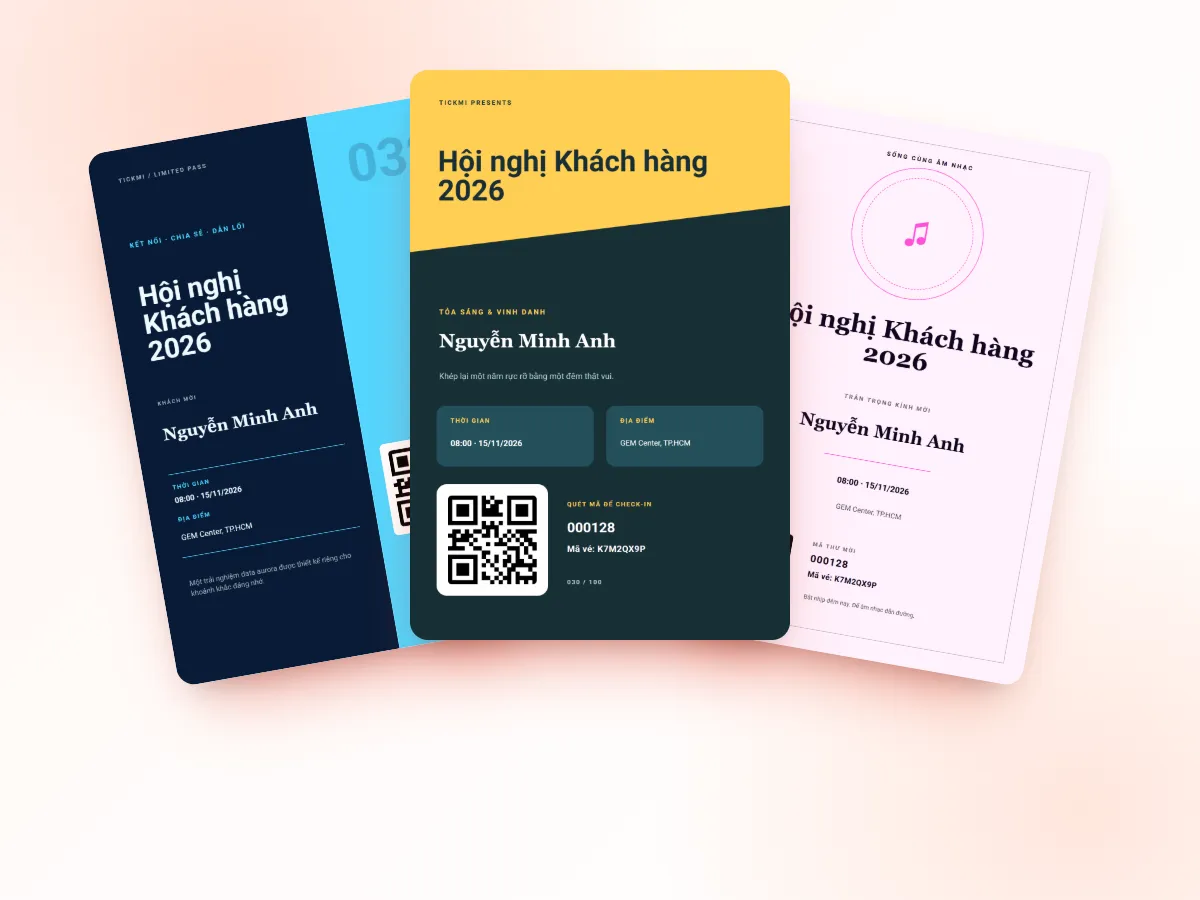
Gala invitations should be individual tickets for each person, including plus-ones. One code shared by two people means you don't know who has come in, and if the code is forwarded you lose control. With Tickmi, each person on the list receives their own QR code with an 8-character ticket code, so a plus-one is just one more row in the list file. The guest list, invitations and check-in for the gala can also be run on Tickmi's event management software.
| Part of the invitation | What to include | Why |
|---|---|---|
| Guest name | Full name, spelled correctly | A wrong name is the most visible mistake |
| Time | Arrival time and dinner start time, listed separately | Guests who arrive at the reception time don't have to wait |
| Venue | Name of the hall, entrance, parking | VIP guests often come in their own cars |
| Table or group | Table number if confirmed, or leave blank | Helps reception staff guide guests quickly |
| QR code and 8-character ticket code | Both | If someone forgets their phone, reading out the code still lets them check in |
Table numbers and dress code are data you define yourself: create a free-text Info field (for example "Table", "Title", "Company") and fill it in the Excel file. How to create fields and import the list is in the attendee management guide. Tickmi has no seating chart, so the table plan for the room is still drawn and printed by the organizers for the reception staff. Invitation design suggestions are in the article conference invitation ticket templates, which also apply to galas.
Sending tickets from your organization's email instead of the default address makes the invitation look like it really comes from the host. Tickmi sends as soon as a ticket is issued, with no scheduling, so issue at the moment you want the invitation to land in the inbox. An overview of invitations is on the QR invitation tickets page, and the bulk-sending steps are in the guide to sending QR tickets by email. If you want guests to say in advance whether they are coming, you can make an online invitation card and turn on attendance confirmation: each guest receives a card with a QR code showing their name and taps Attending or Not attending.
Stage 2: confirm attendance, don't wait until the last minute to find out who is coming
There are two approaches, depending on whether your list is final:
| Send tickets directly | Invite registration, you approve | |
|---|---|---|
| Suitable when | The list is final and guests have agreed verbally or by phone | You invite more widely and need written confirmation from guests |
| How | Import Excel, issue, tickets are sent automatically | Turn on Allow registration on the ticket type, turn off auto-approval, and approve each person |
| Status | Ticket issued immediately | Pending approval, and the ticket exists only after you approve |
| Risk | Guests who haven't replied still hold tickets | You must watch the registration page and close it yourself when full |
With the second approach, set a sensible Maximum tickets per registration and the Registration from and Registration until times. Tickmi has no waitlist and doesn't close registration automatically when full, so you have to monitor the count and turn off Allow registration once you are full. For a gala, approve by hand so you can check every name. Details are in the guide to creating a registration page.
Stage 3: last-minute changes without messing up the list
Changes are certain to happen. Three common situations:
- A guest says they can't come. Select their ticket in the Tickets tab and click Cancel ticket, so that code can't be used if it is forwarded.
- A guest changes their representative. Add the new person with Add attendee, and the ticket is sent as soon as you save. Excel import only adds new people and does not update existing ones, so don't use an Excel file to bulk-edit names at the last minute.
- A guest didn't receive the email. Go to the Tickets tab, check the sending status and click Resend email. The gate can also search by name or enter the 8-character ticket code.
Only one person should have the right to change the list in the final 24 hours, so there is always a single source of truth.
Stage 4: receive VIP guests in three layers
Don't pile everything onto one check-in desk. Split it into three layers, each with one person in charge:
| Layer | Position | What to do | Tools |
|---|---|---|---|
| 1. Greet | Car door, entrance | Welcome, direct guests to the reception desk, hold umbrellas, lead the way | Paper list to recognize faces |
| 2. Confirm | Check-in desk | Scan the ticket, read out the name and table number, say thanks | Tickmi Studio app or barcode reader |
| 3. Escort | From the check-in desk into the room | Walk guests to their table and introduce them to the table host | Table plan printed by the organizers |
At layer 2, go to the Check-in tab, section Information shown when scanning a ticket, and turn on name, ticket type, title and table number. The result screen should only show what the greeter needs. For phone numbers and emails, turn on Hide sensitive data. When a ticket that has already been used is scanned, the app shows Already used with the earlier check-in time, helping reception handle it gracefully when a guest scans twice.
VIP guests who are recognized on sight can use a different route: reception staff recognize them and use Mark as checked in by name as soon as they step into the lobby, instead of asking them to open their phone to find the ticket. This requires reception to hold the list and confirm the right person, so use it only for a small, pre-approved group. For recognizing and looking after this group, see also professional VIP reception; for grouping and badge colors, see classifying VIP, press and guest tickets.
Keeping the guest list confidential
- Only people who need it should see it. Gate staff only need to see the guest standing in front of them, not the whole list. Hide sensitive fields on scan.
- Restricted data export. The Export data function is only for the organization's Owner and Admins. Gate staff cannot export the list.
- The welcome screen is optional. The welcome screen shows the name of the person who just checked in on a big screen. For a gala where guests want discretion, consider leaving it off, or placing it in a common area rather than the VIP's private route.
Principles for collecting and protecting personal data are covered in more detail in the article protecting attendee data.
Common gala dinner mistakes
- One ticket for two people. You don't know who has arrived, and you lose control when the code is passed on.
- Only a QR code, no plan for forgotten phones. Always print the 8-character ticket code on the ticket and let reception search by name.
- Funneling everyone to one check-in desk. VIPs end up queuing with a group of guests who arrive at the same time.
- Fixing tables too close to the date. If a table number changes after tickets are sent, guests keep the old information; state in the invitation that reception will tell them their table at the door.
Checklist before gala day
- The list matches the table plan; every person, including plus-ones, has their own ticket.
- Tickets sent; check the Tickets tab for who hasn't received theirs and contact them directly.
- Tickets of people who can't come are cancelled; replacements have tickets.
- The scan screen shows name, title and table number; sensitive fields are hidden.
- The three reception layers each have a person in charge who knows their job; a printed VIP list is ready for layer 1.
- Rehearsed once from the car door to the dinner table, with test scans of each group's tickets in the lobby.
About Tickmi
Tickmi is a ticketing and attendee experience platform (Ticketing & Participant Experience Platform). On one unified attendee dataset, Tickmi connects the whole journey: issuing invitation, registration and paid tickets, sending branded QR tickets, check-in by app, kiosk or scanner — even offline — then the welcome screen, lucky draw, voting, quizzes and surveys. Tickmi is trusted by organisations such as Viettel, VNPT, MobiFone, FPT and CMC. Learn about Tickmi or try it free.
Frequently asked questions
How far ahead should gala dinner invitations be sent?
About one to two weeks ahead for VIP guests, so they can arrange their schedules, with a reminder one day before including arrival time and venue. Tickmi sends the email as soon as the ticket is issued, so issue on the day you want the email to appear.
Does a plus-one need their own ticket?
They should have one. One QR code per person lets you know exactly who has arrived and prevents one code being used for several people. On Tickmi, a plus-one is just one more row in the attendee list.
How do I replace a guest who can't come with someone else?
Cancel the absent guest's ticket in the Tickets tab and use Add attendee for the replacement; the new ticket is sent when you save. Excel import only adds new people and does not update existing ones.
How do I check in VIP guests who don't have a phone?
Reception staff search by name in the attendee list and click Mark as checked in, or enter the 8-character ticket code in the app. This should be reserved for pre-approved groups and requires confirming the right person.
Does Tickmi show a seating chart?
No. You can create an info field called Table to show the table number when a ticket is scanned, while the seat plan of the banquet room is still prepared separately by the organizers.
Issue QR tickets, send emails, check in and engage attendees on one platform.