
Knowledge
How to classify VIP, press and guest tickets: who goes where, which color
An event rarely has just one type of attendee. There are VIPs who need a separate entrance, press who need a workroom, speakers who need backstage access, and sponsors who need space for booths. Without clear classification from the start, the gate has to guess, and guesses go most wrong when it is busiest.
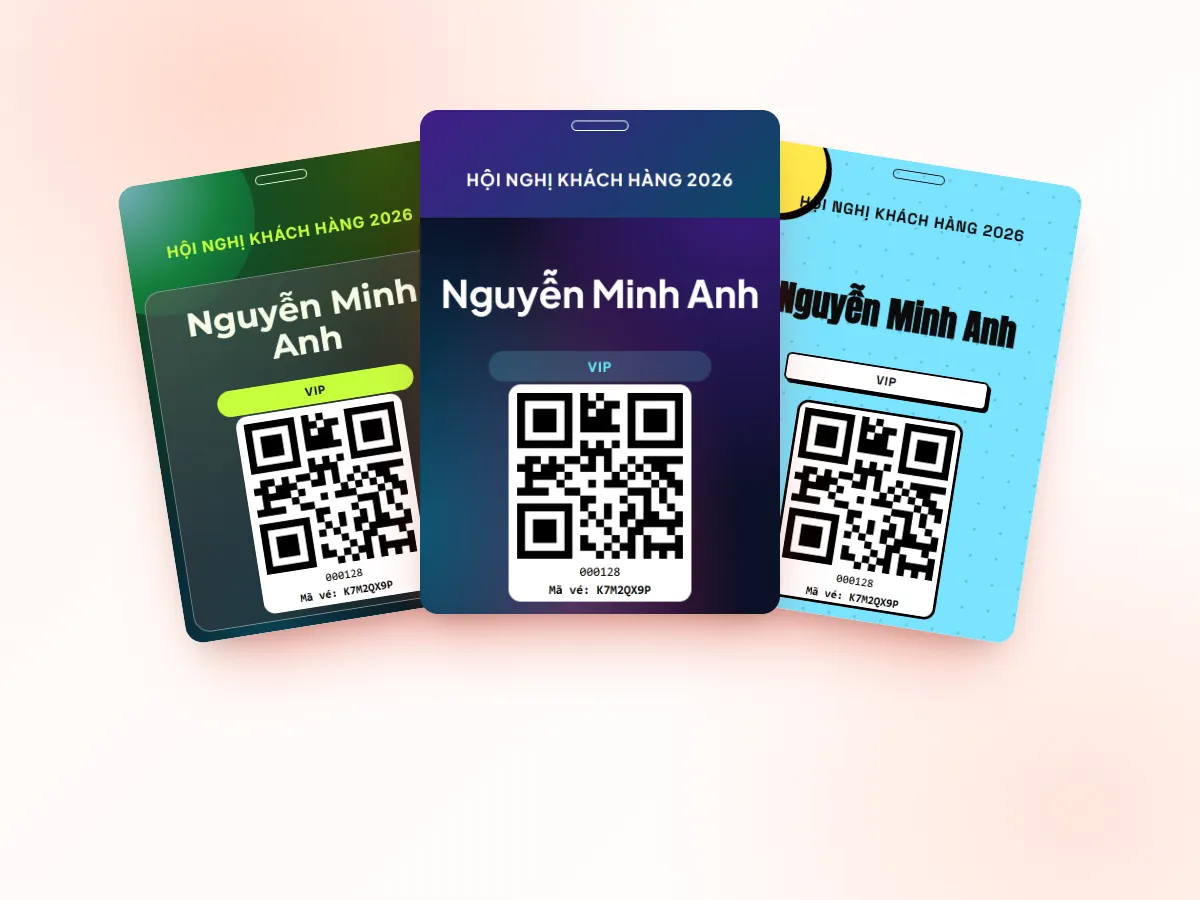
What problem does ticket classification solve?
Ticket classification means answering three questions in advance: which group this person belongs to, which areas they may enter, and how the staff at the door can see that. Done well, the gate scans faster, organizers don't have to ask for confirmation over the radio, and post-event data can be split by group. All of these types are event tickets within the same ticket product on Tickmi.
This step comes before guest reception and badge printing: deciding which ticket types exist and what each one means. Guest reception is covered in professional VIP guest reception, and badge size and content in conference badges: choosing size, content and printing.
Common attendee groups
| Group | Who they are | Notes when classifying |
|---|---|---|
| Regular attendees | Register or buy tickets | The largest group; give them a separate lane to move faster |
| Guests | Customers and partners invited by the organizers | May bring a plus-one; you need to decide on quantities |
| VIP | Executives, important guests | Few people, list finalized early, need a separate entrance |
| Speakers | People who go on stage or moderate a session | Need backstage and green room access |
| Press | Reporters, editors, camera crews | Verify the outlet; need a work area, wifi, power outlets |
| Sponsors, partners | Representatives of sponsors and booths | Need early access to the exhibition area |
| Organizers, staff | People running the event | Need the broadest access; should have a badge for easy identification |
You don't need to set up all seven types for every event. A small seminar may need only three: attendees, guests, organizers. Principle: each ticket type must differ in at least one thing (access rights, design, email or how it is reported). Two identical types should be merged.
The access matrix: write it down before designing
Write access rights as a table and have the person in charge approve it before printing anything. The table below is a reference sample; replace it with your own event's rules:
| Area / benefit | Regular | Guest | VIP | Speaker | Press | Sponsor | Organizers |
|---|---|---|---|---|---|---|---|
| Main hall | Yes | Yes | Yes | Yes | Yes | Yes | Yes |
| Front row seats | No | No | Yes | Yes | No | Varies | No |
| VIP lounge | No | No | Yes | Yes | No | No | Yes |
| Backstage | No | No | No | Yes | No | No | Yes |
| Press room | No | No | No | No | Yes | No | Yes |
| Exhibition area, booths | Yes | Yes | Yes | No | Yes | Yes | Yes |
| Reception, gifts | Varies | Yes | Yes | Yes | Yes | Yes | Yes |
One thing to say plainly: in Tickmi, the ticket type is used to group attendees, assign separate ticket designs, badges and emails, show the ticket type when scanning and report by group. Access to each area is an event rule: the staff at that area's door check the ticket type on the scan screen or the badge color. So the matrix above should be printed as an instruction sheet for each door.
Color and label conventions: recognizable in one second
- One color per group, kept the same everywhere. VIP's color on the ticket, badge, label and email must be the same color. Changing colors midway confuses gate staff.
- Color accompanied by text. Print the ticket type name (VIP, PRESS, SPEAKER) clearly next to the color, because some people have trouble telling colors apart and because badges printed in black and white lose the color.
- Only 4 to 5 colors. More than that is hard to remember. Choose colors far apart, avoiding two close tones such as green and teal.
- A large text label in the same position on every badge: staff get used to looking at exactly one spot.
- Lanyards in the same color as the badge if possible: you can still recognize the group from a distance.
Setting up ticket classification in Tickmi Studio
- Create ticket types. Open the ticket product and go to Setup → Ticket types → Add ticket type. Use short, consistent names (for example "VIP", "Press", "Speaker"), choose a separate Ticket template, set the Number of tickets as the quota for the group and the Check-ins per ticket. Each ticket type can use its own email template, subject line and CC, for example CC to the media person in charge for press tickets.
- Import the list once for all groups. The Excel template has a Ticket type column with a dropdown of the ticket types you created, so one file can hold VIPs, press and guests. See managing attendees.
- Design the differences on tickets and badges. In the designer, select an element (for example a color strip or a "VIP" label), open the Conditional display section and click Show only when..., choosing the ticket type field equals "VIP". Make one strip per group, each strip showing only for its own group. Click Preview or Test render to check. The condition is not case-sensitive but the text must match, so ticket type names need to be consistent. See ticket design and template library.
- Show the ticket type when scanning. In the Check-in tab, under Information shown when scanning tickets, tick Show for the ticket type field so staff immediately see the group of the person being scanned. For phone numbers and emails, turn on Hide sensitive data. See check-in gates and barcode scanners.
- Print by group. When using the Print station to print automatically at check-in, choose the ticket type each machine is responsible for, for example a separate station for VIPs. See printing labels and badges.
- Track by group. The attendee list can be filtered by ticket type, and the check-in stats screen has a By ticket type progress bar, so you know how many VIPs have arrived and which press are still missing.
Common mistakes when classifying tickets
- Too many ticket types. Ten types with small differences only confuse staff. Merge them if the rights are the same.
- Inconsistent ticket type names (VIP, VIP guest, V.I.P). The display condition must match the text exactly, so the label will disappear on badges typed differently.
- Letting press into the VIP area "for convenience". Press and VIPs have different needs, and mixing up groups easily causes awkwardness with guests.
- Forgetting staff and suppliers. Everyone needs a badge, including people who aren't guests. Without a badge you can't tell strangers apart.
- Changing groups after badges are printed. If someone moves from guest to VIP, reprint the badge; don't just edit it in the system.
- Finalizing the VIP list too close to the start. Finalize early, with an approver and a process for handling changes, especially for the press list.
Designing tickets and badges that differ by group is the core topic of the e-ticket design solution; badges are covered further on the badge printing page.
Checklist before finalizing ticket types
- There is an access matrix approved by the person in charge.
- Each ticket type differs in at least one thing.
- Each group has one color and one text label, used consistently on tickets, badges, labels and emails.
- Ticket type names are written identically everywhere, including the Excel file.
- Staff at each door have an instruction sheet on "which ticket types may enter here".
- One ticket from each group has been test-scanned and the screen shows the correct ticket type.
- There is a plan for when a ticket holder goes to the wrong door or the wrong group: who decides, and which support desk handles it.
About Tickmi
Tickmi is a ticketing and attendee experience platform (Ticketing & Participant Experience Platform). On a single, unified set of attendee data, Tickmi connects the whole journey: issuing invitation, registration and paid tickets, sending branded QR tickets, checking in with the app, kiosk or scanner (even when the network is down), and then welcome screens, lucky draws, voting, quizzes and surveys. Tickmi is trusted by organizations such as Viettel, VNPT, MobiFone, FPT and CMC. Learn about Tickmi or try it free.
Frequently asked questions
How many ticket types does an event need?
Only enough that each one differs in at least one thing, such as access rights, ticket design or email. A small seminar usually needs just three: attendees, guests and organizers; larger events may also need VIP, speaker, press and sponsor types.
Does Tickmi block VIP tickets from entering the wrong area?
In Tickmi, ticket types are used to group attendees, assign separate ticket designs and emails, show the ticket type when scanning and report by group. Admitting people to each area is done by the staff at that area's door, who check the ticket type on the scan screen or the badge color.
How do I make only VIP tickets show a VIP color strip or label?
In the designer, select the element and use Conditional display, click Show only when... and choose the ticket type field equals VIP. The element only shows for attendees whose ticket type matches the text entered, not case-sensitive.
Can I import one Excel file for several guest groups?
Yes. Tickmi's Excel template has a Ticket type column with a dropdown of the ticket types already created, so one file can contain VIPs, press and guests.
Issue QR tickets, send emails, check in and engage attendees on one platform.