
Knowledge
Should you send e-tickets as an image, PDF or HTML?
For most events, an image e-ticket is the safest choice: it shows right in the email body, saves to a phone with one tap and can be printed in bulk. PDF suits cases where attendees need a standard file to keep or print themselves, and HTML suits cases where you want the ticket to open like a web page. On Tickmi you choose the ticket file format for each ticket type, so one ticket product can use both.
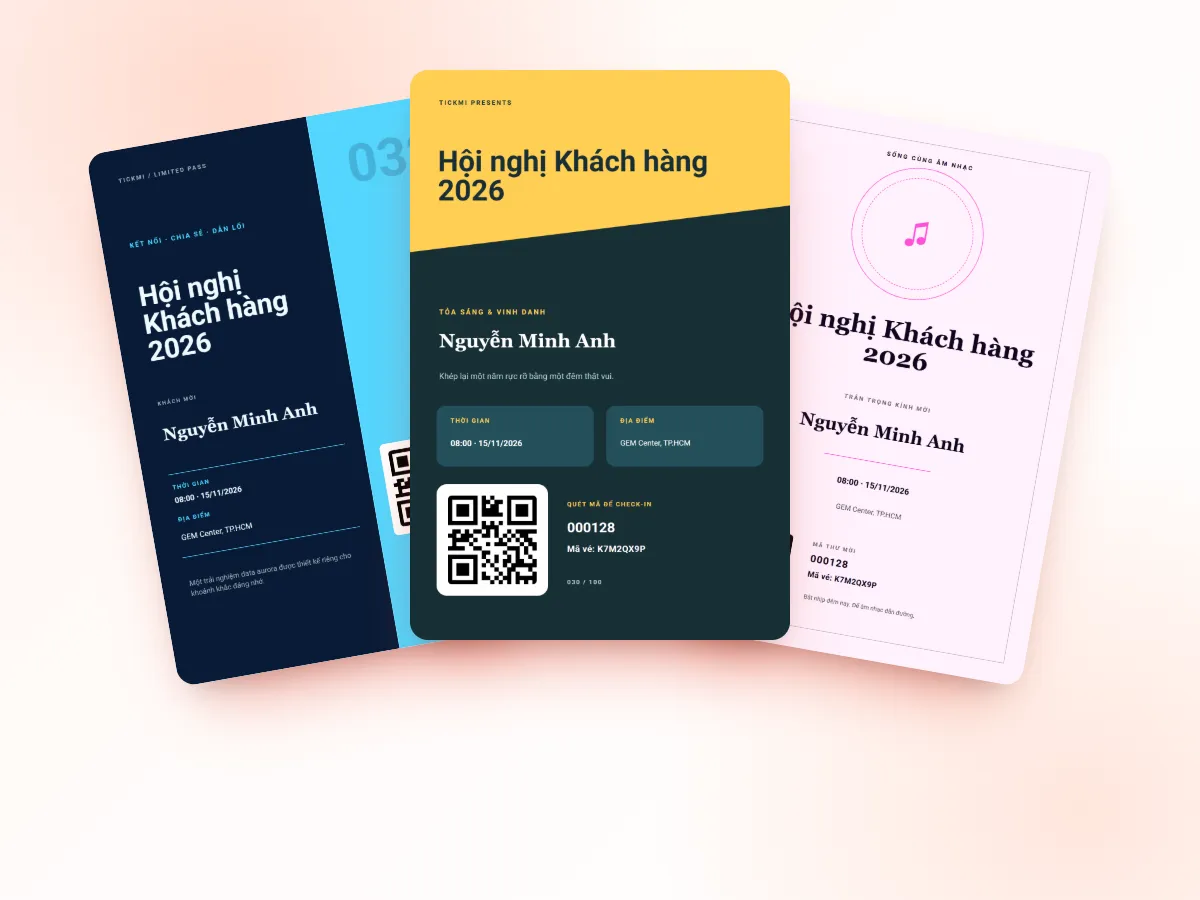
How do image, PDF and HTML tickets differ?
The three formats differ mainly in where the ticket appears and how easy it is to print. The QR code is the same: the same code string, readable by the check-in app in every format. The table below compares them by what attendees and organizers actually do with the ticket. All three formats work for electronic event tickets sent by email.
| Criterion | Image | HTML | |
|---|---|---|---|
| Viewing in email | Shows right in the email body (if the email template has a Ticket block) | Must open the attachment | Must open the attachment in a browser |
| Saving to a phone | Save the image with one tap, open it again without a network | Needs a PDF reader app | Save the file or take a screenshot |
| Bulk printing from the system | Supported | On Tickmi: skipped when printing from the Tickets tab | Depends on the browser when attendees print themselves |
| Attendees printing themselves | Good if the image is sharp enough | Good, keeps the right paper size | Depends on the browser and printer |
| Multi-page tickets (front, back) | One image per page | One multi-page file | One page |
| Best for | Most events, attendees using phones | Corporate partners, records to keep, people used to printing tickets | When you want the ticket to open like a web page |
One point that is often missed: PDF and HTML tickets cannot be displayed inside the email content. On Tickmi, tickets in these two formats are always sent as attachments.
When should you choose image tickets?
Choose image when most attendees open the ticket on a phone. This is the case for conferences, workshops, company parties and fairs with pre-registration. Attendees open the email and see the QR code, with no file to download and no PDF reader to look for.
Image is also the format to use if you plan to bulk print tickets from the system. Ticket images on Tickmi are rendered at twice the display resolution, so the QR code and barcode stay sharp when enlarged or printed. When printing, remember to turn on Print area (3mm bleed, 5mm safe zone) in the designer so text and codes are not too close to the edge.
When should you choose PDF tickets?
Choose PDF when the recipient treats the ticket as a document to keep. For example: tickets sent to corporate partners who pass them on to their administration department, or older attendees who are used to printing tickets at home. PDF keeps the exact paper size, and multi-page tickets fit neatly in one file.
In return, PDF tickets do not show in the email body, and attendees must open the attachment. On Tickmi, PDF tickets are also skipped when you bulk print from the Tickets tab. If you need both to send and to have the organizers print ahead of time, image is the simpler choice.
When should you choose HTML tickets?
HTML suits cases where you want the ticket to open like a web page in a browser instead of an image. An HTML ticket comes with the email as an attachment. On the personal ticket page, attendees click Open ticket file to open the PDF or HTML ticket in a new tab.
If you have no clear reason, do not choose HTML just because it sounds modern. For attendees, what matters most is that the ticket opens fast and they can show the QR code for staff to scan.
How do you choose the ticket file format on Tickmi?
The format is chosen in each ticket type, so you can keep regular tickets as images and partner tickets as PDF. The steps:
- Design or choose a ticket template in the designer. Click Test render to see the ticket rendered by the actual issuing system.
- Open the ticket product, go to Settings → Ticket types, and open the ticket type on the General information tab.
- Choose the Ticket template and the Issued ticket file format: Image, PDF or HTML. Click Save.
- In the email delivery section, choose an email template. For image tickets, also turn on Attach the ticket file to the email if you want attendees to have a file to download; PDF and HTML tickets are always attached.
- Send a test to yourself and open it on both a phone and a computer before issuing to the whole list.
Example: a 300-person conference has 260 regular tickets and 40 partner tickets. You keep regular tickets as images so they show right in the email, and partner tickets as PDF so the partner's administration department can file them. Both ticket types are still scanned with the same app.
Details of each step are in assigning a template to a ticket type and sending QR tickets in bulk by email.
What if you change the format after tickets are issued?
Changing the format only applies to tickets issued afterward. Tickets already issued keep their old file. To change it for old tickets, use Reissue ticket: the file is re-rendered, the QR code content and Ticket code stay the same, each reissued ticket uses 1 ticket issuance quota and the email is not resent automatically. So settle the format before sending tickets to the whole list.
Common mistakes when choosing a ticket format
Most mistakes are not about the format but about not testing first. Common ones:
- Choosing PDF and only later deciding to bulk print. PDF tickets are skipped when printing from the Tickets tab. If you plan to print, choose Image from the start.
- An email template without a Ticket block. An image ticket only shows in the email body when the email template has a Ticket block. Without it, attendees only see text.
- A pale QR on a colored background. A light-colored or tiny code makes scanners read slowly, in any format. See barcodes and QR codes on tickets.
- No backup code. Print the 8-character Ticket code on the ticket so staff can type it in when an attendee's screen is cracked or too dark.
- Forgetting people who open email inside Zalo or Facebook. The embedded browser often cannot download files. The personal ticket page has a Copy ticket link button to open it in Chrome or Safari.
E-ticket format checklist
- Do attendees mainly use phones? Choose Image.
- Do the organizers need to bulk print tickets? Choose Image and turn on the print area when designing.
- Do recipients need a standard file to keep or print themselves? Choose PDF for that ticket type.
- Does the ticket have a front and a back? Image gives one image per side, PDF combines them in one file.
- Have you sent and scanned a test on a real phone? If not, do not issue to the whole list.
See the full approach to making tickets at e-ticket design on Tickmi. If you plan to print, read printing QR tickets on an office printer; if you are still unsure whether you need paper tickets, read paper tickets or QR e-tickets. How attendees view their ticket again is in the personal ticket page.
About Tickmi
Tickmi is a ticketing and participant experience platform. On a single, unified set of attendee data, Tickmi connects the whole journey: issuing invitation, registration and paid tickets, sending branded QR tickets, checking in with an app, kiosk or scanner (even offline), and then moving on to the welcome screen, lucky draw, polls, quizzes and surveys. Tickmi is trusted by organizations such as Viettel, VNPT, MobiFone, FPT and CMC. Learn about Tickmi or try it free.
Frequently asked questions
Can image tickets be printed?
Yes. Ticket images on Tickmi are rendered at twice the display resolution so printing stays sharp, and image tickets can be bulk printed from the Tickets tab.
Can I send the ticket both in the email body and as an attachment?
Yes, for image tickets: if the email template has a Ticket block, the ticket shows in the email body, and turning on "Attach the ticket file to the email" sends the file along too. PDF and HTML tickets are always sent as attachments.
Which format scans QR codes fastest?
Scan speed depends more on the size and contrast of the code than on the format. An image ticket already showing in the email helps attendees present the code fastest.
Does a PDF ticket show inside the email content?
No. PDF and HTML tickets cannot be displayed in the email body, so they are sent as attachments; attendees can also open them from the "Open ticket file" button on the personal ticket page.
Can one ticket product use several formats?
Yes. The ticket file format is chosen per ticket type, so you can keep regular tickets as images and partner tickets as PDF.
Can I change the format after tickets have been issued?
Yes, but it only applies to tickets issued afterward. Old tickets need "Reissue ticket": the QR code and Ticket code stay the same, each ticket uses 1 ticket issuance quota and the email is not resent automatically.
Issue QR tickets, send emails, check in and engage attendees on one platform.