
Knowledge
Barcode or QR code on tickets: which should you use?
For most e-tickets, the QR code is the default choice because phone cameras read it well and it is compact. Add a barcode (Code 128 or PDF417) when your desk already uses barcode scanners, or when the ticket is a long card with no room for a large QR. On Tickmi, a ticket's barcode and QR code encode the same string, so scanning either one finds the right ticket.
How do QR, Code 128 and PDF417 differ?
The three codes differ in shape, how much data they hold and which devices read them. QR is a square 2D code. Code 128 is a 1D barcode made of vertical bars. PDF417 is a stacked barcode that looks like several rows of bars piled on top of each other. These are the points to weigh when designing an event ticket with a QR code or barcode.
| Criterion | QR code | Code 128 | PDF417 |
|---|---|---|---|
| Shape | 2D square | 1D, long bars | Stacked bars, rectangular |
| Data capacity | High, in a small area | Low; the longer the string, the longer the bars | More than Code 128 for the same width |
| Phone camera | Reads well, tolerates tilt | Readable if the app supports it | Readable if the app supports it |
| 1D scanner (laser/CCD) | Cannot read | Can read | Cannot read |
| 2D scanner | Can read | Can read | Can read |
| Best for | E-tickets, square printed tickets | Long paper tickets, cards with wide horizontal space | Small tickets or cards that need a barcode |
The key point: cheap 1D scanners read only one-dimensional barcodes. If your desk uses this kind of scanner, a QR-only ticket will not scan.
When should you print a barcode on the ticket as well?
Add a barcode when the equipment at the desk or the shape of the ticket calls for it. If staff scan only with phones or 2D scanners, a QR code is enough.
- The desk already has 1D scanners, for example a handheld scanner borrowed from the warehouse or a retail counter.
- Long, narrow tickets or cards, where there is more horizontal than square space.
- You want a second way to read when the QR code is creased, dirty or too close to the paper edge.
The most important rule: the barcode and QR code on the same ticket must encode the same string. That way the check-in system recognises the same single ticket whichever one it reads, and a ticket already scanned by QR will report as already used if scanned again by barcode. On Tickmi, the Barcode element in the ticket designer automatically takes the same string as each ticket's QR code at issuance, so you do not have to match data yourself.
How to add a barcode and QR code to a ticket on Tickmi
On Tickmi you place the QR code and barcode by dragging elements onto the ticket template; each person's real code is generated at issuance. The steps are:
- Open the ticket template in the designer and drag the QR code element to the position you want.
- If you need a barcode, drag in the Barcode element as well. Choose the Barcode type: Code 128 or PDF417.
- Turn on Show code text under bars if you want the character string printed right below the bars.
- Adjust Bar colour and Background. Choose No background only when the ticket background behind the code is a light colour.
- Add the Ticket code field (8 letters and digits) near the code as a manual-entry fallback.
- Click Test render to see the ticket built by the actual issuing system, with sample data. This step does not use up ticket issuance quota.
Code 128 encodes the ticket's whole code string, about 37 characters, so it needs a lot of width. The designer shows Too narrow when the bars are too thin, below roughly 480px. For small formats, switch to PDF417. Details of each option are in the Code 128 and PDF417 barcode guide.
Which devices read QR codes and barcodes?
Phones with a check-in app and 2D readers can read both QR and barcodes; 1D readers read barcodes only. Choose devices to match the code you print, not the other way round.
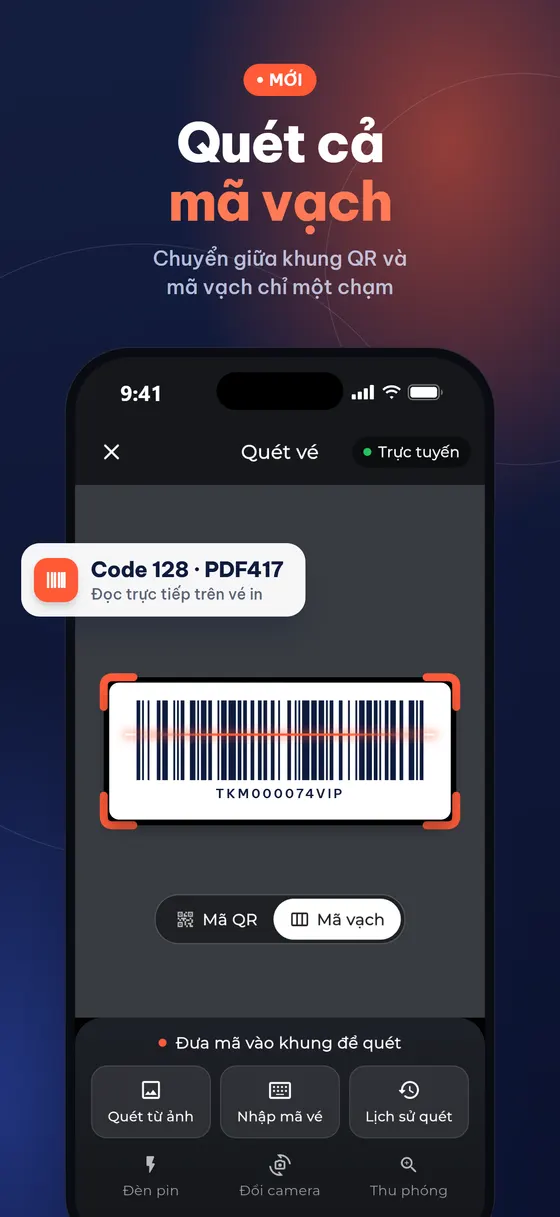
- Tickmi Studio app: on the scan screen, choose the code type QR code or Barcode. There is a Flashlight for dark places and Zoom for small codes. See the app check-in guide.
- Keyboard-type USB or Bluetooth readers: after reading a code, the reader "types" the character string into the computer and presses Enter. Open the Check-in tab on Tickmi Studio web; when the page shows Ready for reader, just scan, with no software to install.
- Self check-in stations: the self check-in station link also accepts a USB or Bluetooth reader so attendees can scan their own tickets.
The most common problem with keyboard-type readers: a Vietnamese input method (Unikey, EVKey) turns characters into accented letters and corrupts the code. Turn off the input method on the desk computer before doors open. How to choose the right reader is in QR code check-in scanners.
Why won't the code on a ticket scan?
Most tickets fail to scan because of colour, size or display quality, not because of the code type. Five common causes:
- Code colour too light or background and code in the same tone. On Tickmi, the designer test-decodes the code automatically: QR codes need a 3:1 contrast and barcodes 4:1, and if they fall short the template cannot be saved until you change the colour.
- Shrinking the code to fit the design. A squeezed Code 128 makes the bars too thin; a QR code that is too small forces people to hold the phone very close.
- Low-resolution ticket image, blurry when enlarged or printed.
- Dim phone screen, a cracked screen protector or glare from lights.
- A photo of another screen, which creates striped noise. A screenshot scans better.
When every scanning method fails, staff enter the 8-character Ticket code printed on the ticket. That is why you should always print the Ticket code, whether the ticket has a QR code or a barcode.
Common mistakes when designing codes on tickets
The mistakes below usually only show up at the gate, once the line is already long. Checking at the design stage is much cheaper.
- Printing a barcode and QR code with two different strings. Scan the QR once and the barcode again, and the system treats them as two tickets.
- Placing the code over a multicoloured background image. Keep a white or light box around the code.
- No quiet space around the code. Text or patterns right at the edge make it hard for the scanner to find the code.
- Placing the code near the trim area when printing. Turn on Print area (3mm trim, 5mm safe) under Alignment help and keep the code inside the safe border. See also printing QR tickets on an office printer.
- Not test-scanning first. Print a few tickets and scan them with the exact devices you will use at the desk, in lighting similar to the venue.
QR code and barcode checklist before issuing tickets
- What equipment is at the desk: phones, 2D readers or 1D readers? If 1D, you need a barcode.
- Do the QR code and barcode share the same string? On Tickmi they always do.
- Is the code colour dark enough against the background, and does the template save?
- Is the 8-character Ticket code printed on the ticket?
- Have you test-rendered and test-scanned with real devices?
- Is the Vietnamese input method on the desk computer turned off?
To see the full approach to tickets that look good and still scan, read e-ticket design on Tickmi and the QR code check-in workflow. Using a barcode reader on the web is covered in the web check-in and barcode scanner guide. If you are still unsure about the ticket file format, read choosing an image, PDF or HTML ticket format.
About Tickmi
Tickmi is a ticketing and attendee experience platform (Ticketing & Participant Experience Platform). On one unified attendee dataset, Tickmi connects the whole journey: issuing invitation, registration and paid tickets, sending branded QR tickets, check-in by app, kiosk or scanner — even offline — then the welcome screen, lucky draw, voting, quizzes and surveys. Tickmi is trusted by organisations such as Viettel, VNPT, MobiFone, FPT and CMC. Learn about Tickmi or try it free.
Frequently asked questions
Can a phone scan a Code 128 barcode?
Yes, if the app supports it. The Tickmi Studio app has a Barcode scanning mode next to QR code, which you choose right on the scan screen.
Do I need to buy an expensive scanner?
Not necessarily. A common keyboard-type 2D reader reads both QR and barcodes; plug it in by USB or connect it by Bluetooth and it works on Tickmi Studio web with no software to install.
What size should the QR code be on a ticket?
There is no single figure for every scanner. For example, on printed tickets many organisers make the QR code about 2.5 cm per side and leave white space around it. The surest way is to test-print and scan with the exact devices at your desk.
If I print both a QR code and a barcode, will scanning count twice?
No, if both codes share the same string. On Tickmi the barcode encodes the same string as the QR code, so a ticket already checked in by QR will report as already used when scanned again by barcode.
Why can't I save the ticket template after changing the barcode colour?
Tickmi test-decodes the QR code and barcode on the template. If the bars are not dark enough against the background, the designer reports that the barcode cannot be scanned and will not let you save until you choose a darker colour.
What if the barcode is too long for the ticket?
Code 128 needs a lot of width because it encodes the ticket's whole code string. If the ticket is small, change the Barcode type to PDF417 or use only a QR code.
Issue QR tickets, send emails, check in and engage attendees on one platform.