
Knowledge
How to print QR tickets in bulk on an office printer and still have them scan
Printing a few hundred QR tickets on your company printer is perfectly doable, as long as you pick the right paper and size and test-scan before the full run. One small setting wrong, like letting the printer shrink the page to fit, and the whole stack will not scan. This guide goes from choosing paper to cutting and handing out tickets.
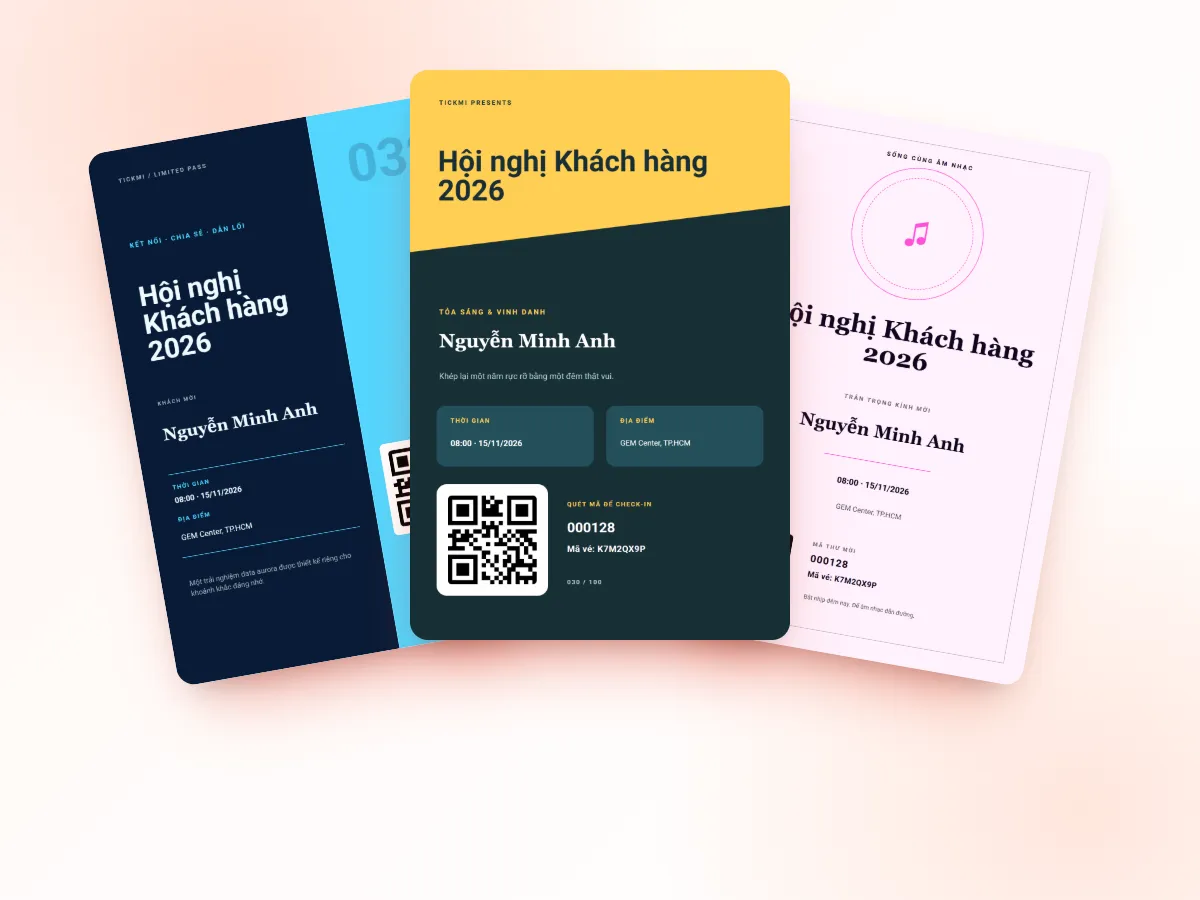
Before you print: which tickets really need printing?
If your attendees can use email and a phone, e-tickets are enough and you will not spend a single sheet of paper. Printing is only worth it in three cases:
- Attendees are older or rarely use a phone and want something to hold in their hand.
- Formal invitations for VIPs and partners, where the paper itself is part of the invitation.
- The reception desk wants backup tickets for people who forgot their phone or ran out of battery.
Even when printed, every sheet still carries its own QR code and an 8-character ticket code for manual entry. The full comparison is in paper tickets or QR e-tickets.
Choosing a ticket size and how to lay it out on A4
Office printers usually accept paper from A5 up and cannot print edge to edge. So pick a ticket size that cuts cleanly from an A4 sheet:
| Ticket size | Dimensions | Tickets per A4 sheet | Best for |
|---|---|---|---|
| Full A4 | 210 × 297 mm | 1 | Formal invitations with a map or programme attached |
| A5 | 148 × 210 mm | 2 (cut in half) | Invitations, conference tickets with a lot of information |
| A6 | 105 × 148 mm | 4 (two cuts in a cross) | General-purpose ticket, fits the hand |
| One third of A4 | 210 × 99 mm | 3 | Long strip tickets with a stub |
Decide the ticket size when you design it, not when you print. A5, A6 or a 1/3 A4 strip is the size you set for the ticket; when printing, the office printer prints on A4 and you cut. In the Tickmi Studio ticket designer, the ticket size is in the Settings tab, and under Alignment help the Print area option helps you keep text and the QR code inside the safe zone so the printer does not clip the edges. See ticket design and the template library.
Paper and ink: three choices that affect scanning the most
- Matte paper, not glossy. Glossy paper reflects light and dazzles the camera, especially in a lobby with spotlights. Matte paper gives more stable QR scanning.
- Moderate thickness. Paper thicker than ordinary office paper feels more like a "ticket", but check the printer's maximum paper weight and test a few sheets first. Forcing paper that is too thick often jams mid-run.
- Laser or inkjet. Laser printers usually give sharper QR edges and longer-lasting toner. Colour inkjets print nice backgrounds but need suitable paper and the ink must dry completely before stacking. Either way, turn off ink-saving mode: a faint QR code is the most common reason for scan failures.
QR code size and resolution
On printed tickets, the QR code should be at least 2.5 cm on each side with a white border around it, not placed against the edge or over a background image. Black QR on white always scans best. The Tickmi ticket designer lets you change the code colour but warns you when the colour is too light, and real tickets are issued with a black QR on a white background. Details on barcodes and QR codes are in barcode or QR code on tickets.
Resolution matters just as much. The ticket image should be rendered at twice its display size so the code stays sharp in print, as explained in choosing an image, PDF or HTML ticket format. To picture it: an A6 ticket printed at 300 pixels per inch needs an image of about 1,240 × 1,750 pixels. If the image is much smaller, the QR edges blur when enlarged.
Steps to bulk-print tickets from Tickmi Studio
- Set the ticket file format to Image on the ticket type. Tickets in PDF format, or whose file has not been generated yet, are skipped when printing.
- Open the ticket product, go to Attendees & tickets → Tickets, and check that the number of Issued tickets equals the number of people you need to print for.
- Tick the tickets to print, or filter by Ticket type to print each group separately (VIP, guests…), then click Print tickets.
- Choose the Ticket printer and Paper size: Exact ticket size (one page per ticket at the designed dimensions, for printers loaded with that paper size) or A4 paper (one A4 page per ticket, automatically rotated to landscape if the ticket is landscape).
- For an office printer, choose A4 paper. Install the Tickmi Print app if you want to print directly without the browser's print dialog.
To fit several small tickets on one A4 sheet and save paper, click Download all tickets to get a zip file, then lay them out in Word or your usual layout tool, one ticket per cell. For badges, Tickmi has a built-in Tile on A4 paper mode with cut lines; see printing labels and badges. All bulk ticket operations are covered in the guide to downloading and printing tickets in bulk.
If you use a print shop, the zip file is also what you send them. The file-naming dialog lets you choose how each file is named, which helps when matching against your list.
Settings in the print dialog: where mistakes happen most
| Setting | What to choose | What goes wrong otherwise |
|---|---|---|
| Scale | 100% or "Actual size" | "Fit to page" shrinks the ticket and QR code, easily pushing the code below the minimum size |
| Margins | None or default, exactly as designed | Automatically added margins shift the cut position |
| Print quality | Highest, ink-saving off | Faint QR, broken bars |
| Paper type | Match the paper in the tray | Smeared or flaking ink |
| Colour | Print in colour if the design has colour; black and white still scans well if the contrast is sufficient | Greyscale conversion loses contrast in background areas |
Test print and test scan: the step you must not skip
- Print the first 5 sheets, uncut. Measure the QR code with a ruler.
- Scan with at least two kinds of phones, including an older one, in dim light and under a spotlight.
- Try scanning at different distances and with the ticket tilted slightly, because at the gate nobody holds a ticket at a perfect right angle.
- Try typing the 8-character ticket code by hand to make sure the backup works.
- Only when all five sheets scan well should you print the full run. If you have to fix the template, use Reissue tickets and print again.
Cutting, sorting and handing out tickets
- Use a paper cutter rather than scissors for clean edges. Leave enough cutting margin so you do not cut into the safe zone.
- Split the stacks by type (VIP, guests, attendees) and label each stack right after printing.
- Each QR code belongs to exactly one ticket. When the ticket type sets check-ins per ticket to 1, printing two copies of the same ticket does not increase entries: whichever copy is scanned first is recorded, and the second reports as already used.
- Keep a list of who received a paper ticket so the desk can cross-check when needed.
Still unsure which ticket file format to send to attendees who print their own? Read on at Tickmi's e-ticket design solution.
Checklist before you hit print on the full run
- Ticket file format is Image, and all tickets have finished issuing.
- Ticket size matches the paper size and the way you cut.
- QR code is at least 2.5 cm, black on a light background, with a white border.
- Print scale is 100%, no shrink to fit.
- Test-printed and test-scanned with several phones.
- The 8-character ticket code is printed on the ticket, with a manual-entry fallback at the desk.
- Enough paper, ink and a few spare sheets for misprints.
Need individual QR codes for a whole list of badges, vouchers or labels? Paste the data column into Tickmi's bulk QR code generator, preview, then download a ZIP or print A4 pages.
About Tickmi
Tickmi is a ticketing and attendee experience platform (Ticketing & Participant Experience Platform). On one unified attendee dataset, Tickmi connects the whole journey: issuing invitation, registration and paid tickets, sending branded QR tickets, check-in by app, kiosk or scanner — even offline — then the welcome screen, lucky draw, voting, quizzes and surveys. Tickmi is trusted by organisations such as Viettel, VNPT, MobiFone, FPT and CMC. Learn about Tickmi or try it free.
Frequently asked questions
Do QR tickets printed on an office printer usually scan?
Yes, if the QR code is large enough (from about 2.5 cm), black on a light background, printed in high-quality mode and not shrunk. Always print a few sheets and scan them with several phones before printing the full run.
Why can some tickets not be printed from Tickmi Studio?
Tickets whose file has not been generated yet, or whose file is a PDF, are skipped when printing. Wait for issuing to finish, or change the ticket type's file format to Image and reissue.
Should I print tickets on glossy or matte paper?
Use matte paper. Glossy paper reflects light, making it hard for phone cameras to focus and scan, especially in a brightly lit lobby.
If I print two copies of the same ticket, can two people get in?
No. Each QR code belongs to one ticket. If the ticket type sets check-ins per ticket to 1, only the first scan is recorded; the second copy reports as already used. If you want one ticket to scan multiple times, set the number of check-ins per ticket on the ticket type.
Issue QR tickets, send emails, check in and engage attendees on one platform.