
Knowledge
Customer appreciation invitations for banks and finance companies
A bank's customer appreciation invitation has to do three things: a formal invitation with the right brand identity, a fast reception where staff do not see all of the guest's information, and after the event, knowing exactly which guests came so relationship managers can follow up. On Tickmi, you send QR invitations from the bank's email, let the reception team scan tickets with partially masked data, then export a list with each guest's check-in status.
How is a bank's customer appreciation event different from an ordinary event?
The difference lies in the data: guests are customers with an existing financial relationship, so the list is more sensitive and attendance results are used for follow-up care. The table below summarizes the requirements and how to meet them:
| Requirement | Why | How to do it on Tickmi |
|---|---|---|
| A formal invitation with the right identity | Customers judge a bank by every detail | Separate ticket and email templates for each segment |
| Sent from the bank's address | Customers are wary of unfamiliar emails impersonating banks | Configure Ticket email with your own domain SMTP |
| Reception staff do not see all data | Reception teams often include collaborators and outsourced staff | Check-in staff role, Hide sensitive data |
| Knowing who came | Relationship managers need the list to call and thank, and to advise | Export file with a Check-in column for each guest |
Preparing the guest list: segment and choose information fields
The guest list should be split by segment from the start and contain only the information needed to invite, receive and follow up. Any financial information about the customer stays outside this list.
- Ticket types by segment. For example: Priority customers, Corporate customers, Partner guests. Each ticket type can be assigned its own ticket template and email template.
- Custom fields for follow-up. For example: Branch, Relationship manager. Create them in Fields → Create new field; fields are shared across the whole organization so they can be reused for next year's event.
- Do not put in the file: account numbers, balances, limits, internal customer IDs. Reception and post-event follow-up do not need that information.
A list gathered from several branches often has duplicate guests. Remove duplicate emails in Excel before importing, because Excel import on Tickmi only adds new people and does not merge or update existing ones. More notes on data are in protecting attendee data.
How do you send invitations from the bank's email?
Sending from an address on the bank's domain helps guests recognize a genuine message and helps it reach the main inbox. Tickmi supports this through the organization's SMTP configuration.
- Go to the Ticket email menu, click Add configuration, and enter the sender Email, Display name and the SMTP server details provided by the IT department.
- Enter a test recipient email, click Send test, then Create configuration and Activate.
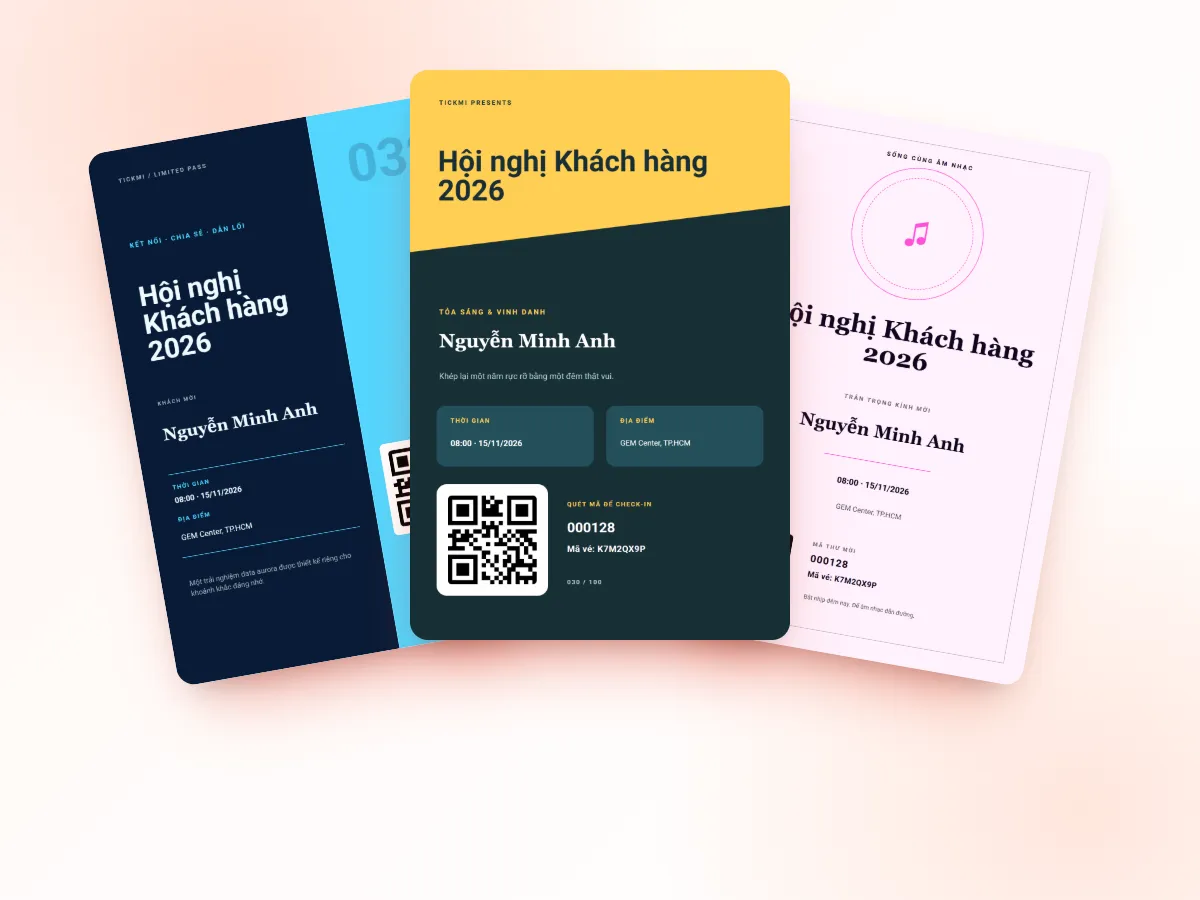
- In Template library → Email templates, compose the invitation in your brand identity: logo, a personally addressed invitation, time, location, hotline.
- Open the ticket type, turn on Send email automatically when an attendee is approved, and choose an email template and subject suited to the segment.
Detailed steps are in the guide to email design and sending from your own domain, with invitation wording suggestions in event invitation email templates. For older guests who read email less, you can also send tickets via Zalo; see sending invitation tickets via Zalo ZNS.
Receiving customers at the desk without exposing personal information
The reception team only needs to know the ticket is valid, the guest's name and the segment; phone number and email should be partially masked. Tickmi separates these two things through permissions and the scan result screen configuration.
- Permissions: add the reception team to the organization with the Check-in staff role. They only scan tickets with the app and cannot log into the Studio web to view or export the list.
- Scan result screen: in the Check-in tab, under Information shown when scanning tickets, tick only full name, ticket type and relationship manager; turn on Hide sensitive data for phone number and email. See the guide to configuring information shown when scanning.
- Priority guests: when a scan shows a priority ticket type, staff notify the relationship manager to come and greet them. A Welcome screen showing a greeting with the guest's name also makes an impression right in the lobby. More methods are in receiving VIP guests.
How do you know which guests came, for follow-up after the event?
Export the attendee list after the event: the file has a Check-in column showing whether each guest came, along with the ticket type and the fields you created, such as relationship manager.
- The Owner or Administrator clicks Export data on the Attendees page.
- Filter in Excel by the Check-in column and the Relationship manager column.
- Pass each relationship manager exactly their own guests, through an internal channel with permissions, and do not send the whole file to the entire team.
- Guests who came: call to thank them and send a short survey. Guests who were absent: check in with them and invite them to the next event.
Templates for thank-you emails and post-event surveys are in thank-you emails and post-event surveys.
Checklist for bank customer appreciation invitations
- The list has been deduplicated across branches and contains no financial information.
- Each segment has its own ticket type, ticket template and email template.
- Ticket emails use the bank's address and have been test-sent to both Gmail and Outlook.
- The reception team uses the Check-in staff role; phone number and email are set to be hidden when scanning.
- The welcome screen and draw screen (if any) do not show phone numbers or emails.
- Someone is assigned to export the list after the event, with a way to pass it to the relationship managers.
Common mistakes
- Sending invitations from the shared system email address without warning: guests suspect it is a fake message impersonating the bank.
- Using one email template for every segment. Priority customers receive exactly the same message as mass customers.
- Printing a paper list with full phone numbers and leaving it at the desk. Use lookup in the app instead of a paper list.
- Sending the whole attendance file to every relationship manager. Each person only needs their own guests.
A real example: Sacombank Da Nang used Tickmi QR invitations for a customer appreciation program combined with health screening, repeated across 2024 and 2025 with nearly 1,000 invitation tickets. An overview of the features is on the QR invitation tickets page.
About Tickmi
Tickmi is a ticketing and attendee experience platform (Ticketing & Participant Experience Platform). On a single, unified set of attendee data, Tickmi connects the whole journey: issuing invitation, registration and paid tickets, sending branded QR tickets, checking in with the app, kiosk or scanner, even when the network is down, then the welcome screen, lucky draw, voting, quizzes and surveys. Tickmi is trusted by organizations such as Viettel, VNPT, MobiFone, FPT and CMC. Learn about Tickmi or try it free.
Frequently asked questions
Can reception staff see all of the customer's information?
Not necessarily. On Tickmi, you choose which fields show when scanning and turn on Hide sensitive data so phone numbers and emails show only partially. The Check-in staff role also cannot log into the Studio web.
Can I send invitations from the bank's email?
Yes. Go to the Ticket email menu, add the bank's SMTP configuration, send a test and activate. Recipients see the bank's exact address and display name.
How do I know which customers attended?
Export the attendee list after the event. The file has a Check-in column showing Checked in or Not checked in for each guest, along with the ticket type and the fields you created, such as relationship manager.
Should I put customer IDs or account numbers into the invitation list?
No. Inviting, receiving and post-event follow-up only need the name, contact, segment and relationship manager. The less you collect, the lower the risk.
Can each customer segment receive a different invitation?
Yes. Make each segment a ticket type, then assign a separate ticket template, email template and email subject to each ticket type.
Issue QR tickets, send emails, check in and engage attendees on one platform.