
Knowledge
Send invitation tickets via Zalo (ZNS): connect an OA, choose a template, track results
Email easily ends up in spam or goes unopened, while almost everyone in Vietnam uses Zalo. Tickmi lets you send e-tickets through Zalo in parallel with email, so attendees receive their ticket code right on their phone. This article explains what ZNS is and how to set it up step by step in Tickmi Studio.
What is ZNS and how is it different from a regular Zalo message?
ZNS (Zalo Notification Service) is a service that lets a business send notification messages to Zalo users' phone numbers through a Zalo Official Account (OA), even when the recipient does not follow the OA. A ZNS message uses a fixed template approved by Zalo, and only the personal parts such as name, ticket type and ticket code are filled in for each person. That makes it suitable for transactional notices such as tickets or confirmations, not for free-form advertising.
With Tickmi, a ZNS message contains a greeting, the ticket product name, ticket type, time, ticket code and a View ticket button leading to the personal ticket page. This message goes alongside email and does not replace it. You should keep email as the main channel, especially when you need to attach a ticket file; see also invitation emails with a QR code.
Two ways to send: Tickmi's shared channel or your own OA
| Criterion | Tickmi shared channel | The organization's own OA |
|---|---|---|
| Setup | None, if Tickmi has opened the channel for the organization | Connect your OA to Tickmi |
| Name shown when the recipient opens the message | Tickmi's OA | An OA carrying your brand |
| Message cost | Deducted from the Zalo message allowance Tickmi gives the organization | Deducted from your OA's ZBS account |
| Suits | Quick trials, small events | Organizations that want branded messages and large volumes |
To use the shared channel, contact Tickmi to have it opened and a message allowance granted. The rest of this article follows the own-OA route, because that is the part you set up yourself.
Step 1: connect a Zalo OA
- In Tickmi Studio, open the Zalo ticket sending page.
- Click Connect Zalo OA and sign in to Zalo with the OA admin account, granting permission to Tickmi. Advanced users can choose to enter the App ID and Secret key manually.
- Click Sync from Zalo to get the list of the OA's existing ZNS templates.
If the OA does not have a ticket-sending template yet, use Create standard ticket template: Tickmi creates an e-ticket ZNS template on your OA and submits it to Zalo for approval. Zalo usually approves within about 1 to 2 working days, so do this step early and do not wait until right before sending tickets. Once the template is approved, it appears automatically in the list to choose from.
Step 2: turn on Zalo sending for a ticket type
- Open the ticket type form and choose the Zalo sending tab.
- Turn on Automatically send Zalo when the ticket is ready.
- Choose a Zalo template (ZNS) from the own-OA group or the shared-channel group, then check the content filled into the template.
Studio warns you right in the form when there is a problem, for example the template has not been approved by Zalo, own ZNS is turned off, the OA token is faulty, or the shared channel's message allowance has run out. Read these warnings carefully before sending in bulk. Note: if you turn on Zalo for a ticket type that already has tickets, the old tickets not yet sent through Zalo will also be put in the sending queue.
Conditions for a Zalo message to be sent
- The attendee has a Vietnamese mobile phone number and that number uses Zalo.
- The ticket has not been cancelled.
- Messages are only sent between 06:00 and 22:00.
- The ZNS template has been approved by Zalo and is turned on.
So collect phone numbers right on the registration page or in the guest import Excel file, and check the number format before issuing tickets.
Track results and resend on errors
| Where | What you see |
|---|---|
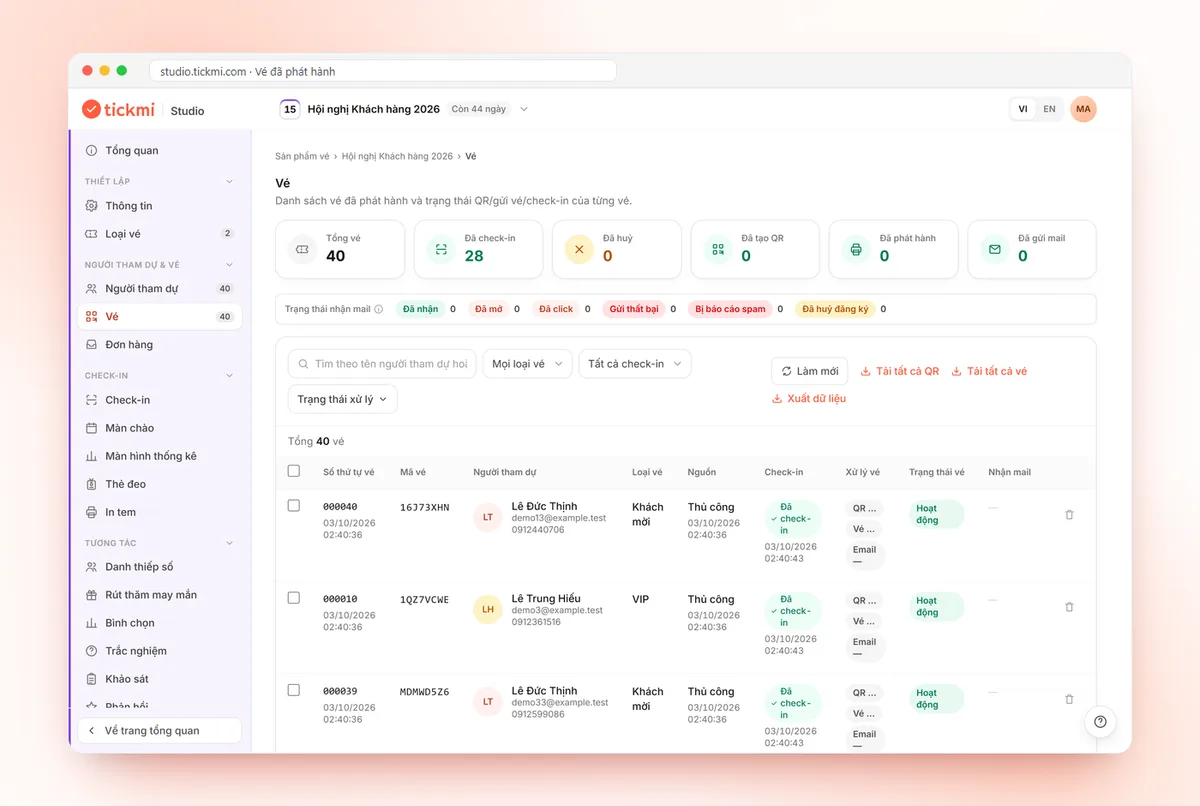
| Ticket list | Status Awaiting Zalo send, Zalo sent or error, with a filter by Zalo sending status |
| Resend Zalo button | Puts the ticket in the resend queue after you fix the cause |
| Zalo sending history tab | For each send: phone number, sending channel, template and filled content, plus statistics of successful and failed sends |
Currently Tickmi records the result of sending, but does not yet show whether the recipient has received the message. So do not treat Zalo as the only channel; for people without Zalo, email remains the backup route, and attendees can always view their ticket on the personal ticket page.
Hypothetical example: a 300-person conference, sending both email and Zalo
Suppose you run a conference for 300 delegates, and the registration data has both emails and phone numbers. Two weeks before the event, you connect the OA, use Create standard ticket template and wait for Zalo to approve. Once the template is approved, you turn on Zalo sending for the ticket type, send a test to a few of the organizing team's numbers to see how the message displays, and only then issue tickets in bulk during daytime hours. Delegates receive an email with the ticket file and also a Zalo message with a View ticket button; on the morning of the event, they only need to open the Zalo message to get their QR code. This example only illustrates the process; it is not real data.
After sending, you open the Zalo sending history tab to look at failed sends, fix wrong phone numbers and click Resend Zalo. People who still do not receive anything have email and the personal ticket page as backups, so nobody has to stand at the help desk for lack of a ticket. If you also need to collect attendance confirmation, see attendance confirmation via a link in the email.
Common mistakes
- Creating the template right before sending. The template needs Zalo's approval first, so prepare days ahead.
- Phone numbers in the wrong format or missing. The message will not go out; normalize numbers before importing.
- OA token expired. Reconnect the OA on the Zalo ticket sending page.
- Sending outside the allowed hours. Messages are only sent between 06:00 and 22:00.
- Turning on automatic sending for a ticket type that already has many tickets. Think first, because the old tickets not yet sent through Zalo will also be sent.
The set of tools for issuing, sending and tracking tickets is in the invitation tickets and QR invitations solution. You can try it with 100 free ticket issuance quota.
About Tickmi
Tickmi is a ticketing and attendee experience platform (Ticketing & Participant Experience Platform). On one unified set of attendee data, Tickmi connects the whole journey: issuing invitation tickets, registration tickets and paid tickets, sending branded QR tickets, checking in by app, kiosk or scanner — even when the network is down — and then the welcome screen, lucky draw, polls, quizzes and surveys. Tickmi is trusted by organizations such as Viettel, VNPT, MobiFone, FPT and CMC. Learn about Tickmi or try it free.
Frequently asked questions
What is Zalo ZNS?
ZNS (Zalo Notification Service) is a service for sending notification messages, based on templates approved by Zalo, to Zalo users' phone numbers through a Zalo Official Account. It suits notices such as tickets, confirmations and schedule reminders.
Can sending tickets via Zalo replace email?
It should not. Tickmi sends Zalo in parallel with email; email remains the main channel, especially when you need to attach a ticket file or the recipient does not use Zalo.
Do I have to have my own Zalo OA?
No. Tickmi has a shared channel that uses Tickmi's OA, deducted from the message allowance granted to the organization. If you want branded messages, connect your own OA.
How long does a ZNS message template take to be approved?
For the standard ticket template created through Tickmi, Zalo usually approves within about 1 to 2 working days. Create it well before the ticket sending day.
Why do some people not receive the Zalo message?
Usually because the phone number is not a Vietnamese mobile number that uses Zalo, the ticket was cancelled, the template has not been approved, or the message falls outside 06:00 to 22:00. See the reason in the Zalo sending history tab, then click Resend Zalo.
Issue QR tickets, send emails, check in and engage attendees on one platform.