
Knowledge
A roadmap for tickets and check-in at a year-end party: from the staff list to the prize draw
A smooth year-end party needs three things: every employee has an individual QR ticket before the day, the lobby scans tickets fast enough when everyone arrives in a rush within 30 minutes, and the prize draw is only for people who are present. With Tickmi, all three sit on the same attendee list: import from Excel, send tickets by email, check in with the app, then draw from the checked-in list. This guide gives a timeline roadmap, with a checklist and common mistakes.
When should you prepare tickets and check-in for a year-end party?
Start about two weeks before the party: finalise the list and design in the first week, then send tickets and do a dry run in the second. The suggested roadmap below is an example; stretch or shrink it to suit your company's size:
| Milestone | What must be done |
|---|---|
| 14 days before | Finalise the staff list and partner guests; create ticket types (employee, leadership, guest) |
| 10 days before | Design the ticket and email around the party theme; configure sending tickets from the company email |
| 7 days before | Import the list from Excel, send QR tickets, handle failed emails |
| 1 day before | Send a reminder; install the app for the reception team; create prizes and do a test draw |
| Party day | Download offline data, open the welcome screen, check in, draw from the checked-in list |
| After the party | Export the winners list to hand out prizes, export the attendance list |
Stage content, the MC and the order of acts are covered in year-end party script; this article focuses on tickets, reception and the prize draw.
How do you issue year-end party tickets to employees and their companions?
The neatest way is to import the staff file into Tickmi so each person receives an individual QR ticket by company email. Companions are counted through each person's ticket quantity, with no need for a separate row.
- Split ticket types by the groups you need to tell apart at reception: employees, leadership, partner guests.
- Create custom fields if needed, for example Department or Table number, using Fields → Create new field.
- Click Import attendees, choose Download template file, and fill in the list. The Quantity column is that person's number of tickets, for example 2 if the employee brings a family member.
- Upload the file and review the result. Error rows are in Download error file; fix them and import that part again.
- Send tickets through the ticket type's automatic email. In the Tickets tab, for any ticket marked Send failed, fix the email and click Resend email.
Invitations from the company's own address are more likely to reach the main inbox; the setup is in the guide to designing emails and sending from your own domain. Note: Excel import only adds new people and does not update existing ones, so review the list carefully before importing. Each issued ticket uses one ticket issuance quota; new accounts get 100 free ticket issuance quota to try.
How many scan lanes does the party lobby need?
The number of scan lanes depends on how many people arrive in the peak window, not on the total number of guests. Year-end parties usually bunch guests into about 30 minutes before the opening.
Example: 400 people, most arriving within 30 minutes, each scan with a greeting taking about 10 seconds. One lane handles about 180 people in 30 minutes, so you need at least three lanes, plus a support desk for people who forgot their ticket. The detailed calculation is in calculating staff and check-in lanes.
- Phone scan lane: staff sign in to the Tickmi Studio app and scan in the Scan tab. See the Tickmi Studio app check-in guide.
- Self check-in kiosk: a tablet placed on a table, where attendees hold their QR code up to the camera themselves.
- Support desk: search by name or phone number in the Attendees tab, or enter the 8-character Ticket code.
- Weak signal in a hotel lobby: go to More → Operations → Offline check-in and tap Download offline data while online. Scans made while offline sync automatically when the network is back.
If you created a Table number field, tick it to show in the information displayed on scan so staff can point to the seat right after scanning. To create a photo moment in the lobby, turn on the Welcome screen so each person's name appears on the LED screen the moment they check in.
How do you make sure only people who are present can be drawn?
Choose Checked in as the draw pool. Then anyone absent will not have their name in the draw, and prizes will not go to people who left early or never came.
- Go to Interaction → Lucky draw, click Add prize for each prize, and enter the quantity and the number of winners per draw.
- Under Who can be drawn, choose Checked in.
- Under Information shown during the draw, choose full name with department or ticket sequence number, avoiding phone numbers.
- Run a test draw on the real projector, then click Delete all test draws so the prize quantities return to their original values.
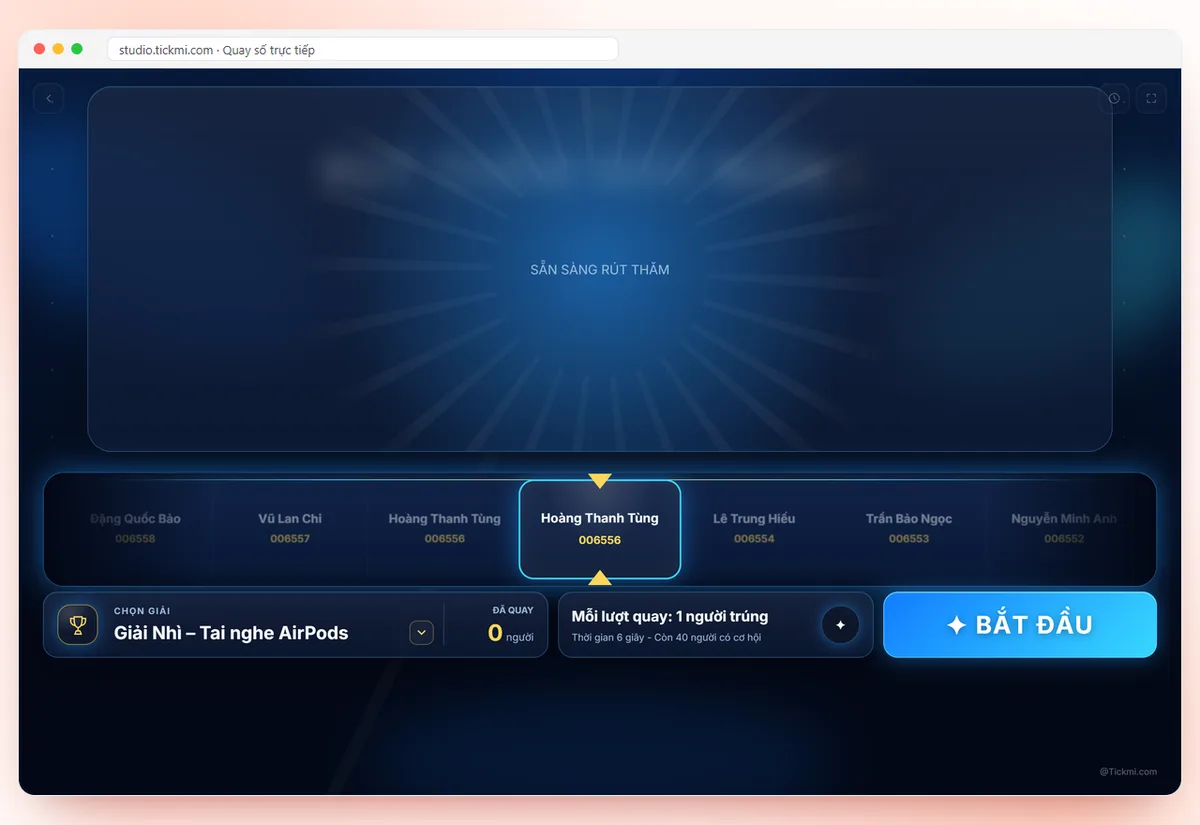
- On stage: Live draw, choose a prize under CHOOSE PRIZE, click START.
The History tab stores each win and lets you export a file so the admin team can hand out prizes. The draw pool applies to the whole draw and is not yet filtered separately by ticket type. Full steps are in the live lucky draw guide, and on keeping a draw fair see transparent lucky draws.
Year-end party ticket and check-in checklist
- The list is de-duplicated by email, with the right ticket types and the right quantity of companion tickets.
- The test email reached the main inbox and the view-ticket button works.
- No tickets remain in Send failed status before the party.
- The reception team has been added to the organisation with the Check-in staff role and has installed the app.
- Each scanning device downloaded offline data on the morning of the party.
- The welcome screen was tested with one check-in and shows the right name.
- Prizes are entered, test-drawn with the test draws deleted, and the draw pool is Checked in.
Common year-end party mistakes
- Drawing from the whole list. People who did not come still win, and the MC has to redraw many times.
- Forgetting to delete test draws. Prizes are already deducted, and the remaining quantity no longer matches the announced rules.
- Funnelling all guests into one scan lane. A long queue forms just as leadership arrives.
- Sending tickets too close to the date. No time left to deal with wrong emails or spam folders.
- Not preparing for weak signal. Party halls in basements or large lobbies often lose signal when crowded.
Real examples: CBRE Vietnam used Tickmi to issue QR tickets and check in for its 2024 and 2025 year-end parties; Ocean Group drew from the checked-in list for its corporate customers. An overview of reception solutions is on the event check-in software and lucky draw pages.
About Tickmi
Tickmi is a ticketing and attendee experience platform (Ticketing & Participant Experience Platform). On one unified attendee dataset, Tickmi connects the whole journey: issuing invitation, registration and paid tickets, sending branded QR tickets, check-in by app, kiosk or scanner — even offline — then the welcome screen, lucky draw, voting, quizzes and surveys. Tickmi is trusted by organisations such as Viettel, VNPT, MobiFone, FPT and CMC. Learn about Tickmi or try it free.
Frequently asked questions
How do employees check in if they cannot open the ticket email?
Staff search by name or phone number in the Attendees tab of the Tickmi Studio app, or enter the 8-character Ticket code under Enter ticket code. You can also resend the ticket email from the Tickets tab.
How do I issue tickets when an employee brings a family member?
In the attendee import Excel file, fill the Quantity column with that person's number of tickets, for example 2. Each ticket has its own QR code and uses one ticket issuance quota.
Can I still check in if the party hall loses signal?
Yes, if you tapped Download offline data in the app before the signal dropped. Scans are recorded offline and sync automatically when the network is back.
How do I stop absent people from winning prizes?
Under Who can be drawn in the Lucky draw, choose Checked in. Only people who have checked in have their names in the draw.
Can I run separate draws for groups such as employees and guests?
On Tickmi the draw pool is chosen as All, Ticketed or Checked in for the whole draw, and is not yet filtered by ticket type. So build prize rules that apply to everyone present.
Issue QR tickets, send emails, check in and engage attendees on one platform.