
Knowledge
Allocating tickets by unit when a conference has many branches
A company-wide conference often raises the same questions: which branch has received tickets, which is still short, who has not arrived. The simplest way is to give each unit its own ticket type, plus a "Unit" information field for lookup and reconciliation. This article goes step by step, saying clearly what Tickmi can do and what you need to do manually.
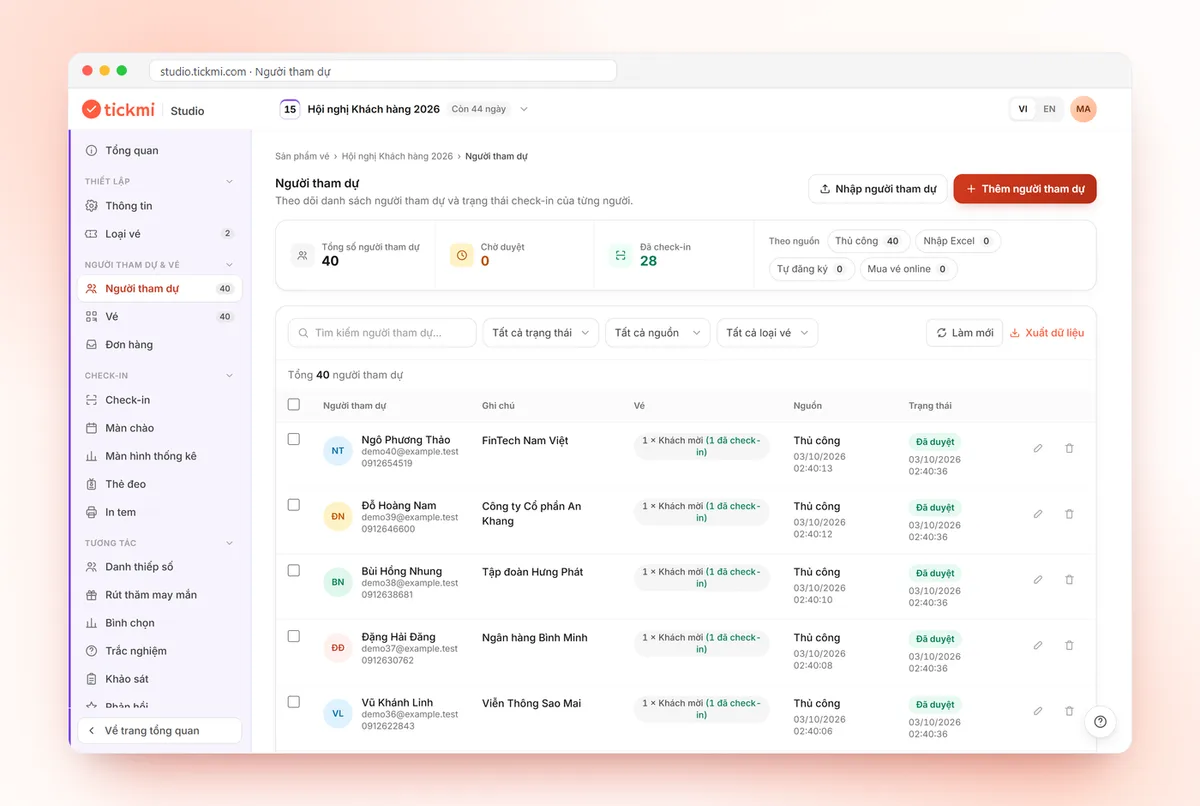
The short version: one ticket type per unit, plus a "Unit" field for lookup
Two tools complement each other. Ticket types give you the numbers per unit (how many people, how many checked in) and cap the seats. Custom information fields let you find any unit again, even when the person registered under a shared ticket type. Using both lets you allocate and track at the same time.
| You need | Use |
|---|---|
| A headcount limit for each branch | A separate ticket type per branch (a ticket type that is full cannot approve more people) |
| Headcount and checked-in count by unit | The Data assistant's statistics by ticket type table |
| Find the list for one department | The "Unit" field + the search box |
| Send a file to a unit head | Filter, then click Export data |
Step 1: create a ticket type for each unit
One ticket type per branch or division, named after the unit, for example "Da Nang Branch", "Sales Division". Set the seat limit exactly as the organizing committee allocates. When a ticket type is full, approving more people is blocked and the system reports the remaining seats, so you do not have to count by hand to stay within the limit. If a unit needs more seats, reopen that unit's ticket type and raise the limit.
This approach suits a moderate number of units, roughly under 15. With more, the ticket type list gets long and hard to scan; in that case keep ticket types only for the large groups and use the "Unit" field for the rest.
Step 2: add the "Unit" information field
- Go to Setup → Information → the Attendee information fields tab, and click Create new field.
- Set the Field name to "Unit", choose the Data type Choice list and enter the units separated by commas.
- Click Save, then click Turn on so the field moves to the In use for this ticket product group.
A turned-on field automatically appears in the add-attendee form, the Excel template file and the registration form, so whether you import in bulk or let employees register themselves, you collect the unit. A choice list makes everyone choose the same spelling, avoiding "HCM", "Ho Chi Minh", "HCMC" for one place. Detailed steps are in the attendee management guide.
Step 3: import the list, approve and send tickets
Download the Excel template file (which already has a column for the "Unit" field), ask each unit to fill in its part and then merge them, or let each employee register themselves through a shared link. Note that an Excel import only adds new people and does not update existing ones, so finalize the unit column before importing. A new list is in Pending approval status; only after approval does the system issue tickets and use the matching ticket issuance quota. For large lists, see also group registration.
Step 4: track by unit before and on the day
- By ticket type: ask the Data assistant for "statistics by ticket type" to get a table with the headcount and the Checked in number for each unit.
- Find one unit: type the unit name into the Search by name, phone, email or other information... box. This box also scans custom field values.
- Who has not arrived: filter by ticket type or search by unit, then compare the check-in status column. For events with several gates, also use QR code check-in.
- Send to unit heads: after filtering, click Export data to download an Excel file matching the currently selected filter. Only the Owner and Administrators can export, so appoint one point of contact.
Limitation to know: Studio does not yet have a dedicated filter by custom field; searching by unit is a text match. So give units names that are long enough and do not overlap. Searching "KD" may also return people where those letters appear in some other information. Also do not expect a statistics table for this field; the most reliable per-unit numbers come from ticket types.
Suggested allocation for a 300-person conference with 6 units
A hypothetical example to help you picture it, not real data from any customer.
| Unit | Ticket type | Seats |
|---|---|---|
| Hanoi Headquarters | Hanoi Headquarters | 90 |
| Da Nang Branch | Da Nang Branch | 50 |
| Ho Chi Minh City Branch | Ho Chi Minh City Branch | 80 |
| Northern Sales Division | Sales Division | 40 |
| Operations Division | Operations Division | 25 |
| Guests, partners | Guests | 15 |
Keep 5 to 10% of seats in reserve in a shared ticket type or the "Guests" type to handle last-minute additions without reopening each ticket type.
Common mistakes when allocating tickets by unit
- Splitting seats too tightly: a unit larger than expected gets blocked from approving on the event day. Always leave a reserve.
- Letting employees type the unit name freely: one place ends up with five spellings and searches miss people. Use a Choice list.
- Adding the field after the whole list is imported: an Excel import does not update existing people, so you must fix them by hand. Create the field before importing.
- Sending the export file to many people: this is personal data; only send each unit its own filtered part.
You can try the whole process with 100 free ticket issuance quota; see other packages on the pricing page. To understand how QR invitation tickets are issued at the base level, see the QR invitation tickets page.
About Tickmi
Tickmi is a ticketing and attendee experience platform (Ticketing & Participant Experience Platform). On one unified set of attendee data, Tickmi connects the whole journey: issuing invitation tickets, registration tickets and paid tickets, sending branded QR tickets, checking in by app, kiosk or scanner — even when the network is down — and then the welcome screen, lucky draw, polls, quizzes and surveys. Tickmi is trusted by organizations such as Viettel, VNPT, MobiFone, FPT and CMC. Learn about Tickmi or try it free.
Frequently asked questions
Does Tickmi allocate tickets by branch or department?
Yes, by creating one ticket type per unit and setting a seat limit. A ticket type that is full cannot approve more people, and the system reports the remaining seats. Add a "Unit" information field for lookup.
Can I filter the attendee list by a custom information field?
There is no dedicated filter for custom fields yet. The search box in the list does scan these fields' values, so type the unit name to find people. For accurate per-unit numbers, use a separate ticket type for each unit.
How do I know how many people from each unit have checked in?
If each unit is its own ticket type, ask the Data assistant for "statistics by ticket type" to get a table of headcount and checked-in count for each type.
Who can export the attendee list to Excel?
Only the organization Owner and Administrators, because this is personal data. The file is exported according to the currently selected filter.
What if I import from Excel first and add the Unit field afterward?
An Excel import only adds new people and does not update existing ones. Create and turn on the Unit field first, download the new template file with that column, then import.
Issue QR tickets, send emails, check in and engage attendees on one platform.