
Knowledge
How to run on-site online voting with a QR code without interrupting your program
Counting raised hands is slow and inaccurate, and paper ballots take time to print, hand out and collect. QR code voting lets a whole hall answer in a few dozen seconds, but it only runs smoothly when you prepare the questions, the level of control and the script for your MC. Here is the process, beat by beat.
Pick the right tool: voting, quiz, survey or feedback?
These four activities sound alike but solve different problems. Picking the wrong one is a common reason attendees get "bored" the second time around.
| You want to | Use | Characteristics |
|---|---|---|
| Ask the audience for their opinion right now and show results to the whole room | Voting | Short questions, opened and closed one at a time to match the program's pace |
| Run a right-or-wrong quiz with a ranking | Quiz | Has correct answers, scoring and submission time |
| Collect in-depth opinions on many aspects | Survey | Many questions, with a free-text comment box |
| Measure satisfaction after the program | Feedback | Average rating score and comments |
This article focuses on on-site voting. To see how to combine the four tools, read how to increase attendee engagement.
Designing voting questions
- One question, one idea. "Which speaker and which content did you like most?" is two questions in one. Split it.
- Short enough to read in a few seconds on a phone screen, especially when the reader is standing or holding something.
- Two to five options, mutually exclusive and covering the possibilities. Add an option such as "Other" when you are not sure you have listed everything.
- The order of options also affects the result. The first option tends to be chosen more. For competitive voting, list options alphabetically or in stage order.
- Prepare around the script. Tie each question to a segment of the program (opening, mid-session, before the break) so the MC knows when to open which question.
Choose a level of control: who may vote?
This is the most important decision for the reliability of the results. There are three levels, in increasing strictness:
| Level | How it works | Best for | Weakness |
|---|---|---|---|
| Open link | Anyone with the link or who scans the QR code can vote | Warm-up questions, polls that do not need to be exact | The system only recognizes each phone's browser, so someone who switches browsers or clears data may vote again |
| Verify the Ticketed group | Attendees enter an email or phone number that matches the attendee list | Blocks people outside the list; one vote per person for each question | The system only matches, and does not send a verification code, so someone borrowing another person's email may still try |
| Verify the Checked-in group | As above, but only people who have checked in at the entrance | Voting with prizes, choosing the best performance | Requires complete check-in before you open the question |
For high-stakes voting such as awards, combine it with a measure outside the system, for example a jury or the organizing team reviewing the final results. The setup is under Participant page → Who can access.
Preparing in Tickmi Studio
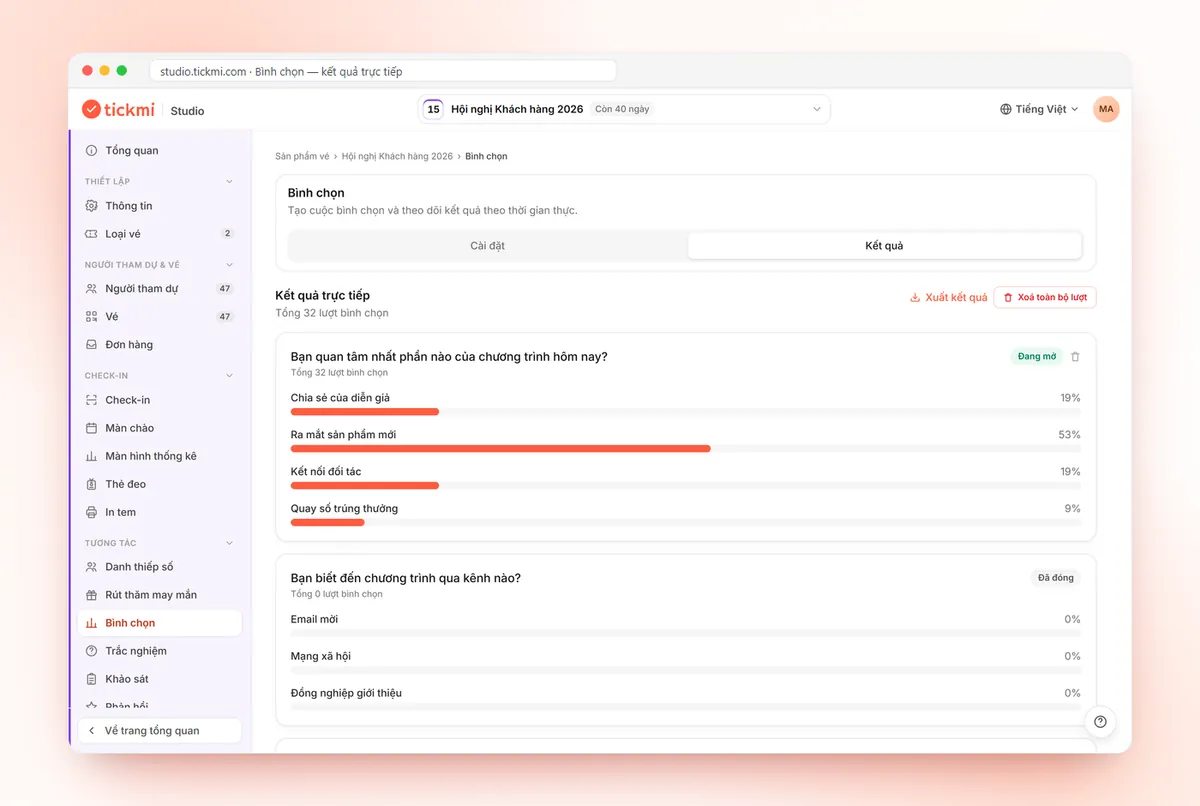
- Go to Engagement → Voting → Add question, then enter the question and at least two options.
- If you want a countdown, set the Voting time in seconds; leave it empty for no limit.
- Each question has its own Open or Closed status. Open a question only when the MC reaches that segment.
- In the Public link card, switch on Enable public access and choose Vietnamese or English for attendees.
- Choose the level of control from the table above, then copy the link or download the QR code.
- Test on two different phones, then use Delete all votes to clear the test votes before going live. This deletes permanently, so only do it before the program starts.
For details on each button, see the guide to voting, quizzes, surveys and feedback. For a feature overview, see the online voting page.
On-site script: beat by beat for the MC
- Give notice (30 seconds ahead): "Please take out your phones, we are about to vote."
- Show the QR code large enough to read from the back row, with the link written underneath for devices that cannot scan. Use one QR code for the whole program so the audience scans once.
- Open the question and read the question and options aloud. Many people look at the stage screen more than at their phones.
- Wait with purpose, do not leave silence. If you set a voting time, say it clearly: "30 seconds left".
- Close the question manually or let the time run out, then announce the results. The Results screen in Studio updates live with the percentage for each option.
- Comment briefly on the result (one sentence), then move on. Voting is the seasoning, not the main dish.
For competitive voting, show results only after the question is closed. If the audience sees live percentages, many people change their vote to follow the crowd. For combining voting with a lucky draw, see transparent lucky draws.
Common problems
- Many people scan at once and the network is slow. Ask the venue about Wi-Fi capacity in advance, and remind the audience they can use 4G. Prepare a raise-your-hands fallback for important questions.
- The audience scans but sees no question. You may not have opened the question yet (Open status). Open the question before showing the QR code.
- Latecomers do not have the link. Print the QR code on a standee near the entrance or put the link in the ticket email. See how to increase the rate of registrants who attend for more touchpoints before the program.
- The link has been shared outside. Click Change code (revoke old link); the old link and QR code stop working immediately, and you show the new code.
- The QR code is shown too briefly. Keep the code on screen long enough for people sitting far away to scan it.
After the program: results and participation rate
- Click Export results to save the results of each question. Send them to the organizing team or include them in a report.
- Calculate the participation rate: the number of voters divided by the number of people who checked in. A low rate on the first question is usually because the audience is not used to it, so open with an easy question.
- If you need a summary, see the post-event report and thank-you emails and post-event surveys.
Can you do it without a dedicated tool?
Yes. Raised hands or paper ballots work for a small hall. A free online form also collects votes, but it usually opens one form for all questions, cannot close each question to match the program's pace, and anyone with the link can vote. Voting tied to the attendee list is worth it when you need to limit voting to the right people, open and close by segment, and show results right in the program.
About Tickmi
Tickmi is a ticketing and participant experience platform (Ticketing & Participant Experience Platform). On a single, unified attendee dataset, Tickmi connects the whole journey: issuing invitation tickets, registration tickets and sold tickets, sending QR tickets with your own branding, checking in by app, kiosk or scanner (even when the network is down), then moving on to the welcome screen, lucky draw, voting, quizzes and surveys. Tickmi is trusted by organizations such as Viettel, VNPT, MobiFone, FPT and CMC. Learn about Tickmi or try it free.
Frequently asked questions
Do attendees need to install an app to vote with a QR code?
No. They scan the QR code or open the link in their phone browser and vote right there.
How do I make sure each person votes only once?
Choose email or phone verification for the Ticketed or Checked-in group; the system matches against the attendee list and each person can vote once per question. If you only open the link, the system recognizes by browser, so it is hard to block completely.
Can I let only checked-in people vote?
Yes. In the Participant page section, choose Email or Phone verification and the Checked-in group. The system only matches against the list and does not send a verification code.
Can I export the results after voting?
Yes. The Results tab shows live results and has an Export results button to download a file.
How many voting questions should a program have?
Only a few, each tied to a segment of the program so the main content is not interrupted. The first question should be easy so attendees get used to the process.
Issue QR tickets, send emails, check in and engage attendees on one platform.